
- Getting Started
- Creating Your First Funnel
- CartFlows Funnel Step Types
- Starting a Funnel from a Product Page
- How to Edit and Customise Funnel Steps
- Using CartFlows with or without Store Checkout
- How to Add /Assign Products to a Checkout Step
- How to Create One-Click Upsell and Downsell Offers
- How to Use Canvas Mode to Visualize Your Sales Funnel
- Hiding Fields on the Checkout Page
- Installing WooCommerce
- Using WooCommerce
- Adding Products in WooCommerce
- Using Your Theme's Header & Footer in a Step
- Embedding a Checkout Form on the Checkout Page
- Hiding WooCommerce Pages and Products
- Using Pricing Tables
- Adding an Affiliate Program
- Setting a Funnel as the Homepage
- Dynamic Offers aka Rule Engine
- Instant Layout for Checkout and Thank You Step
- Adding Products from the URL to the Checkout Page
- Deleting Plugin Data During Uninstallation
- Importing Ready-Made Templates for Funnels and Steps
- Importing and Exporting Funnels and Step
- URL Parameters
- Replacing the Main Checkout Order with an Upsell or Downsell
- Rolling back to a Previous Version
- Using the "Order Custom Field" Rule of Dynamic Offers with Custom Field Editor
- Google Address Autocomplete
- Flatsome UX Builder
- ActiveCampaign
- Paypal Reference Transactions
- How PaypPal/Stripe Works
- Enabling Enfold Avia Layout Builder
- Setting Up Authorize.net for Upsell & Downsell
- Supported Payment Gateways
- Setting Quantity and Discount for Products on the Checkout Page
- Adding Custom Payment Gateway Support for One-Click Upsell and Downsell
- Funnel in Test Mode
- Troubleshooting Plugin and Theme Conflicts
- Resolving the "Please Select a Simple, Virtual, and Free Product" Error
- Fixing Endless Loading on the Checkout Page
- Fixing the "We can't seem to find an order for you." Error on the Thank You Page
- Troubleshooting License Activation Issues
- Fixing the "Checkout ID Not Found" Error
- Fixing the "Session Expired" Error Message
- Resolving "Order Does Not Exist" Error on Upsell/Downsell Page
- Fixing the "Sorry, This Product Cannot Be Purchased" Error
- Disabling Auto-fill of Address Fields Based on Zip Code
- Enabling Theme's Scripts & Styles Without Changing Page Template
- Disabling Auto-fill of Checkout Fields
- Allowing Cache Plugins to Cache CartFlows Pages
- Changing the "Choose a Variation" Text
- VAT Field Not Displaying for WooCommerce EU/UK VAT Compliance Plugin
- Enabling the Product Tab on Store Checkout
- Displaying the Order Summary Open on Mobile Devices
- Refreshing the Checkout Page After CartFlows AJAX Calls
- Overview
- Installing Modern Cart Starter
- Installing Modern Cart Pro
- Activating License Key
- Customizing General Settings
- Customizing Cart Tray Labels
- Customizing Cart Icon Settings
- Customizing Cart Tray Styling
- Understanding the Product Recommendations Feature
- Controlling Product Recommendation Source for Empty Cart
- Installing Free Version
- Installing Pro Version
- Activating License Key
- Configuring the Settings
- Enabling Webhooks
- Product Reports
- SMS Integration
- WhatsApp Integration
- Email/Domain Blacklist
- Shortcode Reference for Email Fields
- Filters to Customize Product Table
- Recovery Email Going to Spam
- Cookies/GDPR Compliance
- Emails not Sending
- Orders Not Capturing
- Dynamic Email Rules
- Excluding Products from Coupon
- Rolling Back to a Previous Version
- Setting Up Abandoned Cart Email Sequences
- How Cart Abandonment Tracking Works
- Creating and Customizing Email Templates
- Using Unique Recovery Links / One-Click Cart Recovery
- Adding Coupon Incentives to Recovery Emails
- Setting Up Abandoned Cart Recovery for Guest vs Registered Users
- Analytics & Reporting Overview
- Recovering Unpaid / Failed Orders
- Configuring Abandonment Timeout / Cart Cut-Off Time
- Admin Copy of Recovery Emails (CC/BCC)
- A/B Testing Recovery Emails and Coupons
- Segmenting Abandonment Recovery by Cart Value
- Recovery Email Deliverability Best Practices
- Viewing and Managing the Abandoned Carts
- Unsubscribe / Opt-Out Handling for Recovery Emails
- GDPR / Privacy Compliance
- Testing Cart Abandonment Recovery Emails
- On-Site Reminder Banner
- Pausing or Disabling Cart Abandonment for Specific Products or Categories
- Cart Abandonment Recovery Activity Log
- Cart Abandonment Recovery Capture Popup
- How to Get Notified When Abandoned Cart Products Go Out of Stock
Cart Abandonment Recovery Capture Popup
Cart Abandonment Recovery Pro includes a Capture Popup that asks shoppers for their email address before they reach the checkout page. Once a shopper shares their email, their cart is saved, so your recovery emails can reach them even if they leave before checkout.
This guide walks you through how the Capture Popup works, how to set it up, and what your shoppers see.
How the Capture Popup Works
Normally, a cart is saved when the shopper enters their email on the checkout page. The Capture Popup collects it earlier, while the shopper is still browsing.
- A shopper adds a product to their cart, or the popup opens another way you choose, such as after a short delay.
- A small popup asks for their email address. The product is added to the cart whether they share their email or close the popup.
- When they submit their email, their cart is saved straight away and keeps updating as they shop. If they leave without ordering, they receive your recovery emails as usual.
A shopper who shares their email never sees the popup again, and the popup never appears on the checkout page.
How to Set Up the Capture Popup
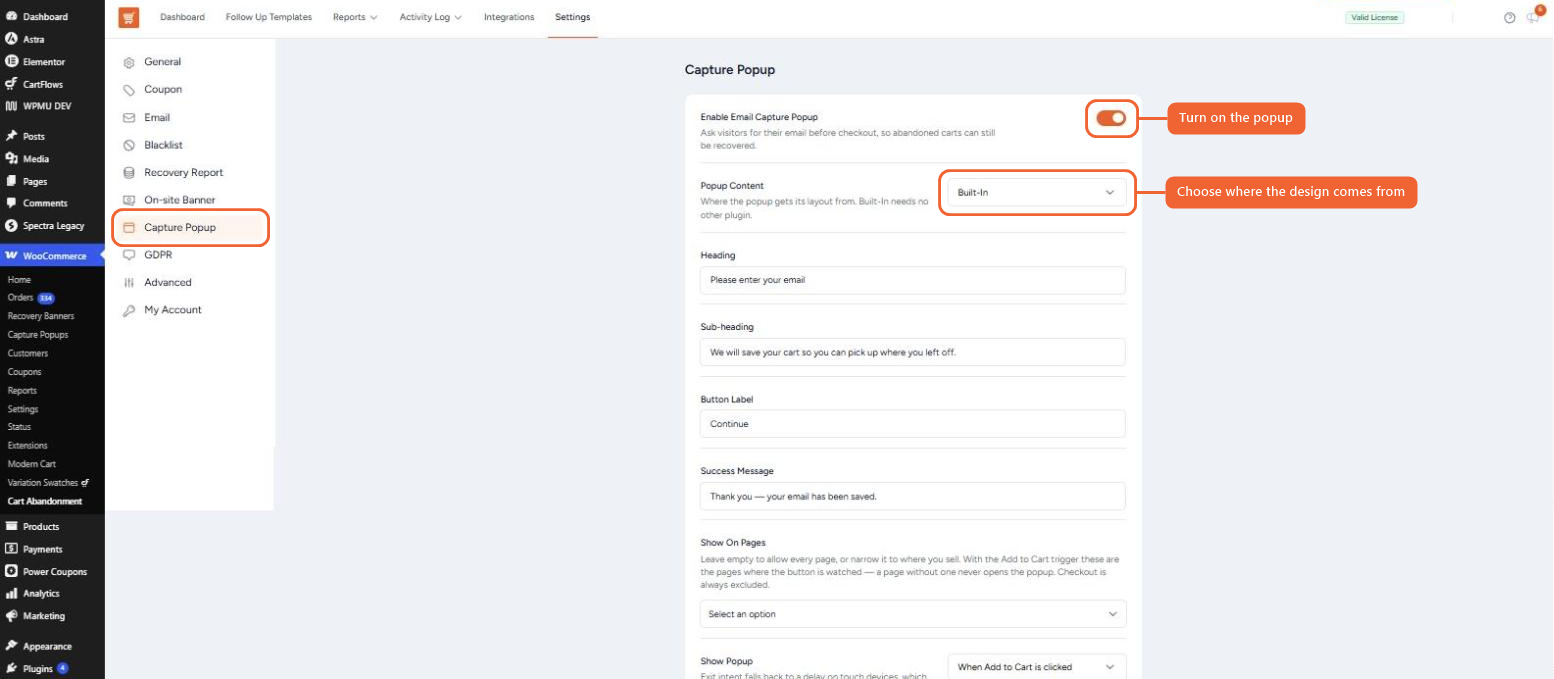
Step 1. From the WordPress admin, go to WooCommerce → Cart Abandonment → Settings.
Step 2. Click the Capture Popup tab.
Step 3. Turn on Enable Email Capture Popup.
Step 4. Choose the Popup Content:
- Built-In — A ready-made popup you can customize with the fields below. No other plugin is needed.
- Block Editor — A popup design you build in the WordPress block editor under WooCommerce → Capture Popups.
- Spectra Popup Builder — A popup built with Spectra. This option appears when Spectra Popup Builder is installed.
Step 5. If you chose Built-In, update the popup text:
- Heading — The main title of the popup.
- Sub-heading — A short line explaining why you’re asking for the email.
- Button Label — The text on the submit button.
- Success Message — The message shoppers see after submitting their email.
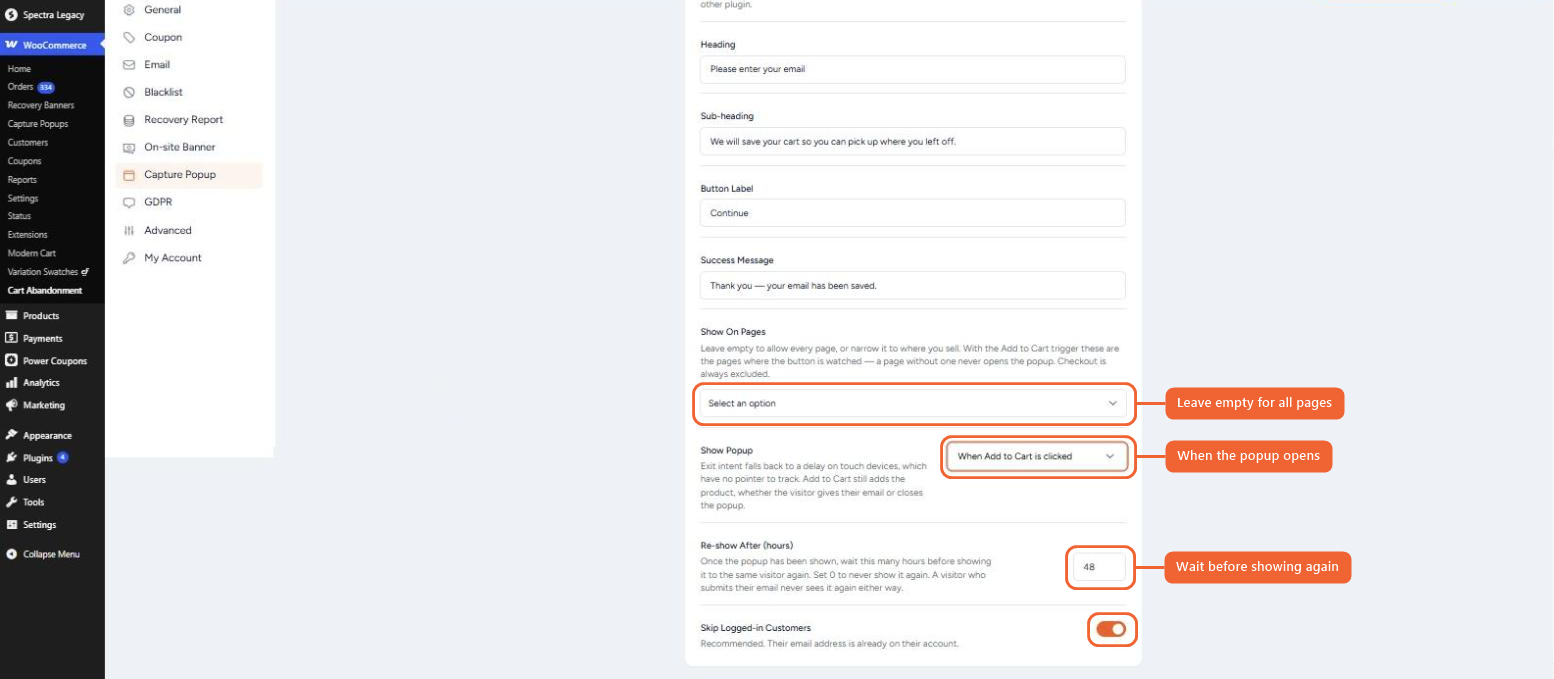
Step 6. Scroll down to choose where and when the popup appears:
- Show On Pages — Pick the pages where the popup can appear, such as Shop, Product or Cart. Leave it empty to allow every page.
- Show Popup — Choose when the popup opens: When Add to Cart is clicked, After a delay, After scrolling down the page, or When the visitor moves to leave.
- Re-show After (hours) — How long to wait before showing the popup again to a shopper who closed it. Set it to 0 to show it only once.
- Skip Logged-in Customers — Keeps the popup hidden from customers who are signed in, since their email is already on their account. We recommend keeping this on.
Your changes save automatically. The Capture Popup is now live on your store.
The Capture Popup in Action
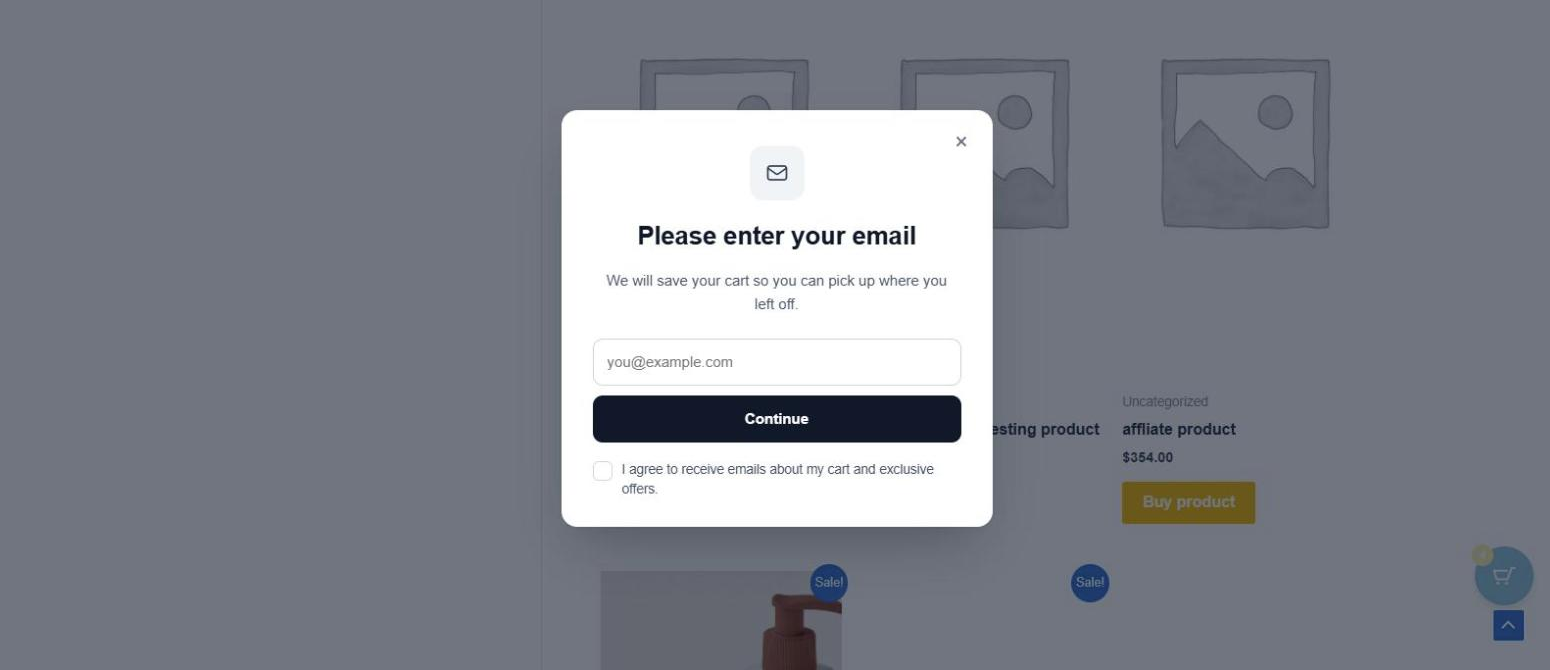
When the popup opens, shoppers see your heading, sub-heading, an email field and the submit button. They can close it at any time with the close icon, by clicking outside it, or by pressing Esc.
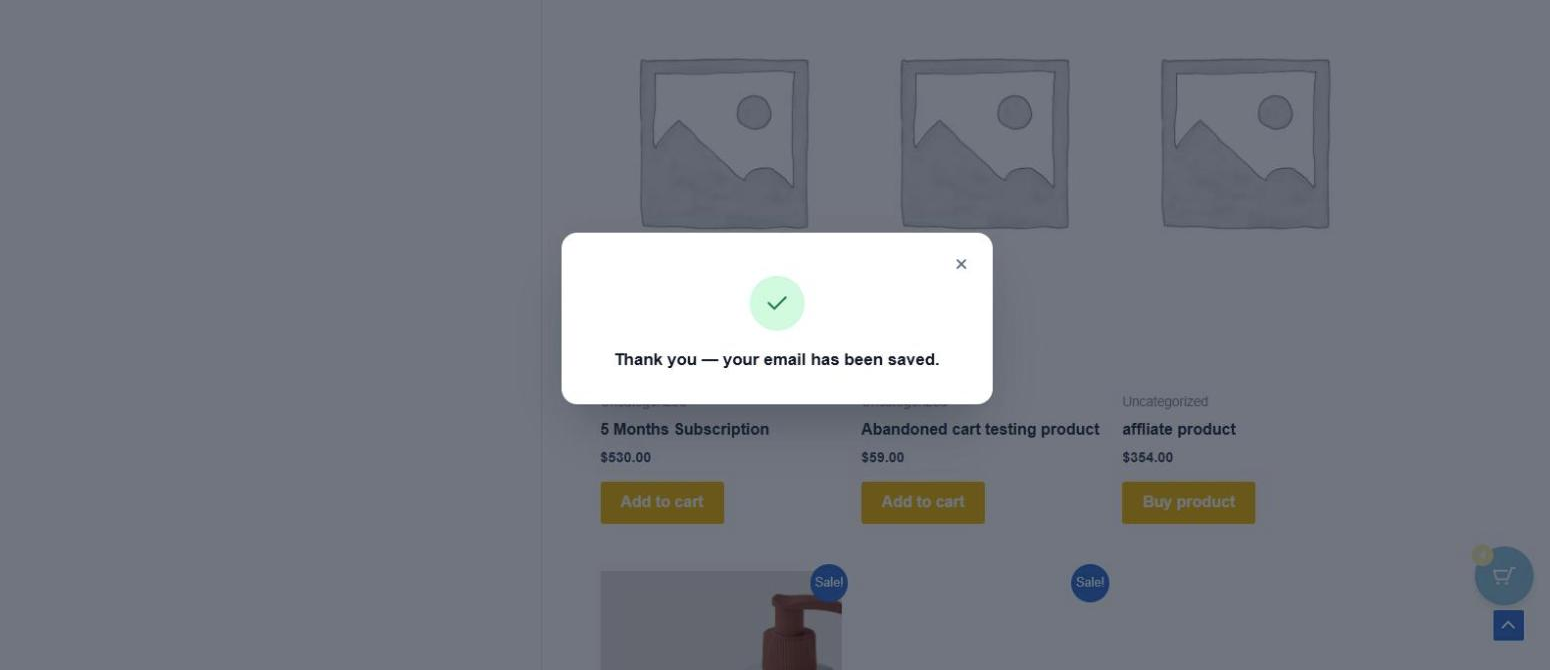
After a shopper submits their email, the popup shows your success message and closes on its own a moment later.
On Mobile Devices
On phones, the popup slides up from the bottom of the screen so it’s easy to fill in with one hand. With When the visitor moves to leave, mobile shoppers see the popup after a short delay, so it still reaches them on phones.
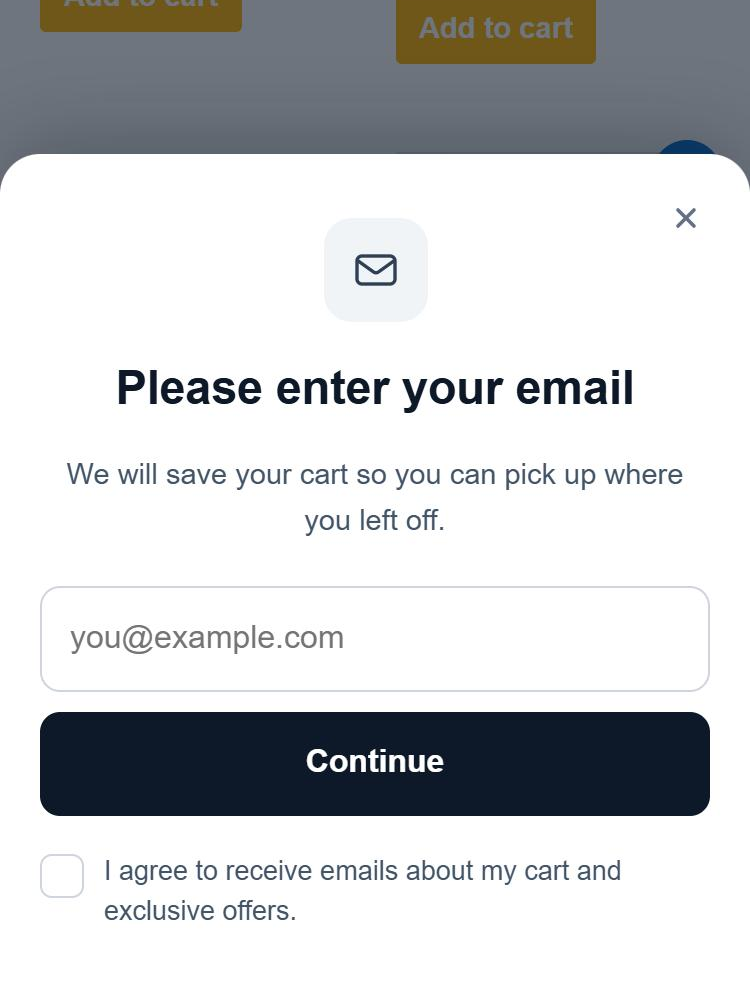
Adding a Consent Checkbox
You can ask shoppers to agree to receive emails before their address is saved. When this is on, the popup shows a checkbox that shoppers need to tick before they can submit.
Step 1. Go to WooCommerce → Cart Abandonment → Settings and click the GDPR tab.
Step 2. Turn on Enable Capture Popup GDPR Integration.
Step 3. Edit the Capture Popup GDPR Message to set the text shown next to the checkbox.
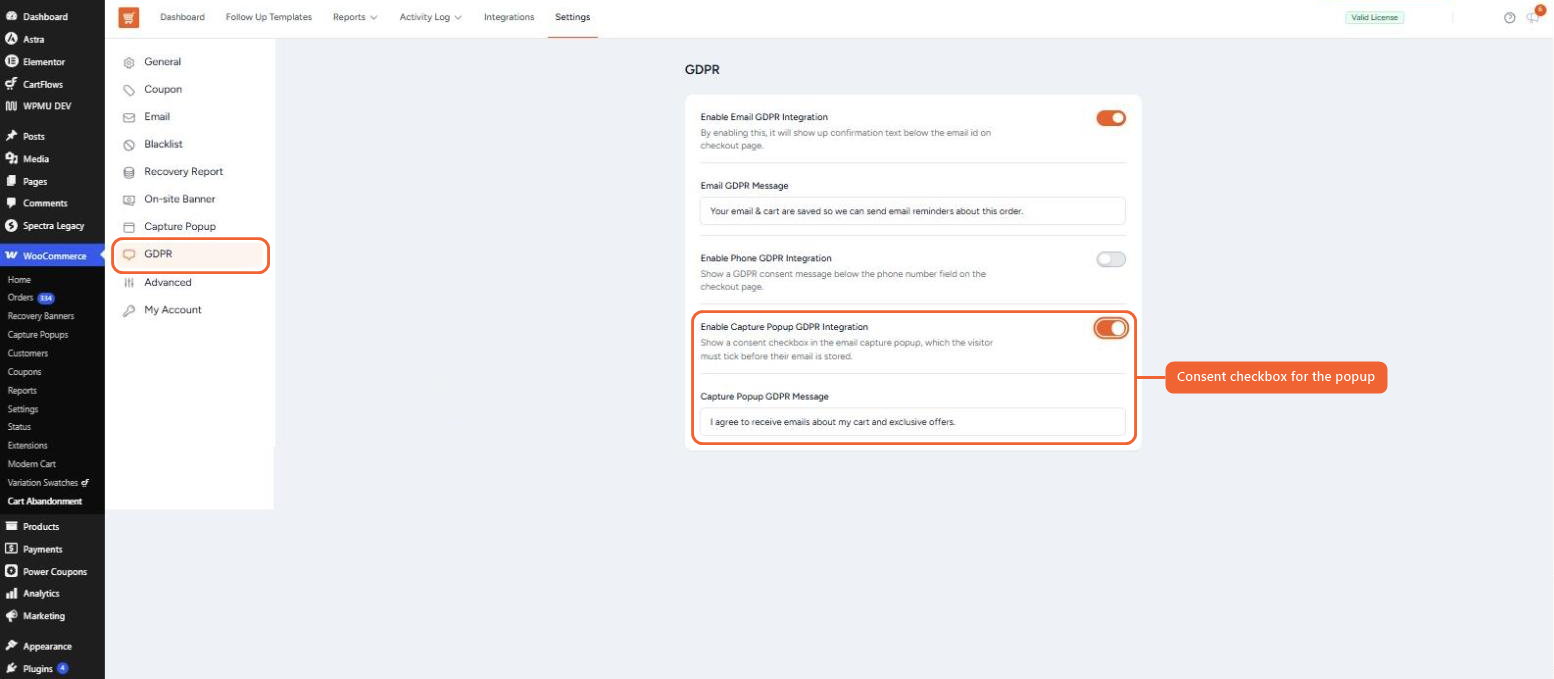
If a shopper tries to submit without ticking the box, the popup asks them to accept before continuing.
Frequently Asked Questions
We don't respond to the article feedback, we use it to improve our support content.