
- Getting Started
- Creating Your First Funnel
- CartFlows Funnel Step Types
- Starting a Funnel from a Product Page
- How to Edit and Customise Funnel Steps
- Using CartFlows with or without Store Checkout
- How to Add /Assign Products to a Checkout Step
- How to Create One-Click Upsell and Downsell Offers
- How to Use Canvas Mode to Visualize Your Sales Funnel
- Switching to CartFlows from FunnelKit or WPFunnels
- Hiding Fields on the Checkout Page
- Installing WooCommerce
- Using WooCommerce
- Adding Products in WooCommerce
- Using Your Theme's Header & Footer in a Step
- Embedding a Checkout Form on the Checkout Page
- Hiding WooCommerce Pages and Products
- Using Pricing Tables
- Adding an Affiliate Program
- Setting a Funnel as the Homepage
- Dynamic Offers aka Rule Engine
- Instant Layout for Checkout and Thank You Step
- Adding Products from the URL to the Checkout Page
- Deleting Plugin Data During Uninstallation
- Importing Ready-Made Templates for Funnels and Steps
- Importing and Exporting Funnels and Step
- URL Parameters
- Replacing the Main Checkout Order with an Upsell or Downsell
- Rolling back to a Previous Version
- Using the "Order Custom Field" Rule of Dynamic Offers with Custom Field Editor
- Adding Order Bumps to WooCommerce Sales Funnel
- Replacing the First Product on Checkout with Order Bump
- Dynamic (Conditional) Order Bumps
- Order Bump AI
- Positions and Styles
- How to Auto-Apply a Coupon When an Order Bump Is Accepted
- How to Add Variable Products to an Order Bump
- How to A/B Test Order Bumps in CartFlows
- Google Address Autocomplete
- Flatsome UX Builder
- ActiveCampaign
- Paypal Reference Transactions
- How PaypPal/Stripe Works
- Enabling Enfold Avia Layout Builder
- Setting Up Authorize.net for Upsell & Downsell
- Supported Payment Gateways
- Setting Quantity and Discount for Products on the Checkout Page
- Adding Custom Payment Gateway Support for One-Click Upsell and Downsell
- Funnel in Test Mode
- Troubleshooting Plugin and Theme Conflicts
- Resolving the "Please Select a Simple, Virtual, and Free Product" Error
- Fixing Endless Loading on the Checkout Page
- Fixing the "We can't seem to find an order for you." Error on the Thank You Page
- Troubleshooting License Activation Issues
- Fixing the "Checkout ID Not Found" Error
- Fixing the "Session Expired" Error Message
- Resolving "Order Does Not Exist" Error on Upsell/Downsell Page
- Fixing the "Sorry, This Product Cannot Be Purchased" Error
- Disabling Auto-fill of Address Fields Based on Zip Code
- Enabling Theme's Scripts & Styles Without Changing Page Template
- Disabling Auto-fill of Checkout Fields
- Allowing Cache Plugins to Cache CartFlows Pages
- Changing the "Choose a Variation" Text
- VAT Field Not Displaying for WooCommerce EU/UK VAT Compliance Plugin
- Enabling the Product Tab on Store Checkout
- Displaying the Order Summary Open on Mobile Devices
- Refreshing the Checkout Page After CartFlows AJAX Calls
- Overview
- Installing Modern Cart Starter
- Installing Modern Cart Pro
- Activating License Key
- Customizing General Settings
- Customizing Cart Tray Labels
- Customizing Cart Icon Settings
- Customizing Cart Tray Styling
- Understanding the Product Recommendations Feature
- Controlling Product Recommendation Source for Empty Cart
Switching to CartFlows from FunnelKit or WPFunnels
If you’re moving your store from FunnelKit or WPFunnels to CartFlows, you can rebuild your funnels in a few clear steps. Your WooCommerce products, orders and customers stay exactly where they are, so the switch only covers your funnel pages and offers.
This guide walks you through what carries over, how each feature maps to CartFlows, and how to test everything before your live store makes the switch.
How Switching to CartFlows Works
All your store data lives in WooCommerce, not in the funnel builder. Your funnel builder only adds the pages and offers on top of it, so switching means recreating those pages and offers in CartFlows.
- You list the funnels, checkout pages and offers you use today.
- You rebuild them in CartFlows on a staging site, using the feature map below.
- You test every path, then switch your live store over in one go.
Your shoppers keep checking out the whole time, because the old setup stays active until the new one is ready.
Before You Start
Step 1. Create a staging site, which is a private copy of your website. You can rebuild and test there freely without affecting your live store. Most hosting providers offer one-click staging, and this video on creating a staging site shows you how.
Step 2. Take a full backup of your live site. This gives you a safe copy to restore at any time, just in case you need it in the future.
Step 3. Install CartFlows on the staging site. Follow How to Install CartFlows, and How to Install CartFlows Pro if you plan to use upsells, downsells or other Pro features.
Step 4. Keep your current funnel plugin active on the live site until you’re ready to switch.
What Stays and What You Rebuild
These stay in WooCommerce exactly as they are:
- Products, variations and prices
- Orders and customer accounts
- Coupons
- Payment gateways, shipping and tax settings
These are the parts you rebuild in CartFlows:
- Funnels and their steps
- Checkout pages and your store-wide checkout
- Order bumps, upsells and downsells
- Thank You pages
- Checkout field changes
Tip: Write down the conversion rates from your current funnels before you switch. This gives you a clear baseline to compare against once CartFlows is live.
List What You Have Today
Before rebuilding anything, make a short list of your current setup. It becomes your checklist for the rest of this guide.
- Every funnel and the steps inside it
- The products assigned to each checkout
- Each order bump and upsell offer, with its product, price and discount
- Any custom checkout fields you added or removed
- Your store-wide checkout, if you use one
- Extras like a side cart, abandoned cart emails or automatic coupons
How Your Features Map to CartFlows
Use this list to find the CartFlows feature that matches each part of your current setup.
- Sales funnels and funnel steps: CartFlows funnels with Landing, Checkout, Upsell, Downsell and Thank You steps. See CartFlows Funnel Step Types.
- Store-wide (global) checkout: Store Checkout. See What is Store Checkout?
- Order Bumps: CartFlows Order Bumps. See How To Add Order Bump To A Funnel and Dynamic (Conditional) Order Bumps.
- One-click upsells and downsells: Upsell and Downsell steps. See How to Create One-Click Upsell and Downsell Offers.
- Pre-checkout offers: Pre-Checkout Upsell. See Setup Pre-Checkout Upsell in CartFlows.
- Checkout field editor: CartFlows checkout field settings. See How to Customize Checkout Fields in CartFlows.
- Conditional offers and rules: Dynamic Offers. See CartFlows Dynamic Offers (Rule Engine).
- A/B testing: Split Testing. See How to Use A/B Split Testing in CartFlows.
- Thank You pages: The CartFlows Thank You step. See How to Customize the CartFlows Thank You Page.
- Side cart: Modern Cart (a separate plugin). See Overview: Modern Cart for WooCommerce.
- Abandoned cart emails: Cart Abandonment Recovery (a separate plugin). See How Cart Abandonment Tracking Works.
- Automatic coupons and Buy One Get One offers: Power Coupons (a separate plugin). See Power Coupons Settings Overview.
How to Rebuild Your Funnels
Work through your list one funnel at a time on the staging site.
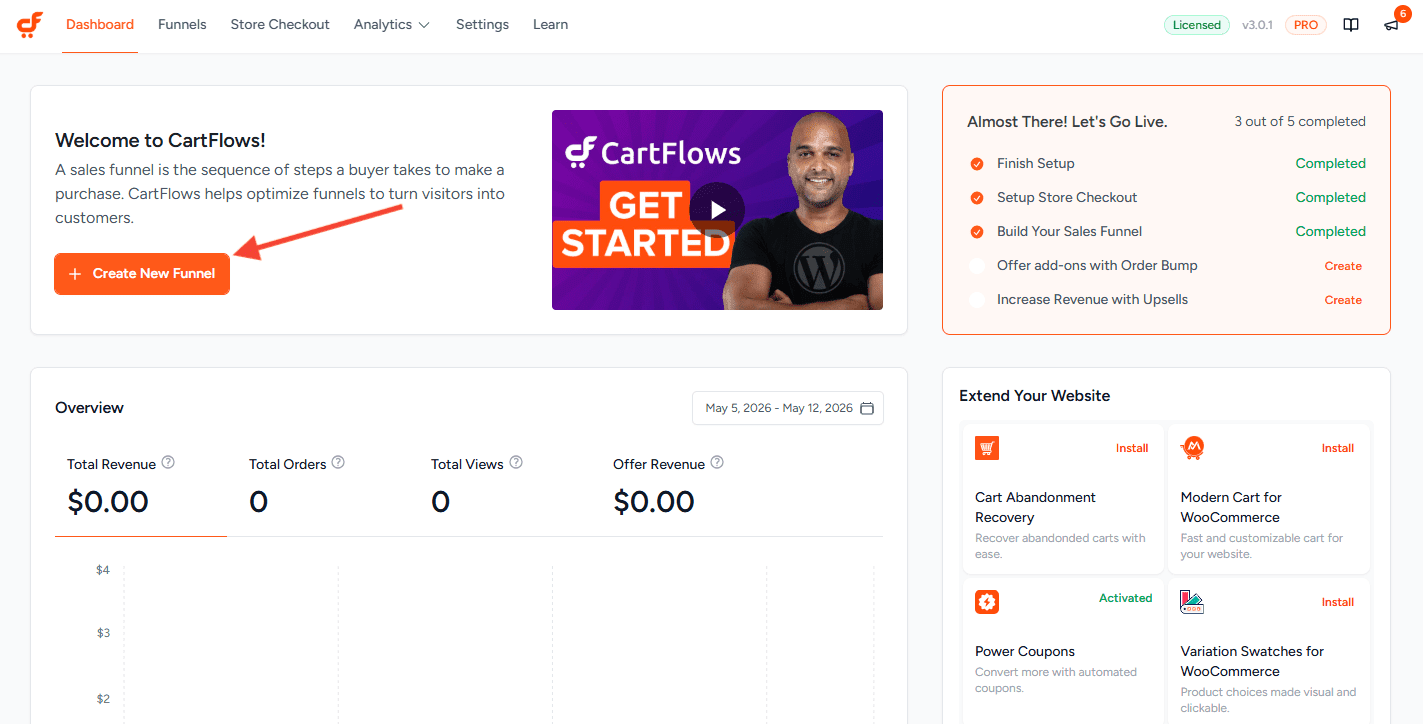
Step 1. Go to CartFlows > Dashboard and click Create New Funnel.
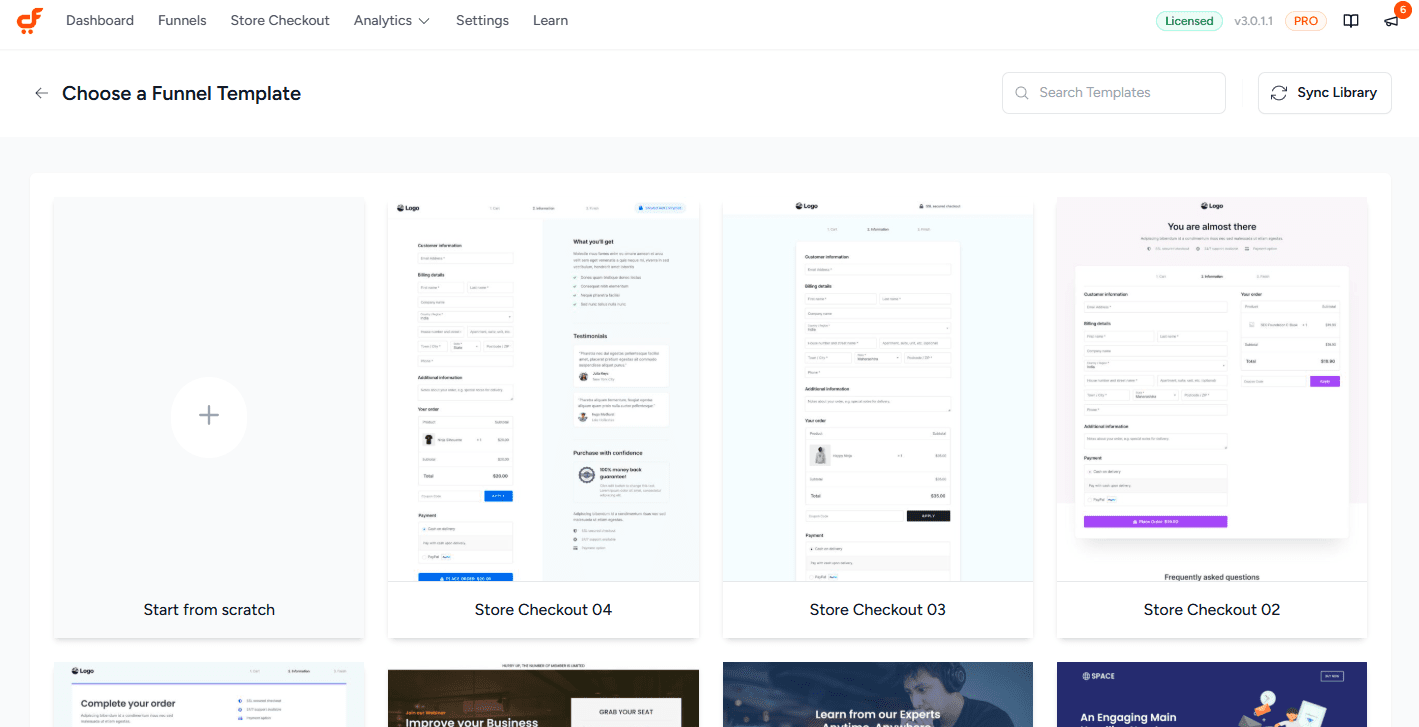
Step 2. Pick a ready-made template, or click Start from scratch. See How to Create Your First CartFlows Funnel and How to Import Ready-Made Templates.
Step 3. Open the checkout step and add the same products you had on your old checkout.
Step 4. Add your Order Bumps, then add Upsell and Downsell steps for your one-click offers, using the same products, prices and discounts from your list.
Step 5. Update the checkout fields to match your old checkout.
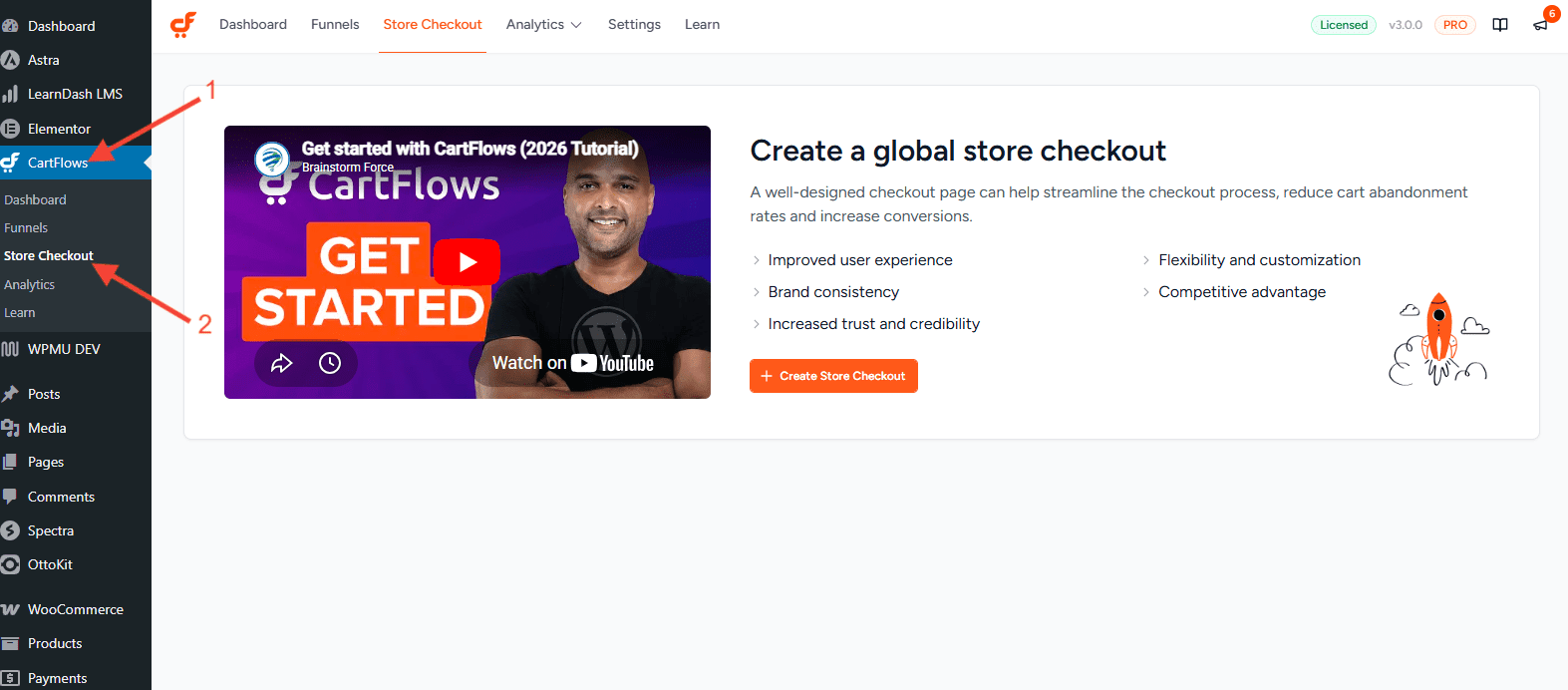
Step 6. If you used a store-wide checkout, go to CartFlows > Store Checkout and click Create Store Checkout, so every product in your shop uses your CartFlows checkout.
Step 7. Repeat for each funnel on your list.
Test Before Going Live
Testing on staging lets you check every path a shopper can take before real customers see it.
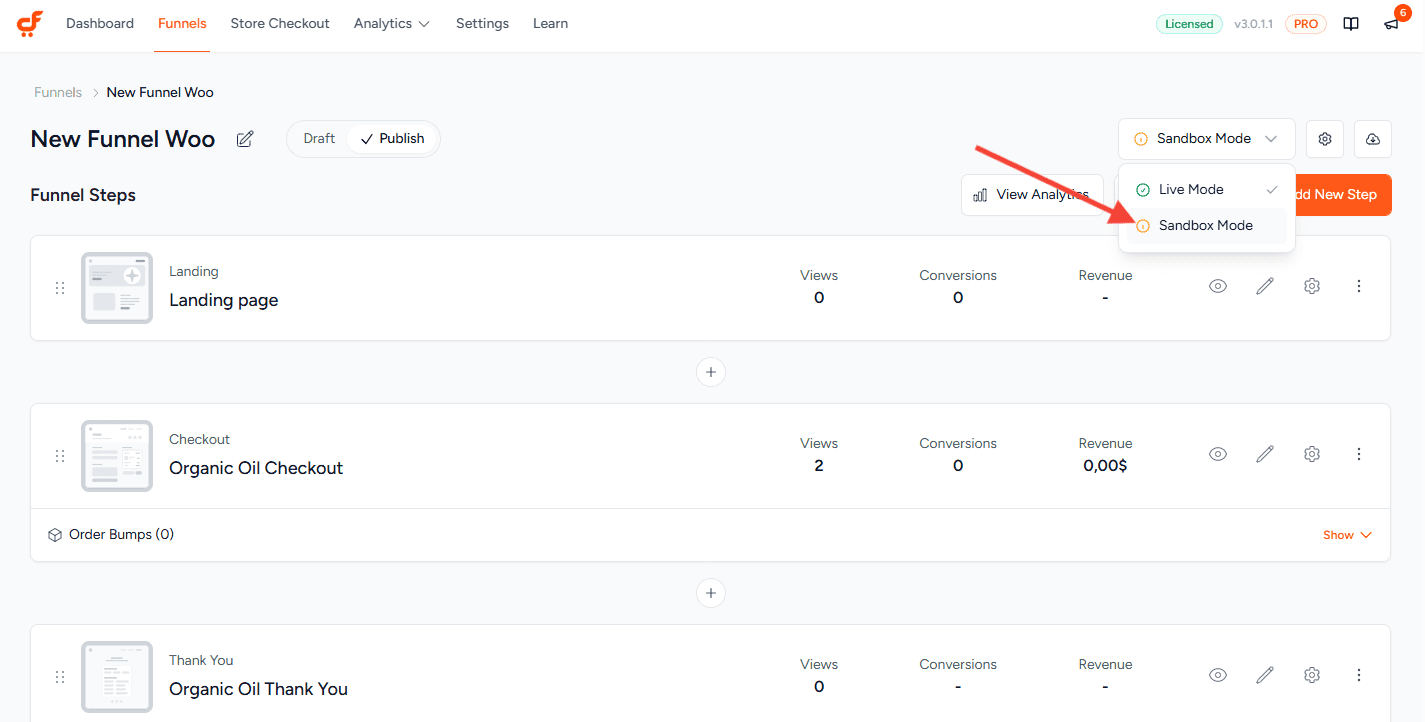
Step 1. Open the funnel, then use the mode selector at the top right to switch from Live Mode to Sandbox Mode. This lets you preview every step of the funnel while you design it. See Funnel in Test Mode.
Step 2. Turn on the test mode in your payment gateway’s own settings, so you can place orders with test cards.
Step 3. Place test orders through every path: with and without the order bump, and with each upsell accepted and declined. How to Test a One-Click Upsell Funnel walks you through this.
Step 4. Check that the order emails and the Thank You page show the right products and totals.
Switch Your Live Store Over
Once everything works on staging, move it to your live site.
Step 1. Install CartFlows (and CartFlows Pro, if you use it) on your live site.
Step 2. Export your funnels from staging and import them on the live site. See How to Export, Import, and Back Up Your CartFlows Funnels.
Step 3. Update the buttons, menu links and ads that point to your old funnel pages so they point to the new CartFlows pages.
Step 4. Switch each funnel to Live Mode, make sure your payment gateway is in live mode, and place one small real order to confirm payments go through.
Step 5. Deactivate your old funnel plugin. Keep it installed but inactive for a couple of weeks, so you can check old settings if you need to.
Your store is now running on CartFlows.
Frequently Asked Questions
We don't respond to the article feedback, we use it to improve our support content.