
- Getting Started
- Creating Your First Funnel
- CartFlows Funnel Step Types
- Starting a Funnel from a Product Page
- How to Edit and Customise Funnel Steps
- Using CartFlows with or without Store Checkout
- How to Add /Assign Products to a Checkout Step
- How to Create One-Click Upsell and Downsell Offers
- How to Use Canvas Mode to Visualize Your Sales Funnel
- Hiding Fields on the Checkout Page
- Installing WooCommerce
- Using WooCommerce
- Adding Products in WooCommerce
- Using Your Theme's Header & Footer in a Step
- Embedding a Checkout Form on the Checkout Page
- Hiding WooCommerce Pages and Products
- Using Pricing Tables
- Adding an Affiliate Program
- Setting a Funnel as the Homepage
- Dynamic Offers aka Rule Engine
- Instant Layout for Checkout and Thank You Step
- Adding Products from the URL to the Checkout Page
- Deleting Plugin Data During Uninstallation
- Importing Ready-Made Templates for Funnels and Steps
- Importing and Exporting Funnels and Step
- URL Parameters
- Replacing the Main Checkout Order with an Upsell or Downsell
- Rolling back to a Previous Version
- Using the "Order Custom Field" Rule of Dynamic Offers with Custom Field Editor
- Adding Order Bumps to WooCommerce Sales Funnel
- Replacing the First Product on Checkout with Order Bump
- Dynamic (Conditional) Order Bumps
- Order Bump AI
- Positions and Styles
- How to Auto-Apply a Coupon When an Order Bump Is Accepted
- How to Add Variable Products to an Order Bump
- How to A/B Test Order Bumps in CartFlows
- Google Address Autocomplete
- Flatsome UX Builder
- ActiveCampaign
- Paypal Reference Transactions
- How PaypPal/Stripe Works
- Enabling Enfold Avia Layout Builder
- Setting Up Authorize.net for Upsell & Downsell
- Supported Payment Gateways
- Setting Quantity and Discount for Products on the Checkout Page
- Adding Custom Payment Gateway Support for One-Click Upsell and Downsell
- Funnel in Test Mode
- Troubleshooting Plugin and Theme Conflicts
- Resolving the "Please Select a Simple, Virtual, and Free Product" Error
- Fixing Endless Loading on the Checkout Page
- Fixing the "We can't seem to find an order for you." Error on the Thank You Page
- Troubleshooting License Activation Issues
- Fixing the "Checkout ID Not Found" Error
- Fixing the "Session Expired" Error Message
- Resolving "Order Does Not Exist" Error on Upsell/Downsell Page
- Fixing the "Sorry, This Product Cannot Be Purchased" Error
- Disabling Auto-fill of Address Fields Based on Zip Code
- Enabling Theme's Scripts & Styles Without Changing Page Template
- Disabling Auto-fill of Checkout Fields
- Allowing Cache Plugins to Cache CartFlows Pages
- Changing the "Choose a Variation" Text
- VAT Field Not Displaying for WooCommerce EU/UK VAT Compliance Plugin
- Enabling the Product Tab on Store Checkout
- Displaying the Order Summary Open on Mobile Devices
- Refreshing the Checkout Page After CartFlows AJAX Calls
- Overview
- Installing Modern Cart Starter
- Installing Modern Cart Pro
- Activating License Key
- Customizing General Settings
- Customizing Cart Tray Labels
- Customizing Cart Icon Settings
- Customizing Cart Tray Styling
- Understanding the Product Recommendations Feature
- Controlling Product Recommendation Source for Empty Cart
How to Add Variable Products to an Order Bump
CartFlows Pro lets you offer a variable product, such as a product that comes in different sizes or colors, as an order bump on your checkout page. You can let shoppers choose the option they want, or offer one specific option.
This guide shows you how to add a variable product to an order bump and what your shoppers see at checkout.
How Variable Products Work in an Order Bump
When you pick the product for an order bump, the product search shows the main variable product and each of its variations separately. Which one you pick decides how the order bump behaves:
- Main variable product. The order bump shows the product’s price range and a Choose a variation link. Shoppers pick the option they want in a popup, and that option is added to their order.
- A specific variation. The order bump offers that exact option with its own price. Shoppers only need to tick the checkbox to add it.
Either way, shoppers can add the offer to their order without leaving the checkout page. If a shopper ticks the checkbox without opening the popup, CartFlows adds the product’s default variation.
How to Add a Variable Product to an Order Bump
Step 1. From the WordPress admin, go to CartFlows → Funnels and open the funnel that has your checkout step.
Step 2. Click the settings icon on the checkout step, then click Order Bumps in the left menu. If you haven’t created an order bump yet, enter a name and click Add. For a full walkthrough of order bump settings, see How To Add Order Bump To A Funnel.
Step 3. Click the edit icon on the order bump to open its settings, and stay on the Product tab.
Step 4. In the Search products field, type the name of your variable product. The results list the main product first, with its price range, followed by each variation.
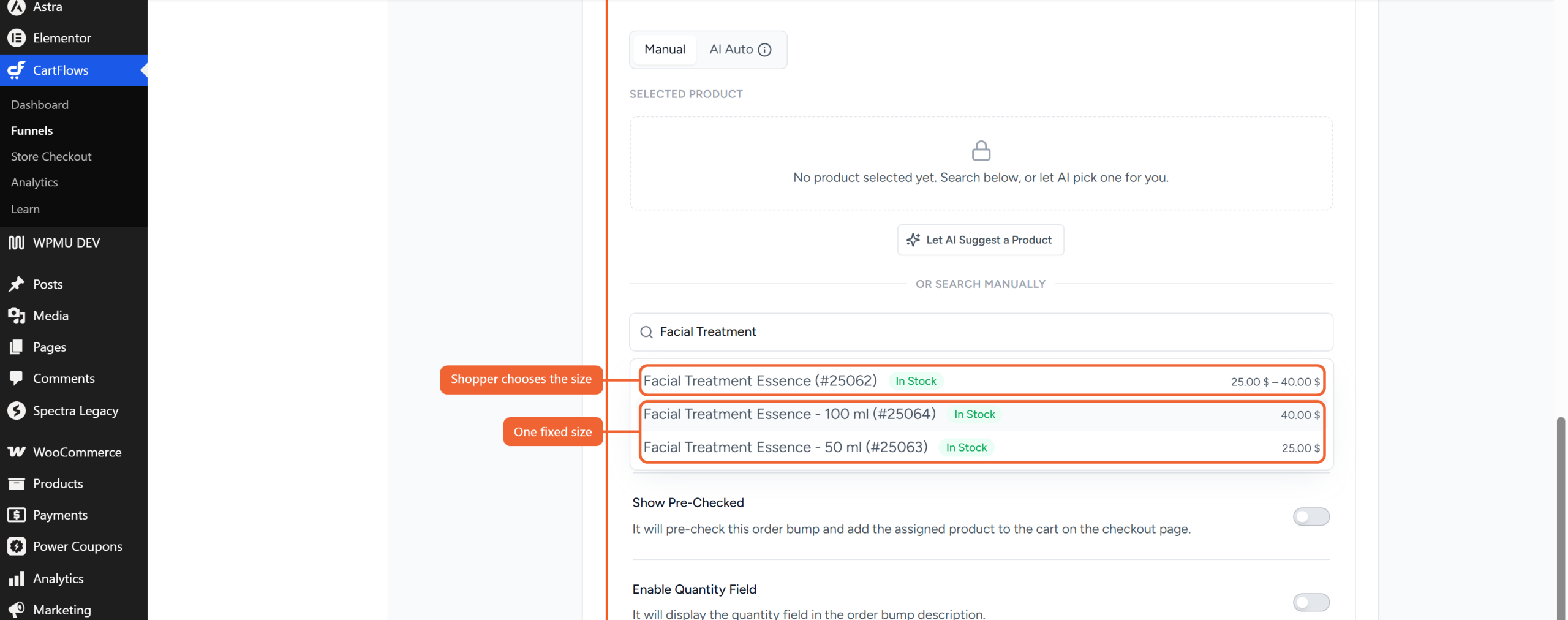
Step 5. Choose how you want to offer the product:
- Click the main product to let shoppers choose the option at checkout.
- Click a specific variation to offer only that option.
Step 6. If you chose the main product, the preview shows a Choose a variation link under the price. Set the Quantity and Discount Type as you would for any order bump.
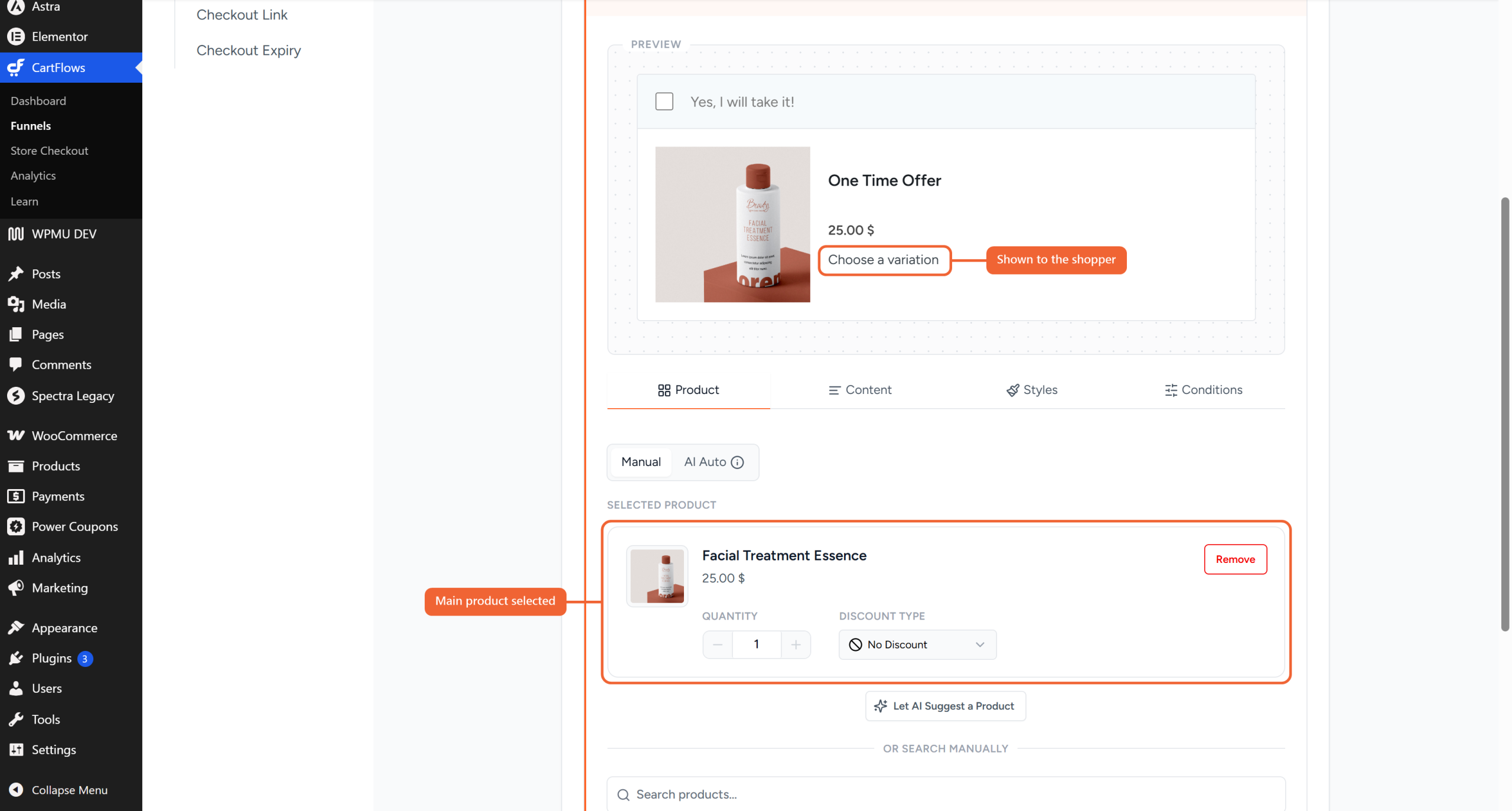
Step 7. Make sure the toggle next to the order bump’s name shows Active, then click Save Settings at the top right.
Your variable product is now offered as an order bump on that checkout step.
What Shoppers See at Checkout
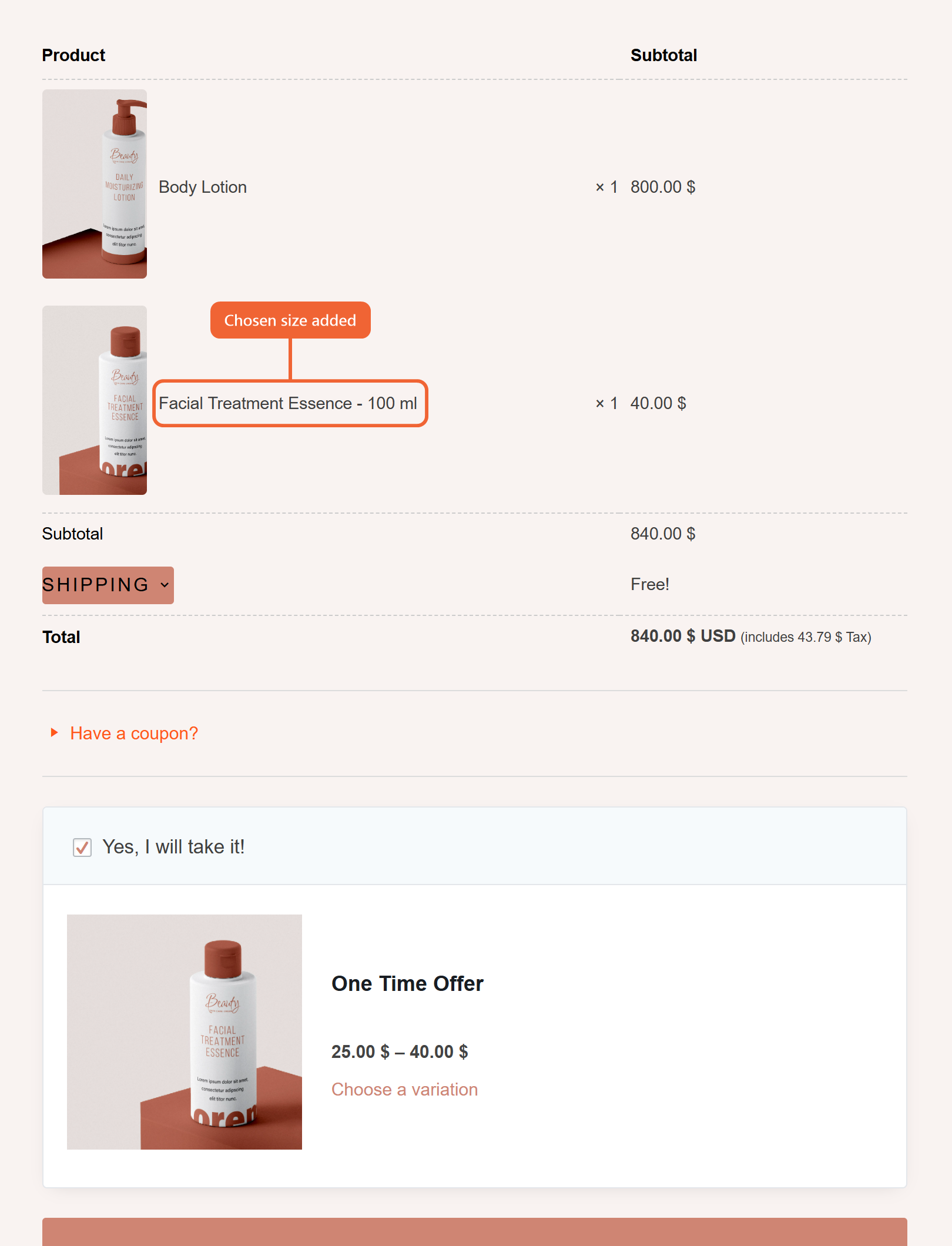
When the order bump uses the main variable product, shoppers see the product’s price range and a Choose a variation link.
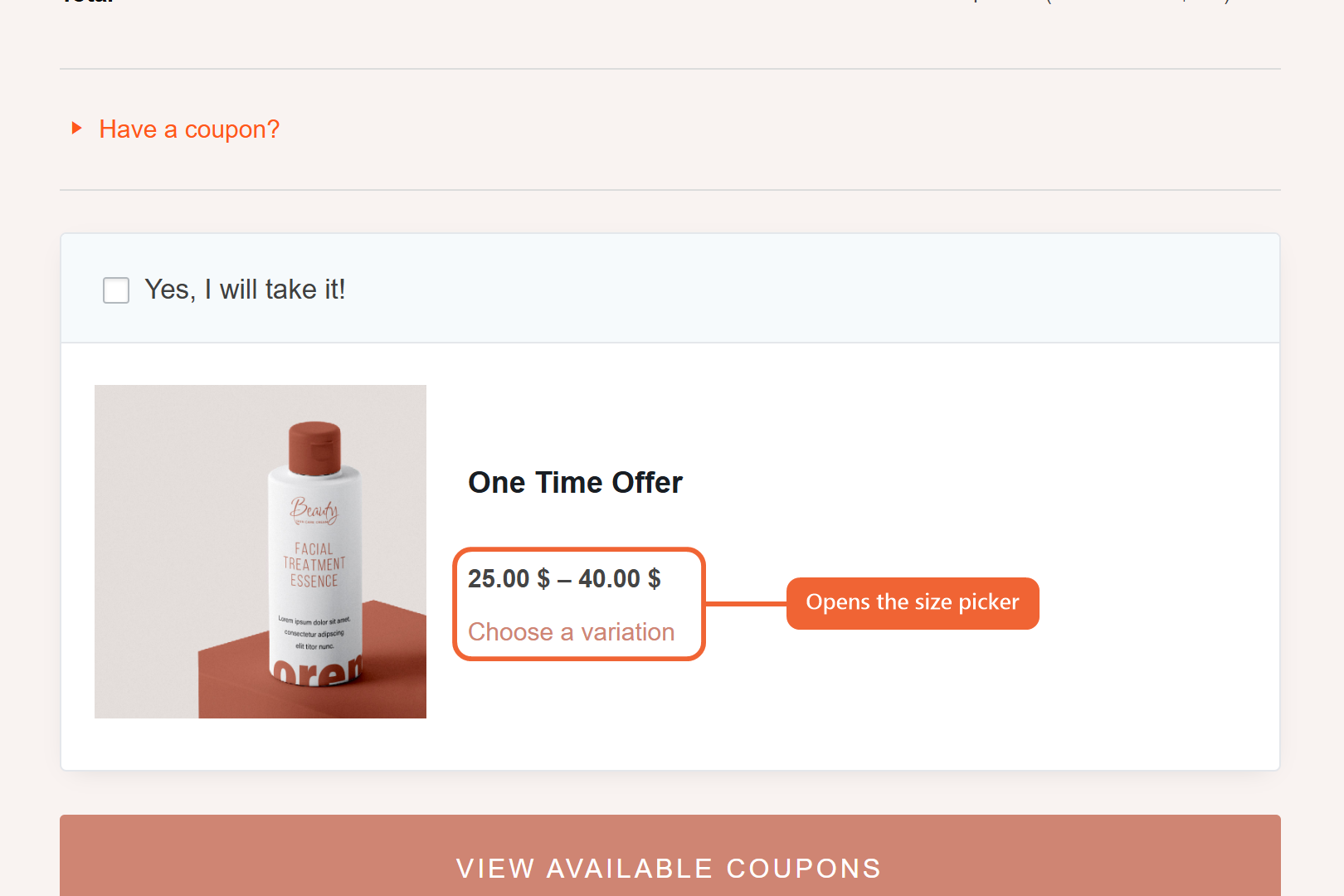
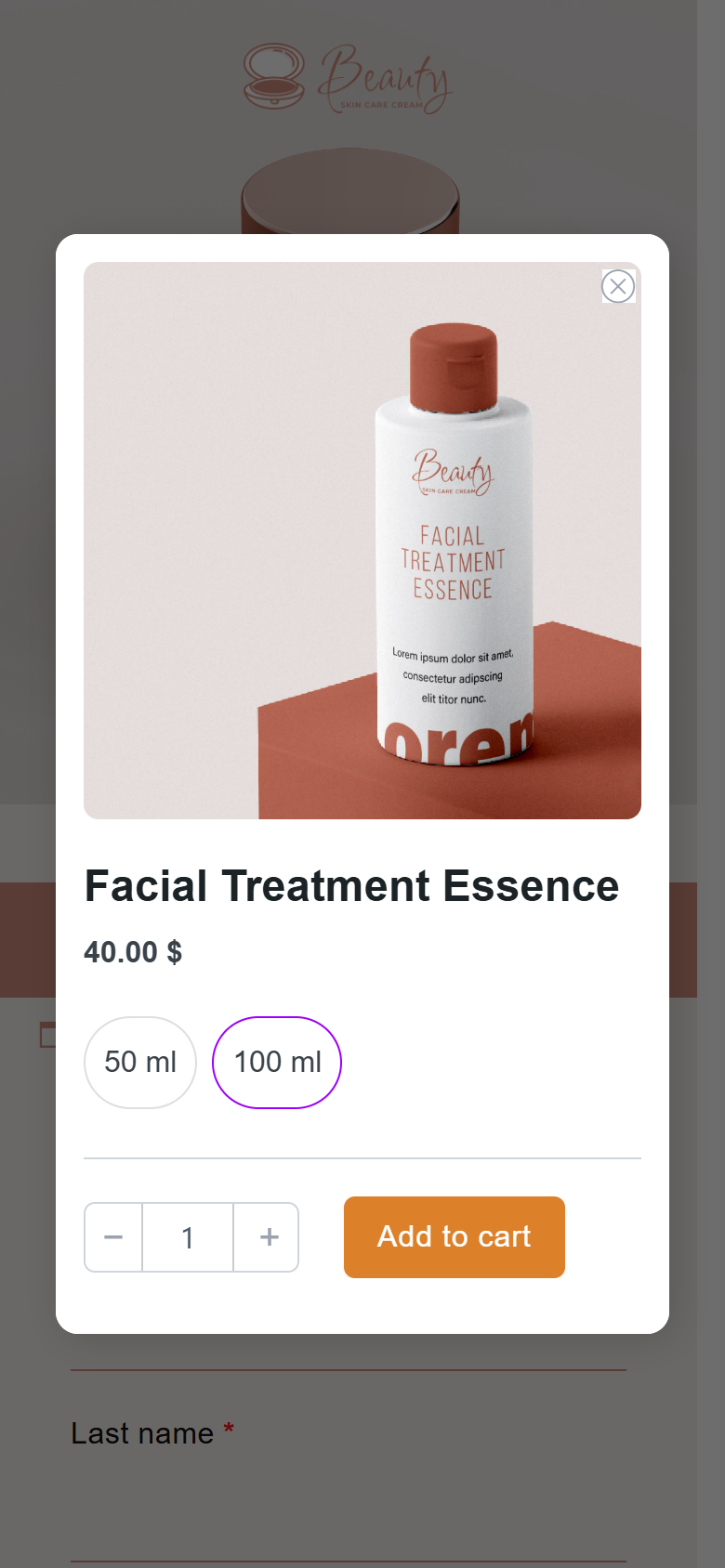
Clicking Choose a variation opens a popup with the product image and its options. The shopper picks an option, sees its price, and clicks Add to cart.
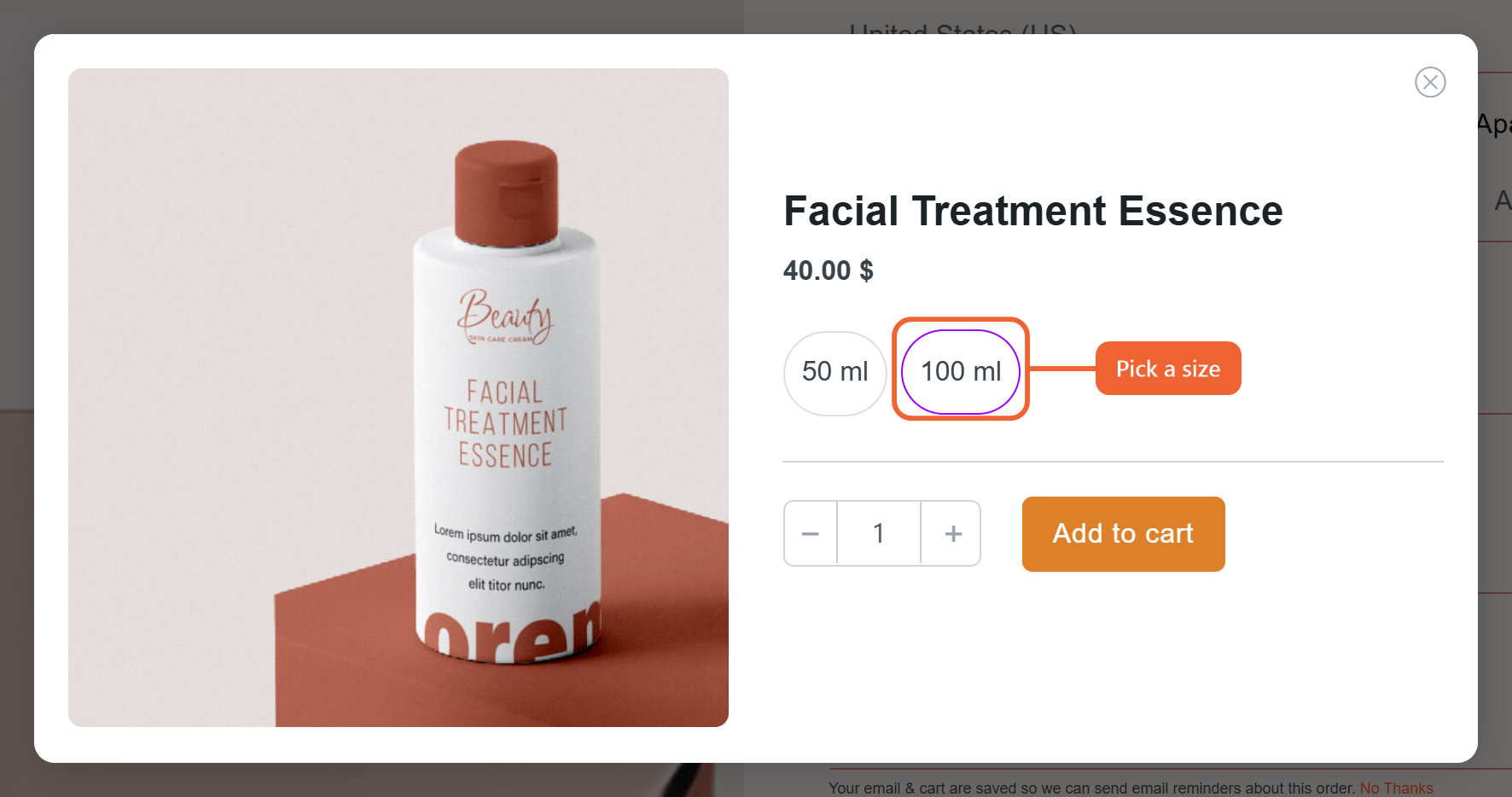
The popup closes, the order bump is ticked, and the chosen option appears in the order summary with its price.
On Mobile Devices
On phones, the popup stacks the product image above the options, so shoppers can pick an option and add it with one hand.
Frequently Asked Questions
We don't respond to the article feedback, we use it to improve our support content.