
- Getting Started
- Creating Your First Funnel
- CartFlows Funnel Step Types
- Starting a Funnel from a Product Page
- How to Edit and Customise Funnel Steps
- Using CartFlows with or without Store Checkout
- How to Add /Assign Products to a Checkout Step
- How to Create One-Click Upsell and Downsell Offers
- How to Use Canvas Mode to Visualize Your Sales Funnel
- Switching to CartFlows from FunnelKit or WPFunnels
- Hiding Fields on the Checkout Page
- Installing WooCommerce
- Using WooCommerce
- Adding Products in WooCommerce
- Using Your Theme's Header & Footer in a Step
- Embedding a Checkout Form on the Checkout Page
- Hiding WooCommerce Pages and Products
- Using Pricing Tables
- Adding an Affiliate Program
- Setting a Funnel as the Homepage
- Dynamic Offers aka Rule Engine
- Instant Layout for Checkout and Thank You Step
- Adding Products from the URL to the Checkout Page
- Deleting Plugin Data During Uninstallation
- Importing Ready-Made Templates for Funnels and Steps
- Importing and Exporting Funnels and Step
- URL Parameters
- Replacing the Main Checkout Order with an Upsell or Downsell
- Rolling back to a Previous Version
- Using the "Order Custom Field" Rule of Dynamic Offers with Custom Field Editor
- Frequently Bought Together
- Frequently Bought Together vs Order Bumps vs Upsells
- Using Auto Suggest
- Auto Suggest for WooCommerce Upsells and Cross-sells
- Using with Variable Products
- Widget Placement Options
- How Auto Suggest Works
- Add Products Separately Setting
- Styling the Widget
- How to Add a Bundle Discount to Frequently Bought Together
- Adding Order Bumps to WooCommerce Sales Funnel
- Replacing the First Product on Checkout with Order Bump
- Dynamic (Conditional) Order Bumps
- Order Bump AI
- Positions and Styles
- How to Auto-Apply a Coupon When an Order Bump Is Accepted
- How to Add Variable Products to an Order Bump
- How to A/B Test Order Bumps in CartFlows
- Google Address Autocomplete
- Flatsome UX Builder
- ActiveCampaign
- Paypal Reference Transactions
- How PaypPal/Stripe Works
- Enabling Enfold Avia Layout Builder
- Setting Up Authorize.net for Upsell & Downsell
- Supported Payment Gateways
- Setting Quantity and Discount for Products on the Checkout Page
- Adding Custom Payment Gateway Support for One-Click Upsell and Downsell
- Funnel in Test Mode
- Troubleshooting Plugin and Theme Conflicts
- Resolving the "Please Select a Simple, Virtual, and Free Product" Error
- Fixing Endless Loading on the Checkout Page
- Fixing the "We can't seem to find an order for you." Error on the Thank You Page
- Troubleshooting License Activation Issues
- Fixing the "Checkout ID Not Found" Error
- Fixing the "Session Expired" Error Message
- Resolving "Order Does Not Exist" Error on Upsell/Downsell Page
- Fixing the "Sorry, This Product Cannot Be Purchased" Error
- Disabling Auto-fill of Address Fields Based on Zip Code
- Enabling Theme's Scripts & Styles Without Changing Page Template
- Disabling Auto-fill of Checkout Fields
- Allowing Cache Plugins to Cache CartFlows Pages
- Changing the "Choose a Variation" Text
- VAT Field Not Displaying for WooCommerce EU/UK VAT Compliance Plugin
- Enabling the Product Tab on Store Checkout
- Displaying the Order Summary Open on Mobile Devices
- Refreshing the Checkout Page After CartFlows AJAX Calls
- Overview
- Installing Modern Cart Starter
- Installing Modern Cart Pro
- Activating License Key
- Customizing General Settings
- Customizing Cart Tray Labels
- Customizing Cart Icon Settings
- Customizing Cart Tray Styling
- Understanding the Product Recommendations Feature
- Controlling Product Recommendation Source for Empty Cart
How to Add a Bundle Discount to Frequently Bought Together
A bundle discount gives shoppers a reason to take the whole set. When they add companion products from your Frequently Bought Together section, those companions come in at a lower price, right in the section and in the cart.
This guide shows how the discount works, how to set it up on a product, and what your shoppers see.
How the Bundle Discount Works
The discount is set on each product that has a Frequently Bought Together section. It applies to the companion products only, so the main product always keeps its normal price.
- When the shopper ticks at least one companion, its price drops and the original price is shown crossed out.
- The section total shows the full price crossed out next to the discounted total, with a line telling the shopper how much they save.
- When they add the products, the companions keep their bundle price in the cart and at checkout.
Shoppers see the saving before they add anything, which makes the extra items easier to say yes to.
How to Set Up a Bundle Discount
Step 1. Go to Products and open the product whose section you want to discount.
Step 2. Scroll to the Product data box and click the Frequently Bought Together tab.
Step 3. Find Bundle discount and choose a discount type:
- No Discount keeps every price as it is. This is how each product starts out.
- Percentage off takes a percentage off each companion’s price, for example 10%.
- Price off takes a fixed amount off each companion’s price, for example 5.00 in your store’s currency.
Step 4. Enter the amount in the box next to it.
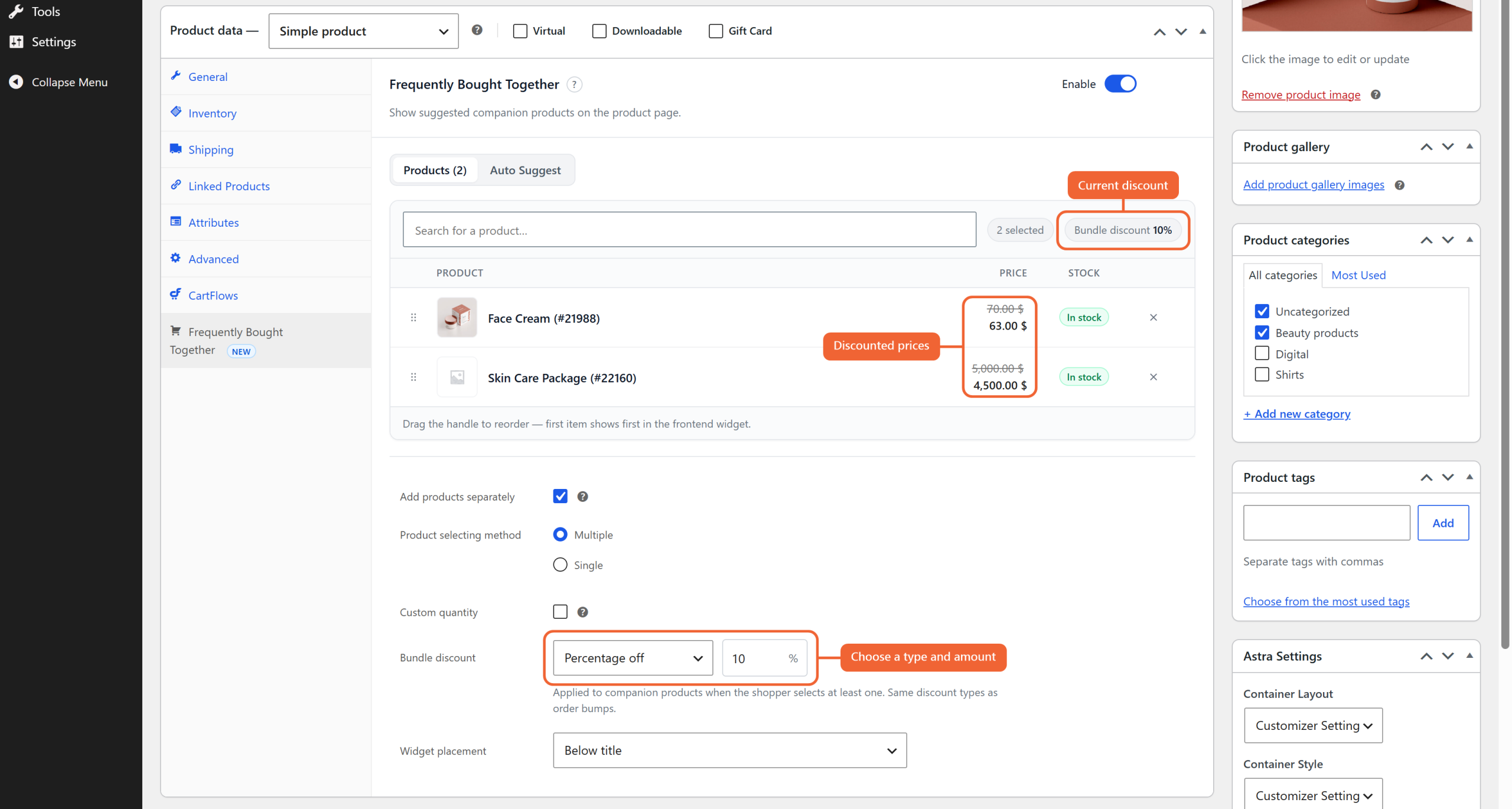
As soon as you enter an amount, the summary above the product list shows the discount, and each companion’s price in the list updates so you can check the result.
Step 5. Click Update to save the product.
The bundle discount is now live on that product page.
What Shoppers See
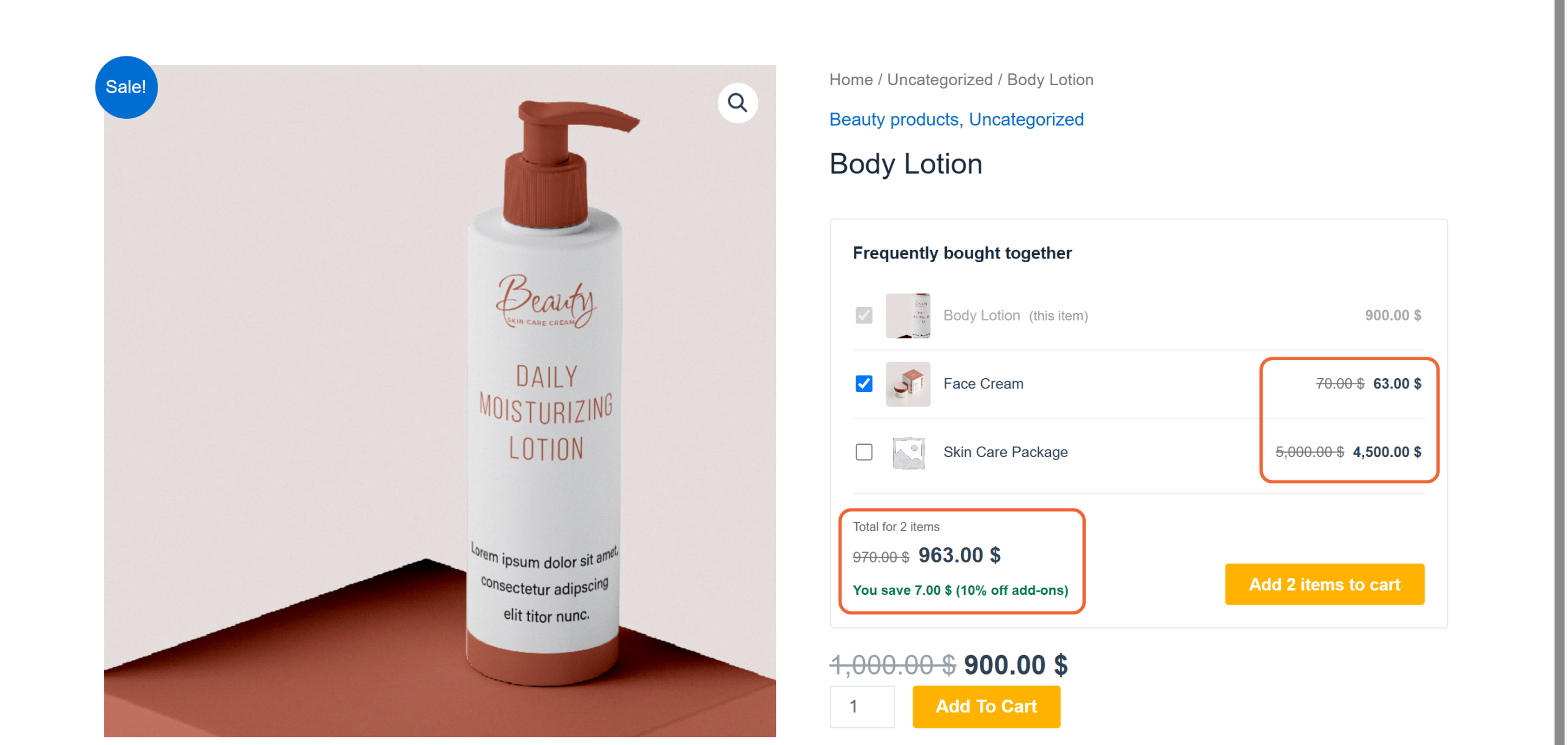
On the product page, each companion shows its original price crossed out with the bundle price beside it. Once the shopper ticks a companion, the total updates and a short line shows the saving, such as “You save 7.00 $ (10% off add-ons)”.
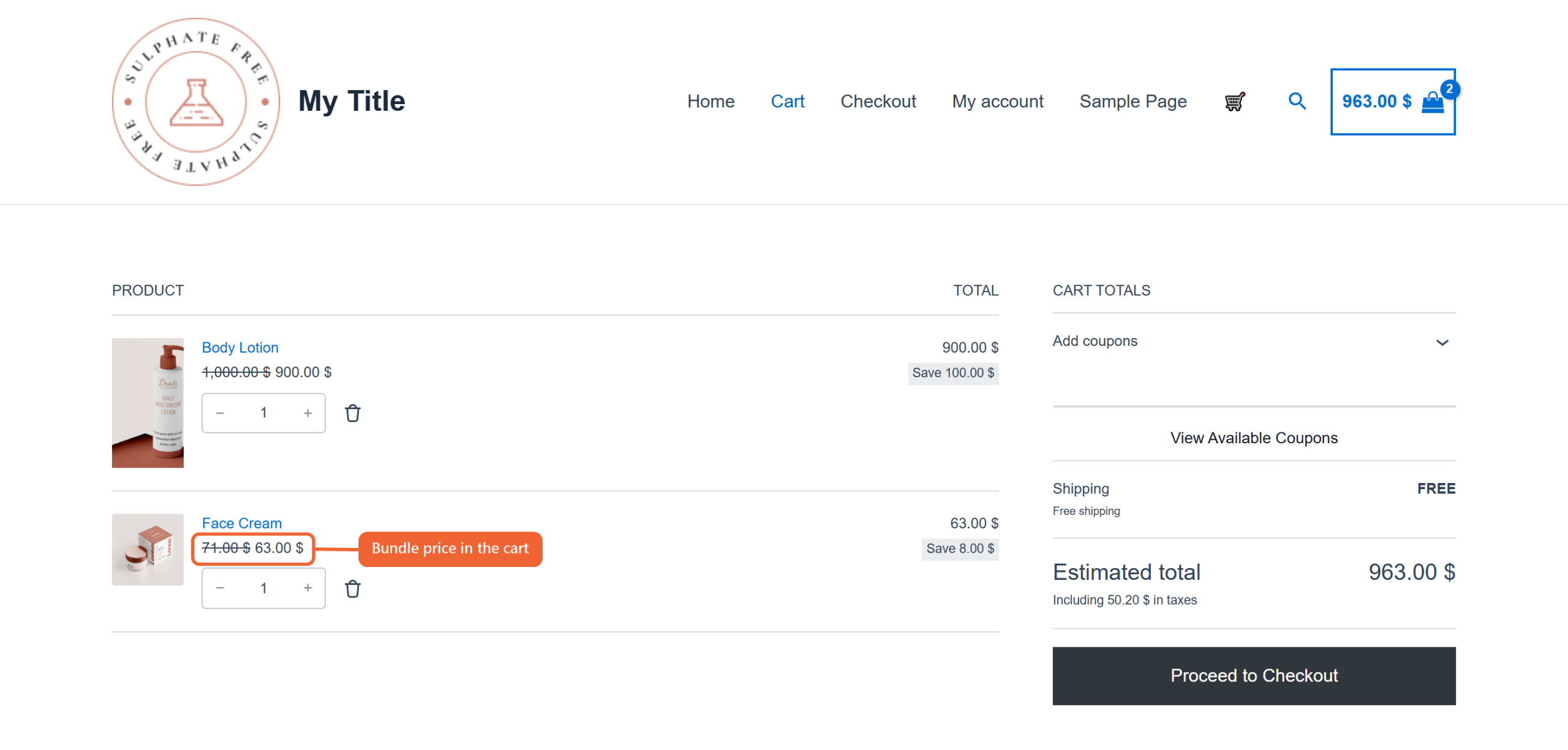
In the cart, each companion added from the section shows its bundle price, so the shopper pays exactly what the section promised.
On Mobile Devices
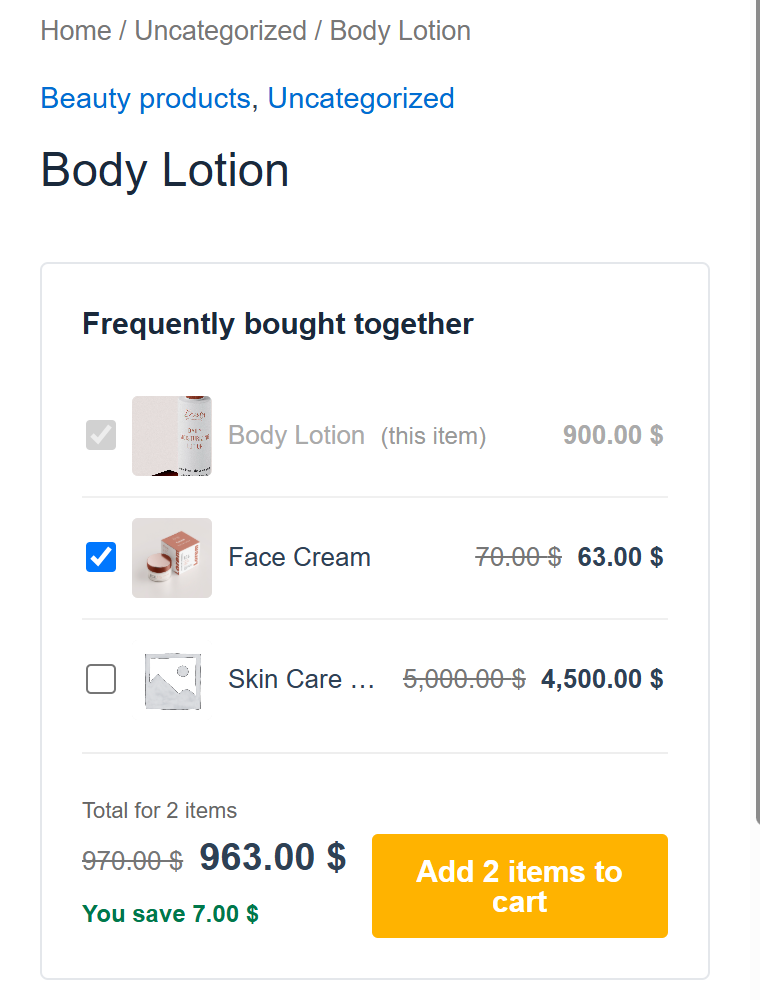
The section works the same way on phones. On narrow screens the saving line is shortened to just the amount, for example “You save 7.00 $”, so it fits neatly under the total.
Good to Know
- Price off is per item. The amount comes off each companion, not off the bundle as a whole. A 5.00 discount on two companions saves the shopper 10.00.
- Prices stop at zero. A Percentage off amount is capped at 100%, and a Price off amount larger than a companion’s price makes that companion free.
- The discount follows the main product. Each main product in the cart unlocks one discounted set of companions. If the shopper removes the main product, the companion returns to its regular price, and the discount comes back when they add the main product again.
- The bundle price covers the set. Companions added from the section get the bundle price, and any extra units the shopper adds in the cart use the regular price.
- It works with your other section settings. The discount applies whether or not Add products separately is ticked. It also covers companions with options such as size or colour, once the shopper picks one, and companions added with Auto Suggest.
- Other offers keep their own price. Products added through another CartFlows offer, such as an order bump, use that offer’s price.
Frequently Asked Questions
We don't respond to the article feedback, we use it to improve our support content.