
- Getting Started
- Creating Your First Funnel
- CartFlows Funnel Step Types
- Starting a Funnel from a Product Page
- How to Edit and Customise Funnel Steps
- Using CartFlows with or without Store Checkout
- How to Add /Assign Products to a Checkout Step
- How to Create One-Click Upsell and Downsell Offers
- How to Use Canvas Mode to Visualize Your Sales Funnel
- Switching to CartFlows from FunnelKit or WPFunnels
- Hiding Fields on the Checkout Page
- Installing WooCommerce
- Using WooCommerce
- Adding Products in WooCommerce
- Using Your Theme's Header & Footer in a Step
- Embedding a Checkout Form on the Checkout Page
- Hiding WooCommerce Pages and Products
- Using Pricing Tables
- Adding an Affiliate Program
- Setting a Funnel as the Homepage
- Dynamic Offers aka Rule Engine
- Instant Layout for Checkout and Thank You Step
- Adding Products from the URL to the Checkout Page
- Deleting Plugin Data During Uninstallation
- Importing Ready-Made Templates for Funnels and Steps
- Importing and Exporting Funnels and Step
- URL Parameters
- Replacing the Main Checkout Order with an Upsell or Downsell
- Rolling back to a Previous Version
- Using the "Order Custom Field" Rule of Dynamic Offers with Custom Field Editor
- Adding Order Bumps to WooCommerce Sales Funnel
- Replacing the First Product on Checkout with Order Bump
- Dynamic (Conditional) Order Bumps
- Order Bump AI
- Positions and Styles
- How to Auto-Apply a Coupon When an Order Bump Is Accepted
- How to Add Variable Products to an Order Bump
- How to A/B Test Order Bumps in CartFlows
- Google Address Autocomplete
- Flatsome UX Builder
- ActiveCampaign
- Paypal Reference Transactions
- How PaypPal/Stripe Works
- Enabling Enfold Avia Layout Builder
- Setting Up Authorize.net for Upsell & Downsell
- Supported Payment Gateways
- Setting Quantity and Discount for Products on the Checkout Page
- Adding Custom Payment Gateway Support for One-Click Upsell and Downsell
- Creating Subscription Products with CartFlows
- Supported Multi-Currency Plugins
- Enabling/Disabling Shipping Fields and Ship to Different Address
- Enabling/Adding Coupons on the Checkout Page
- Displaying Account Creation Fields on the Checkout Page
- Setting Up Square Gateway for Upsell & Downsell
- CartFlows Elementor Widgets
- CartFlows Beaver Builder Modules
- CartFlows Block Editor Blocks
- Importing Divi Templates
- Bricks Builder
- OttoKit
- Connecting Stripe Payment Gateway
- LearnDash
- Facebook Pixel
- TikTok Pixel Tracking
- Google Ads Pixel
- Pinterest Pixel Tracking
- How to Enable Snapchat Pixel Tracking in CartFlows?
- CartFlows Webhooks: Send Funnel Events to Other Apps
- CartFlows Abilities: Connect AI Assistants to Your Funnels
- Funnel in Test Mode
- Troubleshooting Plugin and Theme Conflicts
- Resolving the "Please Select a Simple, Virtual, and Free Product" Error
- Fixing Endless Loading on the Checkout Page
- Fixing the "We can't seem to find an order for you." Error on the Thank You Page
- Troubleshooting License Activation Issues
- Fixing the "Checkout ID Not Found" Error
- Fixing the "Session Expired" Error Message
- Resolving "Order Does Not Exist" Error on Upsell/Downsell Page
- Fixing the "Sorry, This Product Cannot Be Purchased" Error
- Disabling Auto-fill of Address Fields Based on Zip Code
- Enabling Theme's Scripts & Styles Without Changing Page Template
- Disabling Auto-fill of Checkout Fields
- Allowing Cache Plugins to Cache CartFlows Pages
- Changing the "Choose a Variation" Text
- VAT Field Not Displaying for WooCommerce EU/UK VAT Compliance Plugin
- Enabling the Product Tab on Store Checkout
- Displaying the Order Summary Open on Mobile Devices
- Refreshing the Checkout Page After CartFlows AJAX Calls
- Overview
- Installing Modern Cart Starter
- Installing Modern Cart Pro
- Activating License Key
- Customizing General Settings
- Customizing Cart Tray Labels
- Customizing Cart Icon Settings
- Customizing Cart Tray Styling
- Understanding the Product Recommendations Feature
- Controlling Product Recommendation Source for Empty Cart
CartFlows Abilities: Connect AI Assistants to Your Funnels
CartFlows works with the Abilities feature built into WordPress, so AI assistants like Claude, Cursor and VS Code, and other automation tools, can work with your funnels for you. You can ask an assistant to list your funnels, check a funnel’s sales, add an order bump or start an A/B test, all in plain language.
This guide explains how it works, how to connect an AI assistant to your store, and what it can do once it’s connected.
How CartFlows Abilities Work
CartFlows tells WordPress about the tasks an AI assistant is allowed to do, such as “list funnels” or “update checkout products”. These tasks are called abilities.
- You install the free MCP Adapter plugin. MCP (Model Context Protocol) is a standard way for AI assistants to connect to apps and websites, and this plugin brings it to your WordPress site.
- You connect your AI assistant to the site using an Application Password from your WordPress profile.
- You ask the assistant for something in plain language. It picks the right CartFlows ability, runs it, and tells you the result.
The assistant uses the same permissions as the WordPress user it signs in as, so it can only do what that user can do in CartFlows.
What You Need
- WordPress 6.9 or later. Abilities are built into WordPress from this version.
- CartFlows. The free plugin includes 46 abilities for funnels, steps, checkout, thank you, optin and settings.
- CartFlows Pro (optional). Adds 42 more abilities for upsells and downsells, order bumps, A/B tests, Instant Checkout and detailed analytics.
- The MCP Adapter plugin. A free plugin from WordPress.org that connects AI assistants to your site.
- An AI assistant that supports MCP, such as Claude Desktop, Claude Code, Cursor or VS Code.
How to Connect an AI Assistant
Step 1. From the WordPress admin, go to Plugins → Add Plugin and search for mcp-adapter.
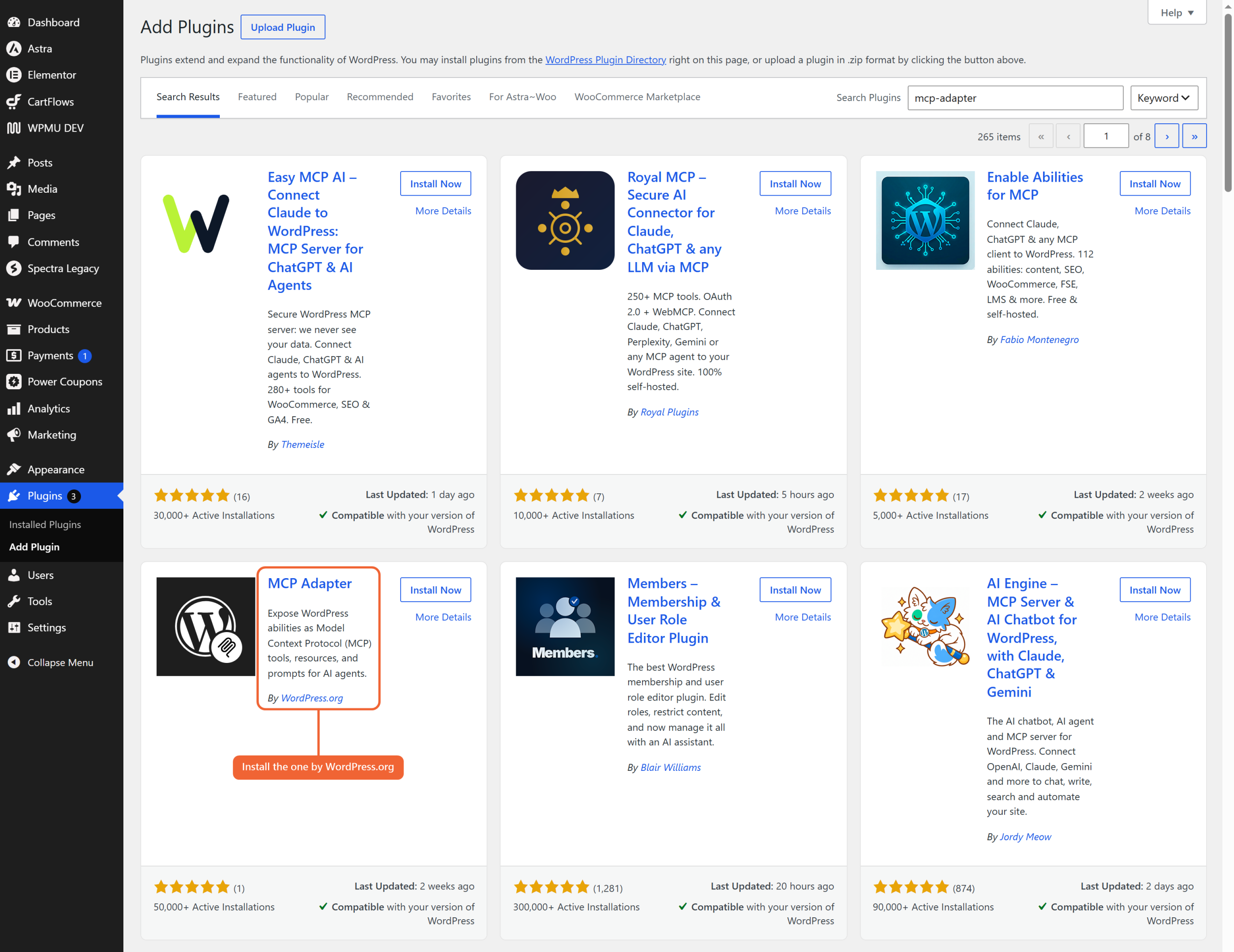
Step 2. Find MCP Adapter by WordPress.org in the results, then click Install Now and Activate. Other MCP plugins may appear first, so check the author name before you install.
Step 3. Go to Users → Profile and scroll down to Application Passwords.
Step 4. Enter a name you’ll recognize, such as “Claude”, and click Add Application Password.
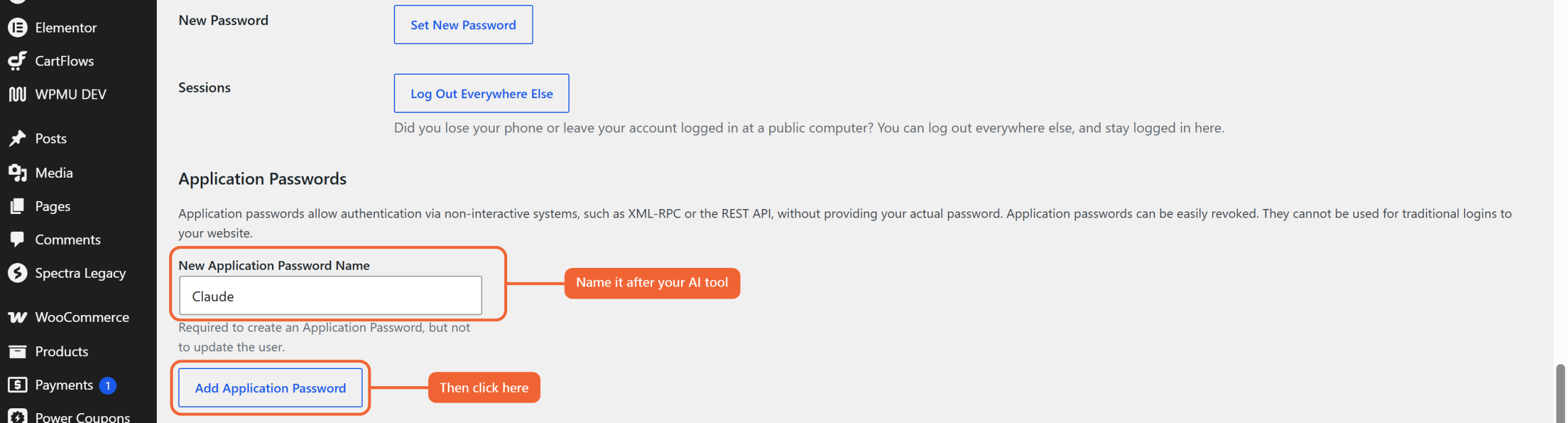
Step 5. Copy the password that appears. WordPress shows it only once, so keep it somewhere safe.
Step 6. Open the MCP settings in your AI assistant. In Claude Desktop, go to Settings → Developer → Edit Config. Cursor, VS Code and Claude Code each have a similar MCP settings file.
Step 7. Add the following connection, replacing the three values with your own details:
{
  "mcpServers": {
    "cartflows-store": {
      "command": "npx",
      "args": ["-y", "@automattic/mcp-wordpress-remote@latest"],
      "env": {
        "WP_API_URL": "https://yourstore.com/wp-json/mcp/mcp-adapter-default-server",
        "WP_API_USERNAME": "your-username",
        "WP_API_PASSWORD": "your-application-password"
      }
    }
  }
}- WP_API_URL: Your site address followed by /wp-json/mcp/mcp-adapter-default-server.
- WP_API_USERNAME: The WordPress username you created the Application Password for.
- WP_API_PASSWORD: The Application Password you copied in Step 5.
This connection runs through Node.js, so make sure Node.js is installed on your computer. The MCP Adapter guide has more setup options if your assistant works differently.
Step 8. Save the file and restart your AI assistant.
Step 9. Test the connection by asking your assistant, “What CartFlows abilities can you use on my site?”
Your AI assistant is now connected to CartFlows.
Tip: Try your first changes on a staging site. This lets you see how the assistant works with your funnels before using it on your live store.
Giving Team Members Access
By default, administrators can use every CartFlows ability. To let another team member connect their own AI assistant, give their user role access to CartFlows.
Step 1. Go to CartFlows → Settings → User Role Manager.
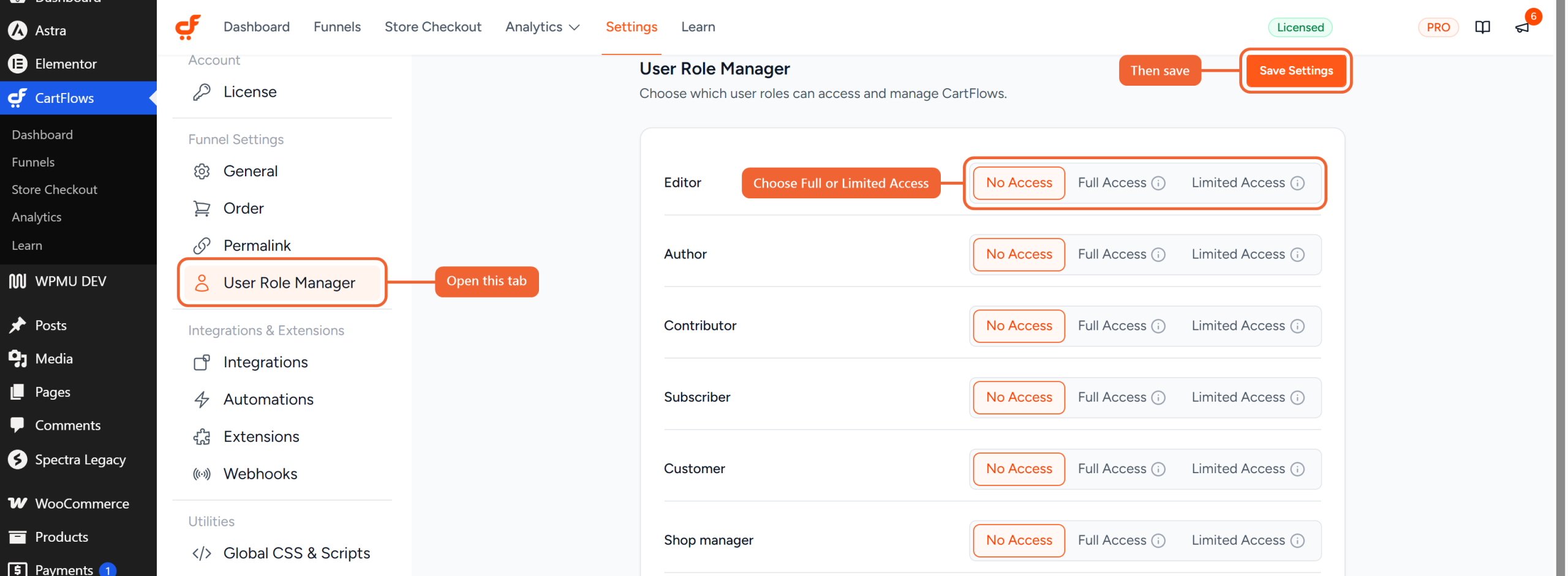
Step 2. Set their role to Full Access or Limited Access, then click Save Settings. Both options let the role use every CartFlows ability.
What Your AI Assistant Can Do
Here’s a summary of the tasks available.
With CartFlows
- Funnels and steps: List, view, create, rename, clone, publish, unpublish, export, move to trash and restore funnels. Add, clone, rename and reorder steps, and browse and import funnel templates.
- Checkout: View and update checkout products, layout, place order button and form settings.
- Thank you pages: Update the layout, sections, custom text and redirect.
- Optin and landing pages: Update the optin product, button text and field settings, and view landing page settings.
- Products: See which funnel a product is linked to and change the link.
- Settings and stats: View and update general, permalink and email report settings, view tracking settings and the store checkout, and check a funnel’s stats.
With CartFlows Pro
- Upsells and downsells: Add offer steps, change the offer product, turn offers on or off, set where Yes and No lead, and check supported payment gateways.
- Order bumps: List, view, create, update and turn order bumps on or off.
- Checkout extras: View and update the pre-checkout offer and Instant Checkout settings, and view product options, checkout rules and two-step settings.
- A/B tests: Create tests and variations, set the traffic split, start a test, archive or restore a variation, and declare a winner.
- Orders and analytics: View funnel and offer orders, revenue, conversions, optin and step analytics, and reset a funnel’s analytics.
Built-In Safeguards
CartFlows keeps your store safe while an assistant works with it.
- Same permissions as the user. The assistant can only do what the connected WordPress user is allowed to do in CartFlows.
- Confirmation for big changes. For moving a funnel to trash, declaring an A/B test winner and resetting analytics, CartFlows tells the assistant to check with you first.
- Changes can be undone. Trashed funnels and archived A/B variations can be restored, and resetting analytics hides older data rather than deleting it.
- Only what you ask for changes. When the assistant updates a setting, every other setting stays as it is.
Frequently Asked Questions
We don't respond to the article feedback, we use it to improve our support content.