
- Getting Started
- Creating Your First Funnel
- CartFlows Funnel Step Types
- Starting a Funnel from a Product Page
- How to Edit and Customise Funnel Steps
- Using CartFlows with or without Store Checkout
- How to Add /Assign Products to a Checkout Step
- How to Create One-Click Upsell and Downsell Offers
- How to Use Canvas Mode to Visualize Your Sales Funnel
- Hiding Fields on the Checkout Page
- Installing WooCommerce
- Using WooCommerce
- Adding Products in WooCommerce
- Using Your Theme's Header & Footer in a Step
- Embedding a Checkout Form on the Checkout Page
- Hiding WooCommerce Pages and Products
- Using Pricing Tables
- Adding an Affiliate Program
- Setting a Funnel as the Homepage
- Dynamic Offers aka Rule Engine
- Instant Layout for Checkout and Thank You Step
- Adding Products from the URL to the Checkout Page
- Deleting Plugin Data During Uninstallation
- Importing Ready-Made Templates for Funnels and Steps
- Importing and Exporting Funnels and Step
- URL Parameters
- Replacing the Main Checkout Order with an Upsell or Downsell
- Rolling back to a Previous Version
- Using the "Order Custom Field" Rule of Dynamic Offers with Custom Field Editor
- Adding Order Bumps to WooCommerce Sales Funnel
- Replacing the First Product on Checkout with Order Bump
- Dynamic (Conditional) Order Bumps
- Order Bump AI
- Positions and Styles
- How to Auto-Apply a Coupon When an Order Bump Is Accepted
- How to Add Variable Products to an Order Bump
- How to A/B Test Order Bumps in CartFlows
- Google Address Autocomplete
- Flatsome UX Builder
- ActiveCampaign
- Paypal Reference Transactions
- How PaypPal/Stripe Works
- Enabling Enfold Avia Layout Builder
- Setting Up Authorize.net for Upsell & Downsell
- Supported Payment Gateways
- Setting Quantity and Discount for Products on the Checkout Page
- Adding Custom Payment Gateway Support for One-Click Upsell and Downsell
- Funnel in Test Mode
- Troubleshooting Plugin and Theme Conflicts
- Resolving the "Please Select a Simple, Virtual, and Free Product" Error
- Fixing Endless Loading on the Checkout Page
- Fixing the "We can't seem to find an order for you." Error on the Thank You Page
- Troubleshooting License Activation Issues
- Fixing the "Checkout ID Not Found" Error
- Fixing the "Session Expired" Error Message
- Resolving "Order Does Not Exist" Error on Upsell/Downsell Page
- Fixing the "Sorry, This Product Cannot Be Purchased" Error
- Disabling Auto-fill of Address Fields Based on Zip Code
- Enabling Theme's Scripts & Styles Without Changing Page Template
- Disabling Auto-fill of Checkout Fields
- Allowing Cache Plugins to Cache CartFlows Pages
- Changing the "Choose a Variation" Text
- VAT Field Not Displaying for WooCommerce EU/UK VAT Compliance Plugin
- Enabling the Product Tab on Store Checkout
- Displaying the Order Summary Open on Mobile Devices
- Refreshing the Checkout Page After CartFlows AJAX Calls
- Overview
- Installing Modern Cart Starter
- Installing Modern Cart Pro
- Activating License Key
- Customizing General Settings
- Customizing Cart Tray Labels
- Customizing Cart Icon Settings
- Customizing Cart Tray Styling
- Understanding the Product Recommendations Feature
- Controlling Product Recommendation Source for Empty Cart
Using Frequently Bought Together with Variable Products
Frequently Bought Together works with variable products on both sides of the offer. The product showing the section can be variable, and the companion products you offer can be variable too.
This guide covers what shoppers see when a companion has variations, what gets left out and why, and how to offer one specific variation instead of the whole product.
How It Works
A variable product has options the shopper must choose before it can be added to the cart, such as a size or a colour. Frequently Bought Together handles that by asking for the choice inside the section itself.
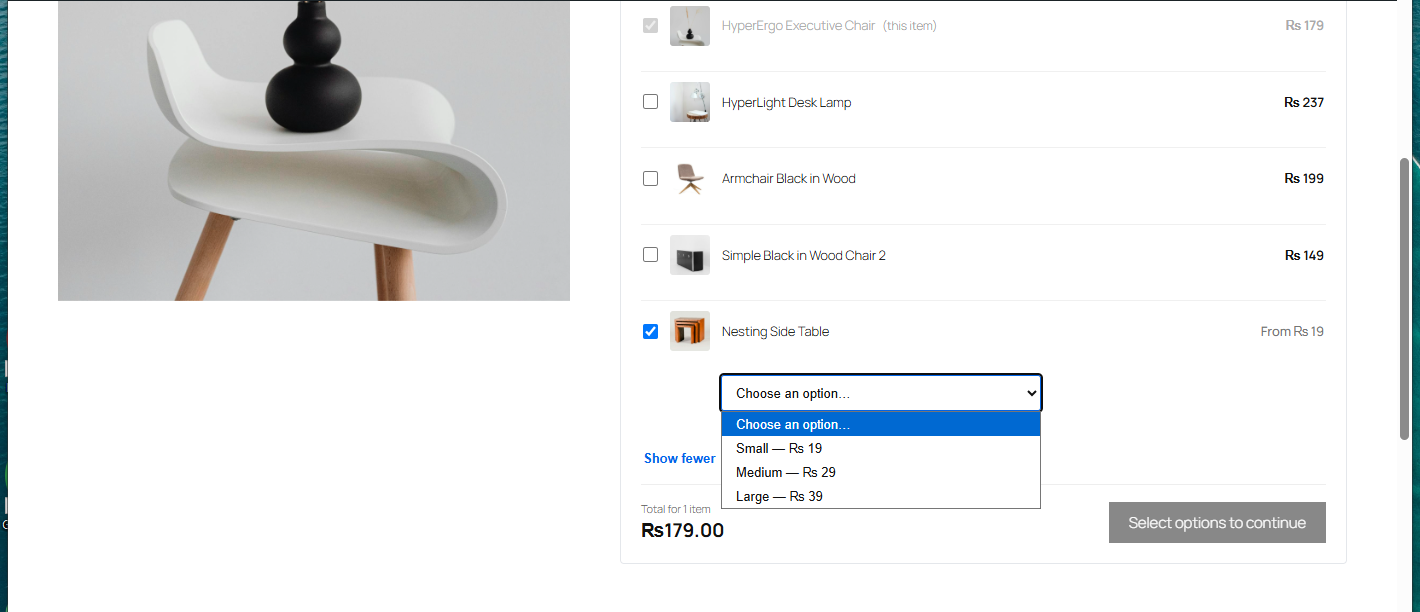
- Companion products with variations show a dropdown under the product name.
- Until a choice is made, the price shows as a From amount, based on the cheapest variation.
- The button stays unavailable until every ticked product has its options chosen.
Nothing is added to the cart until each selected product has enough information to be added properly.
Setting It Up on a Variable Product
The setup is the same as for a simple product. The Frequently Bought Together tab appears on both simple and variable products.
Step 1. Go to Products and open the variable product you want the section to appear on.
Step 2. Scroll to the Product data box and click the Frequently Bought Together tab, then turn on Enable Widget.
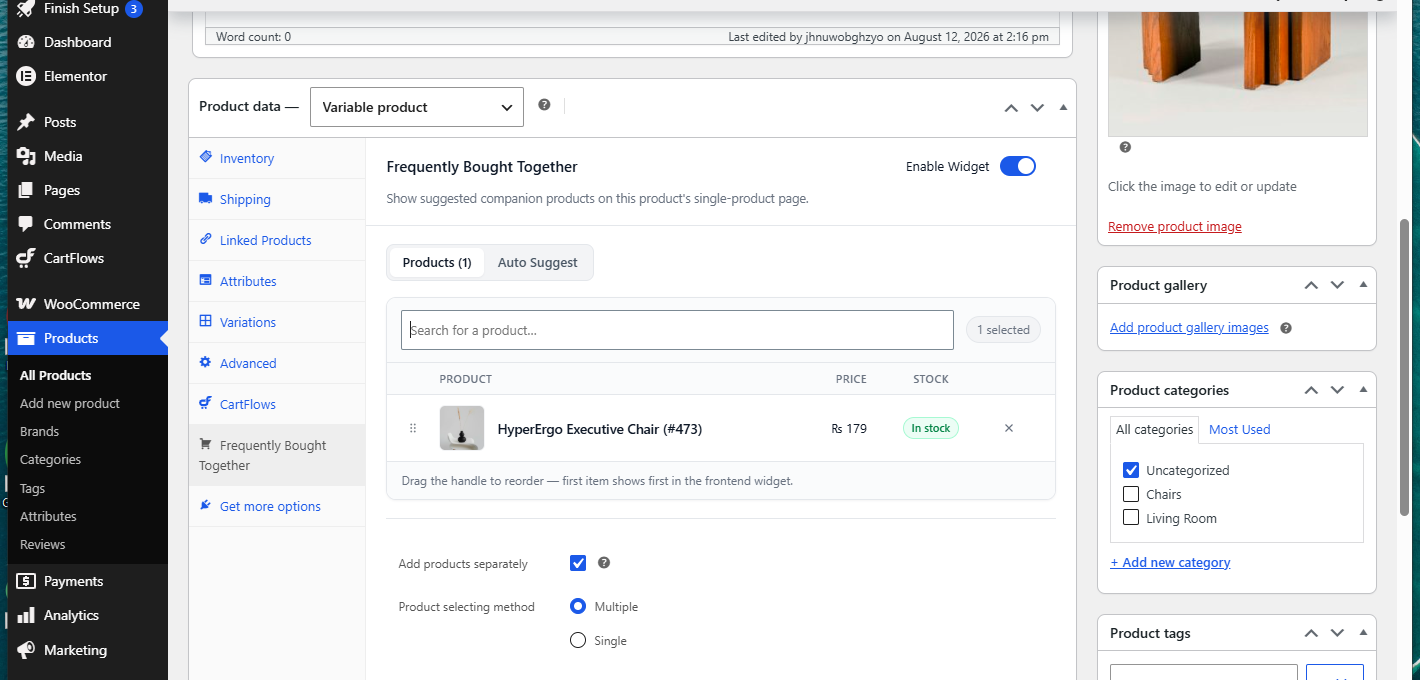
Step 3. Search for the companion products you want to offer, exactly as you would on a simple product.
Your shopper still chooses the main product’s own options using the normal selectors on the product page. The section doesn’t duplicate those, it only asks about the companions.
Offering One Specific Variation
Sometimes you don’t want to offer a whole product with all its choices. If you sell a coffee in three sizes and only want to offer the small one as an add-on, you can add that single variation as the companion.
The product search in the panel finds individual variations as well as whole products, so you can pick the exact one you want. Search for the product name and the matching variations appear alongside it in the results.
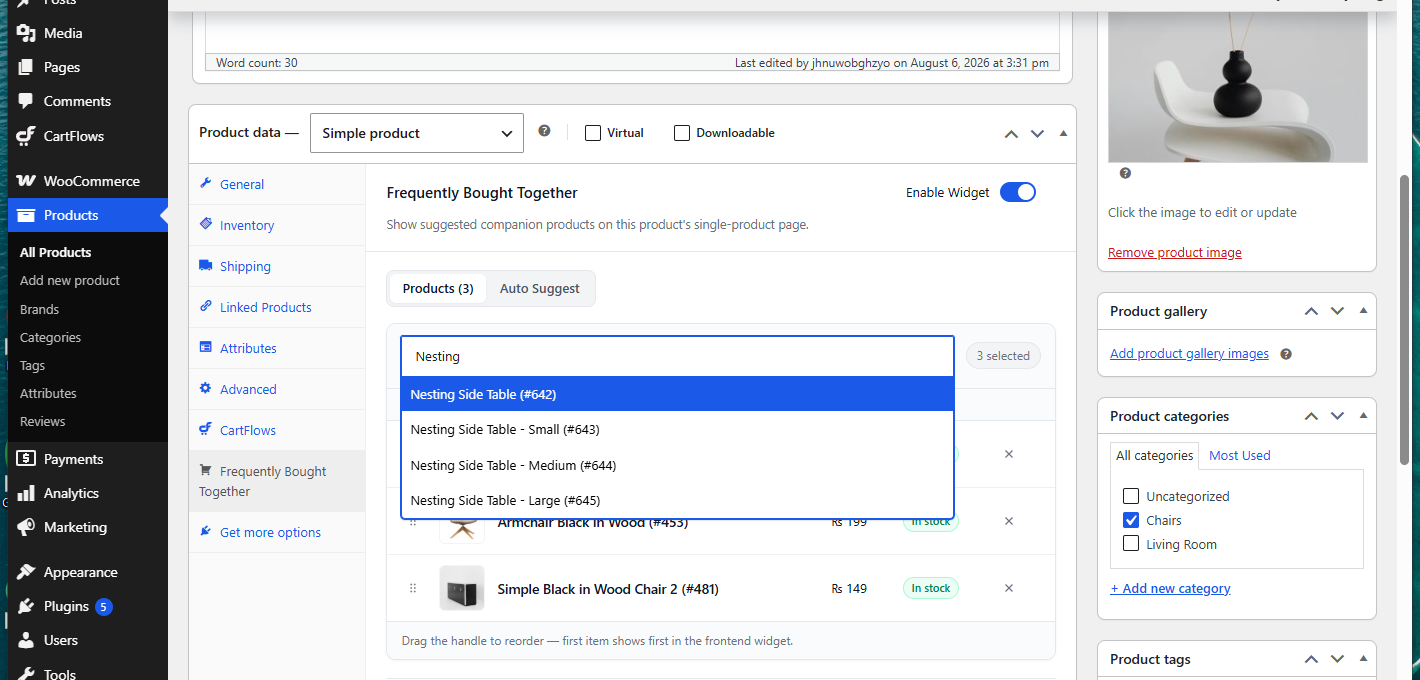
Choosing a specific variation means the shopper sees no dropdown for it. The product appears at its own fixed price and can be ticked straight away, which makes for a quicker decision.
What Shoppers See
When a companion has variations, its row shows a Choose an option dropdown listing every variation that can actually be bought, each with its own price.
Two things change as the shopper makes choices:
- The From price is replaced by the real price of the chosen variation.
- The total and the button label update to include it.
If a shopper ticks a variable product without choosing an option, the button tells them to select options before continuing, so nothing can be added half-configured.
Products That Are Left Out
Some variations and products are deliberately not offered, so shoppers never meet an option they cannot buy.
- Variations that are out of stock are not listed in the dropdown.
- Variations that need extra input from the shopper, such as an attribute set to “Any” rather than a specific value, are not listed, because the section has no way to collect that detail.
- A variable product with no purchasable variations left is dropped from the section entirely rather than shown as unavailable.
That last point is worth knowing when you’re setting things up. If a companion you added doesn’t appear on the product page at all, check whether its variations are in stock and purchasable.
Frequently Asked Questions
We don't respond to the article feedback, we use it to improve our support content.