
- Getting Started
- Creating Your First Funnel
- CartFlows Funnel Step Types
- Starting a Funnel from a Product Page
- How to Edit and Customise Funnel Steps
- Using CartFlows with or without Store Checkout
- How to Add /Assign Products to a Checkout Step
- How to Create One-Click Upsell and Downsell Offers
- How to Use Canvas Mode to Visualize Your Sales Funnel
- Hiding Fields on the Checkout Page
- Installing WooCommerce
- Using WooCommerce
- Adding Products in WooCommerce
- Using Your Theme's Header & Footer in a Step
- Embedding a Checkout Form on the Checkout Page
- Hiding WooCommerce Pages and Products
- Using Pricing Tables
- Adding an Affiliate Program
- Setting a Funnel as the Homepage
- Dynamic Offers aka Rule Engine
- Instant Layout for Checkout and Thank You Step
- Adding Products from the URL to the Checkout Page
- Deleting Plugin Data During Uninstallation
- Importing Ready-Made Templates for Funnels and Steps
- Importing and Exporting Funnels and Step
- URL Parameters
- Replacing the Main Checkout Order with an Upsell or Downsell
- Rolling back to a Previous Version
- Using the "Order Custom Field" Rule of Dynamic Offers with Custom Field Editor
- Google Address Autocomplete
- Flatsome UX Builder
- ActiveCampaign
- Paypal Reference Transactions
- How PaypPal/Stripe Works
- Enabling Enfold Avia Layout Builder
- Setting Up Authorize.net for Upsell & Downsell
- Supported Payment Gateways
- Setting Quantity and Discount for Products on the Checkout Page
- Adding Custom Payment Gateway Support for One-Click Upsell and Downsell
- Funnel in Test Mode
- Troubleshooting Plugin and Theme Conflicts
- Resolving the "Please Select a Simple, Virtual, and Free Product" Error
- Fixing Endless Loading on the Checkout Page
- Fixing the "We can't seem to find an order for you." Error on the Thank You Page
- Troubleshooting License Activation Issues
- Fixing the "Checkout ID Not Found" Error
- Fixing the "Session Expired" Error Message
- Resolving "Order Does Not Exist" Error on Upsell/Downsell Page
- Fixing the "Sorry, This Product Cannot Be Purchased" Error
- Disabling Auto-fill of Address Fields Based on Zip Code
- Enabling Theme's Scripts & Styles Without Changing Page Template
- Disabling Auto-fill of Checkout Fields
- Allowing Cache Plugins to Cache CartFlows Pages
- Changing the "Choose a Variation" Text
- VAT Field Not Displaying for WooCommerce EU/UK VAT Compliance Plugin
- Enabling the Product Tab on Store Checkout
- Displaying the Order Summary Open on Mobile Devices
- Refreshing the Checkout Page After CartFlows AJAX Calls
- Overview
- Installing Modern Cart Starter
- Installing Modern Cart Pro
- Activating License Key
- Customizing General Settings
- Customizing Cart Tray Labels
- Customizing Cart Icon Settings
- Customizing Cart Tray Styling
- Understanding the Product Recommendations Feature
- Controlling Product Recommendation Source for Empty Cart
How to Use Gift Cards
The Gift Cards feature in Power Coupons Pro lets you sell digital gift cards that customers can purchase and send to anyone via email. Recipients receive a unique coupon code they can redeem at checkout, with support for partial redemption across multiple orders.
Key highlights:
- Sell gift cards as WooCommerce products with preset or custom amounts
- Customers fill in recipient name, email, and a personal message at purchase
- Unique coupon codes are auto-generated and emailed to recipients on order completion
- Partial redemption support — recipients can use gift cards across multiple orders
- Configurable expiry, product/category restrictions, and text customization
- My Account “Gift Cards” tab for customers to view received and sent gift cards
- Gift cards are protected from discounts — no coupons or loyalty credits can be applied to gift card purchases
Requirements: WordPress 6.0+, WooCommerce 3.0+, Power Coupons (free) plugin installed and active, Power Coupons Pro plugin installed, active, and license activated.
Getting Started
Enabling Gift Cards
- Go to Power Coupons → Settings in your WordPress admin.
- Click on the Gift Cards tab (in the settings navigation).
- Under the General sub-tab, toggle Enable Gift Cards to ON.
- The setting saves automatically. Once enabled, the gift card system becomes active.
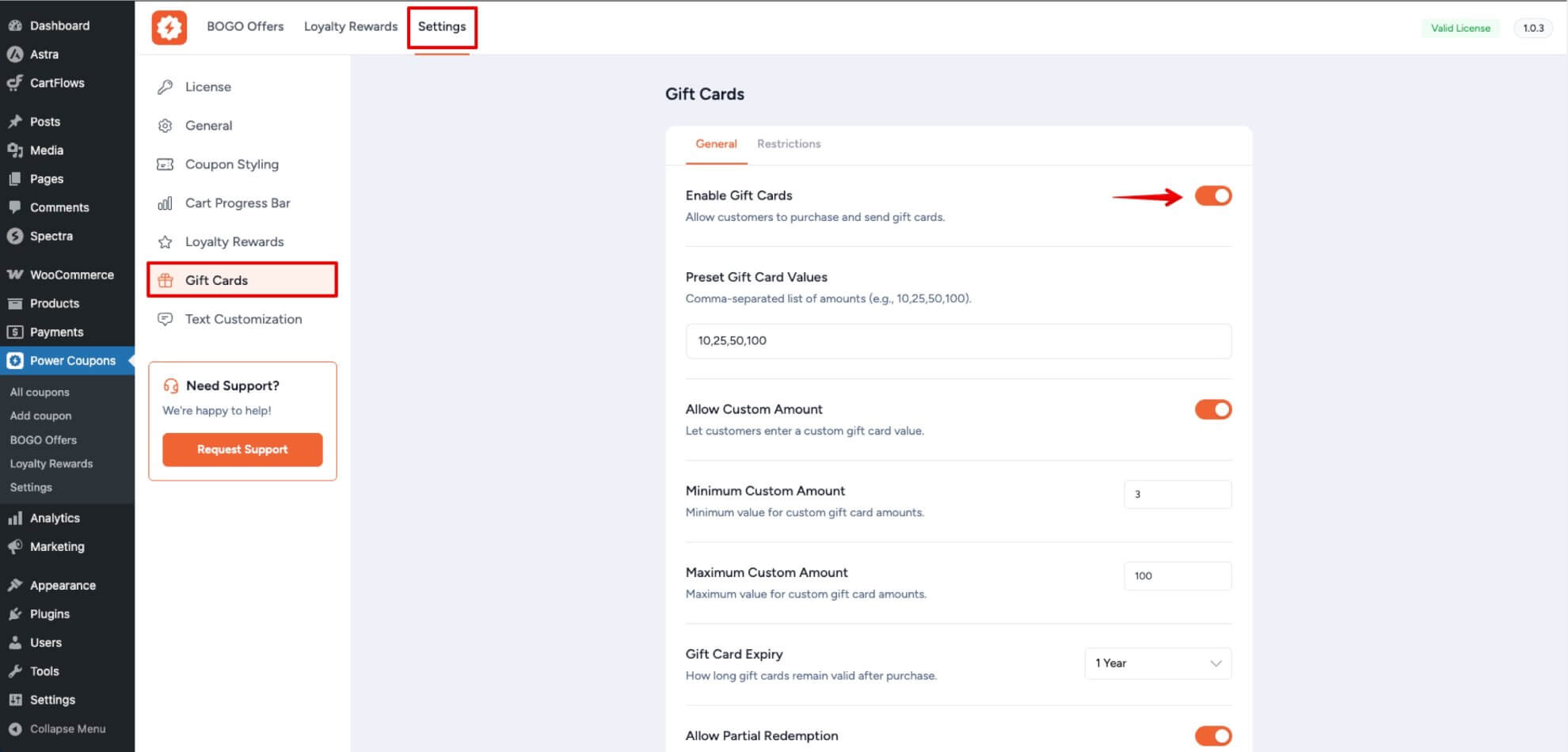
When Gift Cards is disabled, customers cannot purchase gift cards and the My Account tab is hidden. Any existing gift card coupons remain in the system and will work again when re-enabled.
Settings Overview
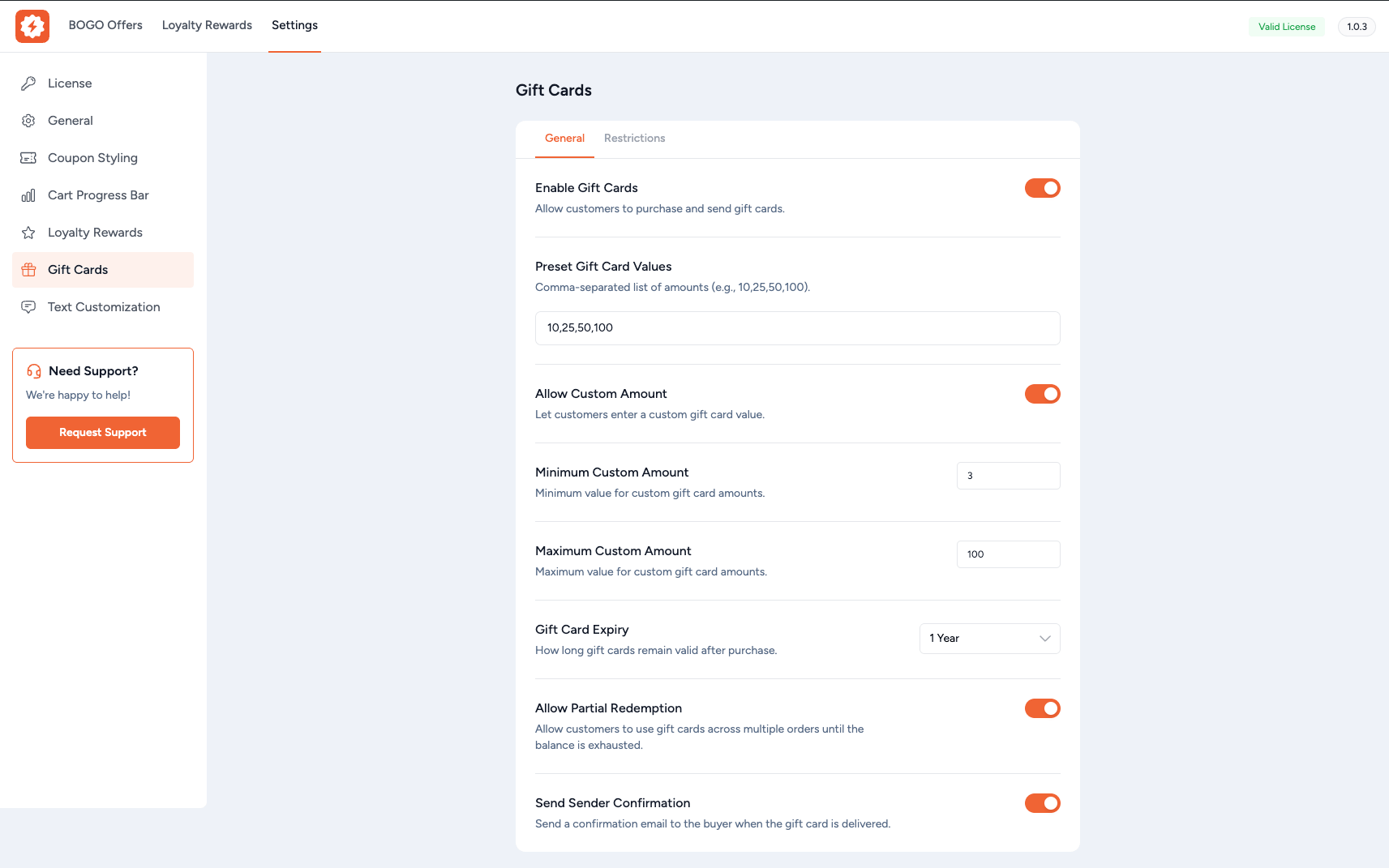
Gift Cards settings are organized into two sub-tabs under Power Coupons → Settings → Gift Cards: General and Restrictions.
General Settings
- Enable Gift Cards – Master toggle for the entire feature. When OFF, no gift cards can be purchased or redeemed. Default: OFF.
- Preset Gift Card Values – Comma-separated list of amounts shown in the amount dropdown on the product page (e.g., 10,25,50,100). Only positive numeric values are accepted. Non-numeric values are automatically stripped on save. Default: 10,25,50,100.
- Allow Custom Amount – Let customers enter a custom gift card value instead of choosing from presets. Default: ON.
- Minimum Custom Amount – Minimum value for custom amounts. Only visible when Allow Custom Amount is enabled. Default: 5.
- Maximum Custom Amount – Maximum value for custom amounts. Only visible when Allow Custom Amount is enabled. If set lower than minimum, it is auto-corrected to match. Default: 500.
- Gift Card Expiry – How long gift cards remain valid after purchase. Options: 1 Month, 3 Months, 6 Months, 9 Months, 1 Year, No Expiry. Default: 1 Year.
- Allow Partial Redemption – Allow recipients to use gift cards across multiple orders until the balance is exhausted. When OFF, the gift card can only be used once. Default: ON.
- Send Sender Confirmation – Send a confirmation email to the buyer when the gift card is delivered to the recipient. Default: ON.
Restrictions Settings
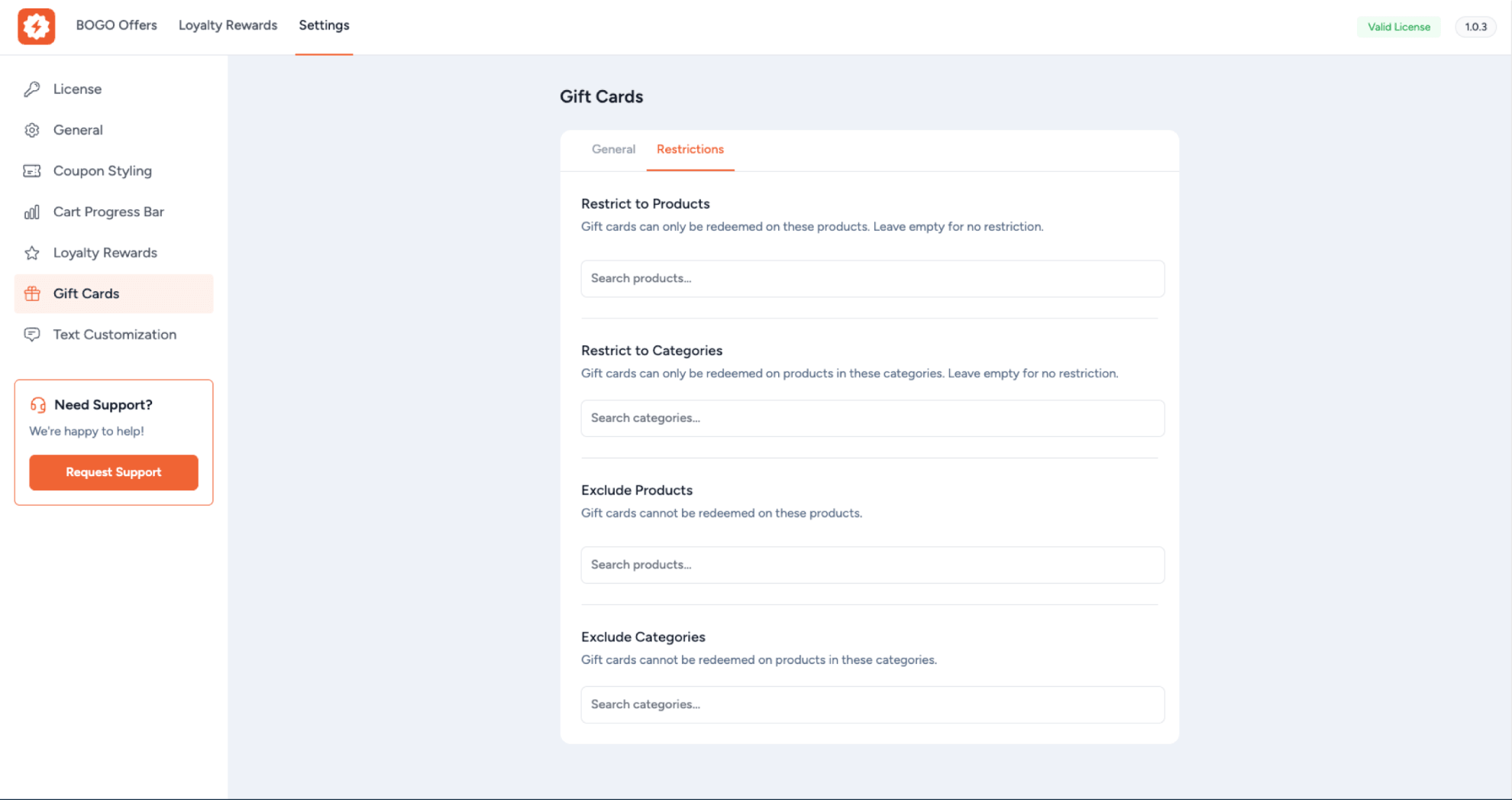
Control where gift cards can be redeemed. These restrictions are applied to the generated coupon codes.
- Restrict to Products – Gift cards can only be redeemed on these specific products. Leave empty for no restriction.
- Restrict to Categories – Gift cards can only be redeemed on products in these categories. Leave empty for no restriction.
- Exclude Products – Gift cards cannot be redeemed on these specific products.
- Exclude Categories – Gift cards cannot be redeemed on products in these categories.
Creating a Gift Card Product
Gift cards are sold as regular WooCommerce Simple products with the Gift Card option enabled.
Setting Up a Gift Card Product
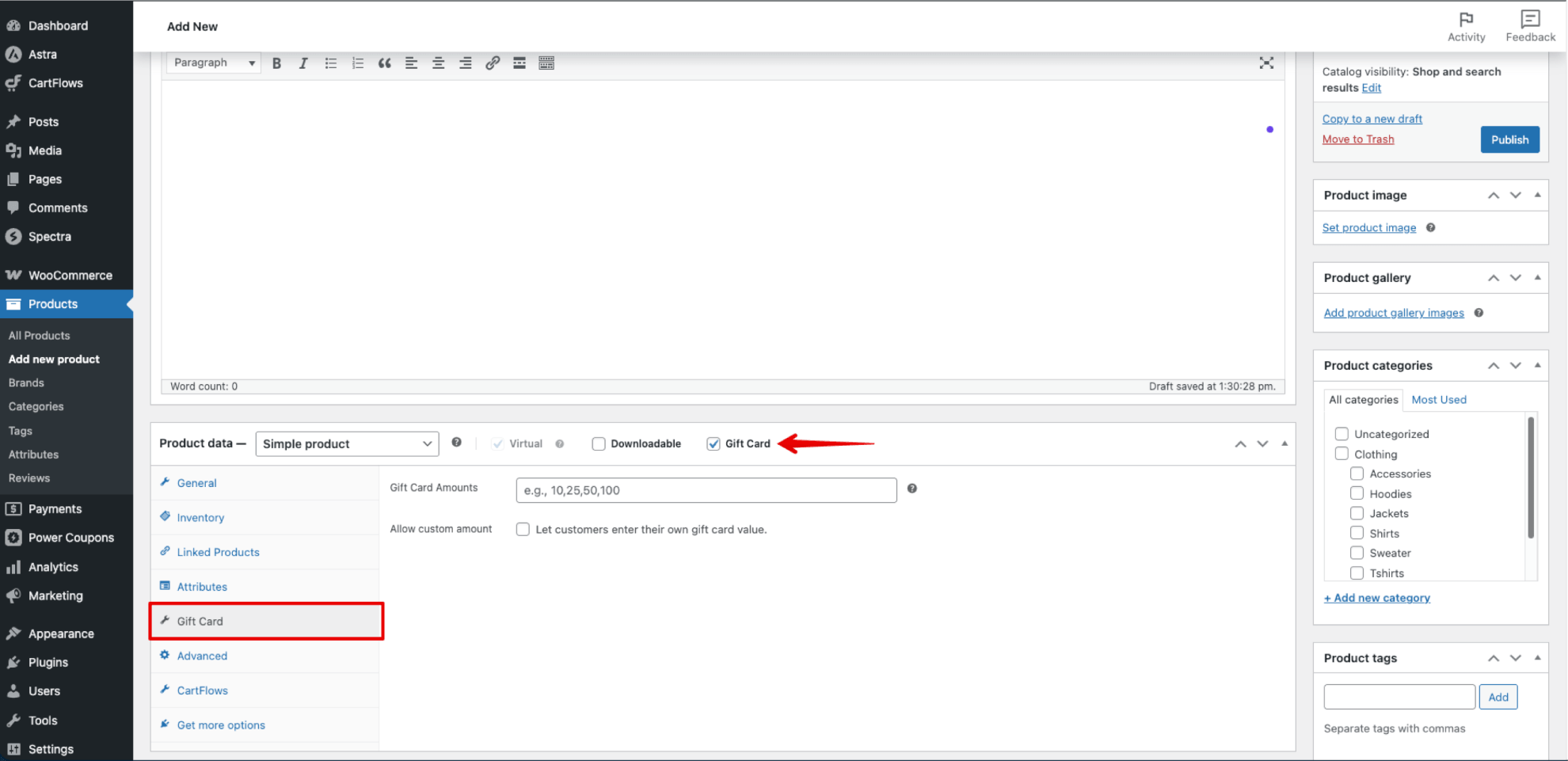
- Go to Products → Add New in your WordPress admin.
- Enter a product name (e.g., “Gift Card”) and add a description and product image.
- In the Product data section, ensure the product type is set to Simple product.
- Check the Gift Card checkbox (next to Virtual and Downloadable). The Virtual checkbox will be automatically checked and locked — gift cards are always virtual.
- A new Gift Card tab appears in the product data panel. Click on it.
Gift Card Product Settings
The Gift Card tab allows you to override global settings at the product level:
- Gift Card Amounts – Enter preset denominations separated by commas (e.g., 25,50,100). Leave empty to use the global preset values from the Gift Cards settings page.
- Allow custom amount – Let customers enter their own gift card value for this product.
- Minimum amount – Minimum value for custom amounts. Leave empty to use the global setting. Only visible when Allow custom amount is checked.
- Maximum amount – Maximum value for custom amounts. Leave empty to use the global setting. Only visible when Allow custom amount is checked.
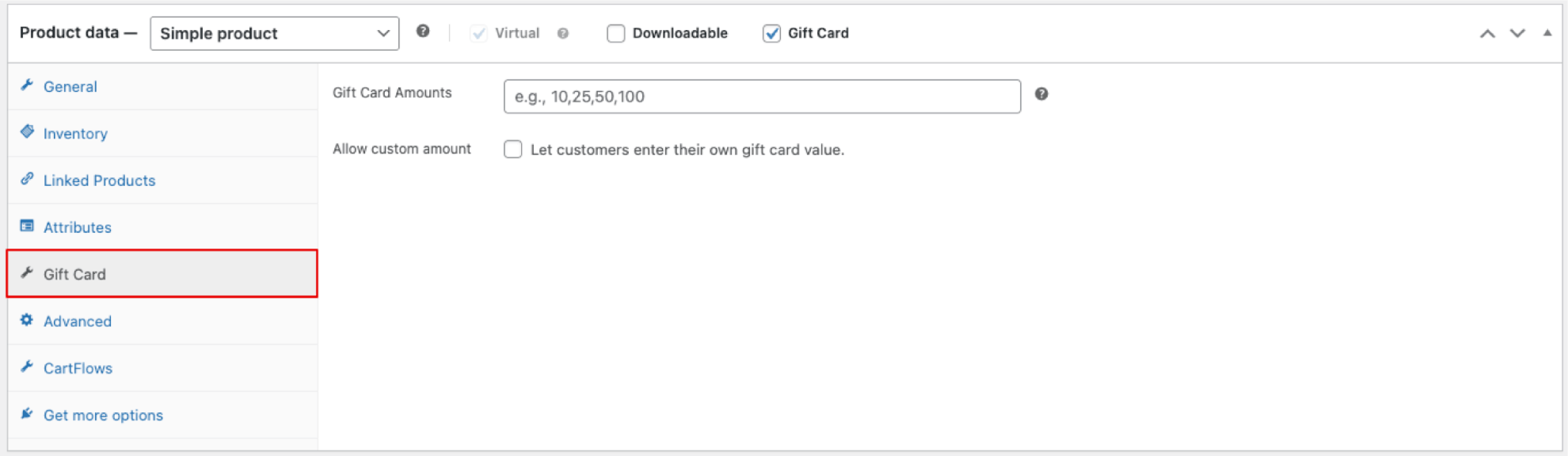
- You do not need to set a product price — the price is determined by the customer’s selected amount. A $0 price is set automatically to ensure the add-to-cart form renders.
- Click Publish (or Update) to save the product.
Customer Experience
Product Page
When a customer visits a gift card product page, they see:
- Price range – Instead of a fixed price, the product shows a range based on preset amounts (e.g., “$10.00 – $100.00”).
- Amount dropdown – A select dropdown with all preset amounts. If custom amounts are enabled, a “Custom Amount” option appears at the end.
- Custom amount input – When “Custom Amount” is selected from the dropdown, a number input appears with the currency symbol and min/max placeholder (e.g., “5.00 – 500.00”).
- Recipient fields – A section with fields for the recipient’s name (required), email address (required), and a personal message (optional, up to 500 characters).
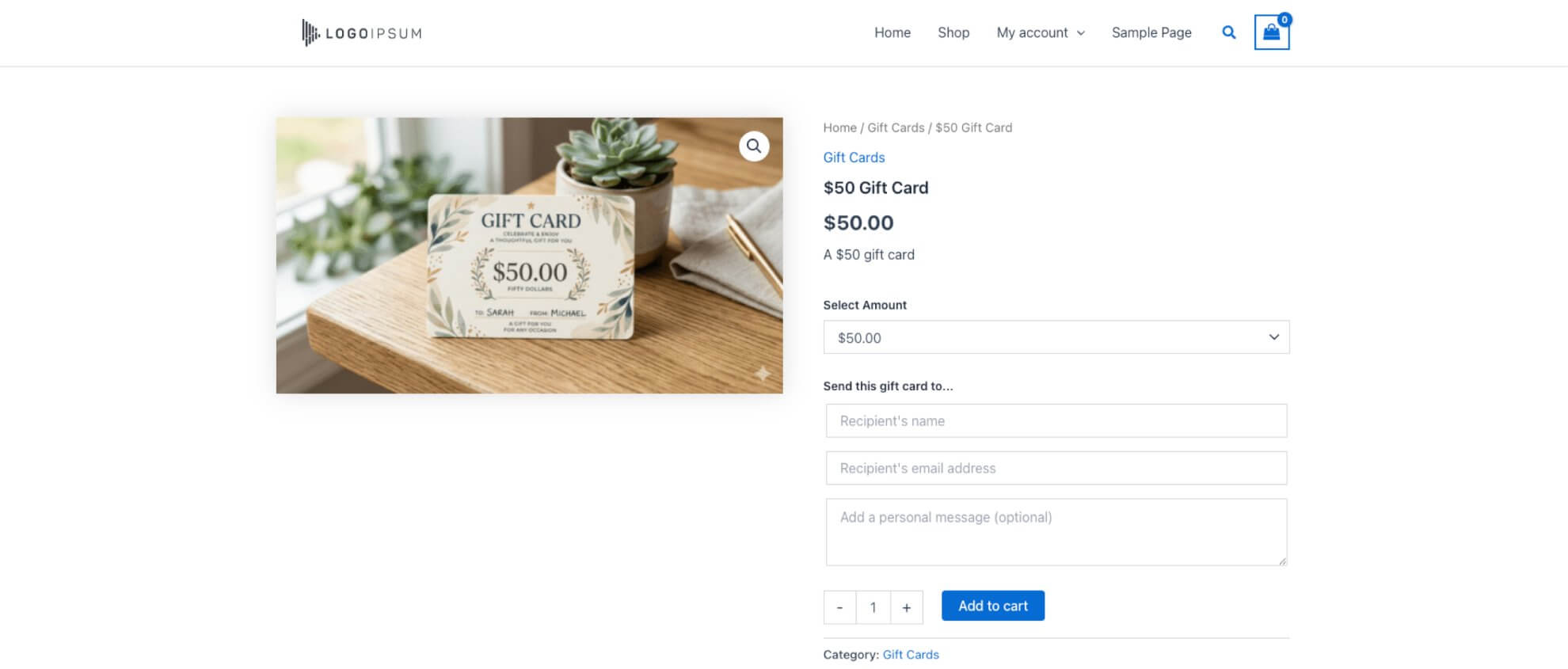
When the quantity is set to more than 1, additional recipient groups are added automatically — one for each gift card. Each recipient requires a name and email.
Validation
The following validations are enforced before a gift card can be added to the cart:
- An amount must be selected (preset or custom).
- Custom amount must be within the configured min/max range.
- Recipient name is required for each gift card.
- A valid email address is required for each recipient.
- The number of recipients must match the quantity.
Validation runs both in the browser (JavaScript) and on the server (PHP) to prevent bypassing.
Shop Archive
On shop and category pages, gift card products display a “Select options” button instead of “Add to cart”. This redirects customers to the single product page where they can fill in recipient details. AJAX add-to-cart is disabled for gift cards.
Cart and Checkout
After adding a gift card to the cart:
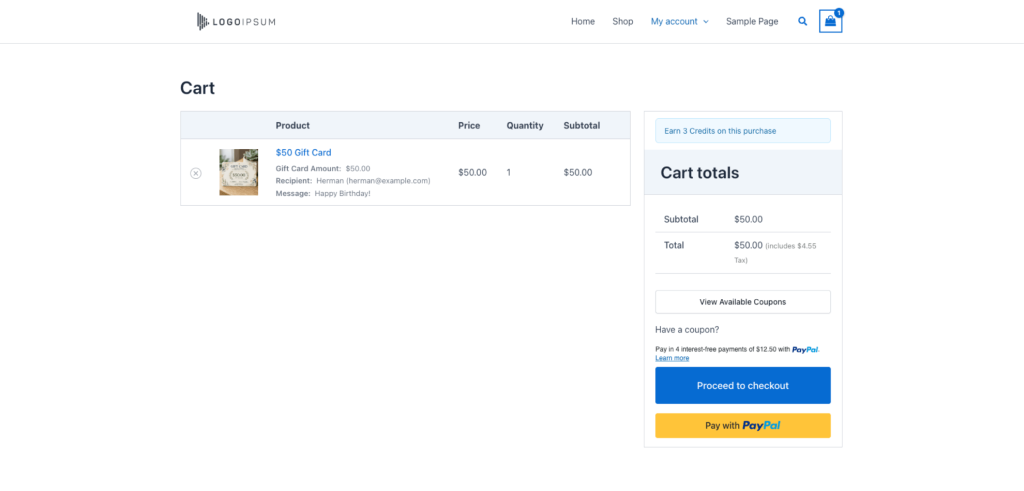
- The cart displays the Gift Card Amount, Recipient name and email, and Message for each gift card item.
- Each gift card is treated as a unique cart item, even if the same product and amount are selected.
- Quantity cannot be changed in the cart or mini-cart — it is locked to the value set on the product page because recipients are tied to the quantity.
- Discounts are blocked — no coupons or loyalty credits can reduce the price of gift card items. This prevents a financial loophole where someone could buy a discounted gift card and redeem it at full value.
What Happens After Purchase
Coupon Generation
When the order status changes to Completed, the following happens automatically for each gift card item in the order:
- A unique WooCommerce coupon is generated for each recipient with a code in the format
gc-xxxxxxxx(8 random characters). - The coupon is configured as a fixed cart discount with the face value of the gift card.
- Product and category restrictions from the Gift Cards settings are applied to the coupon.
- The expiry date is set based on the configured Gift Card Expiry setting.
- An email is sent to the recipient with the gift card code, amount, sender’s name, personal message, and a link to the shop.
- If enabled, a confirmation email is sent to the buyer confirming the gift card has been delivered.
The order is flagged to prevent double-processing if the status changes multiple times.
Email Notifications
Two types of emails are sent (both use the WooCommerce email template with your store’s header and footer):
- Recipient Email – Sent to the recipient’s email address. Contains the gift card code, amount, sender’s name, personal message, expiry date, and a link to the shop. Subject line is customizable (default: “You’ve received a {amount} gift card!”).
- Sender Confirmation Email – Sent to the buyer’s billing email (only if “Send Sender Confirmation” is enabled). Contains the recipient’s name, amount, and coupon code. Subject line is customizable (default: “Your {amount} gift card has been sent!”).
Gift Card Redemption
Recipients redeem gift cards by entering the coupon code at checkout, just like any WooCommerce coupon.
Partial Redemption
When Allow Partial Redemption is enabled (default), gift cards work as a stored balance:
- If the order total is less than the gift card balance, only the order amount is deducted and the remaining balance is preserved.
- The recipient can use the same code on future orders until the balance is exhausted.
- A success notice shows the remaining balance when the gift card is applied (e.g., “Gift card applied! Remaining balance: $70.00”).
- When the balance reaches $0, the gift card is marked as fully redeemed and cannot be used again.
When partial redemption is disabled, the gift card can only be used once regardless of the remaining balance.
Balance Tracking
Gift card balances are updated atomically when orders are completed. This means even if two orders using the same gift card are processed simultaneously, the balance will be calculated correctly without race conditions.
The discount is also capped to the remaining balance — a gift card can never give more discount than its current balance, even when applied to a cart with multiple items.
My Account — Gift Cards Tab
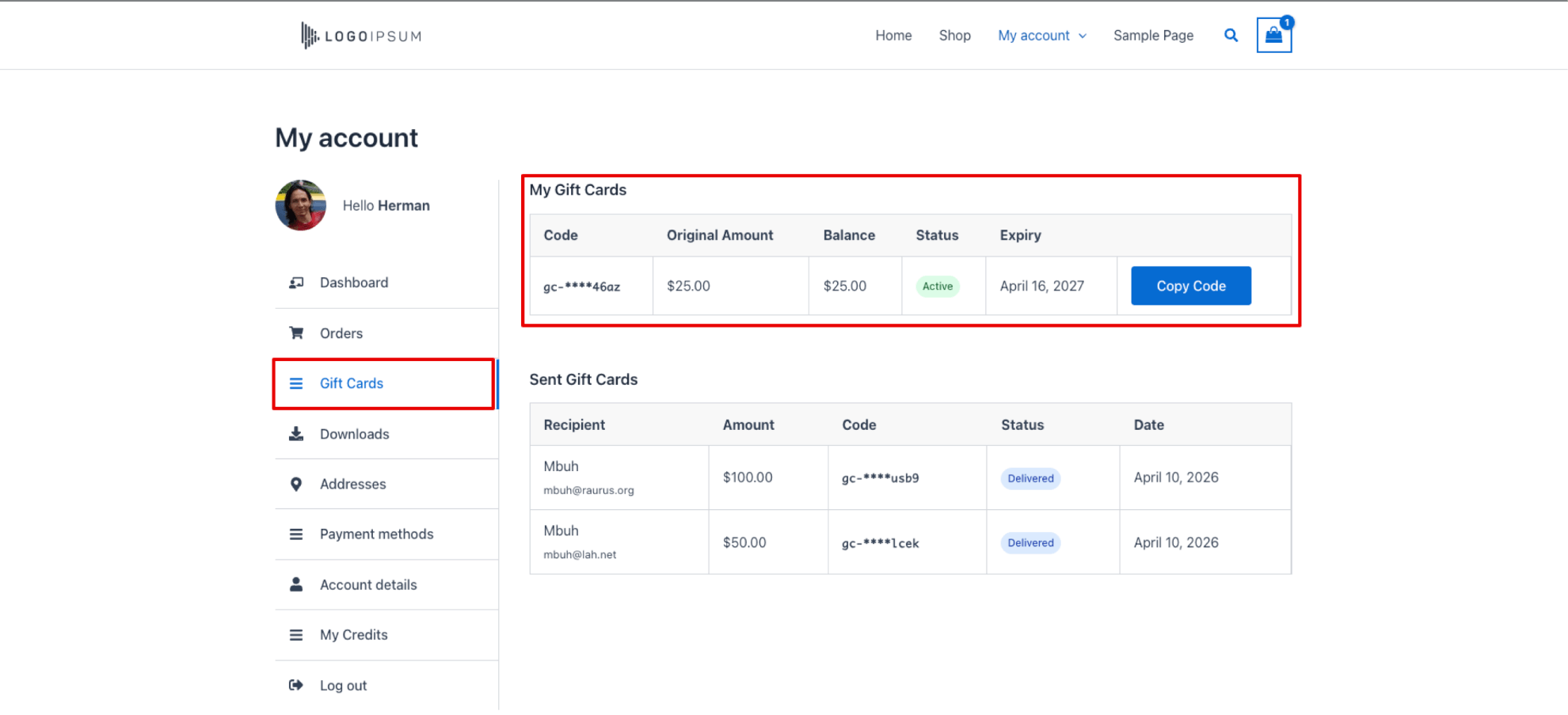
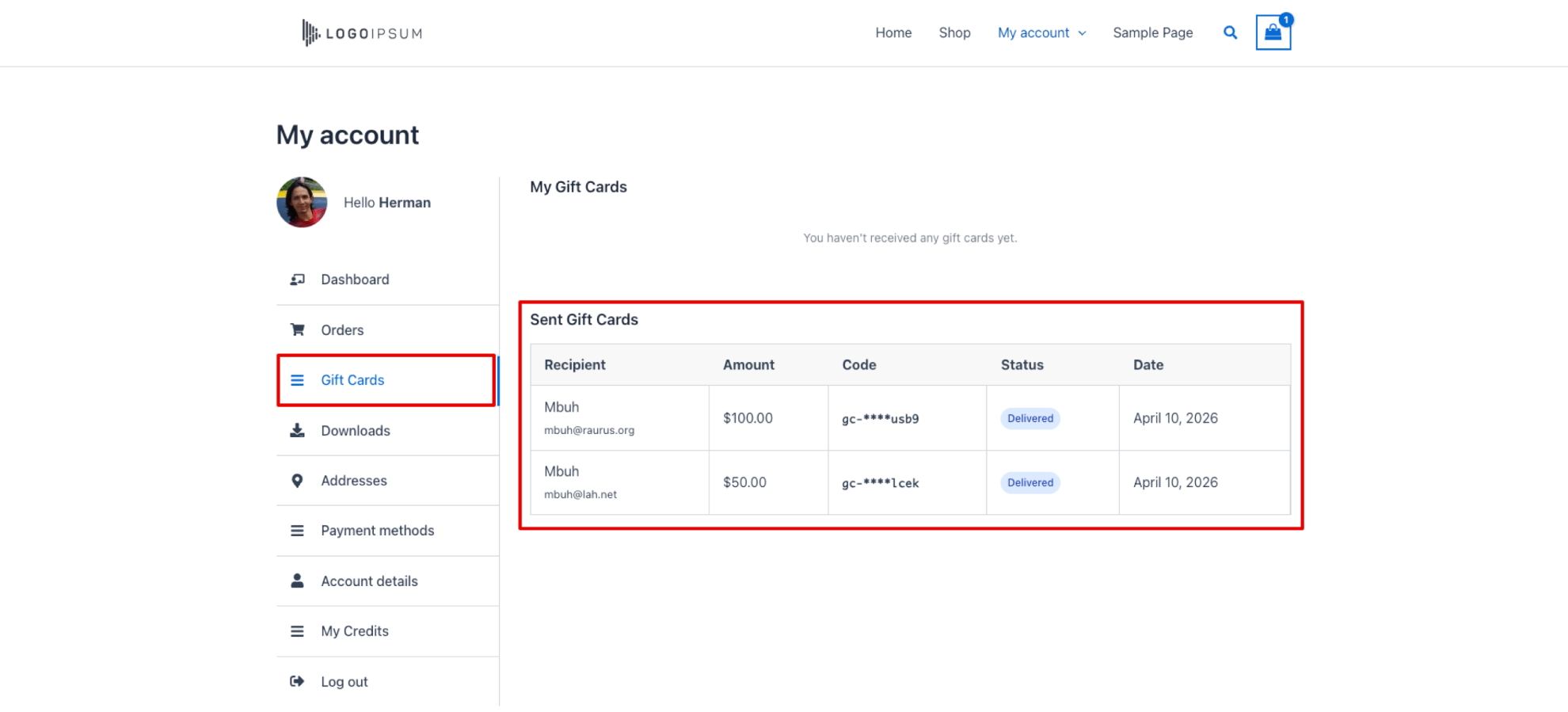
A Gift Cards tab is added to the WooCommerce My Account page (placed after “Orders”). The tab label is customizable via Text Customization settings.
My Gift Cards (Received)
Shows all gift cards the customer has received, with the following columns:
- Code – Partially masked code (e.g., gc-****dcas) to prevent shoulder-surfing.
- Original Amount – The face value of the gift card.
- Balance – Current remaining balance.
- Status – Active, Partially Used, Fully Redeemed, or Expired.
- Expiry – Expiry date or “No expiry”.
- Copy Code – A button (shown only for Active gift cards) that copies the full code to the clipboard.
Sent Gift Cards
Shows all gift cards the customer has purchased and sent, with columns for:
- Recipient – Name and email of the recipient.
- Amount – The gift card value.
- Code – Masked code, or “Pending” if the order hasn’t been completed yet.
- Status – Delivered, Active, Partially Used, Fully Redeemed, or Expired.
- Date – When the gift card was sent.
Text Customization
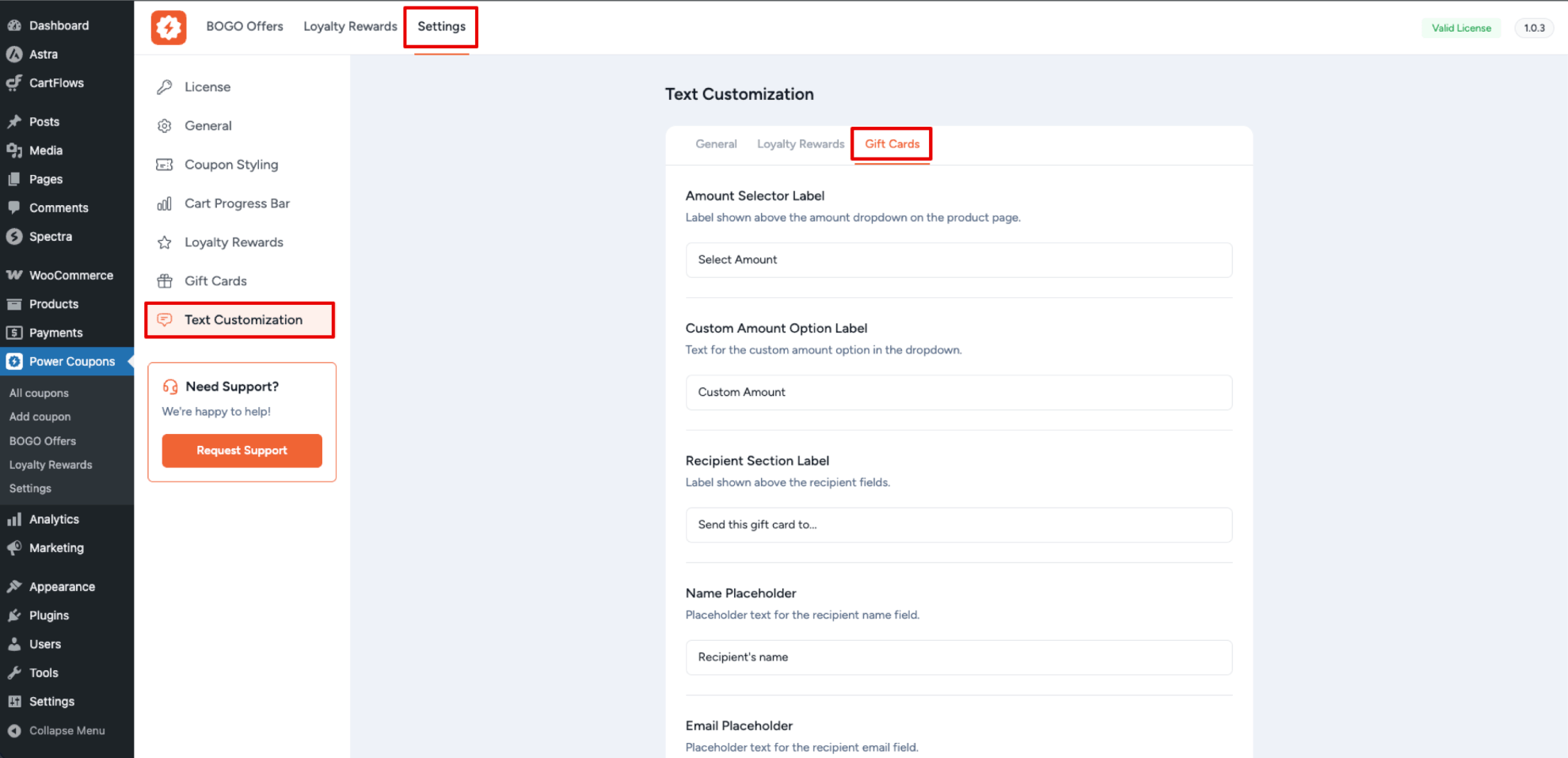
All customer-facing text strings can be customized under Power Coupons → Settings → Text Customization → Gift Cards sub-tab.
Available Customizations
- Amount Selector Label – Label above the amount dropdown. Default: “Select Amount”.
- Custom Amount Option Label – Text for the custom amount option. Default: “Custom Amount”.
- Recipient Section Label – Label above recipient fields. Default: “Send this gift card to…”.
- Name Placeholder – Placeholder for recipient name. Default: “Recipient’s name”.
- Email Placeholder – Placeholder for recipient email. Default: “Recipient’s email address”.
- Message Placeholder – Placeholder for personal message. Default: “Add a personal message (optional)”.
- Balance Applied Message – Notice when gift card is applied. Default: “Gift card applied! Remaining balance: {balance}”.
- Fully Redeemed Message – Error when a used-up gift card is applied. Default: “This gift card has been fully redeemed.”.
- Recipient Email Subject – Subject for recipient email. Default: “You’ve received a {amount} gift card!”.
- Sender Confirmation Email Subject – Subject for buyer email. Default: “Your {amount} gift card has been sent!”.
- My Account Tab Label – Label for the Gift Cards tab. Default: “Gift Cards”.
Placeholder Reference
The following placeholders can be used in text customization fields:
{amount}– The gift card amount with currency symbol (used in email subjects).{balance}– The remaining gift card balance with currency symbol (used in the balance applied message).
Gift Cards in the Admin
Order Details
When viewing an order that contains gift card items in WooCommerce → Orders, the order item meta shows:
- Gift Card Amount – The face value selected by the customer.
- Recipients – Each recipient’s name, email, and personal message.
Generated Coupons
Gift card coupons appear in WooCommerce → Coupons (or Marketing → Coupons) with the code format gc-xxxxxxxx. Each coupon stores:
- The current balance (as the coupon amount).
- The initial face value.
- The source order ID and item ID.
- The recipient email.
Gift card coupons are automatically hidden from the frontend “View All Coupons” drawer and coupon display lists. They are personal, recipient-specific codes and should not be browsed alongside promotional coupons.
Fully redeemed gift card coupons are kept in the system (not trashed) to preserve the audit trail for customer support and order history.
Example Setup
Here is a quick example of setting up gift cards for your store:
- Go to Power Coupons → Settings → Gift Cards and enable Gift Cards.
- Set preset amounts to 25,50,100,200.
- Enable Allow Custom Amount with a minimum of 10 and maximum of 500.
- Set expiry to 1 Year and enable Partial Redemption.
- Go to Products → Add New, create a product called “Gift Card”.
- Check the Gift Card checkbox and publish.
Result: Customers can now visit your gift card product page, choose an amount ($25, $50, $100, $200, or a custom value between $10–$500), enter the recipient’s details, and purchase. On order completion, the recipient receives an email with a unique coupon code they can use at checkout. The balance tracks across multiple orders for up to one year.
We don't respond to the article feedback, we use it to improve our support content.