
- Getting Started
- Creating Your First Funnel
- CartFlows Funnel Step Types
- Starting a Funnel from a Product Page
- How to Edit and Customise Funnel Steps
- Using CartFlows with or without Store Checkout
- How to Add /Assign Products to a Checkout Step
- How to Create One-Click Upsell and Downsell Offers
- How to Use Canvas Mode to Visualize Your Sales Funnel
- Hiding Fields on the Checkout Page
- Installing WooCommerce
- Using WooCommerce
- Adding Products in WooCommerce
- Using Your Theme's Header & Footer in a Step
- Embedding a Checkout Form on the Checkout Page
- Hiding WooCommerce Pages and Products
- Using Pricing Tables
- Adding an Affiliate Program
- Setting a Funnel as the Homepage
- Dynamic Offers aka Rule Engine
- Instant Layout for Checkout and Thank You Step
- Adding Products from the URL to the Checkout Page
- Deleting Plugin Data During Uninstallation
- Importing Ready-Made Templates for Funnels and Steps
- Importing and Exporting Funnels and Step
- URL Parameters
- Replacing the Main Checkout Order with an Upsell or Downsell
- Rolling back to a Previous Version
- Using the "Order Custom Field" Rule of Dynamic Offers with Custom Field Editor
- Optin
- Separate Orders
- Setting Up Pre-Checkout Upsell
- Refund Offer
- Applying a Coupon from the URL
- How to Create a Direct Buy-Now Checkout Link for a Product
- How Coupons Work in CartFlows?
- User role manager
- Instant Layout for Upsell and Downsell
- CartFlows Smart Login
- How to Set Preferred Countries on the Checkout Page
- CartFlows Product Options
- How to Set Up Two Step Checkout in CartFlows
- How to Set Up Multistep Checkout in CartFlows
- How to Customize the CartFlows Thank You Page
- How to Set Global Styling for a CartFlows Funnel
- How to Close a Checkout After a Date or Number of Orders
- Adding Order Bumps to WooCommerce Sales Funnel
- Replacing the First Product on Checkout with Order Bump
- Dynamic (Conditional) Order Bumps
- Order Bump AI
- Positions and Styles
- How to Auto-Apply a Coupon When an Order Bump Is Accepted
- How to Add Variable Products to an Order Bump
- How to A/B Test Order Bumps in CartFlows
- Google Address Autocomplete
- Flatsome UX Builder
- ActiveCampaign
- Paypal Reference Transactions
- How PaypPal/Stripe Works
- Enabling Enfold Avia Layout Builder
- Setting Up Authorize.net for Upsell & Downsell
- Supported Payment Gateways
- Setting Quantity and Discount for Products on the Checkout Page
- Adding Custom Payment Gateway Support for One-Click Upsell and Downsell
- Funnel in Test Mode
- Troubleshooting Plugin and Theme Conflicts
- Resolving the "Please Select a Simple, Virtual, and Free Product" Error
- Fixing Endless Loading on the Checkout Page
- Fixing the "We can't seem to find an order for you." Error on the Thank You Page
- Troubleshooting License Activation Issues
- Fixing the "Checkout ID Not Found" Error
- Fixing the "Session Expired" Error Message
- Resolving "Order Does Not Exist" Error on Upsell/Downsell Page
- Fixing the "Sorry, This Product Cannot Be Purchased" Error
- Disabling Auto-fill of Address Fields Based on Zip Code
- Enabling Theme's Scripts & Styles Without Changing Page Template
- Disabling Auto-fill of Checkout Fields
- Allowing Cache Plugins to Cache CartFlows Pages
- Changing the "Choose a Variation" Text
- VAT Field Not Displaying for WooCommerce EU/UK VAT Compliance Plugin
- Enabling the Product Tab on Store Checkout
- Displaying the Order Summary Open on Mobile Devices
- Refreshing the Checkout Page After CartFlows AJAX Calls
- Overview
- Installing Modern Cart Starter
- Installing Modern Cart Pro
- Activating License Key
- Customizing General Settings
- Customizing Cart Tray Labels
- Customizing Cart Icon Settings
- Customizing Cart Tray Styling
- Understanding the Product Recommendations Feature
- Controlling Product Recommendation Source for Empty Cart
CartFlows Smart Login
CartFlows Pro includes a feature called Smart Login that helps returning customers sign in to their account during checkout without leaving the page. When a registered customer enters their email, a friendly prompt appears, and a single click opens a clean login window right on top of the checkout.
This guide walks you through how Smart Login works, how to enable it on a checkout step, and what the experience looks like for your shoppers.
How Smart Login Works
When a guest reaches your checkout page and enters their email address, CartFlows quietly checks whether the email belongs to an existing customer.
- If the email is not registered, nothing changes. The guest continues with checkout as usual.
- If the email is registered, a small message appears below the email field inviting the customer to sign in.
- When the customer clicks the prompt, a centered login window opens on top of the checkout. They sign in, the page refreshes, and their saved details are populated automatically.
The customer never leaves the checkout page, and the cart they were building is preserved.
How to Set Up Smart Login
Smart Login is configured per checkout step, so you can turn it on for some funnels and leave it off for others.
Step 1. From the WordPress admin, go to CartFlows → Funnels and open the funnel that contains the checkout step you want to update.
Step 2. Click the checkout step to open its settings.
Step 3. In the left sidebar of the step settings, click Settings → Advanced.
Step 4. Scroll to the Smart Login options.
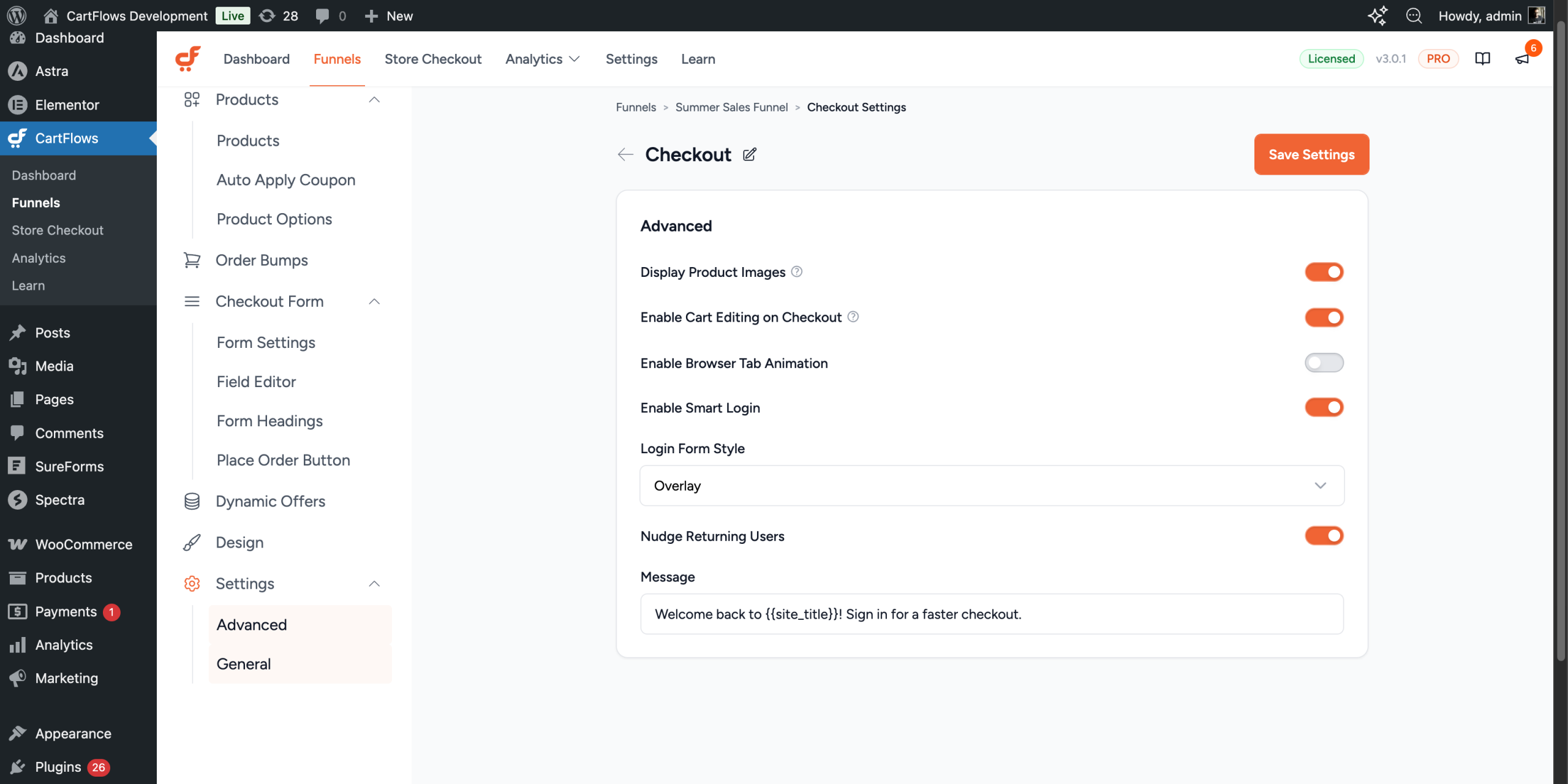
Step 5. Configure the four options:
- Enable Smart Login — Turn this on to activate the feature for this checkout step.
- Login Form Style — Choose Overlay to open a centered window above the checkout (recommended), or Inline to show the login form inside the checkout page between fields.
- Nudge Returning Users — When enabled, a short message appears below the email field if the customer’s email is recognised.
- Message — The text shown in the prompt. You can use the placeholder
{{site_title}}and it will be replaced with your store’s name automatically.
Step 6. Click Save Settings at the top right.
Smart Login is now active on that checkout step.
The Login Window in Action
Once Smart Login is enabled, customers see the standard checkout page until they enter a registered email. After they click the prompt (or the “Log in” link in the checkout header), the login window appears.
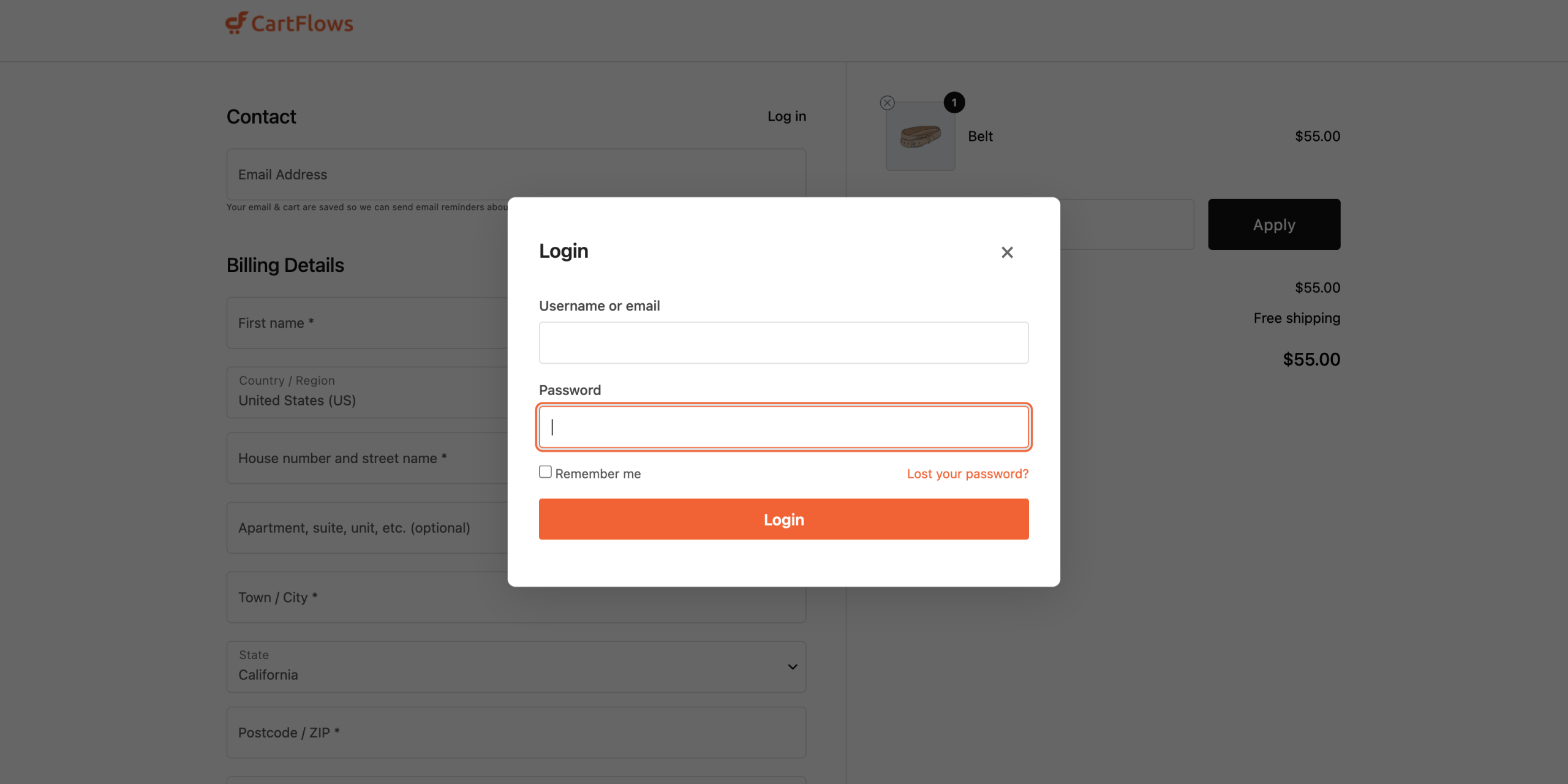
The window is centered on the screen with a darkened background. Customers enter their password and click Login. The page reloads, and they are signed in and ready to continue.
The window can be closed at any time by clicking outside of it, pressing the Esc key, or clicking the close button in the top right.
On Mobile Devices
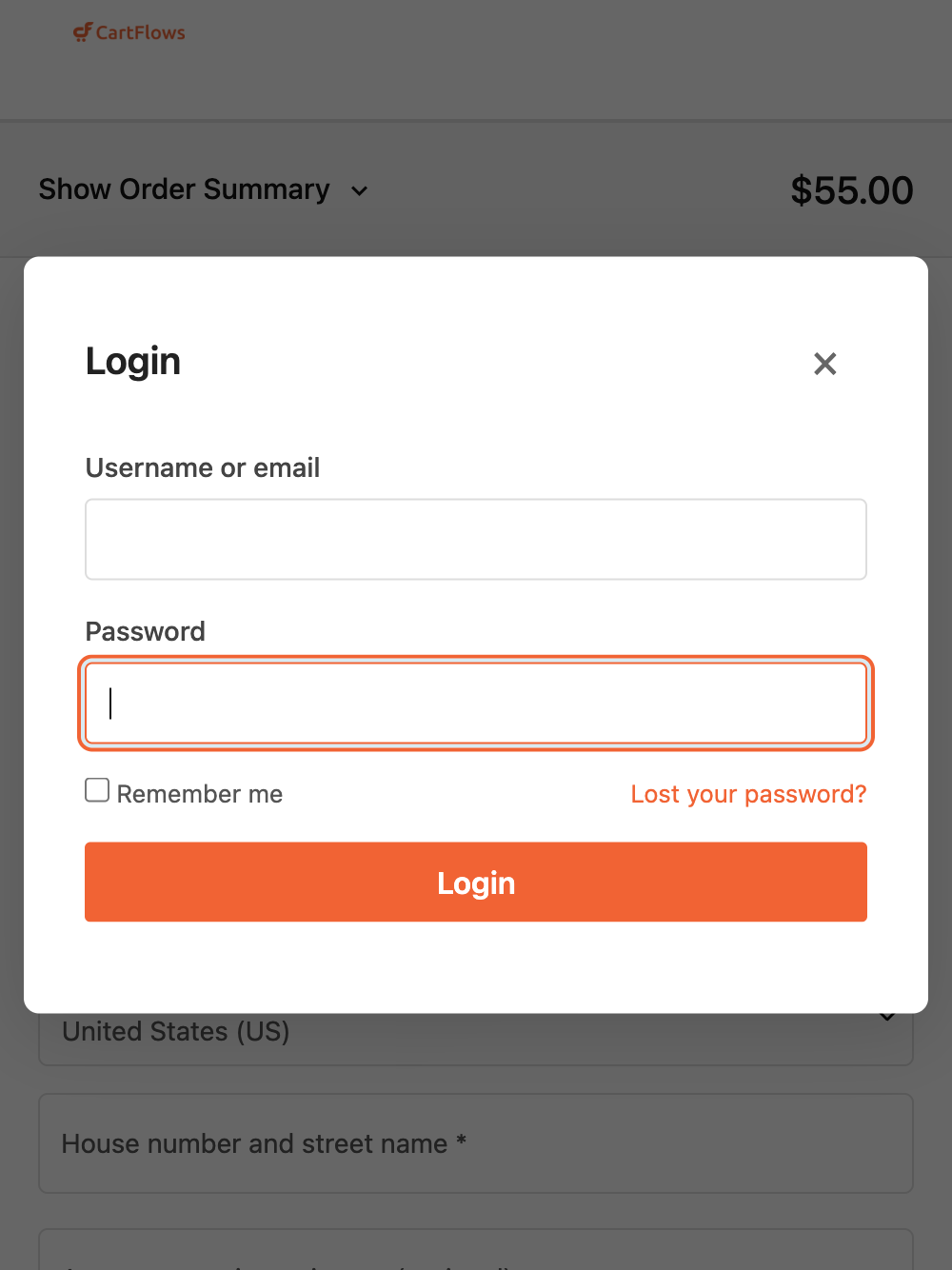
On smaller screens, the window automatically adjusts to fit the viewport with comfortable spacing and large touch targets.
Forgot Password Flow
If a returning customer can’t remember their password, they can click Lost your password? in the login window.
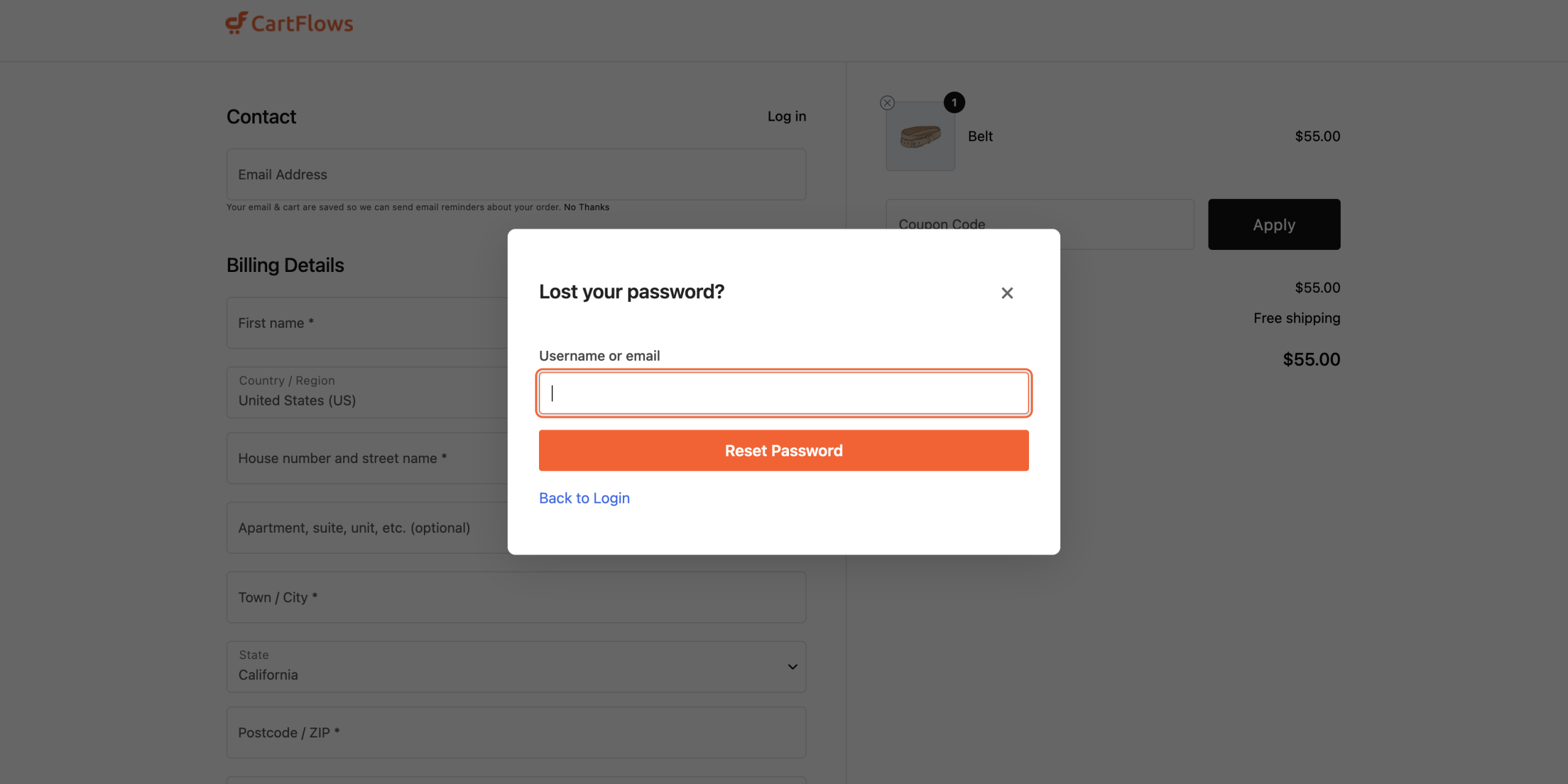
The customer enters their email and clicks Reset Password. They receive a password reset email, and after completing the reset they are returned to the same checkout step they started on, ready to finish their purchase.
For security, the same confirmation message is shown whether or not the email matches an existing account. This prevents anyone from probing your store to discover which emails are registered.
Frequently Asked Questions
Does Smart Login work without CartFlows Pro?
No. Smart Login is a CartFlows Pro feature and requires both CartFlows and CartFlows Pro to be active.
Will it interfere with my existing checkout?
No. When Smart Login is turned off, the checkout behaves exactly as before. When it is on, it only adds the prompt and login window — your checkout fields, payment options, and order summary remain unchanged.
What happens if a logged-in customer visits the checkout page?
Nothing extra happens. Smart Login only runs for guests. Logged-in customers see the regular checkout.
Does the customer’s cart get preserved during the password reset?
Yes. When the customer follows the reset link from their email, completes the password reset, and signs in, they are redirected back to the same checkout step with their cart intact.
Can I customise the prompt message?
Yes. The Message field lets you write any text that fits your store’s voice. Use the {{site_title}} placeholder if you want your store’s name to appear in the message.
Is it available on every checkout layout?
Yes. Smart Login works with the Default and Instant Checkout layouts and is compatible with the supported page builders.
Can I use Inline mode instead of the popup?
Yes. Set Login Form Style to Inline and the existing slide-down login form is used instead of the centered window. The recognition prompt still appears.
If you have any questions or run into trouble, please reach out to our support team and we’ll be happy to help.
We don't respond to the article feedback, we use it to improve our support content.