
- Getting Started
- Creating Your First Funnel
- CartFlows Funnel Step Types
- Starting a Funnel from a Product Page
- How to Edit and Customise Funnel Steps
- Using CartFlows with or without Store Checkout
- How to Add /Assign Products to a Checkout Step
- How to Create One-Click Upsell and Downsell Offers
- How to Use Canvas Mode to Visualize Your Sales Funnel
- Switching to CartFlows from FunnelKit or WPFunnels
- Hiding Fields on the Checkout Page
- Installing WooCommerce
- Using WooCommerce
- Adding Products in WooCommerce
- Using Your Theme's Header & Footer in a Step
- Embedding a Checkout Form on the Checkout Page
- Hiding WooCommerce Pages and Products
- Using Pricing Tables
- Adding an Affiliate Program
- Setting a Funnel as the Homepage
- Dynamic Offers aka Rule Engine
- Instant Layout for Checkout and Thank You Step
- Adding Products from the URL to the Checkout Page
- Deleting Plugin Data During Uninstallation
- Importing Ready-Made Templates for Funnels and Steps
- Importing and Exporting Funnels and Step
- URL Parameters
- Replacing the Main Checkout Order with an Upsell or Downsell
- Rolling back to a Previous Version
- Using the "Order Custom Field" Rule of Dynamic Offers with Custom Field Editor
- Frequently Bought Together
- Frequently Bought Together vs Order Bumps vs Upsells
- Using Auto Suggest
- Auto Suggest for WooCommerce Upsells and Cross-sells
- Using with Variable Products
- Widget Placement Options
- How Auto Suggest Works
- Add Products Separately Setting
- Styling the Widget
- How to Add a Bundle Discount to Frequently Bought Together
- Adding Order Bumps to WooCommerce Sales Funnel
- Replacing the First Product on Checkout with Order Bump
- Dynamic (Conditional) Order Bumps
- Order Bump AI
- Positions and Styles
- How to Auto-Apply a Coupon When an Order Bump Is Accepted
- How to Add Variable Products to an Order Bump
- How to A/B Test Order Bumps in CartFlows
- Google Address Autocomplete
- Flatsome UX Builder
- ActiveCampaign
- Paypal Reference Transactions
- How PaypPal/Stripe Works
- Enabling Enfold Avia Layout Builder
- Setting Up Authorize.net for Upsell & Downsell
- Supported Payment Gateways
- Setting Quantity and Discount for Products on the Checkout Page
- Adding Custom Payment Gateway Support for One-Click Upsell and Downsell
- Funnel in Test Mode
- Troubleshooting Plugin and Theme Conflicts
- Resolving the "Please Select a Simple, Virtual, and Free Product" Error
- Fixing Endless Loading on the Checkout Page
- Fixing the "We can't seem to find an order for you." Error on the Thank You Page
- Troubleshooting License Activation Issues
- Fixing the "Checkout ID Not Found" Error
- Fixing the "Session Expired" Error Message
- Resolving "Order Does Not Exist" Error on Upsell/Downsell Page
- Fixing the "Sorry, This Product Cannot Be Purchased" Error
- Disabling Auto-fill of Address Fields Based on Zip Code
- Enabling Theme's Scripts & Styles Without Changing Page Template
- Disabling Auto-fill of Checkout Fields
- Allowing Cache Plugins to Cache CartFlows Pages
- Changing the "Choose a Variation" Text
- VAT Field Not Displaying for WooCommerce EU/UK VAT Compliance Plugin
- Enabling the Product Tab on Store Checkout
- Displaying the Order Summary Open on Mobile Devices
- Refreshing the Checkout Page After CartFlows AJAX Calls
- Overview
- Installing Modern Cart Starter
- Installing Modern Cart Pro
- Activating License Key
- Customizing General Settings
- Customizing Cart Tray Labels
- Customizing Cart Icon Settings
- Customizing Cart Tray Styling
- Understanding the Product Recommendations Feature
- Controlling Product Recommendation Source for Empty Cart
How to Skip an Upsell for Customers Who Already Bought It
CartFlows Pro includes a Skip Offer option for upsell and downsell steps. When it’s on, customers who have bought the offer product before don’t see that offer again. They go straight to the next upsell, or to the Thank You step.
This guide walks you through how Skip Offer works, how to turn it on, and how to skip an offer based on the products in the current order.
How Skip Offer Works
Skip Offer is set on each upsell or downsell step. Right before a customer reaches that offer, CartFlows checks whether they have bought the offer product in a previous order.
- If they haven’t bought it before, they see the offer as usual.
- If they have bought it before, the offer is skipped and they go to the next upsell step in the funnel, or to the Thank You step if there are no more upsells. This is the same for skipped upsells and skipped downsells.
- Customers are matched by the billing email they enter at checkout, or by their account if they’re logged in. This works for guest customers too.
Only paid orders count as a previous purchase, meaning orders with the status Processing or Completed.
Any downsell steps after a skipped offer are skipped as well. If the next upsell also has Skip Offer on and the customer bought that product too, it’s skipped in the same way.
Returning customers only see offers for products they don’t already own.
When the Skip Offer Option Is Available
The Skip Offer option appears on every upsell and downsell step, in the Products section of the step settings, right below Replace Main Order. Before you use it, make sure:
- CartFlows Pro is installed and active, since upsell and downsell steps are part of CartFlows Pro.
- An offer product is selected in the Products section of that step. Skip Offer checks the customer’s past orders for this product.
How to Turn On Skip Offer
Step 1. From the WordPress admin, go to CartFlows → Funnels and open the funnel that has your upsell or downsell step.
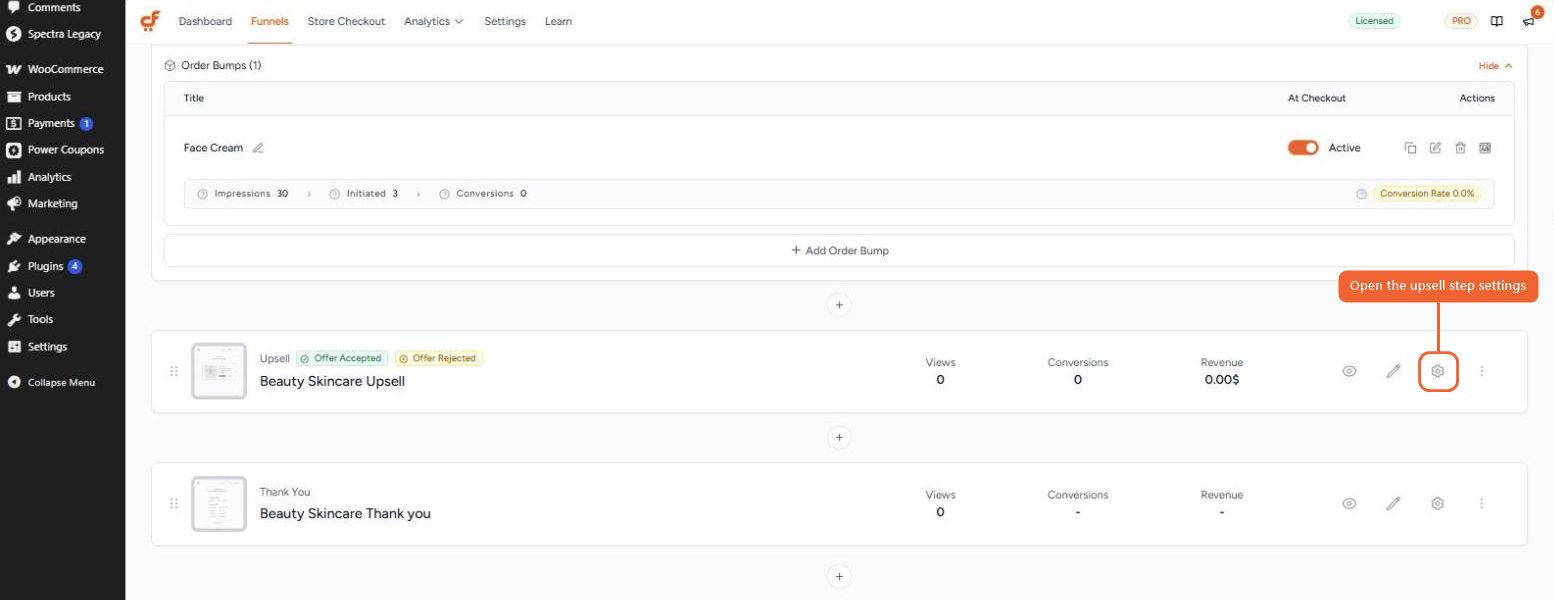
Step 2. Click the gear (settings) icon on the upsell or downsell step.
Step 3. In the Products section, check that the offer product is selected.
Step 4. Turn on Skip Offer.
Step 5. Click Save Settings.
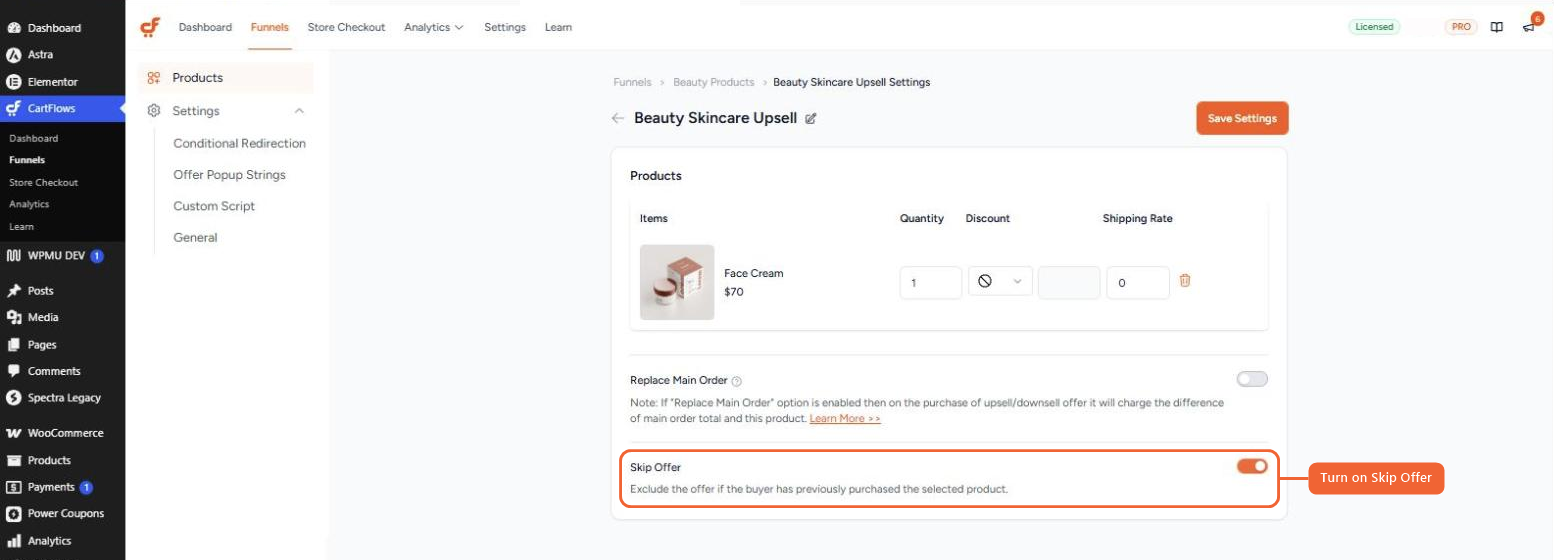
Skip Offer is now active on that offer step. Repeat these steps for any other upsell or downsell step where you want the same behavior.
Skipping an Offer Based on the Current Order
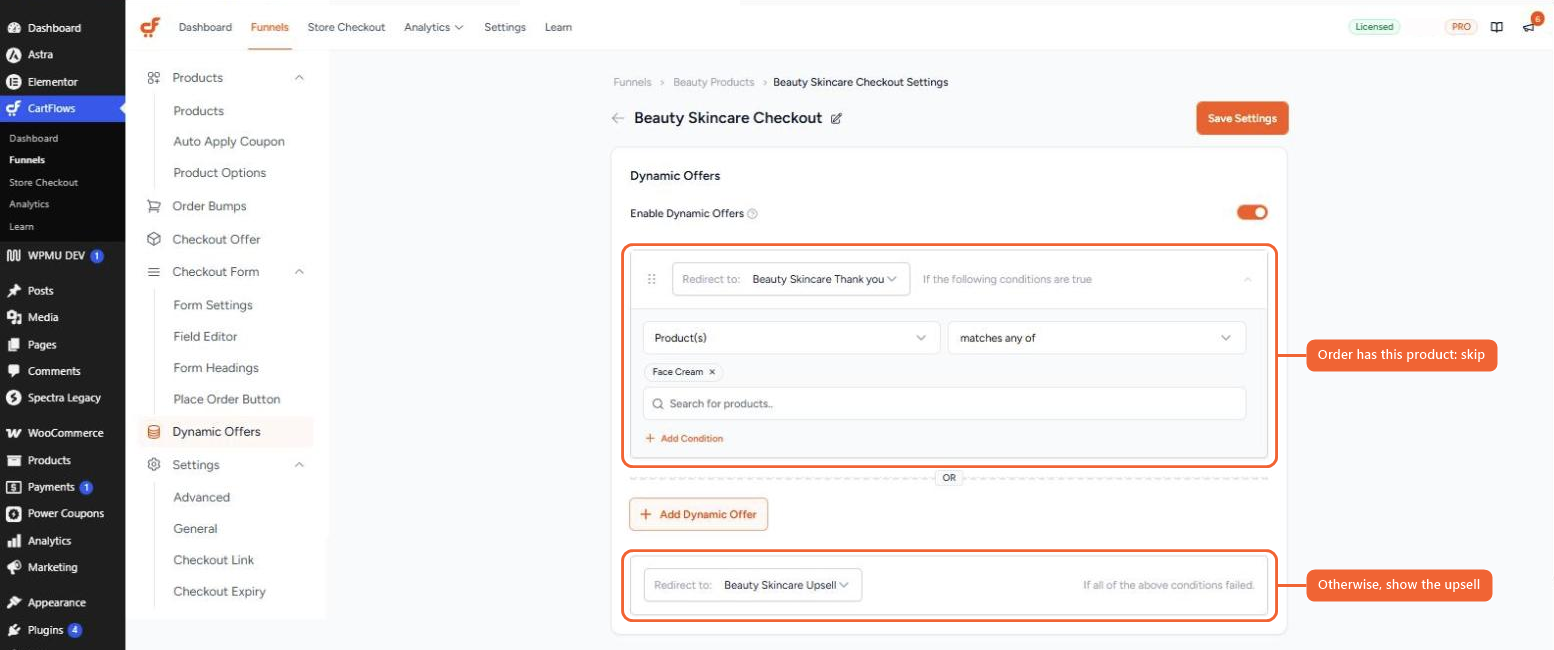
Skip Offer looks at the customer’s past orders. To skip an offer based on the products in the order they’re placing right now, use Dynamic Offers on the checkout step instead. For example, you can send customers straight to the Thank You step when their order already includes the upsell product, such as when they added it as an order bump.
Step 1. Open the settings of the checkout step and click Dynamic Offers.
Step 2. Turn on Enable Dynamic Offers.
Step 3. In the rule’s Redirect to field, choose the step customers should go to, such as your Thank You step.
Step 4. Set the condition to Product(s), choose matches any of, and select the product.
Step 5. In the Redirect to field at the bottom (used when no rule matches), choose the step for all other orders, such as your upsell step.
Step 6. Click Save Settings.
To learn about every condition you can use, see CartFlows Dynamic Offers (Rule Engine).
Frequently Asked Questions
We don't respond to the article feedback, we use it to improve our support content.