
- Hiding Fields on the Checkout Page
- Installing WooCommerce
- Using WooCommerce
- Adding Products in WooCommerce
- Using Your Theme's Header & Footer in a Step
- Embedding a Checkout Form on the Checkout Page
- Hiding WooCommerce Pages and Products
- Using Pricing Tables
- Adding an Affiliate Program
- Setting a Funnel as the Homepage
- Dynamic Offers aka Rule Engine
- Instant Layout for Checkout and Thank You Step
- Adding Products from the URL to the Checkout Page
- Deleting Plugin Data During Uninstallation
- Importing Ready-Made Templates for Funnels and Steps
- Importing and Exporting Funnels and Step
- URL Parameters
- Replacing the Main Checkout Order with an Upsell or Downsell
- Rolling back to a Previous Version
- Using the "Order Custom Field" Rule of Dynamic Offers with Custom Field Editor
- Google Address Autocomplete
- Flatsome UX Builder
- ActiveCampaign
- Paypal Reference Transactions
- How PaypPal/Stripe Works
- Enabling Enfold Avia Layout Builder
- Setting Up Authorize.net for Upsell & Downsell
- Supported Payment Gateways
- Setting Quantity and Discount for Products on the Checkout Page
- Adding Custom Payment Gateway Support for One-Click Upsell and Downsell
- Funnel in Test Mode
- Troubleshooting Plugin and Theme Conflicts
- Resolving the "Please Select a Simple, Virtual, and Free Product" Error
- Fixing Endless Loading on the Checkout Page
- Fixing the "We can't seem to find an order for you." Error on the Thank You Page
- Troubleshooting License Activation Issues
- Fixing the "Checkout ID Not Found" Error
- Fixing the "Session Expired" Error Message
- Resolving "Order Does Not Exist" Error on Upsell/Downsell Page
- Fixing the "Sorry, This Product Cannot Be Purchased" Error
- Disabling Auto-fill of Address Fields Based on Zip Code
- Enabling Theme's Scripts & Styles Without Changing Page Template
- Disabling Auto-fill of Checkout Fields
- Allowing Cache Plugins to Cache CartFlows Pages
- Changing the "Choose a Variation" Text
- VAT Field Not Displaying for WooCommerce EU/UK VAT Compliance Plugin
- Enabling the Product Tab on Store Checkout
- Displaying the Order Summary Open on Mobile Devices
- Refreshing the Checkout Page After CartFlows AJAX Calls
- Overview
- Installing Modern Cart Starter
- Installing Modern Cart Pro
- Activating License Key
- Customizing General Settings
- Customizing Cart Tray Labels
- Customizing Cart Icon Settings
- Customizing Cart Tray Styling
- Understanding the Product Recommendations Feature
- Controlling Product Recommendation Source for Empty Cart
- Installing Free Version
- Installing Pro Version
- Activating License Key
- Configuring the Settings
- Enabling Webhooks
- Product Reports
- SMS Integration
- WhatsApp Integration
- Email/Domain Blacklist
- Shortcode Reference for Email Fields
- Filters to Customize Product Table
- Recovery Email Going to Spam
- Cookies/GDPR Compliance
- Emails not Sending
- Orders Not Capturing
- Dynamic Email Rules
- Excluding Products from Coupon
- Rolling Back to a Previous Version
- Setting Up Abandoned Cart Email Sequences
- How Cart Abandonment Tracking Works
- Creating and Customizing Email Templates
- Using Unique Recovery Links / One-Click Cart Recovery
- Adding Coupon Incentives to Recovery Emails
- Setting Up Abandoned Cart Recovery for Guest vs Registered Users
- Analytics & Reporting Overview
- Recovering Unpaid / Failed Orders
- Configuring Abandonment Timeout / Cart Cut-Off Time
- Admin Copy of Recovery Emails (CC/BCC)
- A/B Testing Recovery Emails and Coupons
- Segmenting Abandonment Recovery by Cart Value
- Recovery Email Deliverability Best Practices
- Viewing and Managing the Abandoned Carts
- Unsubscribe / Opt-Out Handling for Recovery Emails
- GDPR / Privacy Compliance
- Testing Cart Abandonment Recovery Emails
- On-Site Reminder Banner
- Pausing or Disabling Cart Abandonment for Specific Products or Categories
How Cart Abandonment Tracking Works
The Cart Abandonment Recovery plugin tracks shoppers as they move through your WooCommerce checkout process. It captures cart data as soon as a customer provides their email address, monitors whether they complete the order, and — if they do not — marks the cart as abandoned and queues any scheduled recovery emails.
This document explains precisely how and when a cart is captured, what defines the abandonment cut-off, how the cart lifecycle progresses through its various states, and what conditions will prevent a cart from being tracked.
How Tracking Is Triggered
Tracking begins the moment a customer enters their email address on the WooCommerce Checkout page. The plugin captures the email and saves the current cart contents to the database at that point — it does not wait for any other field to be filled in.
This means:
- A cart is captured even if the customer only types their email and immediately leaves the page.
- No payment details are ever stored by the plugin. Only the cart contents, customer contact details, and checkout metadata are saved.
- Guest customers and logged-in customers are both tracked, as long as an email address has been entered.
Note
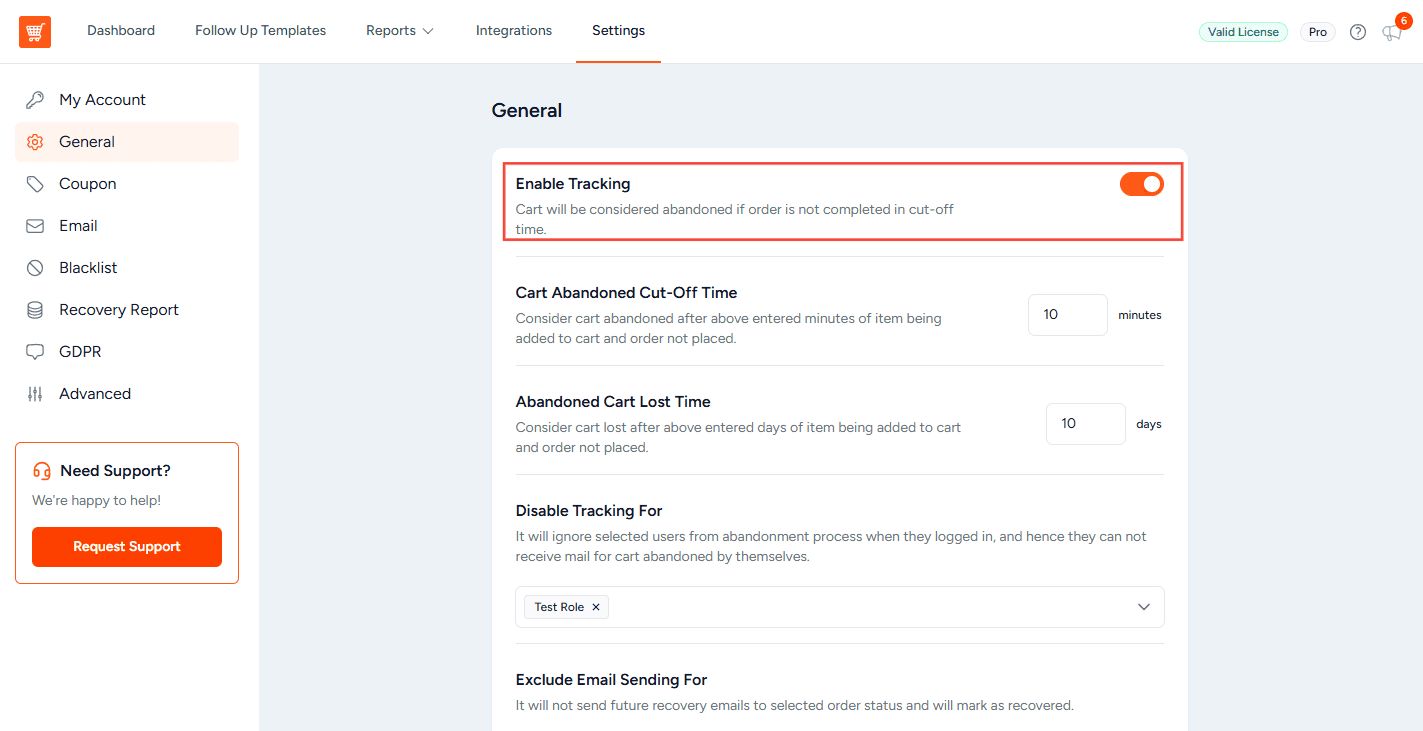
Tracking requires the Enable Tracking toggle to be switched ON in WooCommerce > Cart Abandonment > Settings > General Settings. If tracking is disabled, no carts will be captured regardless of other settings.
The Cart Abandoned Cut-Off Time
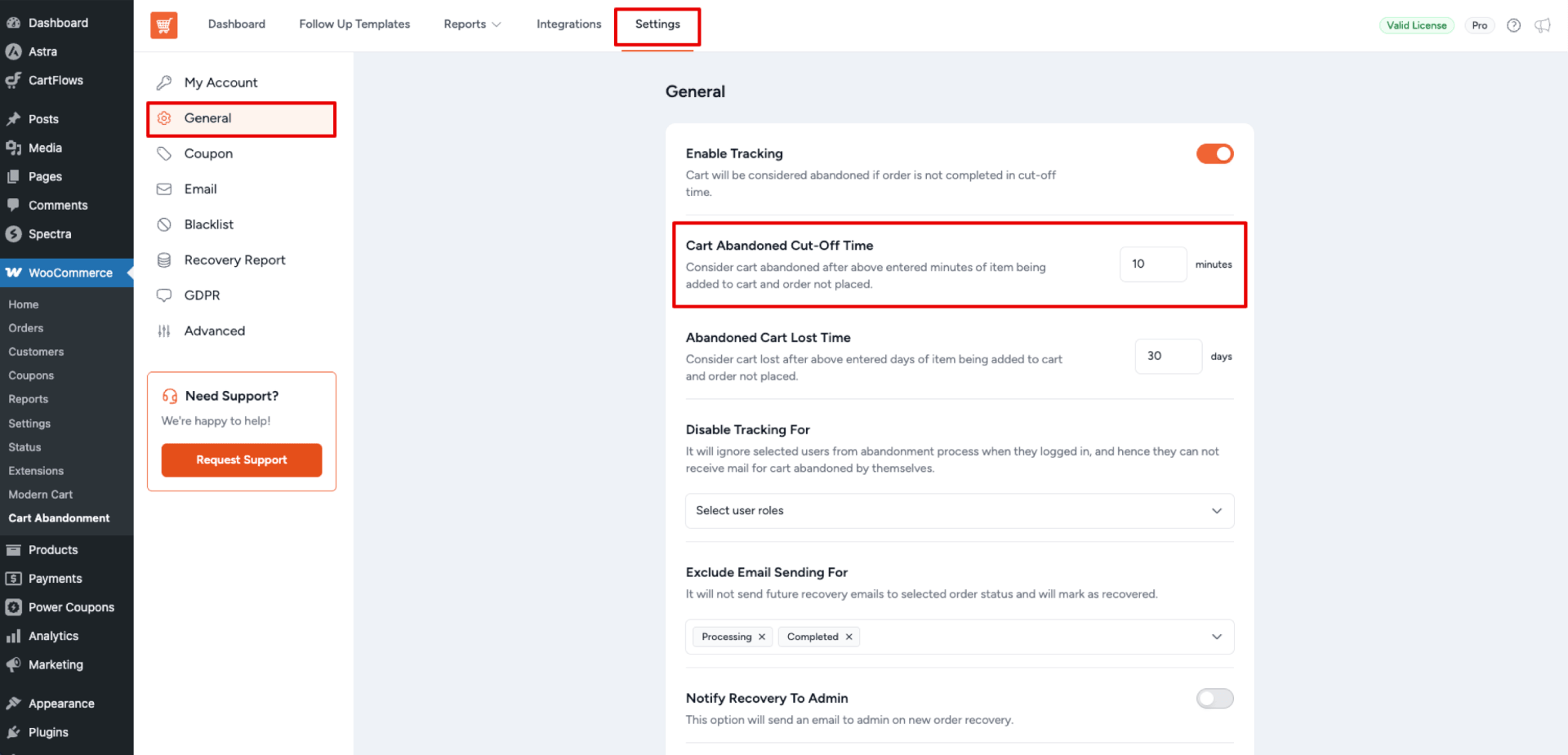
Once a cart is captured, the plugin does not immediately consider it abandoned. It waits for a configurable period — the Cart Abandoned Cut-Off Time — before marking the cart as abandoned and starting the recovery email sequence.
What the Cut-Off Time Controls
The cut-off time defines the minimum number of minutes that must pass after a cart is captured without the order being completed before the cart is treated as abandoned. The default and minimum value is 10 minutes.
For example, if the cut-off time is set to 60 minutes:
- A customer enters their email at 2:00 PM and leaves.
- The plugin captures the cart at 2:00 PM.
- At 3:00 PM (60 minutes later), a background check runs.
- If the order has not been completed, the cart is marked as abandoned and the recovery email sequence begins.
How to Configure the Cut-Off Time
- Go to WooCommerce > Cart Abandonment > Settings.
- Under General Settings, find the Cart Abandoned Cut-Off Time field.
- Enter the number of minutes after which an incomplete cart should be considered abandoned. The minimum is 10 minutes.
- Changes are saved automatically — there is no save button.
Tip: A cut-off time of 15–30 minutes is typically a good balance for most stores. Setting it too short can result in capturing customers who are still actively filling in their details; setting it too long delays the first recovery email.
How the Background Check Works
The plugin uses a WP-Cron scheduled job to periodically scan the database and check whether any captured carts have passed the cut-off time without completing checkout. This job is named:
cartflows_ca_update_order_status_actionThis cron job runs every 15 minutes. It checks all carts in a capturing state and promotes those that have exceeded the cut-off time to abandoned status, which triggers the recovery email queue.
Why WP-Cron Must Be Active
If WP-Cron is disabled on your WordPress installation, the status-check job will not run. This means:
- Captured carts will never be promoted to abandoned status.
- No recovery emails will be sent.
- The abandoned orders list in the plugin dashboard will remain empty.
Important: If abandoned carts are not appearing in your dashboard, the most common cause is a disabled WP-Cron. Check your wp-config.php file and ensure the following line is not present or is set to false:
define('DISABLE_WP_CRON', true); // Disable WP-Cron and will break trackingTo re-enable WP-Cron, either remove that line or change it to:
define('DISABLE_WP_CRON', false);Alternatively, if you prefer to run cron tasks via a server-level scheduler (e.g., cPanel), you can set up an external cron job to call the WordPress cron URL at regular intervals. This is often the more reliable approach for high-traffic sites.
Cart Lifecycle: The Possible States
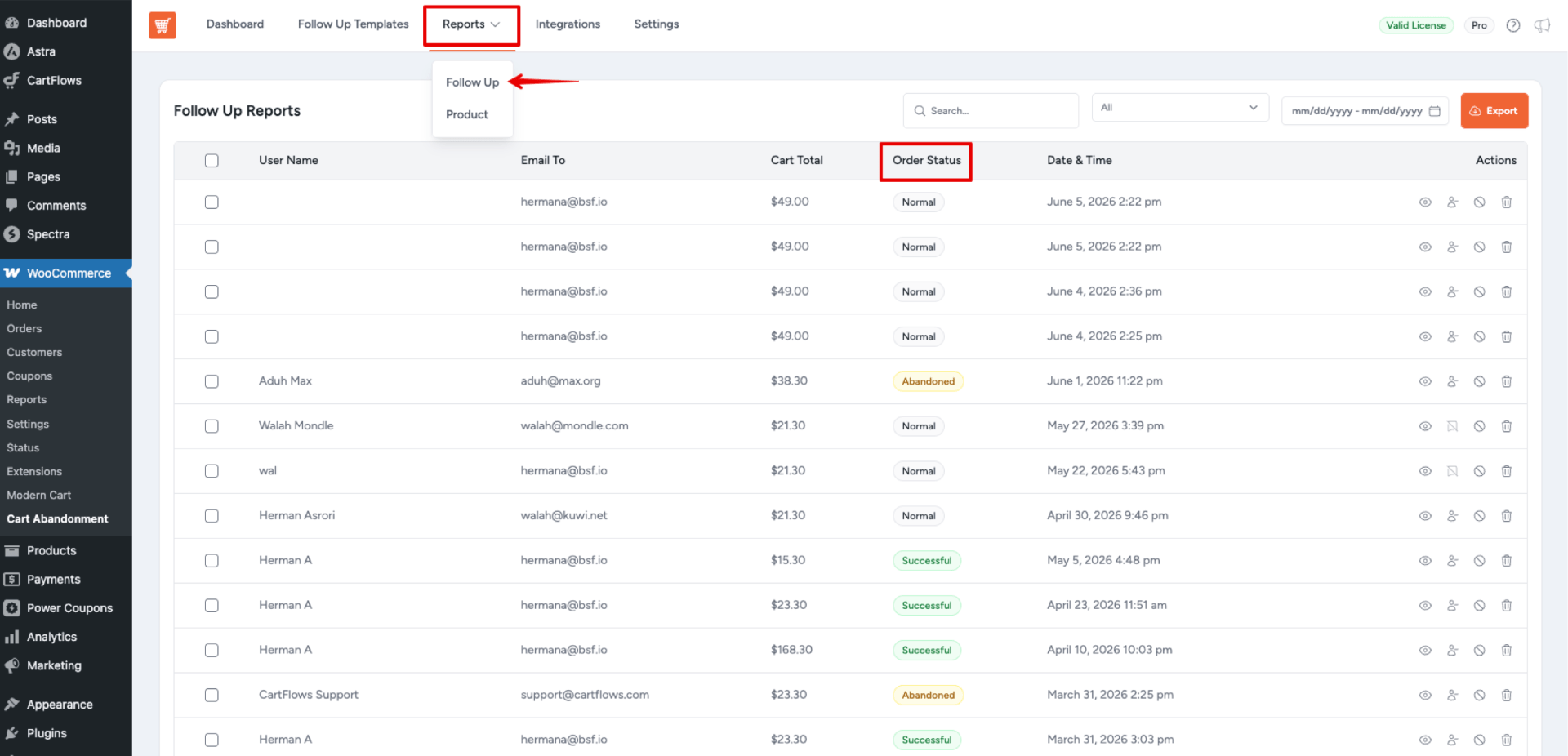
Every tracked cart moves through a defined set of states from the moment it is captured to the time it is resolved. Understanding these states helps you interpret the data shown in WooCommerce > Cart Abandonment > Reports > Follow Up.
| Stage | Order Status | What It Means |
| Capturing | Normal | The customer’s email has been recorded and the cart is saved. The cut-off time has not yet elapsed. No emails have been sent. |
| Abandoned | Abandoned | The cut-off time has elapsed without the order being completed. The cart is now eligible for recovery emails. The recovery sequence begins. |
| Recovered | Successful | The customer completed their order — either by clicking a recovery link or by returning to the store independently. No further emails are sent. |
| Unsubscribed | Unsubscribed | The customer clicked the unsubscribe link in a recovery email. They will not receive any further recovery emails for this abandoned carts. |
| Lost | Failed | The cart was abandoned and the full recovery sequence has been exhausted without conversion. No further action is taken. |
Recovering a Cart
A cart transitions from abandoned to recovered when the associated WooCommerce order reaches one of the statuses configured in the Exclude Email Sending For setting (typically Processing or Completed). This transition happens automatically — you do not need to manually mark anything.
Once a cart is recovered, all pending scheduled recovery emails for that cart are cancelled.
What Carts Are Not Tracked
Not all checkout sessions are eligible for tracking. The following conditions will prevent a cart from being captured:
Tracking Is Disabled
If the Enable Tracking toggle is turned OFF in the plugin settings, no carts will be tracked, regardless of any other configuration.
No Email Address Entered
Tracking only begins when a customer types their email address into the checkout email field. If a customer adds items to the cart but never reaches the checkout page, or reaches the checkout page but does not enter an email, no cart data is captured.
User Role Is Excluded
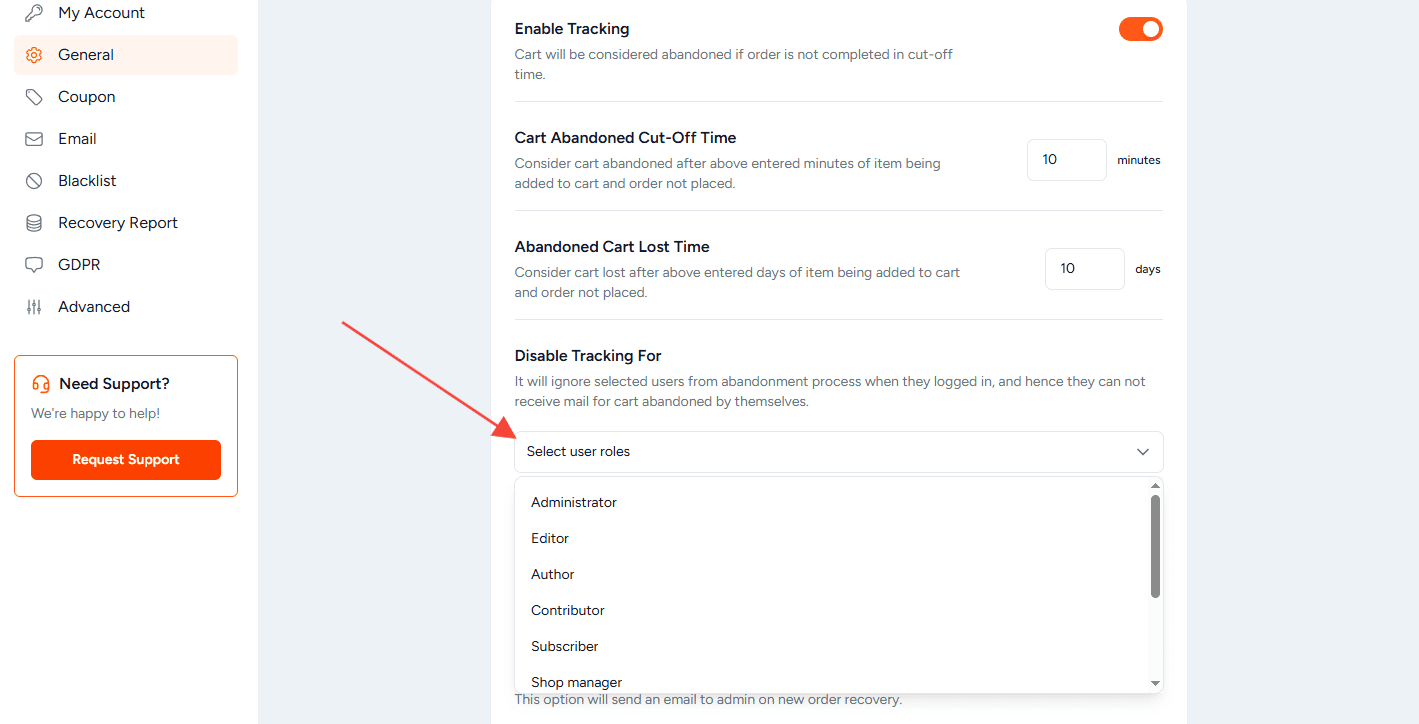
The Disable Tracking For setting allows specific WordPress user roles to be excluded from tracking entirely. By default, it is recommended to exclude administrator and shop manager roles to avoid logging internal test orders.
To check or update which roles are excluded:
- Go to WooCommerce > Cart Abandonment > Settings.
- Under General section, review the Disable Tracking For field.
- Add or remove roles as needed.
Email Address Is Blacklisted
If a customer’s email address or domain is on the Email/Domain Blacklist, the cart will be captured but no recovery emails will be sent to that address. This is useful for excluding known test accounts, internal addresses, or competitor domains.
Order Is Already Completed
If the customer completes their order normally (without abandoning), the cart is never promoted to abandoned status. The plugin continuously checks whether the associated WooCommerce order has been paid, and if so, the cart session is immediately resolved.
Tracking and GDPR Compliance
Sending abandoned cart recovery emails falls under legitimate interest for data processing under GDPR guidelines. This means no separate opt-in consent is required to capture cart data and send recovery emails, though transparency in your store’s privacy policy is strongly recommended.
If you prefer to give customers an explicit opt-in mechanism at the checkout page, the plugin includes an optional GDPR Integration setting.
Enabling the GDPR Consent Message
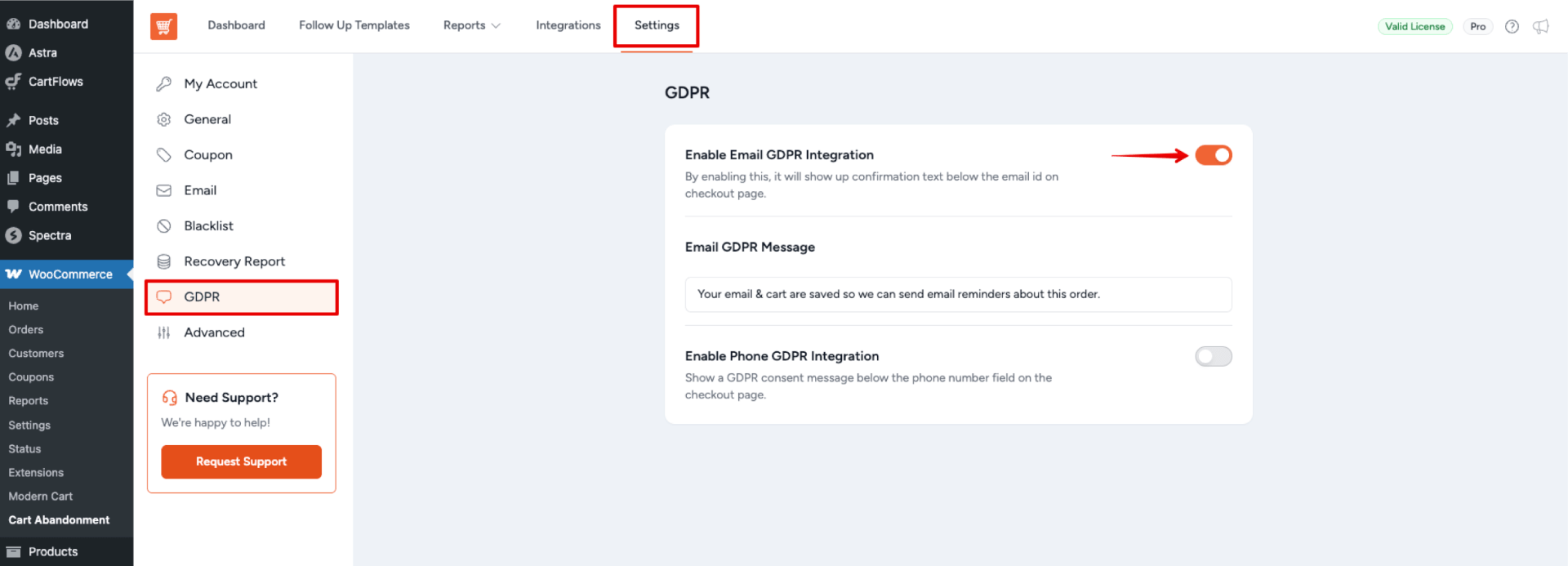
- Go to WooCommerce > Cart Abandonment > Settings.
- Click the GDPR tab.
- Toggle Enable GDPR Integration ON.
- Optionally customize the GDPR Message text shown below the email field at checkout.
When enabled, a consent notice appears below the email field. If the customer clicks “No thanks”, their cart will not be tracked. This ensures full opt-in compliance for stores that require it.
Note
Enabling the GDPR confirmation message may reduce the number of carts captured, since some customers will decline. Only enable it if your store’s compliance requirements specifically demand an explicit opt-in for abandoned cart tracking.
Quick Reference Summary
| Setting / Concept | Details |
| Tracking trigger | Customer enters email address on the checkout page. |
| Cut-off time | Configurable (minimum 10 minutes). Defines when a cart becomes “abandoned”. |
| Background check frequency | Every 15 minutes via the cartflows_ca_update_order_status_action WP-Cron job. |
| Cart states | capturing → abandoned → recovered or lost. Customers can also unsubscribe. |
| Excluded from tracking | Specific user roles, blacklisted emails/domains, customers who opt out via GDPR message. |
| Recovery trigger | Order reaches a status listed in “Exclude Email Sending For” (e.g., Processing, Completed). |
| GDPR | Abandoned cart emails fall under legitimate interest. Optional opt-in consent message available. |
We don't respond to the article feedback, we use it to improve our support content.