
- Getting Started
- Creating Your First Funnel
- CartFlows Funnel Step Types
- Starting a Funnel from a Product Page
- How to Edit and Customise Funnel Steps
- Using CartFlows with or without Store Checkout
- How to Add /Assign Products to a Checkout Step
- How to Create One-Click Upsell and Downsell Offers
- How to Use Canvas Mode to Visualize Your Sales Funnel
- Hiding Fields on the Checkout Page
- Installing WooCommerce
- Using WooCommerce
- Adding Products in WooCommerce
- Using Your Theme's Header & Footer in a Step
- Embedding a Checkout Form on the Checkout Page
- Hiding WooCommerce Pages and Products
- Using Pricing Tables
- Adding an Affiliate Program
- Setting a Funnel as the Homepage
- Dynamic Offers aka Rule Engine
- Instant Layout for Checkout and Thank You Step
- Adding Products from the URL to the Checkout Page
- Deleting Plugin Data During Uninstallation
- Importing Ready-Made Templates for Funnels and Steps
- Importing and Exporting Funnels and Step
- URL Parameters
- Replacing the Main Checkout Order with an Upsell or Downsell
- Rolling back to a Previous Version
- Using the "Order Custom Field" Rule of Dynamic Offers with Custom Field Editor
- Adding Order Bumps to WooCommerce Sales Funnel
- Replacing the First Product on Checkout with Order Bump
- Dynamic (Conditional) Order Bumps
- Order Bump AI
- Positions and Styles
- How to Auto-Apply a Coupon When an Order Bump Is Accepted
- How to Add Variable Products to an Order Bump
- How to A/B Test Order Bumps in CartFlows
- Google Address Autocomplete
- Flatsome UX Builder
- ActiveCampaign
- Paypal Reference Transactions
- How PaypPal/Stripe Works
- Enabling Enfold Avia Layout Builder
- Setting Up Authorize.net for Upsell & Downsell
- Supported Payment Gateways
- Setting Quantity and Discount for Products on the Checkout Page
- Adding Custom Payment Gateway Support for One-Click Upsell and Downsell
- Funnel in Test Mode
- Troubleshooting Plugin and Theme Conflicts
- Resolving the "Please Select a Simple, Virtual, and Free Product" Error
- Fixing Endless Loading on the Checkout Page
- Fixing the "We can't seem to find an order for you." Error on the Thank You Page
- Troubleshooting License Activation Issues
- Fixing the "Checkout ID Not Found" Error
- Fixing the "Session Expired" Error Message
- Resolving "Order Does Not Exist" Error on Upsell/Downsell Page
- Fixing the "Sorry, This Product Cannot Be Purchased" Error
- Disabling Auto-fill of Address Fields Based on Zip Code
- Enabling Theme's Scripts & Styles Without Changing Page Template
- Disabling Auto-fill of Checkout Fields
- Allowing Cache Plugins to Cache CartFlows Pages
- Changing the "Choose a Variation" Text
- VAT Field Not Displaying for WooCommerce EU/UK VAT Compliance Plugin
- Enabling the Product Tab on Store Checkout
- Displaying the Order Summary Open on Mobile Devices
- Refreshing the Checkout Page After CartFlows AJAX Calls
- Overview
- Installing Modern Cart Starter
- Installing Modern Cart Pro
- Activating License Key
- Customizing General Settings
- Customizing Cart Tray Labels
- Customizing Cart Icon Settings
- Customizing Cart Tray Styling
- Understanding the Product Recommendations Feature
- Controlling Product Recommendation Source for Empty Cart
- Installing Free Version
- Installing Pro Version
- Activating License Key
- Configuring the Settings
- Enabling Webhooks
- Product Reports
- SMS Integration
- WhatsApp Integration
- Email/Domain Blacklist
- Shortcode Reference for Email Fields
- Filters to Customize Product Table
- Recovery Email Going to Spam
- Cookies/GDPR Compliance
- Emails not Sending
- Orders Not Capturing
- Dynamic Email Rules
- Excluding Products from Coupon
- Rolling Back to a Previous Version
- Setting Up Abandoned Cart Email Sequences
- How Cart Abandonment Tracking Works
- Creating and Customizing Email Templates
- Using Unique Recovery Links / One-Click Cart Recovery
- Adding Coupon Incentives to Recovery Emails
- Setting Up Abandoned Cart Recovery for Guest vs Registered Users
- Analytics & Reporting Overview
- Recovering Unpaid / Failed Orders
- Configuring Abandonment Timeout / Cart Cut-Off Time
- Admin Copy of Recovery Emails (CC/BCC)
- A/B Testing Recovery Emails and Coupons
- Segmenting Abandonment Recovery by Cart Value
- Recovery Email Deliverability Best Practices
- Viewing and Managing the Abandoned Carts
- Unsubscribe / Opt-Out Handling for Recovery Emails
- GDPR / Privacy Compliance
- Testing Cart Abandonment Recovery Emails
- On-Site Reminder Banner
- Pausing or Disabling Cart Abandonment for Specific Products or Categories
- Cart Abandonment Recovery Activity Log
- Cart Abandonment Recovery Capture Popup
- How to Get Notified When Abandoned Cart Products Go Out of Stock
How to View and Manage the Abandoned Carts List
Every cart tracked by Cart Abandonment Recovery appears in the Reports dashboard — from active recoverable carts to already-recovered orders and carts marked as lost. This centralized view gives you full visibility and control over your recovery operations.
This guide walks you through navigating the list, filtering and searching, and taking action on individual or multiple entries.
Prerequisites
- Cart Abandonment Recovery plugin installed and activated
- At least one tracked cart (shoppers must have entered their email on checkout)
Accessing the Abandoned Carts List
Go to WordPress Dashboard > WooCommerce > Cart Abandonment > Reports > Follow Up.
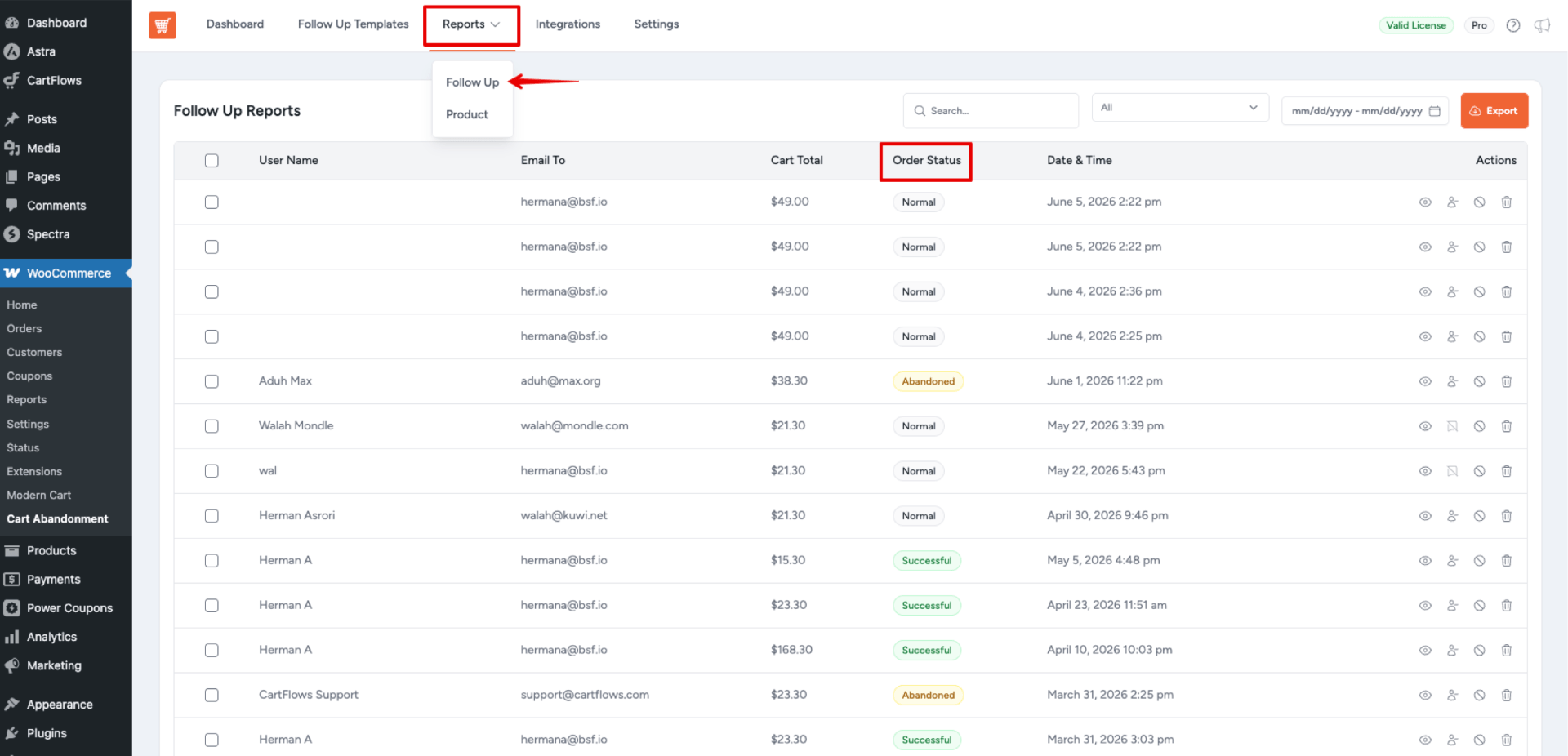
The abandoned carts table appears with search, filter, and export controls at the top.
Understanding the Table Columns
| Column | Description |
| Cart Total | Total value of the cart |
| Email To | Shopper’s email address (primary identifier) |
| User Name | Full name if provided on checkout |
| Order Status | Recoverable, Recovered, or Lost |
| Date & Time | When the cart was marked as abandoned |
| Actions | View details, unsubscribe, or delete |
Filtering and Searching
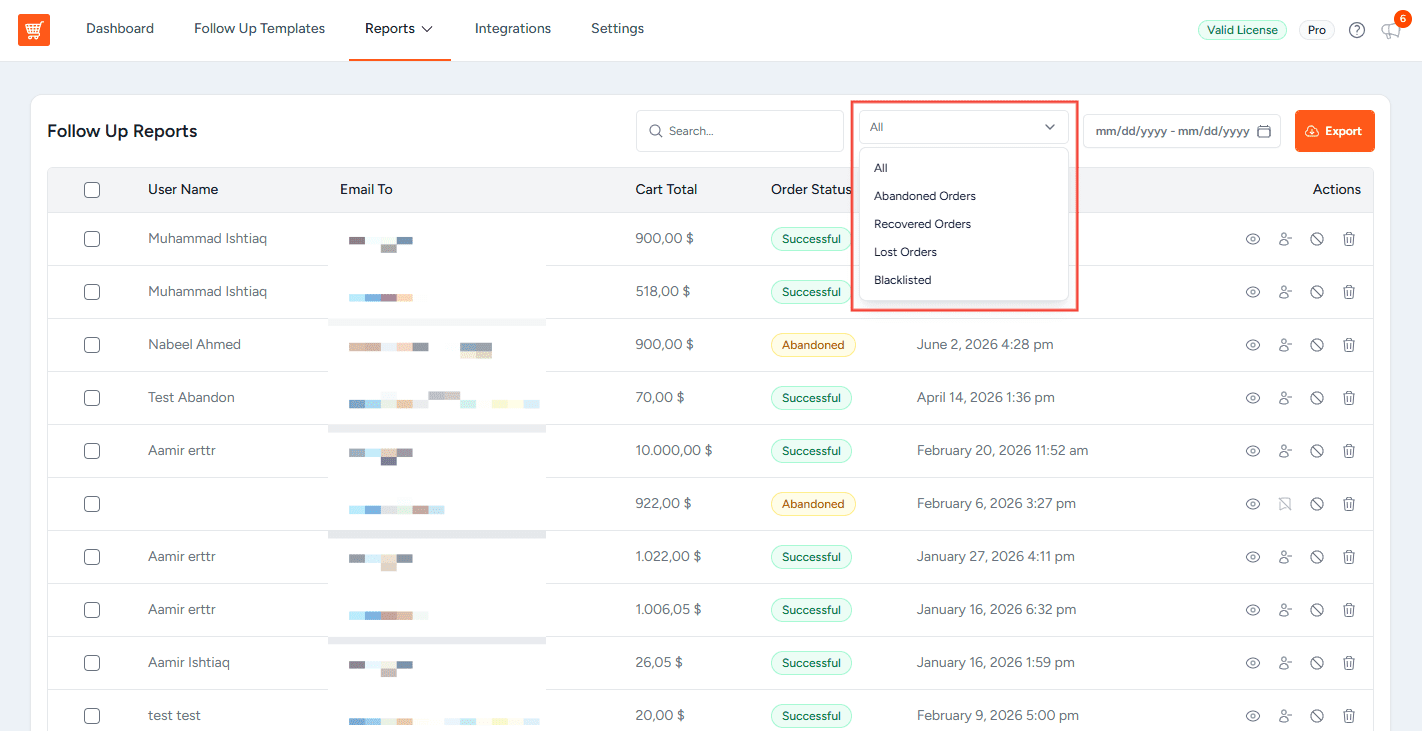
Filter by Status
Use the status filter to focus on:
- Abandoned — carts currently eligible for recovery emails
- Recovered — carts that became completed orders
- Lost — carts past the lost-time threshold
- Blacklisted — User emails that are Blacklisted in the plugin
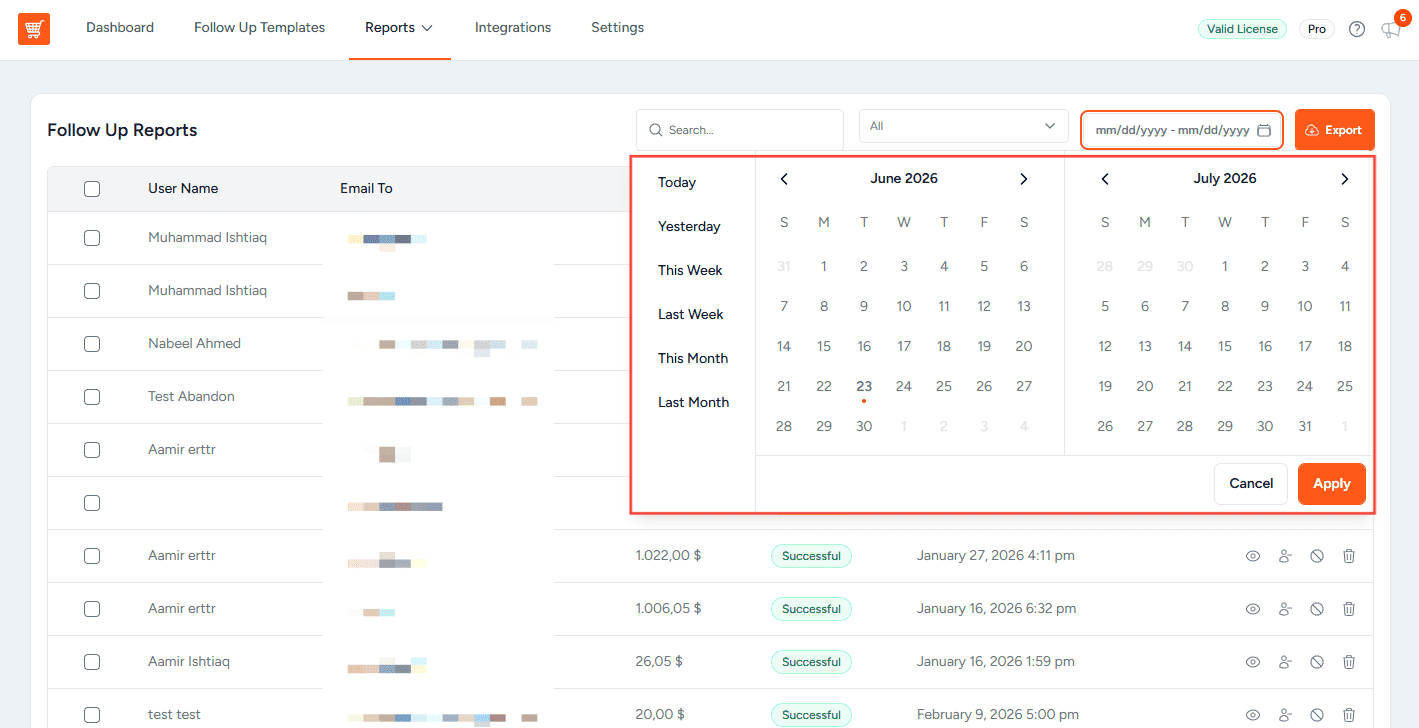
Filter by Date Range
Use the date picker at the top to view carts from:
- Today
- Yesterday
- Last Week
- Last Month
- Custom Date Range
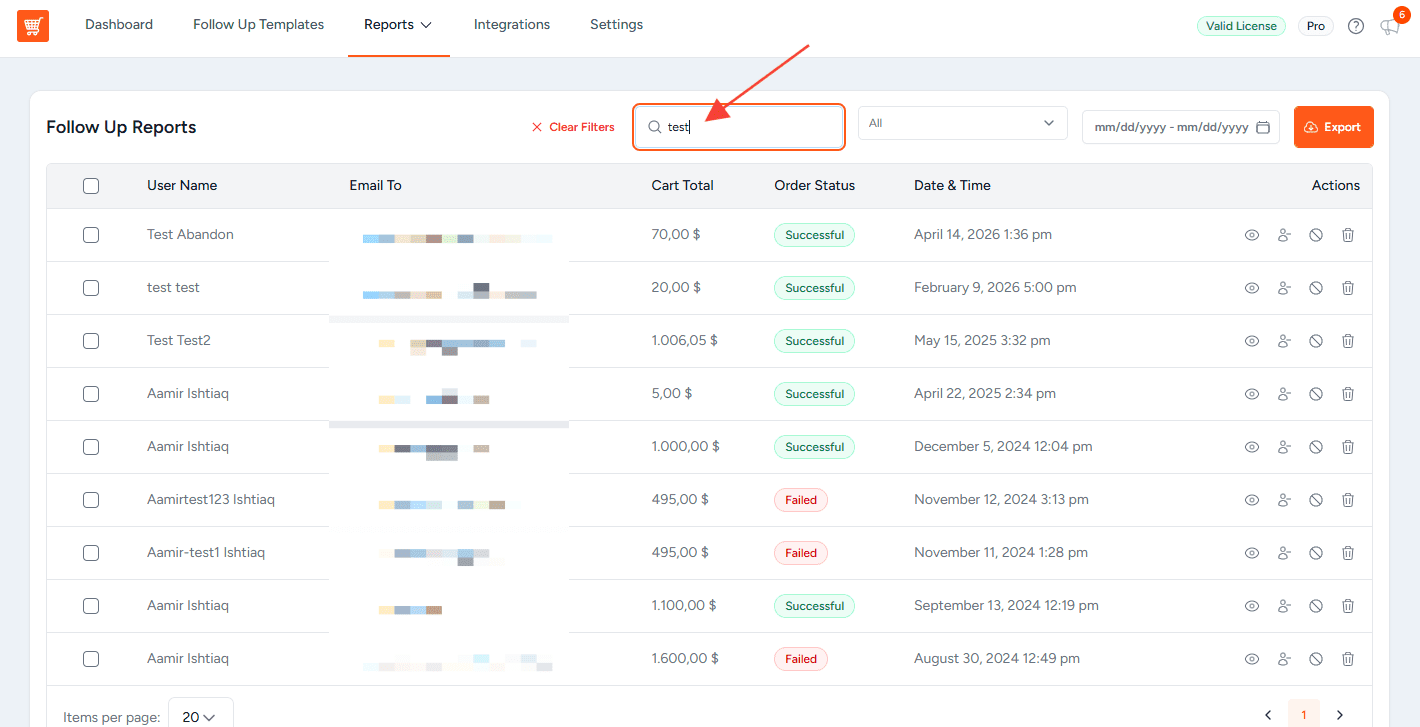
Search by Email
Use the search bar to quickly find a specific customer’s cart by email address or user name.
Viewing Cart Details
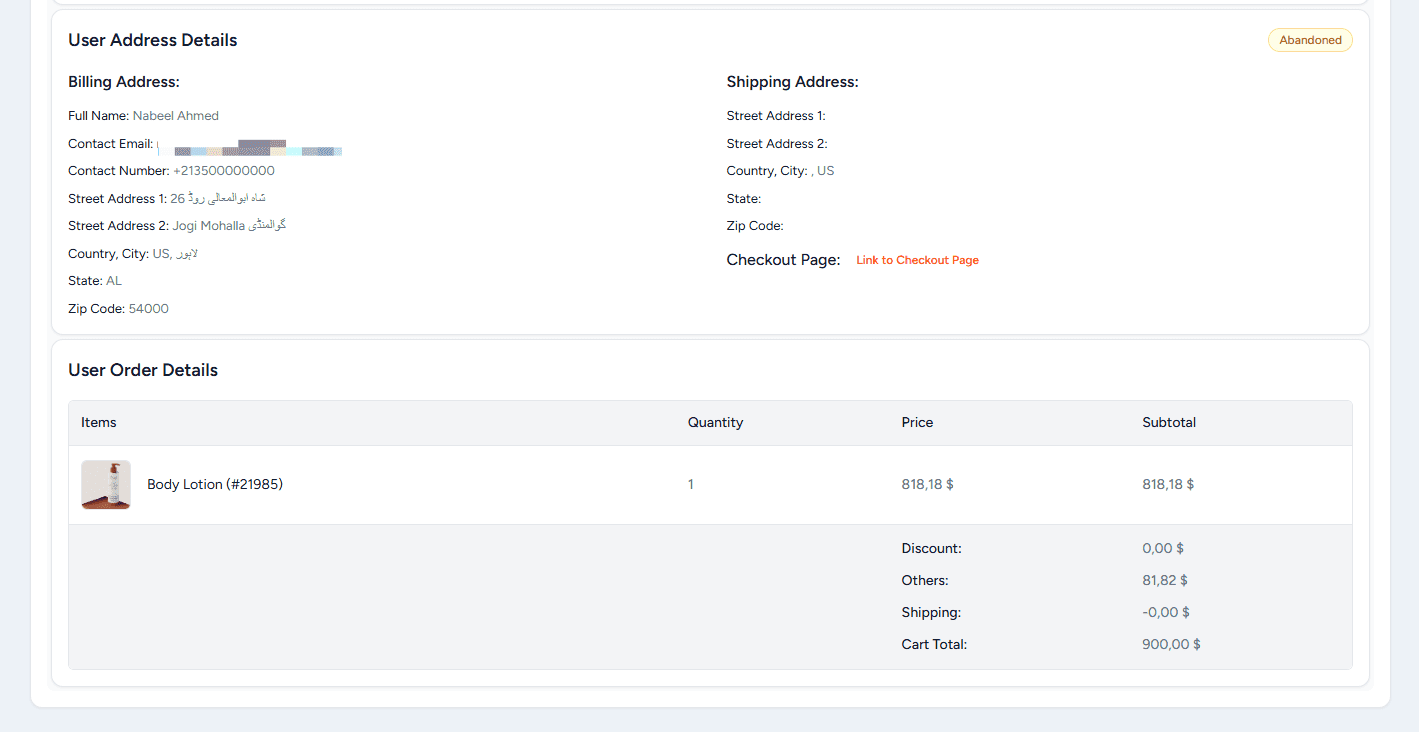
Click on any row (or the view icon) to see:
- Full cart contents — products, quantities, prices
- Customer information — email, name, address entered
- Timeline — when the cart was abandoned, when recovery emails were sent
- Recovery status — if the customer clicked through or completed the order
Actions You Can Take
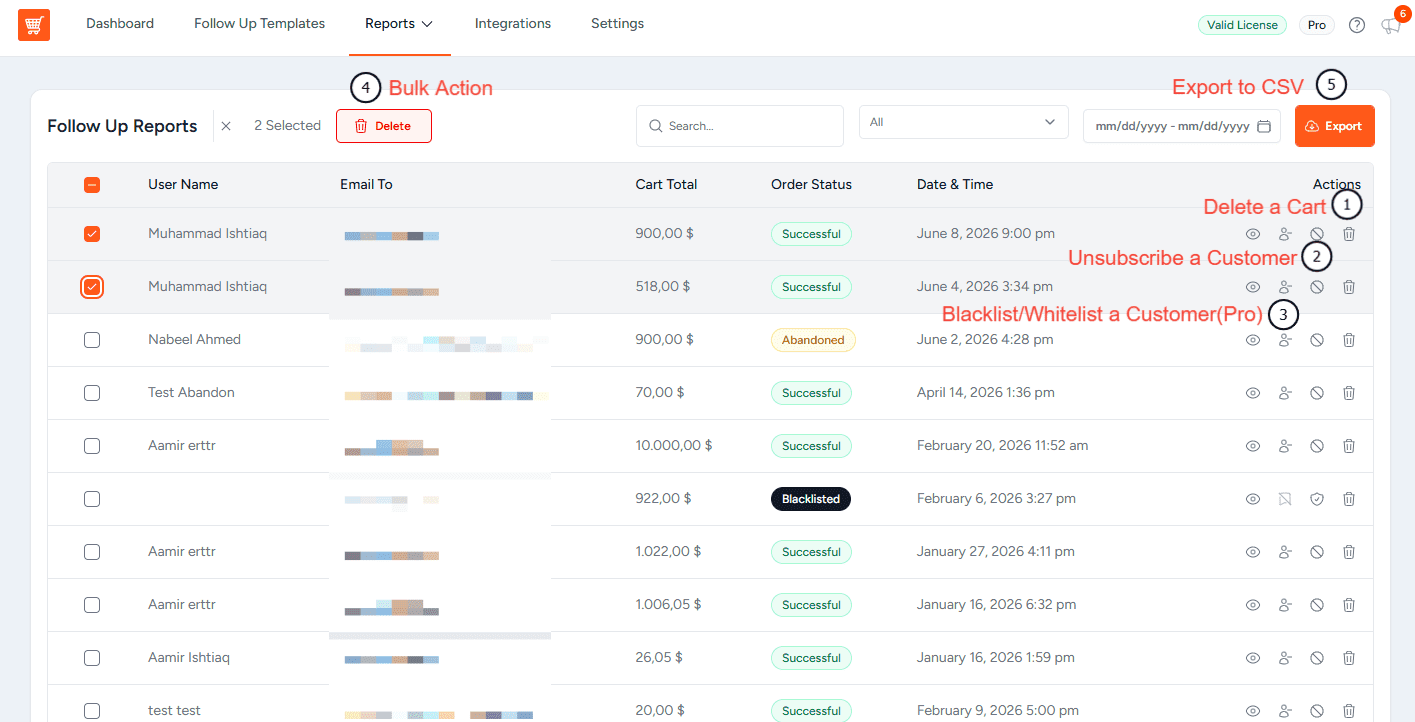
1. Delete a Cart
Remove a single cart from the list — useful for test data or when a customer explicitly requests removal.
How: Click the Delete icon in the Actions column.
2. Unsubscribe a Customer
Stop sending recovery emails to a specific customer record.
How: Click the Unsubscribe action on the row — this adds the email to your internal opt-out list.
3. Blacklist/Whitelist a Customer (Pro)
Permanently stop sending recovery emails to a specific customer.
How: Click the Blacklist action on the row. To undo it, click Whitelist on the same row.
4. Bulk Actions
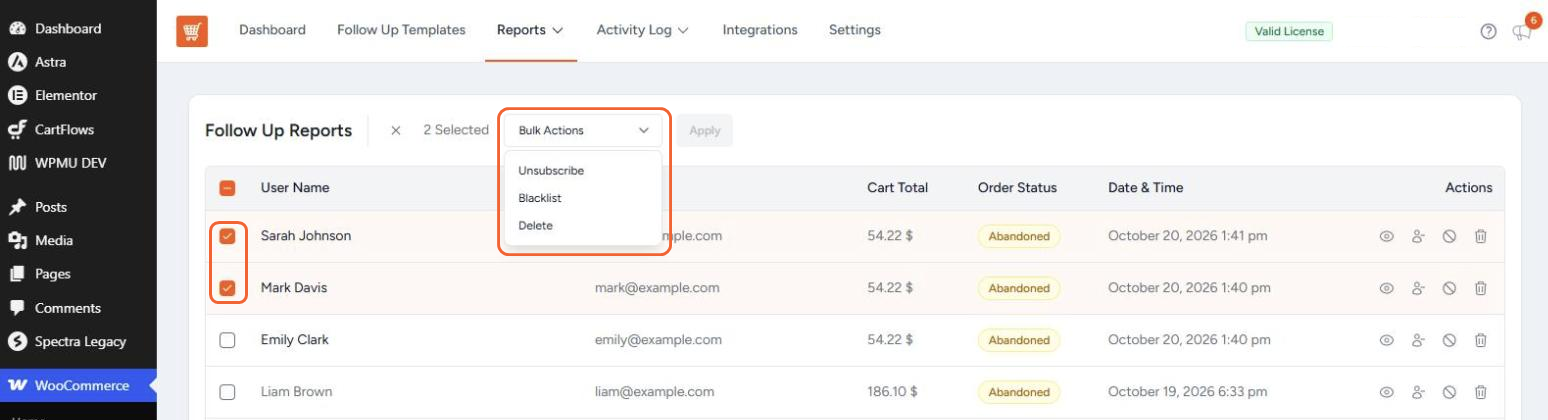
Select multiple carts using the checkboxes, choose an option from the Bulk Actions dropdown, and click Apply:
- Unsubscribe: Stops recovery emails for all the selected carts.
- Blacklist (Pro): Adds the selected customers’ email addresses to your blacklist, so they no longer receive recovery emails.
- Whitelist (Pro): Removes the selected customers from your blacklist. This option appears when your selection includes blacklisted carts.
- Delete: Permanently removes the selected carts and their follow-up history.
5. Export to CSV
Use the Export button above the table to download a CSV of all entries for external analysis.
Tips & Best Practices
- Clean up test data regularly — especially after staging tests, to keep your reports accurate.
- Review “Recoverable” carts weekly — this is your active pipeline; sudden drops may mean tracking is broken.
- Export monthly for record-keeping, especially if you’re required to retain transaction records.
Managing Privacy and Data Requests
If a customer requests deletion of their data (e.g., under GDPR):
- Search for their email in the table.
- Click Delete on all matching entries.
- Also remove them from any related WooCommerce order records separately.
FAQs
We don't respond to the article feedback, we use it to improve our support content.