
- Getting Started
- Creating Your First Funnel
- CartFlows Funnel Step Types
- Starting a Funnel from a Product Page
- How to Edit and Customise Funnel Steps
- Using CartFlows with or without Store Checkout
- How to Add /Assign Products to a Checkout Step
- How to Create One-Click Upsell and Downsell Offers
- How to Use Canvas Mode to Visualize Your Sales Funnel
- Hiding Fields on the Checkout Page
- Installing WooCommerce
- Using WooCommerce
- Adding Products in WooCommerce
- Using Your Theme's Header & Footer in a Step
- Embedding a Checkout Form on the Checkout Page
- Hiding WooCommerce Pages and Products
- Using Pricing Tables
- Adding an Affiliate Program
- Setting a Funnel as the Homepage
- Dynamic Offers aka Rule Engine
- Instant Layout for Checkout and Thank You Step
- Adding Products from the URL to the Checkout Page
- Deleting Plugin Data During Uninstallation
- Importing Ready-Made Templates for Funnels and Steps
- Importing and Exporting Funnels and Step
- URL Parameters
- Replacing the Main Checkout Order with an Upsell or Downsell
- Rolling back to a Previous Version
- Using the "Order Custom Field" Rule of Dynamic Offers with Custom Field Editor
- Google Address Autocomplete
- Flatsome UX Builder
- ActiveCampaign
- Paypal Reference Transactions
- How PaypPal/Stripe Works
- Enabling Enfold Avia Layout Builder
- Setting Up Authorize.net for Upsell & Downsell
- Supported Payment Gateways
- Setting Quantity and Discount for Products on the Checkout Page
- Adding Custom Payment Gateway Support for One-Click Upsell and Downsell
- Funnel in Test Mode
- Troubleshooting Plugin and Theme Conflicts
- Resolving the "Please Select a Simple, Virtual, and Free Product" Error
- Fixing Endless Loading on the Checkout Page
- Fixing the "We can't seem to find an order for you." Error on the Thank You Page
- Troubleshooting License Activation Issues
- Fixing the "Checkout ID Not Found" Error
- Fixing the "Session Expired" Error Message
- Resolving "Order Does Not Exist" Error on Upsell/Downsell Page
- Fixing the "Sorry, This Product Cannot Be Purchased" Error
- Disabling Auto-fill of Address Fields Based on Zip Code
- Enabling Theme's Scripts & Styles Without Changing Page Template
- Disabling Auto-fill of Checkout Fields
- Allowing Cache Plugins to Cache CartFlows Pages
- Changing the "Choose a Variation" Text
- VAT Field Not Displaying for WooCommerce EU/UK VAT Compliance Plugin
- Enabling the Product Tab on Store Checkout
- Displaying the Order Summary Open on Mobile Devices
- Refreshing the Checkout Page After CartFlows AJAX Calls
- Overview
- Installing Modern Cart Starter
- Installing Modern Cart Pro
- Activating License Key
- Customizing General Settings
- Customizing Cart Tray Labels
- Customizing Cart Icon Settings
- Customizing Cart Tray Styling
- Understanding the Product Recommendations Feature
- Controlling Product Recommendation Source for Empty Cart
- Installing Free Version
- Installing Pro Version
- Activating License Key
- Configuring the Settings
- Enabling Webhooks
- Product Reports
- SMS Integration
- WhatsApp Integration
- Email/Domain Blacklist
- Shortcode Reference for Email Fields
- Filters to Customize Product Table
- Recovery Email Going to Spam
- Cookies/GDPR Compliance
- Emails not Sending
- Orders Not Capturing
- Dynamic Email Rules
- Excluding Products from Coupon
- Rolling Back to a Previous Version
- Setting Up Abandoned Cart Email Sequences
- How Cart Abandonment Tracking Works
- Creating and Customizing Email Templates
- Using Unique Recovery Links / One-Click Cart Recovery
- Adding Coupon Incentives to Recovery Emails
- Setting Up Abandoned Cart Recovery for Guest vs Registered Users
- Analytics & Reporting Overview
- Recovering Unpaid / Failed Orders
- Configuring Abandonment Timeout / Cart Cut-Off Time
- Admin Copy of Recovery Emails (CC/BCC)
- A/B Testing Recovery Emails and Coupons
- Segmenting Abandonment Recovery by Cart Value
- Recovery Email Deliverability Best Practices
- Viewing and Managing the Abandoned Carts
- Unsubscribe / Opt-Out Handling for Recovery Emails
- GDPR / Privacy Compliance
- Testing Cart Abandonment Recovery Emails
- On-Site Reminder Banner
- Pausing or Disabling Cart Abandonment for Specific Products or Categories
- Cart Abandonment Recovery Activity Log
- Cart Abandonment Recovery Capture Popup
- How to Get Notified When Abandoned Cart Products Go Out of Stock
On-Site Reminder Banner for Cart Abandonment Recovery
The On-Site Reminder Banner displays a customizable notification on your store when a visitor returns with items still in their abandoned cart. The banner is authored once in the WordPress block editor and shows automatically to eligible visitors on the pages you choose — no coding required.
This feature is available in Cart Abandonment Recovery Pro only.
1. Where to Find It
Banner settings: WooCommerce > Cart Abandonment > Settings > On-Site Banner
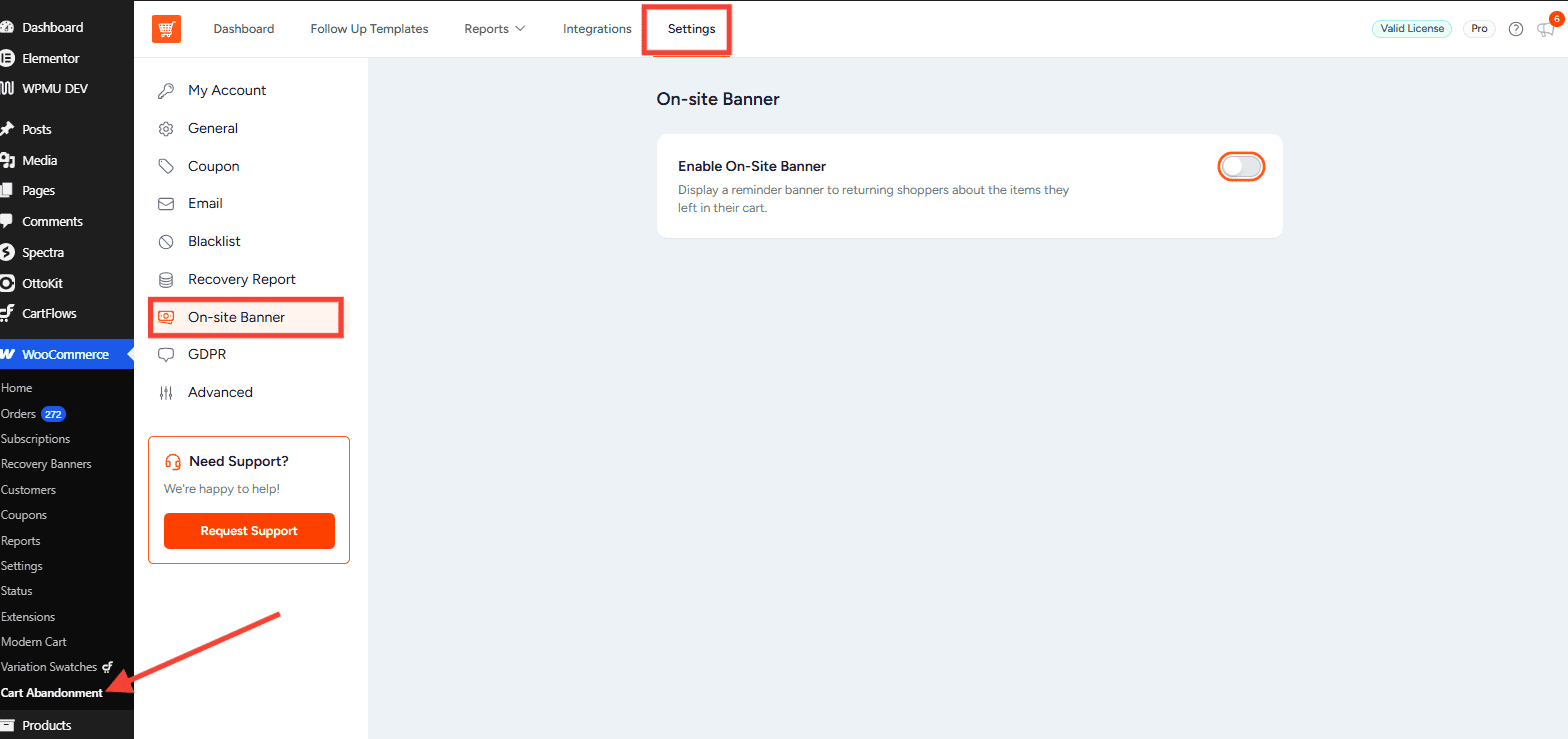
Banner editor: WooCommerce > Recovery Banners
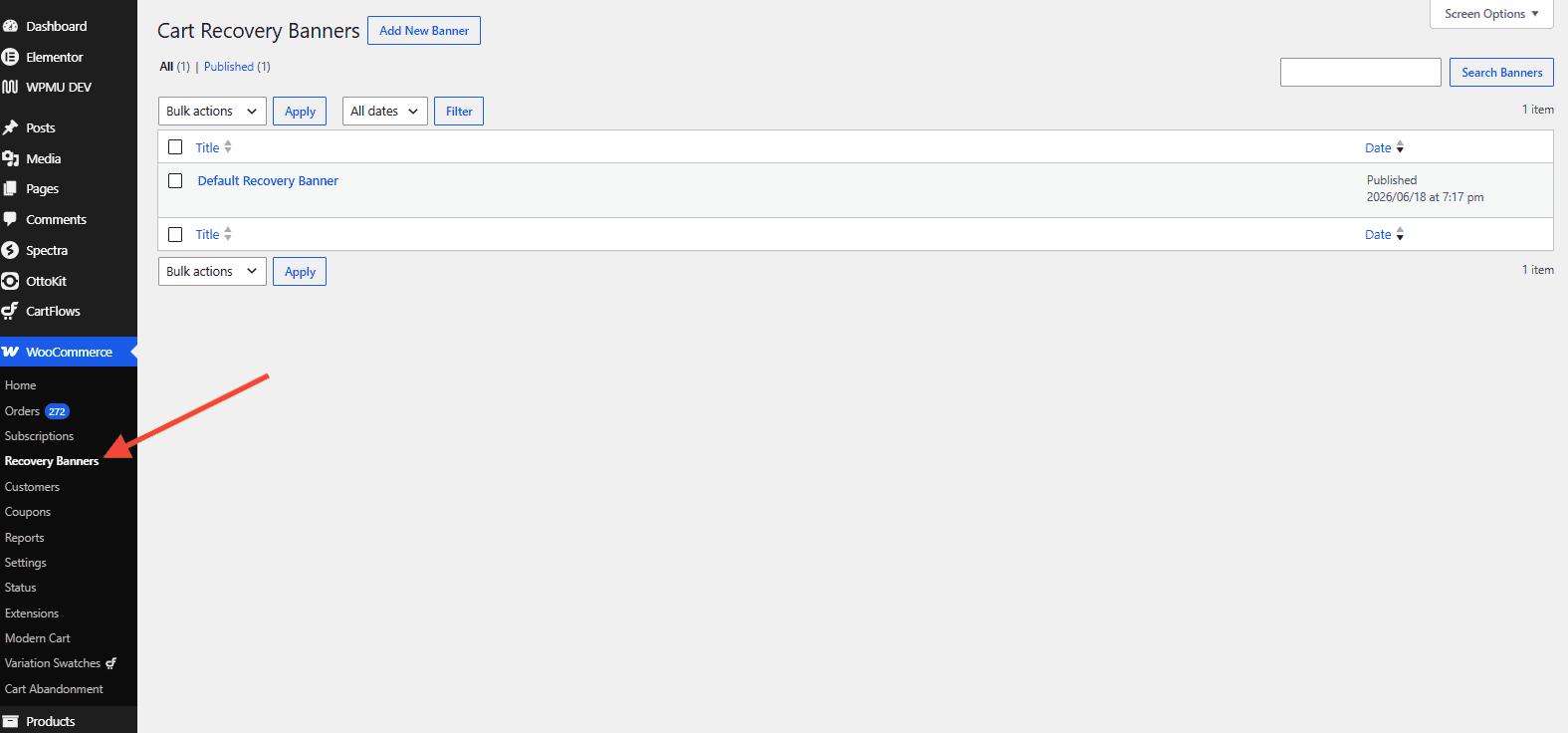
The Settings tab controls when and where the banner appears. Recovery Banners is where you create and edit the banner content itself.
2. How to Enable It
- Go to WooCommerce > Cart Abandonment > Settings > On-Site Banner.
- Enable the Enable On-Site Banner toggle.
- Select the Position — Top, Bottom, or Custom (shortcode).
- Under Show On Pages, select the page types where the banner should appear.
- Save the settings.
The banner will now show to visitors who:
- Entered their email on the checkout page in a previous session without completing the order, or
- Reached the checkout page with items in their cart and left without completing the order, even if they never entered an email. Because no email was captured, these visitors aren’t saved in Reports or sent recovery emails. The banner reminds them the next time they visit your store in the same browser, or
- Are logged in and have an active abandoned cart on their account.
3. Settings
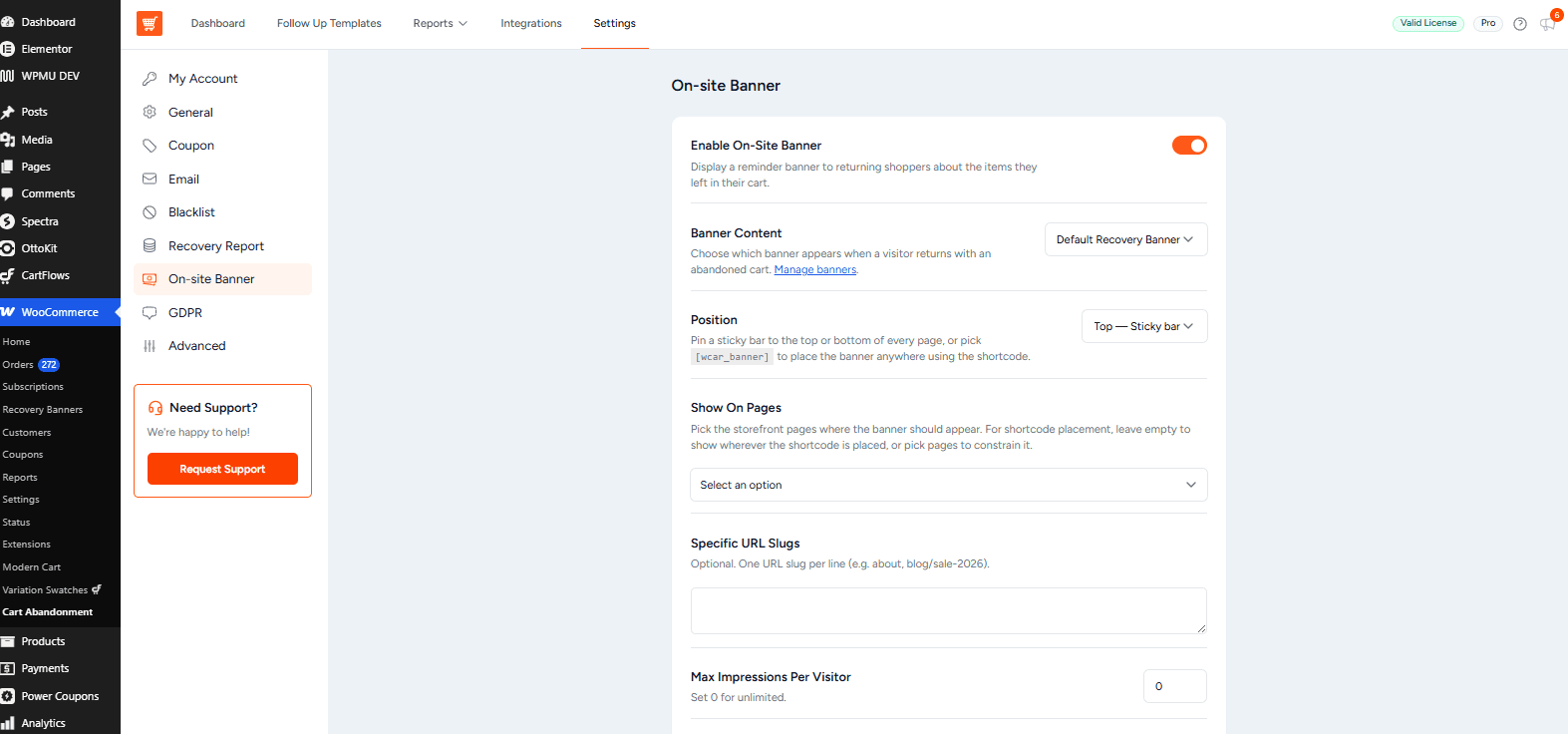
1. Enable On-Site Banner (Toggle)
- Default: Off
- Master on/off switch for the entire feature.
2. Banner Content
- Default: Default Recovery Banner
- Selects which banner post to display. A default banner is created automatically on first install. You can create multiple banners and switch between them at any time.
3. Position
- Default: Top
- Top — Sticky bar pinned to the top of every targeted page.
- Bottom — Sticky bar pinned to the bottom of every targeted page.
- Custom — Banner only appears where you paste the shortcode
[wcar_banner]. Use this for inline placement on a specific page or section.
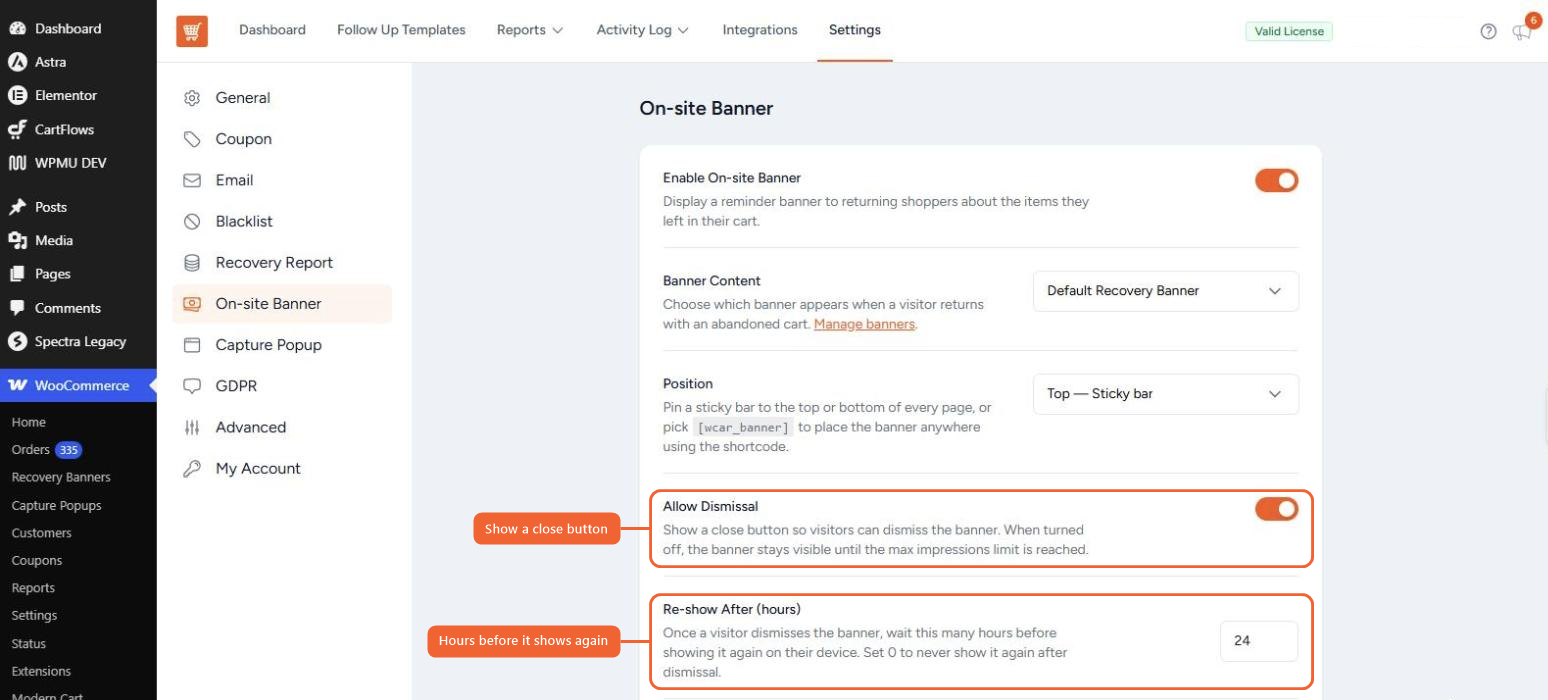
4. Allow Dismissal (Toggle)
- Default: On
- Shows a close button so visitors can dismiss the banner.
- When turned off, the banner stays visible until the Max Impressions Per Visitor limit is reached.
5. Re-show After (hours)
- Default: 24
- After a visitor dismisses the banner, how many hours to wait before showing it again on their device.
- Set to
0to never show it again after dismissal. - Only appears when Allow Dismissal is on.
6. Show On Pages
- Default: None selected
- Multi-select: Home, Shop, Product, Product Category, Product Tag, Cart, Archive, Pages & Posts.
- Only the page types selected here will display the banner.
7. Specific URL Slugs
- Default: Empty
- One URL slug per line (e.g.
about,blog/sale-2026). - These are additive — the banner shows on these URLs in addition to any page types selected above.
8. Max Impressions Per Visitor
- Default: 0 (unlimited)
- After this many page views with the banner shown, it stops appearing for that visitor. Set to
0for no limit.
9. Allowed Origins (Cross-Subdomain)
- Default: Empty
- Advanced setting. One origin per line (e.g.
https://www.example.com). Only needed if you want the banner to load on a sibling site sharing the same root domain. See Section 7 for full setup steps.
4. Authoring the Banner
Banner content is edited in the standard WordPress block editor under WP Admin → Recovery Banners. You can:
- Change the headline, body text, and button label.
- Adjust background and text colors.
- Use Group or Columns blocks to control layout (e.g. text on the left, button on the right).
- Use the merge tag
{{cart.checkout_url}}anywhere in text or button URLs — it is automatically replaced with a link to the checkout page the visitor left.
Merge Tag Reference
| Merge Tag | What It Inserts |
|---|---|
{{cart.checkout_url}} | Link to the checkout page the visitor left |
Default Recovery Banner
A “Default Recovery Banner” post is created automatically on first install. It includes:
- Black background, white text
- Headline: Your cart is still waiting 🛍
- Body: Complete your order in less than a minute.
- White pill-shaped CTA button: Complete My Order → (linked to
{{cart.checkout_url}}) - Sticky bar layout with text on the left and button on the right
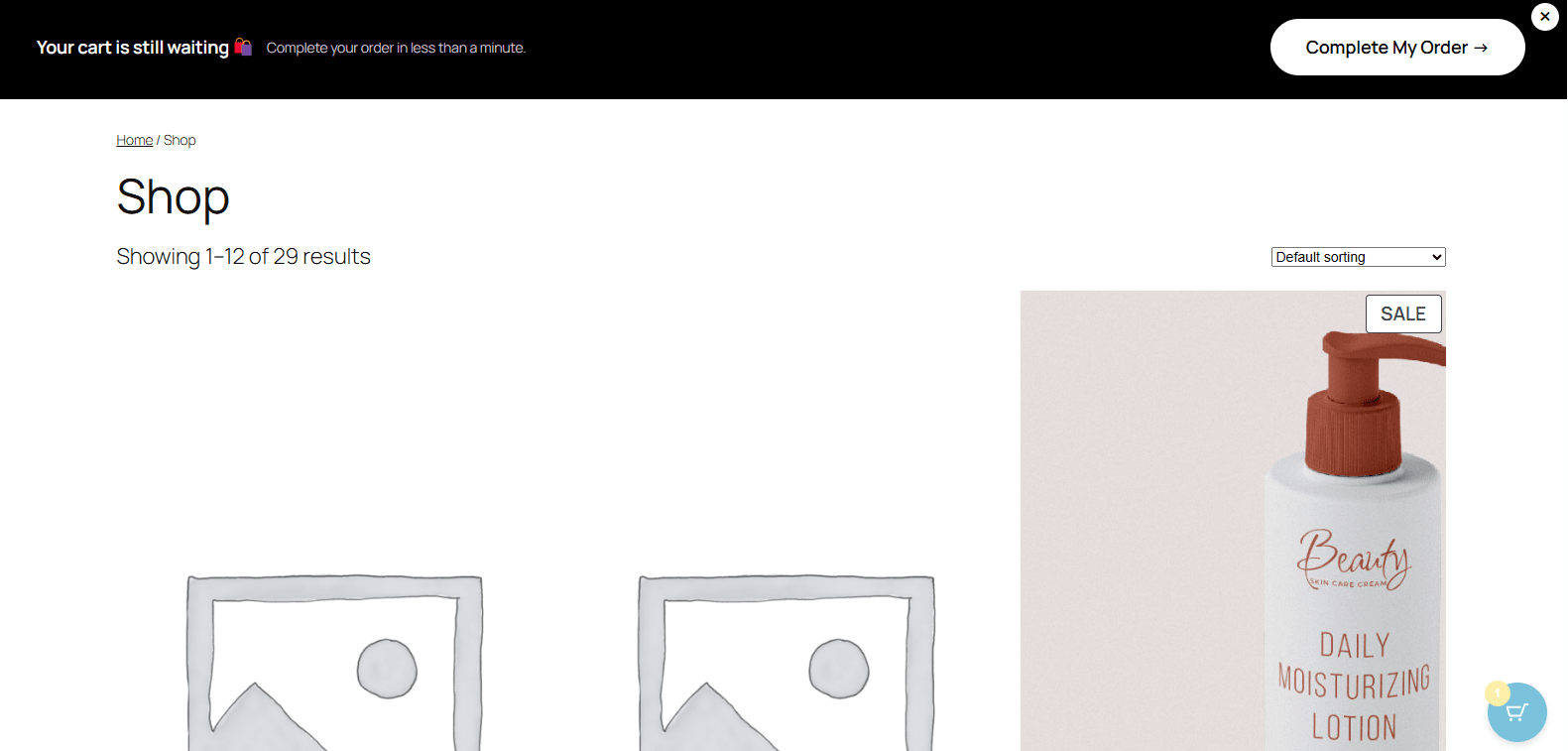
You can edit, duplicate, or replace this banner without any restrictions.
Note
The block editor may show a critical error if your server memory limit is too low. If this happens, increase the memory limit of your site.
5. How Visitors See the Banner
Sticky position (Top or Bottom): The banner is fixed to the top or bottom of the page and stays visible as the visitor scrolls. It appears on top of page content.
Shortcode position: The banner renders inline at the exact location of the [wcar_banner] shortcode. It scrolls with the page and is not fixed.
Close button (×): When Allow Dismissal is on, visitors can close the banner. It comes back after the number of hours set in Re-show After (24 by default), or never if that’s set to 0. The close button color automatically inverts to contrast the banner background (e.g. white banner → black button; black banner → white button).
Impression cap: Once a visitor has seen the banner the configured number of times, it stops showing for that visitor.
6. Page Targeting Examples
| Goal | Show On Pages | URL Slugs |
|---|---|---|
| Banner on home and shop pages | Home, Shop | (empty) |
| Banner on cart and a specific landing page | Cart | winter-sale |
| Banner only on a single sale page | (none) | flash-sale-2026 |
| Banner only where shortcode is placed | (none, set Position = Custom) | (empty) |
7. Cross-Subdomain Setup
If your store is on shop.example.com and you want the banner to also appear on www.example.com:
- In
wp-config.php, defineCOOKIE_DOMAINto share the visitor cookie across both subdomains:define( 'COOKIE_DOMAIN', '.example.com' ); - In Allowed Origins, add the marketing site origin (e.g.
https://www.example.com) — one per line. - Copy the embed snippet shown beneath the Allowed Origins field and paste it into any page on the marketing site where you want the banner to appear.
Note
Chrome and Edge require HTTPS on both sides for cross-site cookies to work. Firefox is more permissive. If the banner works in Firefox but not Chrome, your marketing site is likely running on http:// — both sites need HTTPS.
8. Frequently Asked Questions
We don't respond to the article feedback, we use it to improve our support content.