
- Getting Started
- Creating Your First Funnel
- CartFlows Funnel Step Types
- Starting a Funnel from a Product Page
- How to Edit and Customise Funnel Steps
- Using CartFlows with or without Store Checkout
- How to Add /Assign Products to a Checkout Step
- How to Create One-Click Upsell and Downsell Offers
- How to Use Canvas Mode to Visualize Your Sales Funnel
- Hiding Fields on the Checkout Page
- Installing WooCommerce
- Using WooCommerce
- Adding Products in WooCommerce
- Using Your Theme's Header & Footer in a Step
- Embedding a Checkout Form on the Checkout Page
- Hiding WooCommerce Pages and Products
- Using Pricing Tables
- Adding an Affiliate Program
- Setting a Funnel as the Homepage
- Dynamic Offers aka Rule Engine
- Instant Layout for Checkout and Thank You Step
- Adding Products from the URL to the Checkout Page
- Deleting Plugin Data During Uninstallation
- Importing Ready-Made Templates for Funnels and Steps
- Importing and Exporting Funnels and Step
- URL Parameters
- Replacing the Main Checkout Order with an Upsell or Downsell
- Rolling back to a Previous Version
- Using the "Order Custom Field" Rule of Dynamic Offers with Custom Field Editor
- Google Address Autocomplete
- Flatsome UX Builder
- ActiveCampaign
- Paypal Reference Transactions
- How PaypPal/Stripe Works
- Enabling Enfold Avia Layout Builder
- Setting Up Authorize.net for Upsell & Downsell
- Supported Payment Gateways
- Setting Quantity and Discount for Products on the Checkout Page
- Adding Custom Payment Gateway Support for One-Click Upsell and Downsell
- Funnel in Test Mode
- Troubleshooting Plugin and Theme Conflicts
- Resolving the "Please Select a Simple, Virtual, and Free Product" Error
- Fixing Endless Loading on the Checkout Page
- Fixing the "We can't seem to find an order for you." Error on the Thank You Page
- Troubleshooting License Activation Issues
- Fixing the "Checkout ID Not Found" Error
- Fixing the "Session Expired" Error Message
- Resolving "Order Does Not Exist" Error on Upsell/Downsell Page
- Fixing the "Sorry, This Product Cannot Be Purchased" Error
- Disabling Auto-fill of Address Fields Based on Zip Code
- Enabling Theme's Scripts & Styles Without Changing Page Template
- Disabling Auto-fill of Checkout Fields
- Allowing Cache Plugins to Cache CartFlows Pages
- Changing the "Choose a Variation" Text
- VAT Field Not Displaying for WooCommerce EU/UK VAT Compliance Plugin
- Enabling the Product Tab on Store Checkout
- Displaying the Order Summary Open on Mobile Devices
- Refreshing the Checkout Page After CartFlows AJAX Calls
- Overview
- Installing Modern Cart Starter
- Installing Modern Cart Pro
- Activating License Key
- Customizing General Settings
- Customizing Cart Tray Labels
- Customizing Cart Icon Settings
- Customizing Cart Tray Styling
- Understanding the Product Recommendations Feature
- Controlling Product Recommendation Source for Empty Cart
- Installing Free Version
- Installing Pro Version
- Activating License Key
- Configuring the Settings
- Enabling Webhooks
- Product Reports
- SMS Integration
- WhatsApp Integration
- Email/Domain Blacklist
- Shortcode Reference for Email Fields
- Filters to Customize Product Table
- Recovery Email Going to Spam
- Cookies/GDPR Compliance
- Emails not Sending
- Orders Not Capturing
- Dynamic Email Rules
- Excluding Products from Coupon
- Rolling Back to a Previous Version
- Setting Up Abandoned Cart Email Sequences
- How Cart Abandonment Tracking Works
- Creating and Customizing Email Templates
- Using Unique Recovery Links / One-Click Cart Recovery
- Adding Coupon Incentives to Recovery Emails
- Setting Up Abandoned Cart Recovery for Guest vs Registered Users
- Analytics & Reporting Overview
- Recovering Unpaid / Failed Orders
- Configuring Abandonment Timeout / Cart Cut-Off Time
- Admin Copy of Recovery Emails (CC/BCC)
- A/B Testing Recovery Emails and Coupons
- Segmenting Abandonment Recovery by Cart Value
- Recovery Email Deliverability Best Practices
- Viewing and Managing the Abandoned Carts
- Unsubscribe / Opt-Out Handling for Recovery Emails
- GDPR / Privacy Compliance
- Testing Cart Abandonment Recovery Emails
- On-Site Reminder Banner
- Pausing or Disabling Cart Abandonment for Specific Products or Categories
- Cart Abandonment Recovery Activity Log
- Cart Abandonment Recovery Capture Popup
- How to Get Notified When Abandoned Cart Products Go Out of Stock
Admin Copy of Recovery Emails (CC/BCC)
The Admin Copy feature in Cart Abandonment Recovery Pro lets you receive a copy of every recovery email sent to your customers from a specific follow-up email template. The copy contains the live coupon code, real cart contents, and actual send time — exactly what the customer receives. It is intended for monitoring purposes.
This feature is configured per template, so you can choose to receive copies only from the emails you want to track.
1. Where to Find It
Admin Path: WooCommerce > Cart Abandonment > Follow Up Templates > (Edit a template)
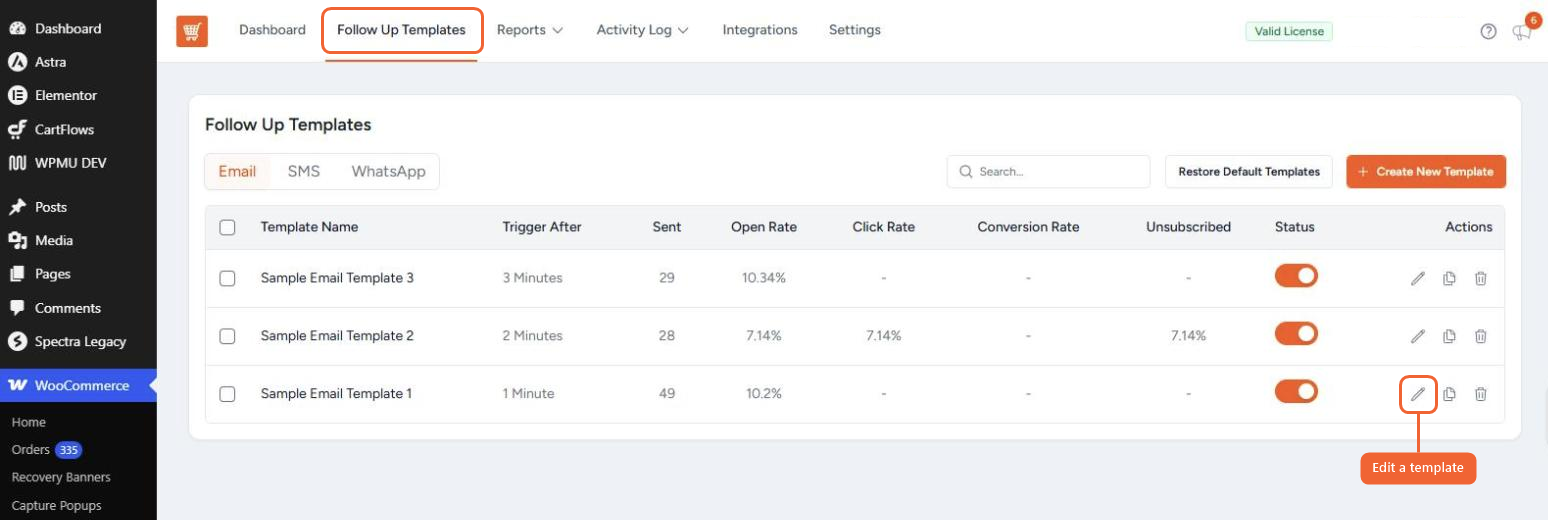
The copy settings appear within the individual email template settings. There is no single global toggle — the option is set separately for each template.
2. Settings
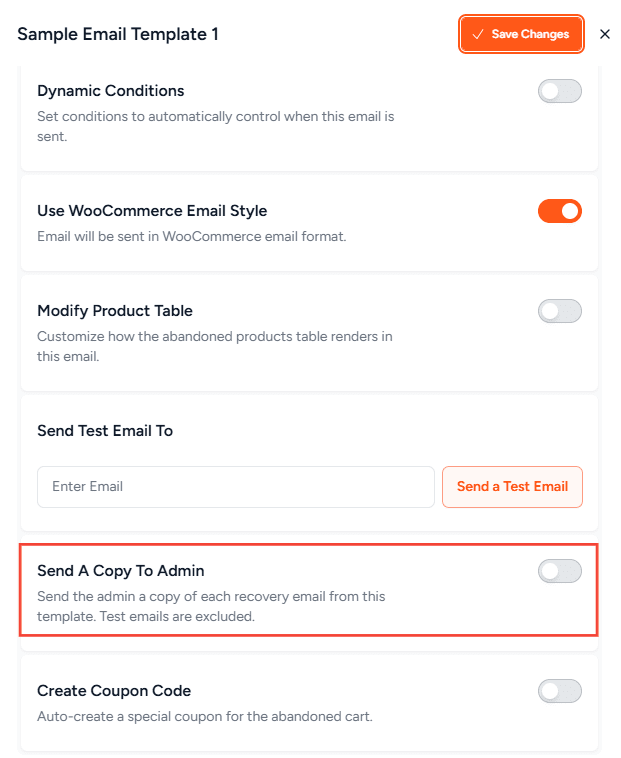
1. Send a Copy to Admin (Toggle)
- Default: Off
- Enables or disables the admin copy for this template.
- When disabled, no copies are sent, even if addresses are configured.
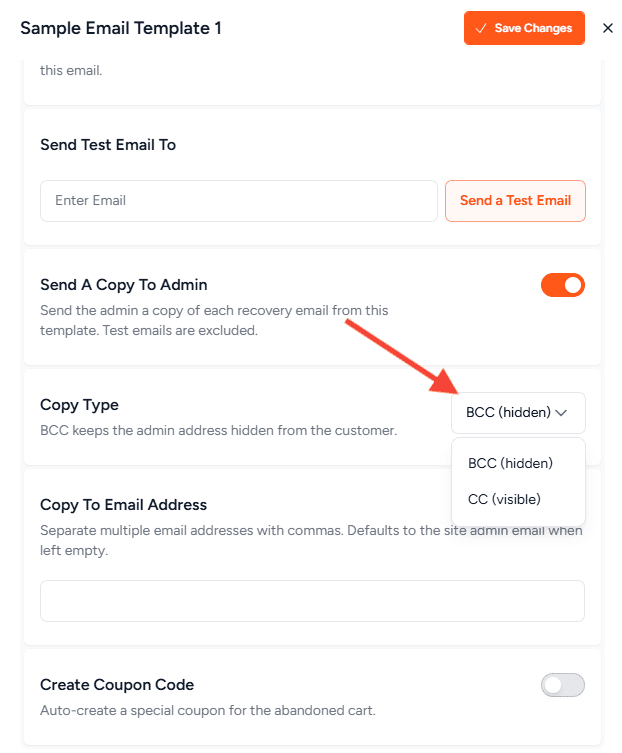
2. Copy Type
- Default: BCC
- BCC — sends a hidden copy; the admin address is not visible to the customer.
- CC — sends a visible copy; the admin address appears in the email header the customer receives.
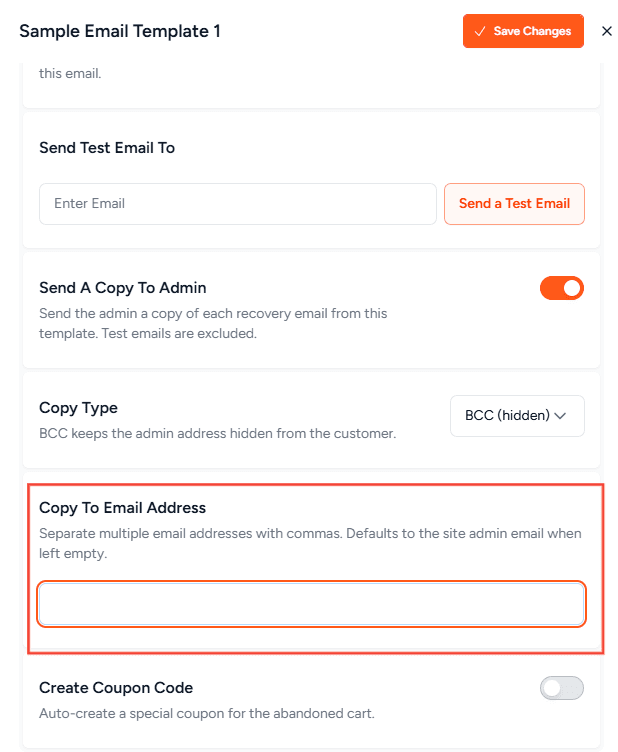
3. Copy To Email Address
- Default: Empty (falls back to site admin email)
- Enter one or more email addresses to receive the copy.
- Separate multiple addresses with commas.
- If left blank or all entries are invalid, the copy is sent to the site’s admin email.
3. BCC vs CC
BCC (Recommended): The admin address is hidden from the customer and will not appear in any “Reply All” thread.
CC: The admin address is visible to the customer in the email header. Use this only if you intentionally want the customer to see that an internal address is copied.
4. What Gets Copied
When admin copy is enabled, the following is copied for each genuine recovery email sent from that template:
- Live coupon code (if applicable)
- Real cart contents
- Customer’s checkout recovery link
- Customer’s unsubscribe link
Important: The checkout and unsubscribe links in the copy are tied to the customer’s cart and account. Do not click them — they are intended for monitoring only.
5. What Does NOT Get Copied
- Test emails sent via “Send Test Email” are never copied.
- Preview emails are never copied.
- Copies are only triggered by genuine recovery emails sent to real customers.
6. Things to Keep in Mind
- Volume: Every real send from an enabled template generates a copy. On a high-traffic store, this can add up. Consider using a dedicated mailbox as the recipient address.
- Invalid addresses: Invalid entries are skipped. If no valid addresses remain, the copy falls back to the site admin email.
- Per-template scope: Enabling admin copy on one template does not affect other templates. Each template has its own independent setting.
7. Frequently Asked Questions
We don't respond to the article feedback, we use it to improve our support content.