
- Getting Started
- Creating Your First Funnel
- CartFlows Funnel Step Types
- Starting a Funnel from a Product Page
- How to Edit and Customise Funnel Steps
- Using CartFlows with or without Store Checkout
- How to Add /Assign Products to a Checkout Step
- How to Create One-Click Upsell and Downsell Offers
- How to Use Canvas Mode to Visualize Your Sales Funnel
- Hiding Fields on the Checkout Page
- Installing WooCommerce
- Using WooCommerce
- Adding Products in WooCommerce
- Using Your Theme's Header & Footer in a Step
- Embedding a Checkout Form on the Checkout Page
- Hiding WooCommerce Pages and Products
- Using Pricing Tables
- Adding an Affiliate Program
- Setting a Funnel as the Homepage
- Dynamic Offers aka Rule Engine
- Instant Layout for Checkout and Thank You Step
- Adding Products from the URL to the Checkout Page
- Deleting Plugin Data During Uninstallation
- Importing Ready-Made Templates for Funnels and Steps
- Importing and Exporting Funnels and Step
- URL Parameters
- Replacing the Main Checkout Order with an Upsell or Downsell
- Rolling back to a Previous Version
- Using the "Order Custom Field" Rule of Dynamic Offers with Custom Field Editor
- Adding Order Bumps to WooCommerce Sales Funnel
- Replacing the First Product on Checkout with Order Bump
- Dynamic (Conditional) Order Bumps
- Order Bump AI
- Positions and Styles
- How to Auto-Apply a Coupon When an Order Bump Is Accepted
- How to Add Variable Products to an Order Bump
- How to A/B Test Order Bumps in CartFlows
- Google Address Autocomplete
- Flatsome UX Builder
- ActiveCampaign
- Paypal Reference Transactions
- How PaypPal/Stripe Works
- Enabling Enfold Avia Layout Builder
- Setting Up Authorize.net for Upsell & Downsell
- Supported Payment Gateways
- Setting Quantity and Discount for Products on the Checkout Page
- Adding Custom Payment Gateway Support for One-Click Upsell and Downsell
- Funnel in Test Mode
- Troubleshooting Plugin and Theme Conflicts
- Resolving the "Please Select a Simple, Virtual, and Free Product" Error
- Fixing Endless Loading on the Checkout Page
- Fixing the "We can't seem to find an order for you." Error on the Thank You Page
- Troubleshooting License Activation Issues
- Fixing the "Checkout ID Not Found" Error
- Fixing the "Session Expired" Error Message
- Resolving "Order Does Not Exist" Error on Upsell/Downsell Page
- Fixing the "Sorry, This Product Cannot Be Purchased" Error
- Disabling Auto-fill of Address Fields Based on Zip Code
- Enabling Theme's Scripts & Styles Without Changing Page Template
- Disabling Auto-fill of Checkout Fields
- Allowing Cache Plugins to Cache CartFlows Pages
- Changing the "Choose a Variation" Text
- VAT Field Not Displaying for WooCommerce EU/UK VAT Compliance Plugin
- Enabling the Product Tab on Store Checkout
- Displaying the Order Summary Open on Mobile Devices
- Refreshing the Checkout Page After CartFlows AJAX Calls
- Overview
- Installing Modern Cart Starter
- Installing Modern Cart Pro
- Activating License Key
- Customizing General Settings
- Customizing Cart Tray Labels
- Customizing Cart Icon Settings
- Customizing Cart Tray Styling
- Understanding the Product Recommendations Feature
- Controlling Product Recommendation Source for Empty Cart
- Installing Free Version
- Installing Pro Version
- Activating License Key
- Configuring the Settings
- Enabling Webhooks
- Product Reports
- SMS Integration
- WhatsApp Integration
- Email/Domain Blacklist
- Shortcode Reference for Email Fields
- Filters to Customize Product Table
- Recovery Email Going to Spam
- Cookies/GDPR Compliance
- Emails not Sending
- Orders Not Capturing
- Dynamic Email Rules
- Excluding Products from Coupon
- Rolling Back to a Previous Version
- Setting Up Abandoned Cart Email Sequences
- How Cart Abandonment Tracking Works
- Creating and Customizing Email Templates
- Using Unique Recovery Links / One-Click Cart Recovery
- Adding Coupon Incentives to Recovery Emails
- Setting Up Abandoned Cart Recovery for Guest vs Registered Users
- Analytics & Reporting Overview
- Recovering Unpaid / Failed Orders
- Configuring Abandonment Timeout / Cart Cut-Off Time
- Admin Copy of Recovery Emails (CC/BCC)
- A/B Testing Recovery Emails and Coupons
- Segmenting Abandonment Recovery by Cart Value
- Recovery Email Deliverability Best Practices
- Viewing and Managing the Abandoned Carts
- Unsubscribe / Opt-Out Handling for Recovery Emails
- GDPR / Privacy Compliance
- Testing Cart Abandonment Recovery Emails
- On-Site Reminder Banner
- Pausing or Disabling Cart Abandonment for Specific Products or Categories
- Cart Abandonment Recovery Activity Log
- Cart Abandonment Recovery Capture Popup
- How to Get Notified When Abandoned Cart Products Go Out of Stock
Segmenting Abandonment Recovery by Cart Value
Not every abandoned cart is equal. A customer who left a $25 order deserves a different recovery nudge than one who abandoned a $500 cart. With Cart Abandonment Recovery Pro, you can use the Rule Engine (Dynamic Conditions) to send different recovery emails, SMS messages, or coupons based on cart value, products, categories, country, or number of items.
This guide walks you through segmenting your recovery flow using cart value and other conditions.
Pro-only feature. The free version of Cart Abandonment Recovery sends the same template flow to every abandoned cart. Segmentation requires Cart Abandonment Recovery Pro.
Why Segment by Cart Value?
Different cart values call for different recovery strategies:
| Cart Value | Recovery Strategy |
| Low ($10–$50) | Small coupon (5%) or free shipping — keep the cost-to-recover reasonable |
| Mid ($50–$200) | Moderate discount (10%) + urgency — “your cart expires in 24h” |
| High ($200+) | Concierge touch — no coupon, personal message, or offer a call/consultation |
Sending a 20% coupon to a $20 cart burns your margin. Sending no offer at all to a $500 cart misses a huge revenue opportunity. Segmentation gets the right message to the right customer.
Prerequisites
- Cart Abandonment Recovery Pro installed and activated
- At least two email templates created under Follow Up Templates
- WooCommerce checkout configured with abandoned cart tracking working
Supported Conditions (Rule Engine)
The Pro Rule Engine supports these conditions for any email, SMS, or WhatsApp template:
| Condition | Operators | Example Use |
| Cart Total | =, ≠, >, <, ≥, ≤ | High-value vs. low-value cart offers |
| Number of Cart Items | =, ≠, >, <, ≥, ≤ | Bulk-order vs. single-item messaging |
| Product | contains, does not contain | Target specific SKUs |
| Product Category | contains, does not contain | Category-specific offers (e.g., apparel vs. electronics) |
| Country | =, ≠ | Country-specific language, currency, shipping offers |
Multiple conditions can be combined with AND / OR logic.
Step-by-Step: Segmenting by Cart Value
Step 1 — Create Your Templates
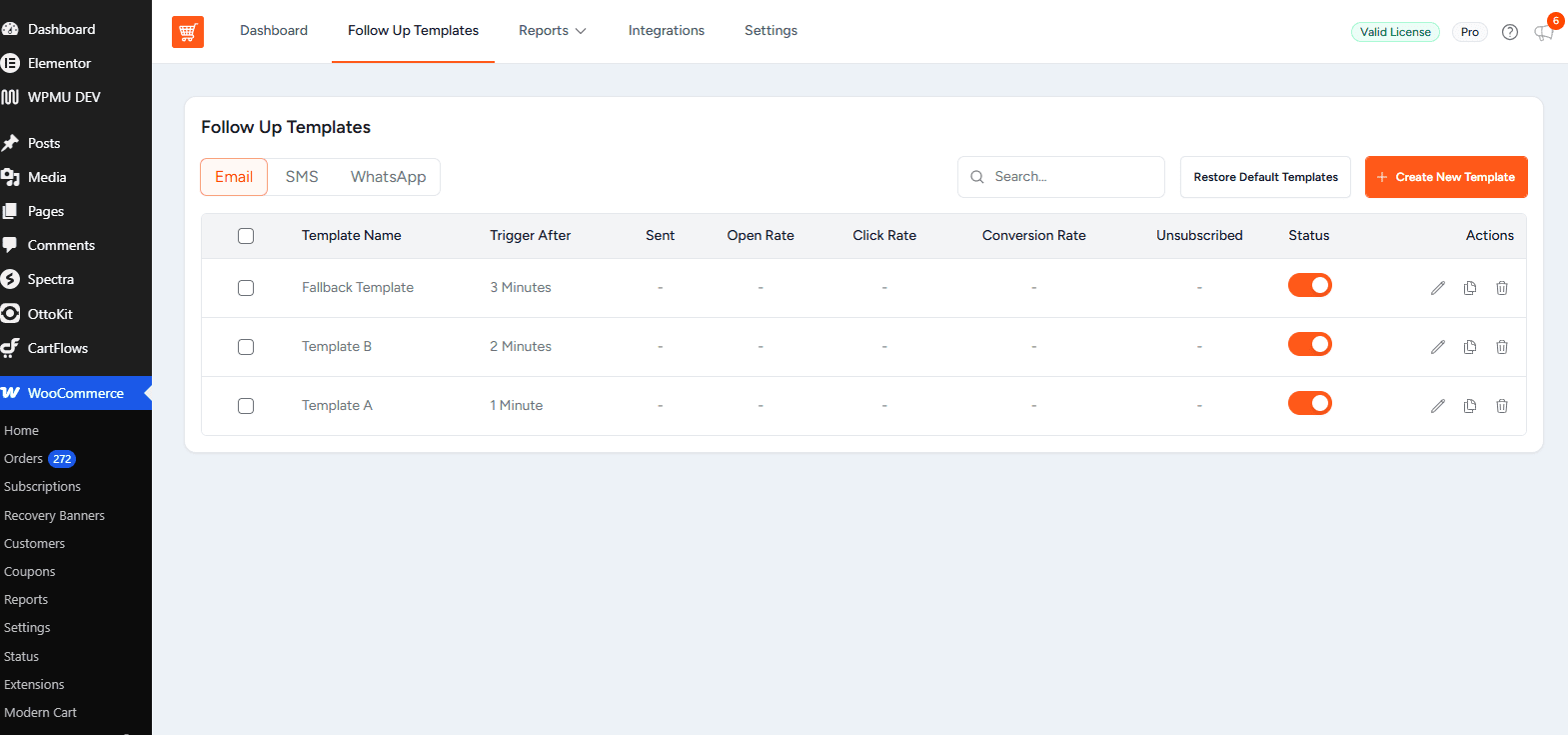
Go to WooCommerce > Cart Abandonment > Follow Up Templates and create at least two templates you want to use for different segments.
Example:
- Template A — Low-Value Cart: 5% off, casual tone
- Template B — High-Value Cart: No discount, personal note, urgency
Step 2 — Open Template A and Enable Dynamic Conditions
Click the ️Edit icon on Template A to open the editor drawer. Find the Dynamic Conditions toggle and turn it ON.
Step 3 — Add the Cart-Value Rule for Low-Value Carts
Click Add Condition and configure:
| Field | Value |
| Condition | Cart Total |
| Operator | Less than |
| Value | 100 |
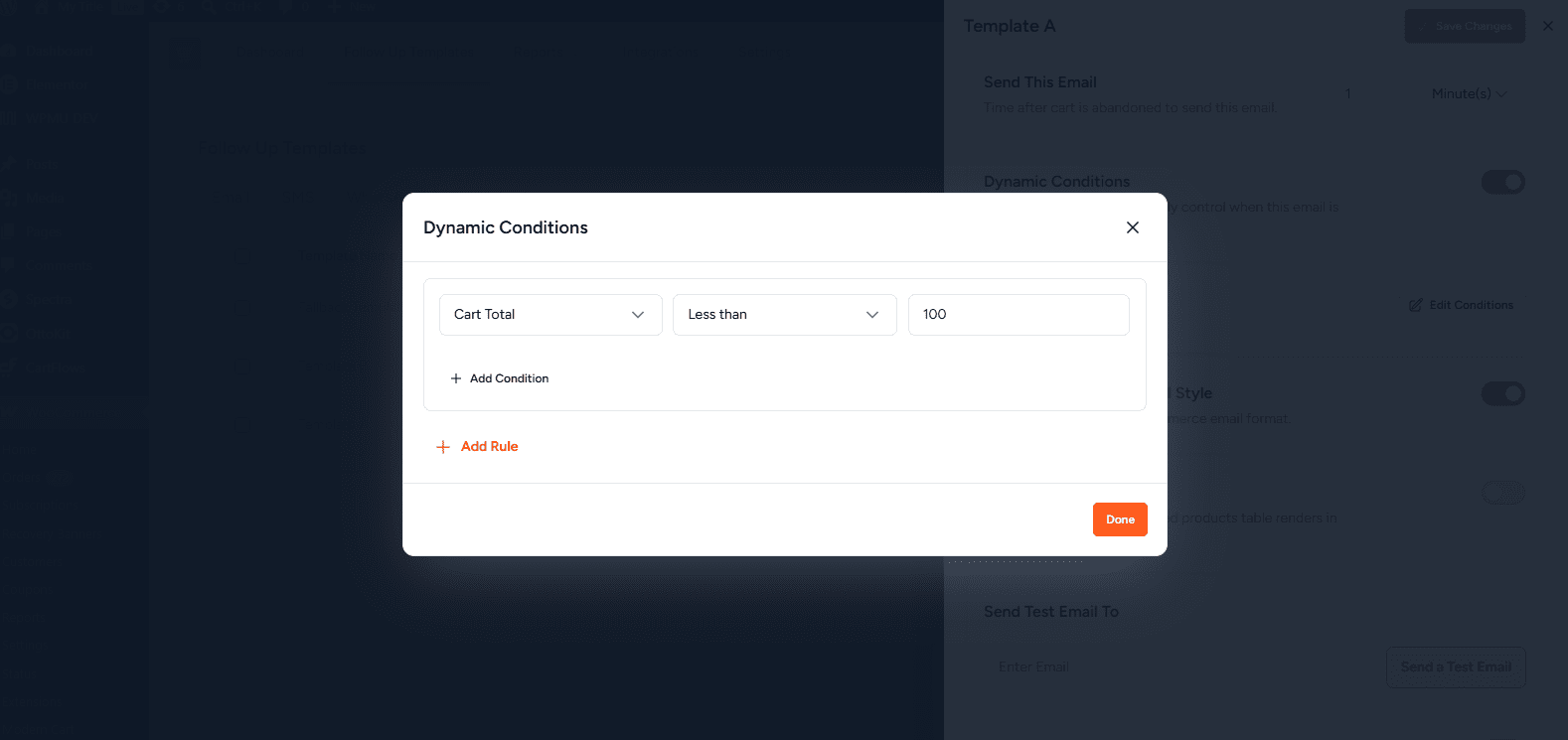
This means: send this template only to carts under $100.
Click Done then Save Changes.
Step 4 — Configure Template B for High-Value Carts
Open Template B and enable Dynamic Conditions. Add the opposite condition:
| Field | Value |
| Condition | Cart Total |
| Operator | Greater than or equal to |
| Value | 100 |
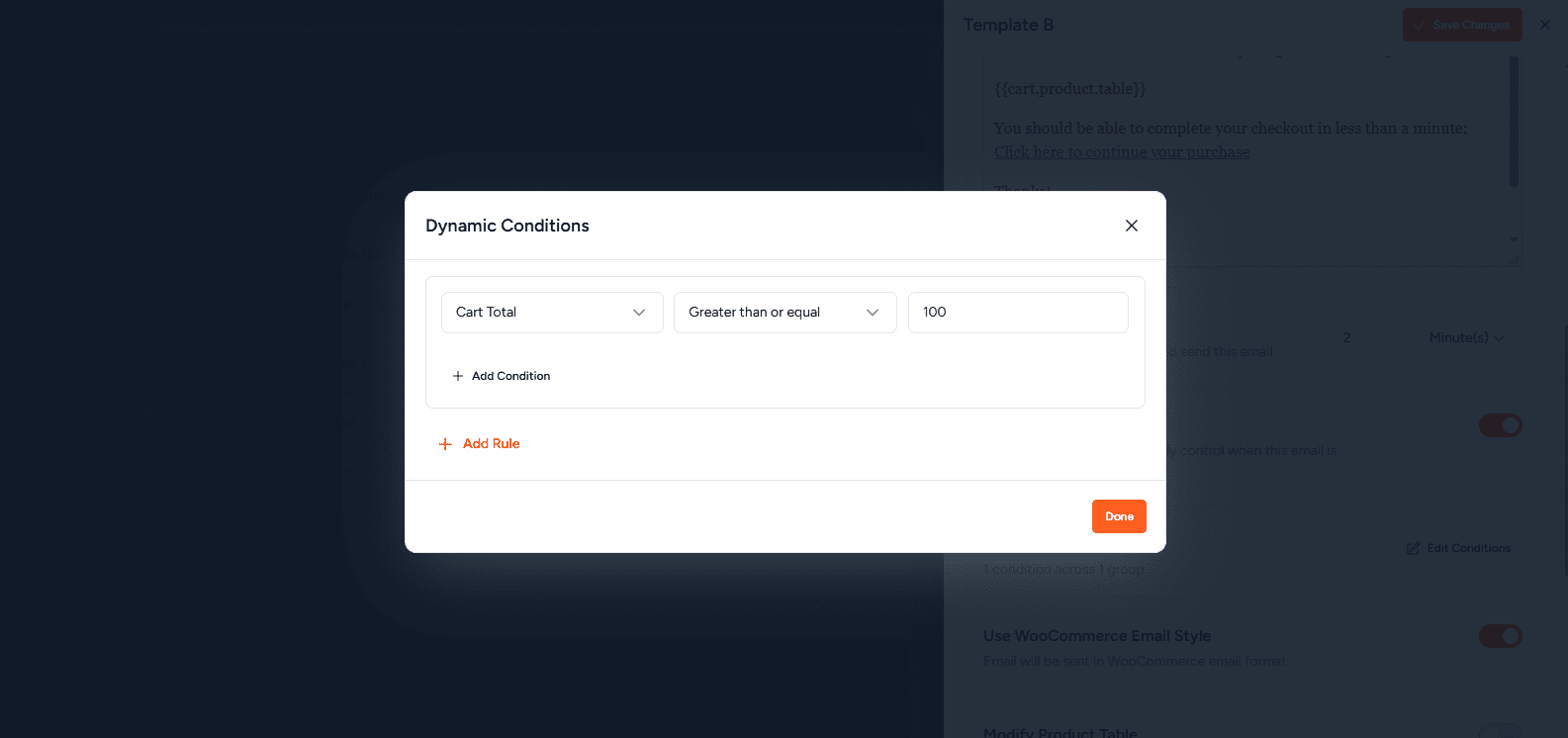
Click Done then Save Changes.
Step 5 — Verify Both Templates Are Active
Back on the Follow Up Templates list, confirm both templates are Active (Status toggle ON). The Pro engine will now evaluate each abandoned cart against the conditions and pick the right template automatically.
Step 6 — Test With a Real Abandoned Cart
- Add items totaling less than $100 to your cart and abandon at checkout (use a test email).
- Wait for the recovery email — confirm Template A arrived.
- Repeat with a cart over $100 — confirm Template B arrived.
See How to Test Cart Abandonment Recovery Emails for the full testing workflow.
Example: Multi-Tier Segmentation
You can have three or more templates, each covering a different range. Just set matching conditions:
| Template | Condition |
| Small Cart Offer | Cart Total < 50 |
| Mid Cart Offer | Cart Total ≥ 50 AND Cart Total < 200 |
| Premium Cart Offer | Cart Total ≥ 200 |
For the Mid Cart Offer, add two conditions joined by AND in the same template’s Rule Engine.
Example: Segmenting by Product Category
Let’s say you want apparel buyers to get a style-guide-heavy email while electronics buyers get a technical-specs email.
Template A (Apparel):
- Condition: Product Category → contains → Clothing
Template B (Electronics):
- Condition: Product Category → contains → Electronics
If a cart has both categories, the first matching template wins — order your templates in the Follow Up Templates list accordingly.
Example: Country-Based Offers
Offer free shipping to US customers while giving EU customers a flat discount (since shipping costs differ).
Template A (US):
- Condition: Country → equals → United States
- Coupon: Free Shipping
Template B (EU):
- Condition: Country → not equal to → United States
- Coupon: 10% off
Tips & Best Practices
- Start simple — two segments (high-value + low-value) before jumping to five or six.
- Monitor each segment in Reports — compare recovery rates per template to see what’s working.
- Balance your coupons against margin — don’t hand out 20% on a $30 cart.
- Set conditions that don’t overlap — if two templates both match a cart, only one fires, and ordering may be non-obvious. Use mutually-exclusive ranges (< 100 and >= 100, not < 100 and < 200).
- Document your segments — keep a note of which templates apply to which conditions. Future-you will appreciate it.
- Test each segment with a real abandoned cart before relying on it in production.
Troubleshooting
Wrong Template Is Sending
- Re-check your conditions — overlapping rules can lead to unexpected matches.
- Ensure both templates have Dynamic Conditions enabled and are Active.
- Clear your browser cache and re-check the template after saving.
No Template Is Sending
- Verify at least one template’s conditions match the abandoned cart.
- If all templates have conditions and none match, no email is sent.
- Consider keeping one template with no conditions as a catch-all fallback.
FAQs
We don't respond to the article feedback, we use it to improve our support content.