
- Hiding Fields on the Checkout Page
- Installing WooCommerce
- Using WooCommerce
- Adding Products in WooCommerce
- Using Your Theme's Header & Footer in a Step
- Embedding a Checkout Form on the Checkout Page
- Hiding WooCommerce Pages and Products
- Using Pricing Tables
- Adding an Affiliate Program
- Setting a Funnel as the Homepage
- Dynamic Offers aka Rule Engine
- Instant Layout for Checkout and Thank You Step
- Adding Products from the URL to the Checkout Page
- Deleting Plugin Data During Uninstallation
- Importing Ready-Made Templates for Funnels and Steps
- Importing and Exporting Funnels and Step
- URL Parameters
- Replacing the Main Checkout Order with an Upsell or Downsell
- Rolling back to a Previous Version
- Using the "Order Custom Field" Rule of Dynamic Offers with Custom Field Editor
- Google Address Autocomplete
- Flatsome UX Builder
- ActiveCampaign
- Paypal Reference Transactions
- How PaypPal/Stripe Works
- Enabling Enfold Avia Layout Builder
- Setting Up Authorize.net for Upsell & Downsell
- Supported Payment Gateways
- Setting Quantity and Discount for Products on the Checkout Page
- Adding Custom Payment Gateway Support for One-Click Upsell and Downsell
- Funnel in Test Mode
- Troubleshooting Plugin and Theme Conflicts
- Resolving the "Please Select a Simple, Virtual, and Free Product" Error
- Fixing Endless Loading on the Checkout Page
- Fixing the "We can't seem to find an order for you." Error on the Thank You Page
- Troubleshooting License Activation Issues
- Fixing the "Checkout ID Not Found" Error
- Fixing the "Session Expired" Error Message
- Resolving "Order Does Not Exist" Error on Upsell/Downsell Page
- Fixing the "Sorry, This Product Cannot Be Purchased" Error
- Disabling Auto-fill of Address Fields Based on Zip Code
- Enabling Theme's Scripts & Styles Without Changing Page Template
- Disabling Auto-fill of Checkout Fields
- Allowing Cache Plugins to Cache CartFlows Pages
- Changing the "Choose a Variation" Text
- VAT Field Not Displaying for WooCommerce EU/UK VAT Compliance Plugin
- Enabling the Product Tab on Store Checkout
- Displaying the Order Summary Open on Mobile Devices
- Refreshing the Checkout Page After CartFlows AJAX Calls
- Overview
- Installing Modern Cart Starter
- Installing Modern Cart Pro
- Activating License Key
- Customizing General Settings
- Customizing Cart Tray Labels
- Customizing Cart Icon Settings
- Customizing Cart Tray Styling
- Understanding the Product Recommendations Feature
- Controlling Product Recommendation Source for Empty Cart
- Installing Free Version
- Installing Pro Version
- Activating License Key
- Configuring the Settings
- Enabling Webhooks
- Product Reports
- SMS Integration
- WhatsApp Integration
- Email/Domain Blacklist
- Shortcode Reference for Email Fields
- Filters to Customize Product Table
- Recovery Email Going to Spam
- Cookies/GDPR Compliance
- Emails not Sending
- Orders Not Capturing
- Dynamic Email Rules
- Excluding Products from Coupon
- Rolling Back to a Previous Version
- Setting Up Abandoned Cart Email Sequences
- How Cart Abandonment Tracking Works
- Creating and Customizing Email Templates
- Using Unique Recovery Links / One-Click Cart Recovery
- Adding Coupon Incentives to Recovery Emails
- Setting Up Abandoned Cart Recovery for Guest vs Registered Users
- Analytics & Reporting Overview
- Recovering Unpaid / Failed Orders
- Configuring Abandonment Timeout / Cart Cut-Off Time
- Admin Copy of Recovery Emails (CC/BCC)
- A/B Testing Recovery Emails and Coupons
- Segmenting Abandonment Recovery by Cart Value
- Recovery Email Deliverability Best Practices
- Viewing and Managing the Abandoned Carts
- Unsubscribe / Opt-Out Handling for Recovery Emails
- GDPR / Privacy Compliance
- Testing Cart Abandonment Recovery Emails
- On-Site Reminder Banner
- Pausing or Disabling Cart Abandonment for Specific Products or Categories
How to Create and Customize Email Templates for Cart Recovery
The Cart Abandonment Recovery plugin lets you build a sequence of automated recovery emails that are sent to customers who leave your store without completing checkout. Each email is fully customizable — you control the subject line, timing, body content, coupon incentives, and the conditions under which the email is delivered.
This guide walks through how to create a new email template, configure all available settings, personalize the content using shortcodes, and use Dynamic Conditions to send targeted emails to the right customers.
Accessing Email Templates
To manage your recovery email templates, go to:
WooCommerce > Cart Abandonment > Follow-up Emails
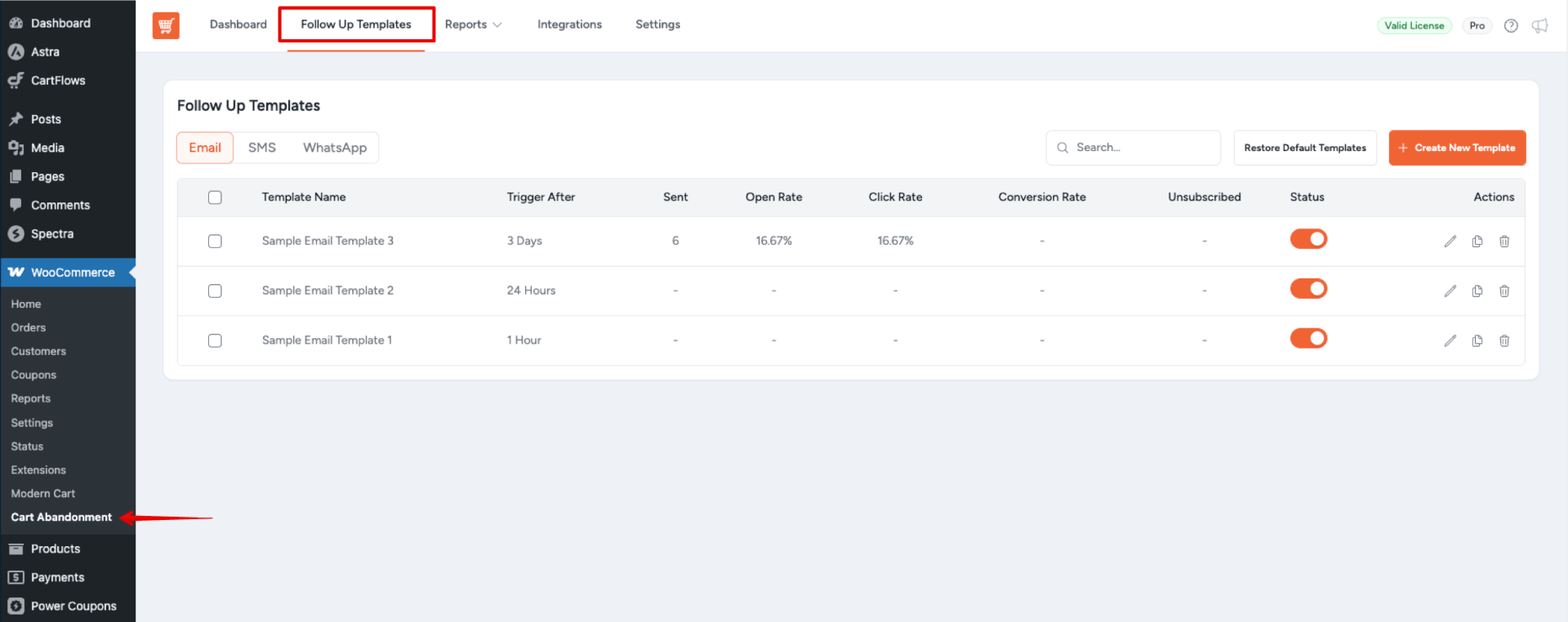
This screen lists all existing templates in your recovery sequence. You can create new ones, edit existing templates, toggle them on or off, or delete them.
Creating a New Email Template
To create a new recovery email:
- Go to WooCommerce > Cart Abandonment > Follow-up Emails.
- Click Add New Template.
- Fill in the template fields described in the next section.
- Click Save Template when finished.
Note
You can create multiple templates to build a full recovery sequence — for example, a first reminder after 1 hour, a follow-up after 24 hours, and a final email with a coupon after 3 days.
Template Fields
Each email template includes the following settings:
| Field | Description |
| Email Subject | The subject line of the recovery email. Shortcodes can be used here to personalize it (e.g., include the customer’s first name or the store name). |
| Send This Email | Sets how long after cart abandonment this email is sent. Enter a number and select the unit: Minutes, Hours, or Days. |
| Email Body | The main content of the email. Use the visual editor to format the message and insert shortcodes to dynamically populate customer and cart details. |
| Coupon | Optionally attach a WooCommerce coupon to the email. When enabled, the coupon code is auto-applied when the customer clicks the recovery link. |
| Active / Inactive | Toggles whether this template is enabled in the sending sequence. Inactive templates are saved but will not be sent. |
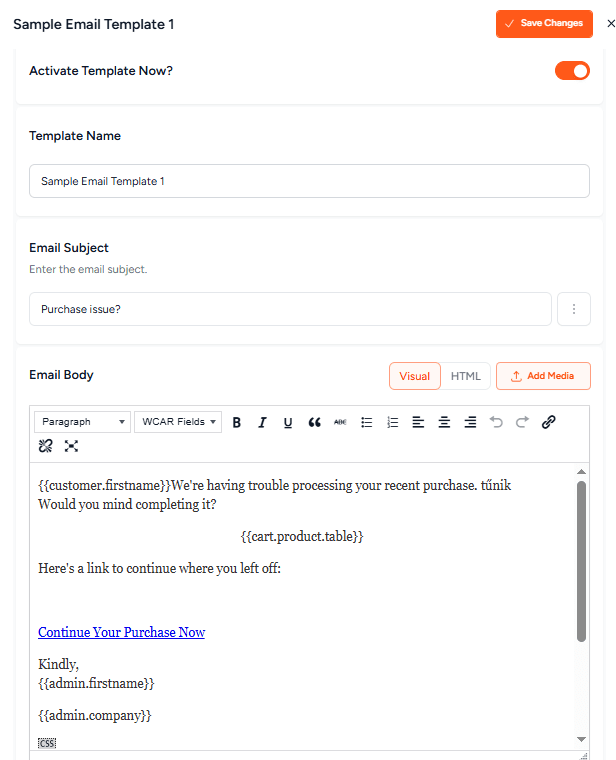
Writing the Email Body
The email body editor supports standard HTML formatting — headings, bold text, links, images, and buttons. Use the toolbar to style your content without writing code.
To create a high-converting recovery email, it is recommended to include:
- A personalized greeting using
{{customer.firstname}} - The abandoned product list using
{{cart.product.table}} - A prominent recovery button or link using
{{cart.checkout_url}} - A coupon code (optional) using
{{cart.coupon_code}} - An unsubscribe link using
{{cart.unsubscribe}}
Personalizing with Shortcodes
Shortcodes let you insert dynamic content into your email subject and body. The plugin replaces each shortcode with the appropriate value at the time the email is sent.
| Shortcode | Where to Use | What It Inserts |
{{customer.firstname}} | Subject / Body | Customer’s first name |
{{customer.lastname}} | Subject / Body | Customer’s last name |
{{customer.fullname}} | Subject / Body | Customer’s full name |
{{cart.checkout_url}} | Body | Unique recovery link (restores cart, applies coupon) |
{{cart.coupon_code}} | Body | The coupon code assigned to this template |
{{cart.product.table}} | Body | Product table with name, image, quantity, and price |
{{cart.product.names}} | Body | Plain-text list of abandoned product names |
{{cart.abandoned_date}} | Body | Date the cart was abandoned |
{{cart.unsubscribe}} | Body | Unsubscribe link for the customer |
{{admin.firstname}} | Subject / Body | Shop owner / administrator name |
{{admin.company}} | Subject / Body | Shop or company name |
{{site.url}} | Body | Main URL of the store |
Here is the Doc with the complete list of shortcodes: https://cartflows.com/docs/shortcode-reference-for-email-fields/
Adding a Coupon to a Template
You can automatically generate a unique discount coupon for each abandoned cart recovery email.
When a coupon is configured:
- The
{{cart.coupon_code}}shortcode in the email body will display the auto-generated coupon code. - If Auto-apply coupon is enabled, the coupon is automatically applied when the customer clicks the
{{cart.checkout_url}}recovery link — no manual entry required.
To set up a coupon on a template:
- Open or create an email template.
- In the Coupon section, toggle on Create Coupon Code.
- Choose a Discount Type (Percentage, Fixed Cart, or Free Shipping).
- Enter the Coupon Amount.
- Optionally set an Expiry period and enable Free Shipping or Individual Use Only.
- Enable Auto-apply coupon if you want the coupon applied automatically when the customer clicks the recovery link.
- Save the template.
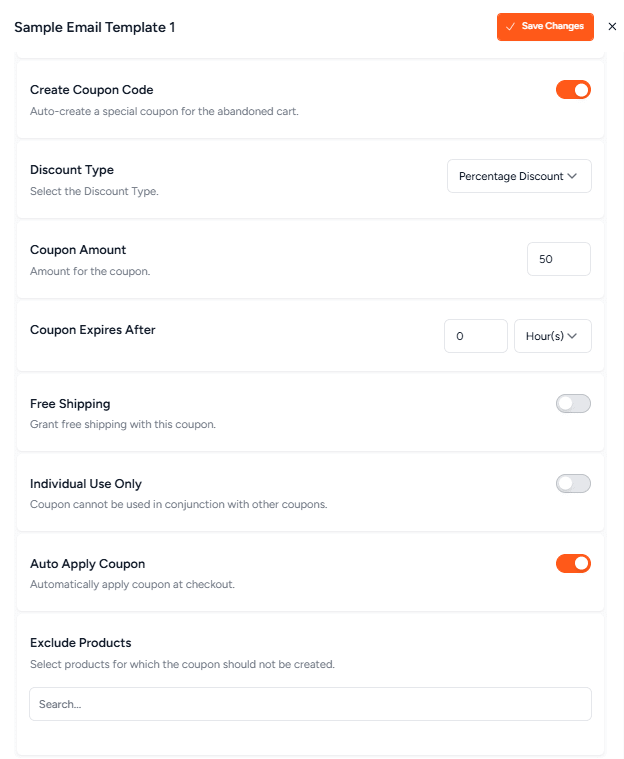
The plugin will generate a unique coupon code for each customer automatically — no need to create one manually in WooCommerce.
Note
You can also exclude specific products from the coupon in the Exclude Products (Pro) Settings.
Setting the Send Timing
Each template has a Send This Email field that controls when the email is sent after the cart is abandoned. You can specify a number and select:
- Minutes — for immediate or near-immediate follow-up (minimum 10 minutes after the cut-off time)
- Hours — for same-day follow-ups
- Days — for multi-day recovery sequences
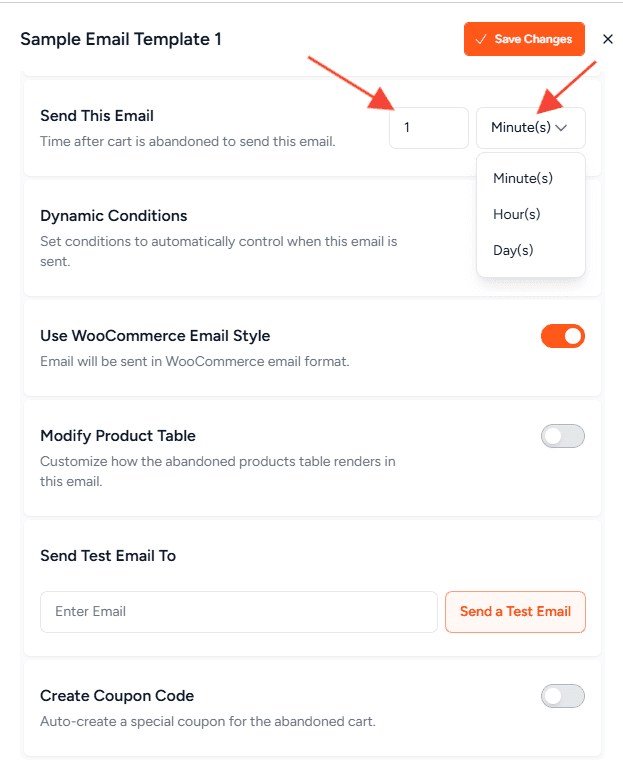
Recommended timing sequence:
| Email 1 — Send after: 1 Hour (First reminder, no coupon)Email 2 — Send after: 24 Hours (Follow-up, cart contents reminder) Email 3 — Send after: 3 Days (Final email with coupon incentive) |
Note
Emails are only sent if the cart is still in an abandoned state at the scheduled send time. If the customer completes their order before the email is due, the email is automatically skipped.
Configuring Email Sender Settings
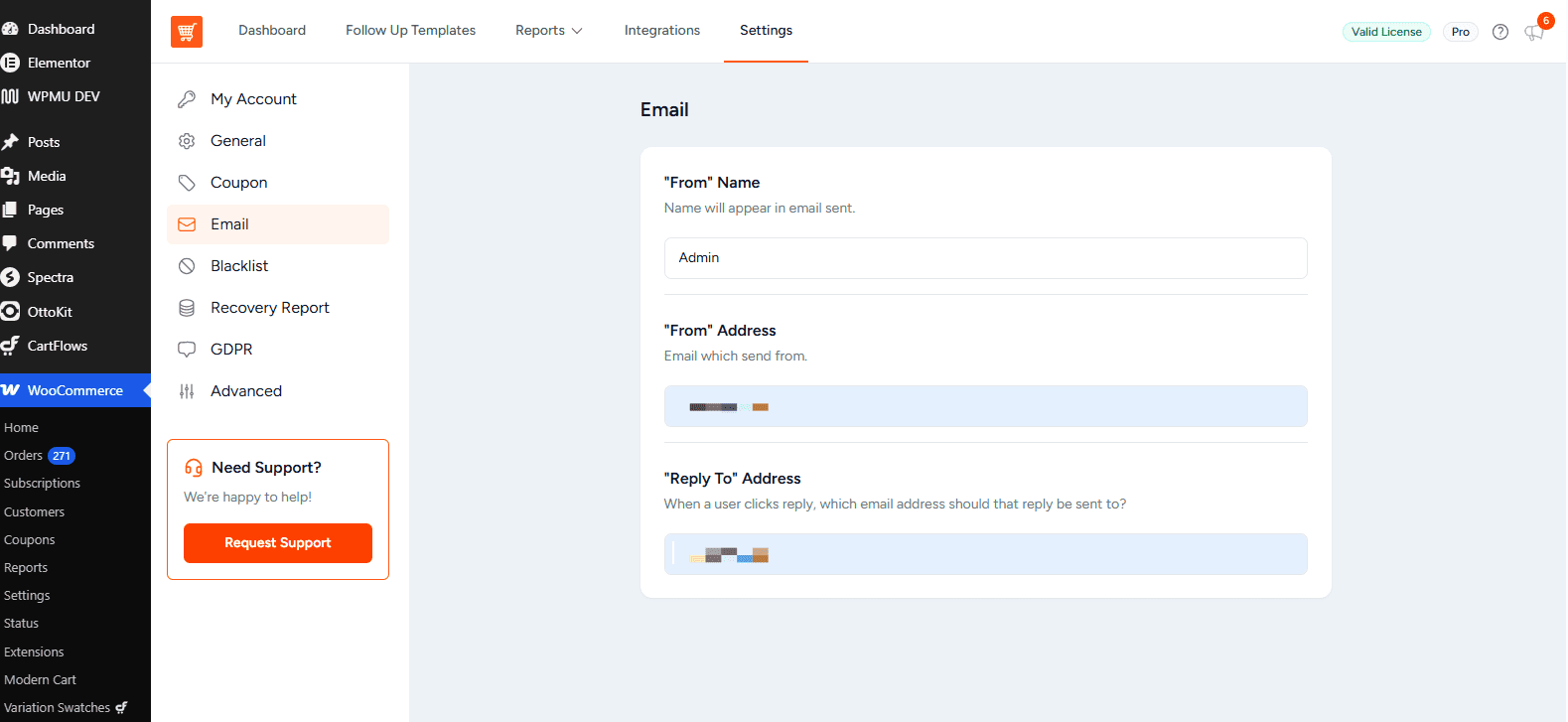
The “From” name and address used in recovery emails are set globally in the plugin settings, not per template. To update these:
- Go to WooCommerce > Cart Abandonment > Settings.
- Under Email Settings, configure:
| Field | Description |
| “From” Name | The name displayed as the sender in the customer’s inbox (e.g., your store name). |
| “From” Address | The email address the recovery emails are sent from. |
| “Reply-To” Address | The address where customer replies are directed. Can differ from the “From” address. |
Using Dynamic Conditions (Pro)
Dynamic Conditions allow you to restrict a template so it only sends when specific cart, product, or customer criteria are met. This is a Pro feature available in the Cart Abandonment Recovery Pro plugin.
With Dynamic Conditions, you can target emails by:
- Cart total — e.g., only send for orders above $100
- Product or product category — e.g., send only when a customer abandons electronics
- Billing country — e.g., target US-based customers with a specific offer
- Number of cart items — e.g., target carts with 3 or more products
To know more about how to set up Dynamic Email Conditions, refer to this doc.
Available Conditions and Operators
| Field | Description |
| Cart Total | Numeric operators: is equal to, greater than, less than, greater/less than or equal to. |
| Product | Existence operators: Exists / Does not exist. Search for a specific product by name. |
| Product Category | Equality operators: Equal to / Not equal to. Select from existing categories. |
| Billing Country | Equality operators: Equal to / Not equal to. Select from country dropdown. |
| Number of Cart Items | Numeric operators: is equal to, greater than, less than, greater/less than or equal to. |
Note
If none of the conditions in any rule group are met at send time, the email is not sent and the attempt is recorded as rule-blocked in the email history.
Example Email Templates
Email 1 — Simple Reminder (No Coupon)
| Subject: Hey {{customer.firstname}}, you left something behind! Hi {{customer.firstname}}, It looks like you left some items in your cart at {{admin.company}}. Your cart is saved — just click the button below to pick up where you left off. {{cart.product.table}} Complete your purchase: {{cart.checkout_url}} If you have any questions, just reply to this email. Thanks, {{admin.firstname}} {{admin.company}} Unsubscribe: {{cart.unsubscribe}} |
Email 3 — Final Offer with Coupon
| Subject: Last chance — here’s a discount just for you, {{customer.firstname}} Hi {{customer.firstname}}, We noticed you haven’t completed your order yet. As a thank you for shopping with us, here’s an exclusive discount: Use code: {{cart.coupon_code}} It’s applied automatically when you click the link below. This offer won’t last long! {{cart.product.table}} Claim your discount: {{cart.checkout_url}} Unsubscribe: {{cart.unsubscribe}} |
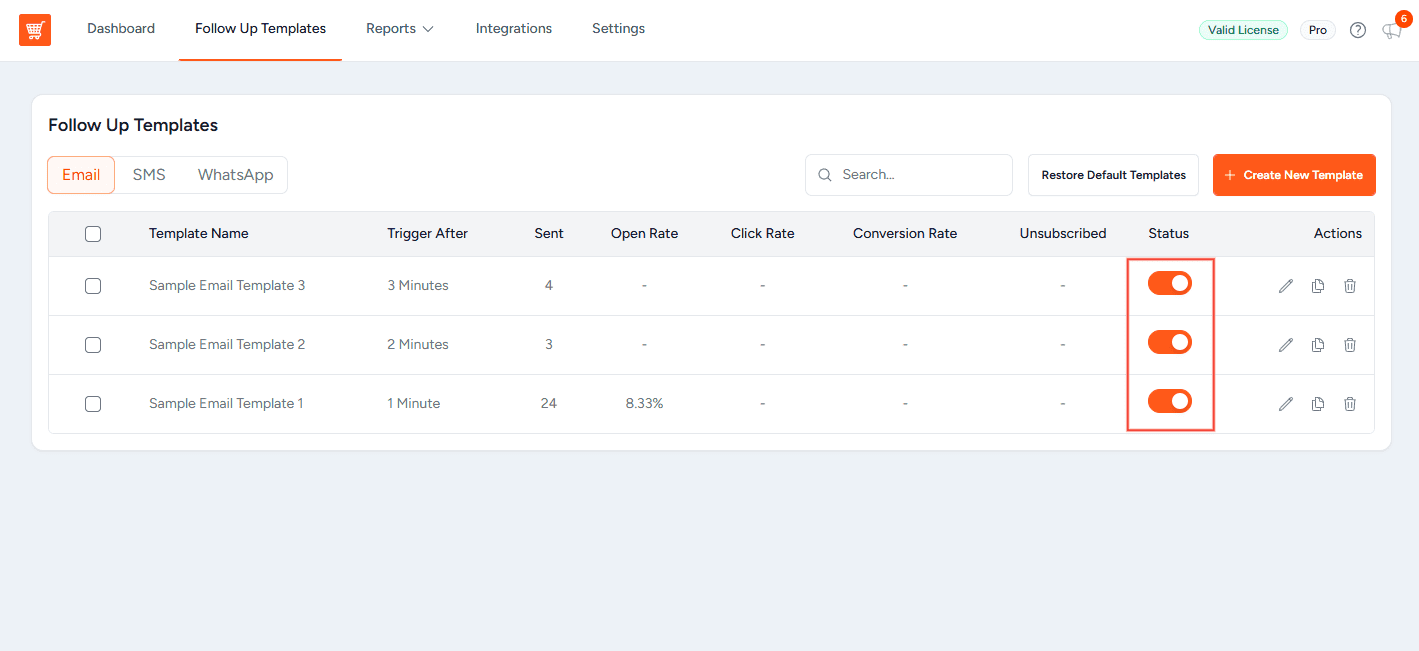
Activating and Deactivating Templates
Each template has an Active / Inactive toggle on the Follow-up Emails list screen. Only active templates are included in the sending sequence.
You can use this toggle to:
- Pause a template temporarily without deleting it.
- Test a single template by deactivating all others.
- Run seasonal campaigns by activating specific templates during promotional periods.
Tips for Effective Recovery Emails
- Keep subject lines short and personal. Including the customer’s name or a reference to their cart improves open rates.
- Use a single clear call to action. One prominent recovery button is more effective than multiple links.
- Delay your first coupon. Send the first email without a coupon to avoid training customers to abandon intentionally. Offer a discount only in a later email.
- Always include an unsubscribe link. Using {{cart.unsubscribe}} is required for compliance and good email hygiene.
- Test before activating. Use a test email address and a staging cart to verify that shortcodes, coupon codes, and recovery links all work correctly.
We don't respond to the article feedback, we use it to improve our support content.