
- Getting Started
- Creating Your First Funnel
- CartFlows Funnel Step Types
- Starting a Funnel from a Product Page
- How to Edit and Customise Funnel Steps
- Using CartFlows with or without Store Checkout
- How to Add /Assign Products to a Checkout Step
- How to Create One-Click Upsell and Downsell Offers
- How to Use Canvas Mode to Visualize Your Sales Funnel
- Hiding Fields on the Checkout Page
- Installing WooCommerce
- Using WooCommerce
- Adding Products in WooCommerce
- Using Your Theme's Header & Footer in a Step
- Embedding a Checkout Form on the Checkout Page
- Hiding WooCommerce Pages and Products
- Using Pricing Tables
- Adding an Affiliate Program
- Setting a Funnel as the Homepage
- Dynamic Offers aka Rule Engine
- Instant Layout for Checkout and Thank You Step
- Adding Products from the URL to the Checkout Page
- Deleting Plugin Data During Uninstallation
- Importing Ready-Made Templates for Funnels and Steps
- Importing and Exporting Funnels and Step
- URL Parameters
- Replacing the Main Checkout Order with an Upsell or Downsell
- Rolling back to a Previous Version
- Using the "Order Custom Field" Rule of Dynamic Offers with Custom Field Editor
- Google Address Autocomplete
- Flatsome UX Builder
- ActiveCampaign
- Paypal Reference Transactions
- How PaypPal/Stripe Works
- Enabling Enfold Avia Layout Builder
- Setting Up Authorize.net for Upsell & Downsell
- Supported Payment Gateways
- Setting Quantity and Discount for Products on the Checkout Page
- Adding Custom Payment Gateway Support for One-Click Upsell and Downsell
- Funnel in Test Mode
- Troubleshooting Plugin and Theme Conflicts
- Resolving the "Please Select a Simple, Virtual, and Free Product" Error
- Fixing Endless Loading on the Checkout Page
- Fixing the "We can't seem to find an order for you." Error on the Thank You Page
- Troubleshooting License Activation Issues
- Fixing the "Checkout ID Not Found" Error
- Fixing the "Session Expired" Error Message
- Resolving "Order Does Not Exist" Error on Upsell/Downsell Page
- Fixing the "Sorry, This Product Cannot Be Purchased" Error
- Disabling Auto-fill of Address Fields Based on Zip Code
- Enabling Theme's Scripts & Styles Without Changing Page Template
- Disabling Auto-fill of Checkout Fields
- Allowing Cache Plugins to Cache CartFlows Pages
- Changing the "Choose a Variation" Text
- VAT Field Not Displaying for WooCommerce EU/UK VAT Compliance Plugin
- Enabling the Product Tab on Store Checkout
- Displaying the Order Summary Open on Mobile Devices
- Refreshing the Checkout Page After CartFlows AJAX Calls
- Overview
- Installing Modern Cart Starter
- Installing Modern Cart Pro
- Activating License Key
- Customizing General Settings
- Customizing Cart Tray Labels
- Customizing Cart Icon Settings
- Customizing Cart Tray Styling
- Understanding the Product Recommendations Feature
- Controlling Product Recommendation Source for Empty Cart
- Installing Free Version
- Installing Pro Version
- Activating License Key
- Configuring the Settings
- Enabling Webhooks
- Product Reports
- SMS Integration
- WhatsApp Integration
- Email/Domain Blacklist
- Shortcode Reference for Email Fields
- Filters to Customize Product Table
- Recovery Email Going to Spam
- Cookies/GDPR Compliance
- Emails not Sending
- Orders Not Capturing
- Dynamic Email Rules
- Excluding Products from Coupon
- Rolling Back to a Previous Version
- Setting Up Abandoned Cart Email Sequences
- How Cart Abandonment Tracking Works
- Creating and Customizing Email Templates
- Using Unique Recovery Links / One-Click Cart Recovery
- Adding Coupon Incentives to Recovery Emails
- Setting Up Abandoned Cart Recovery for Guest vs Registered Users
- Analytics & Reporting Overview
- Recovering Unpaid / Failed Orders
- Configuring Abandonment Timeout / Cart Cut-Off Time
- Admin Copy of Recovery Emails (CC/BCC)
- A/B Testing Recovery Emails and Coupons
- Segmenting Abandonment Recovery by Cart Value
- Recovery Email Deliverability Best Practices
- Viewing and Managing the Abandoned Carts
- Unsubscribe / Opt-Out Handling for Recovery Emails
- GDPR / Privacy Compliance
- Testing Cart Abandonment Recovery Emails
- On-Site Reminder Banner
- Pausing or Disabling Cart Abandonment for Specific Products or Categories
Setting Up Abandoned Cart Recovery for Guest vs Registered Users
Introduction
Whenever a shopper — whether logged in or checking out as a guest — leaves your WooCommerce store before completing their purchase, Cart Abandonment Recovery can automatically capture their details and send follow-up emails to bring them back.
This guide explains how the plugin tracks guest and registered users, what’s captured, and how you can configure your store to recover both types of abandoned carts effectively.
How Cart Abandonment Recovery Tracks Users
The plugin tracks all visitors who reach your checkout page and start entering their information — regardless of whether they are logged in or purchasing as a guest.
| User Type | When Tracking Starts |
| Guest Users | As soon as they enter their email address on the checkout form |
| Registered Users | When they land on the checkout page (their email is already known and filled by WooCommerce) |
Note
The email address is the key identifier used for recovery. Without an email, the cart cannot be tracked or recovered.
Prerequisites
Before configuring recovery for both user types, make sure:
- Cart Abandonment Recovery (free) is installed and activated.
- WooCommerce is active and checkout is working normally.
- Your site can send emails (a basic SMTP setup is recommended — see Recovery Email Deliverability Best Practices).
Step-by-Step: Enabling Tracking for Both Guest and Registered Users
Step 1 — Open the Plugin Settings
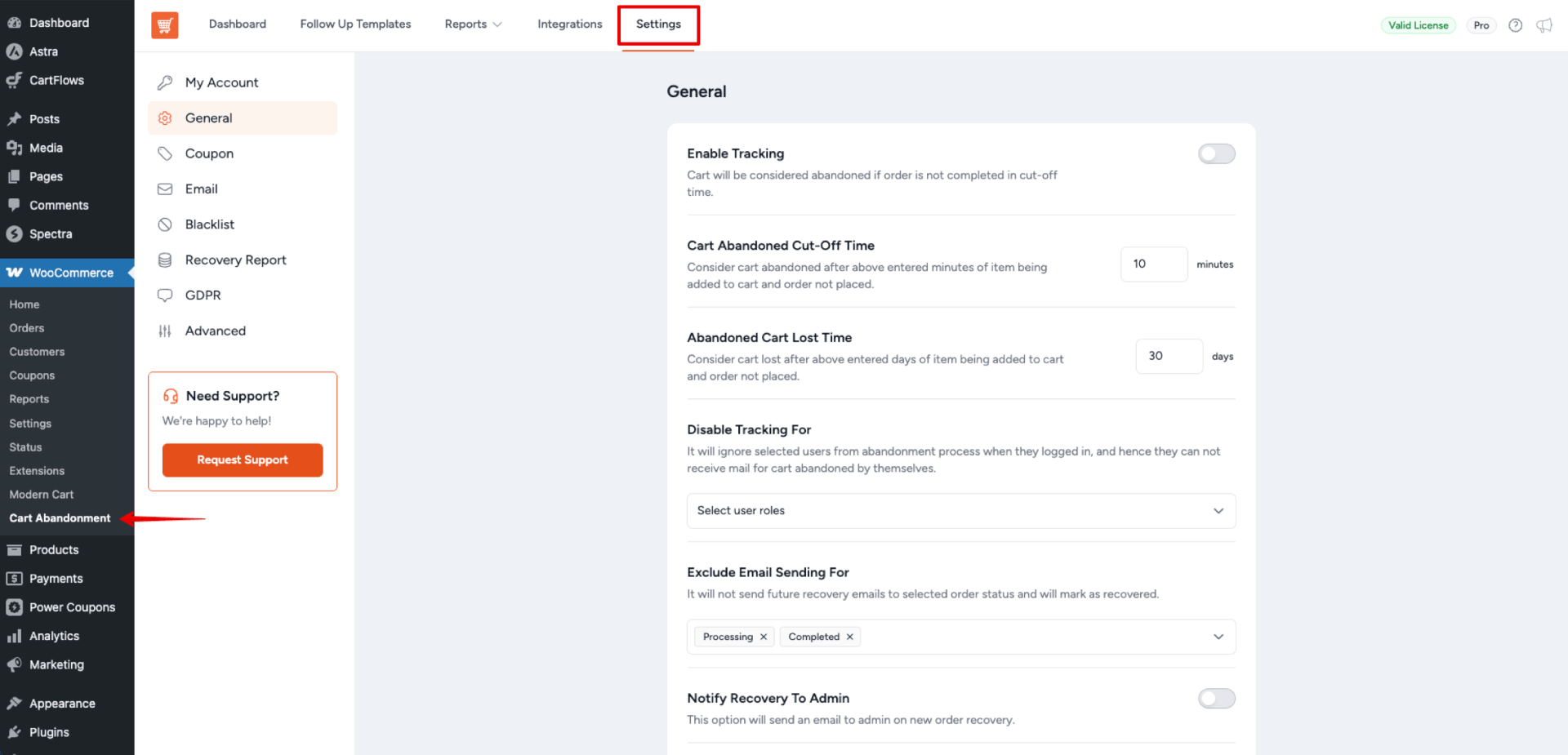
Go to WordPress Dashboard > WooCommerce > Cart Abandonment > Settings.
Step 2 — Enable Tracking
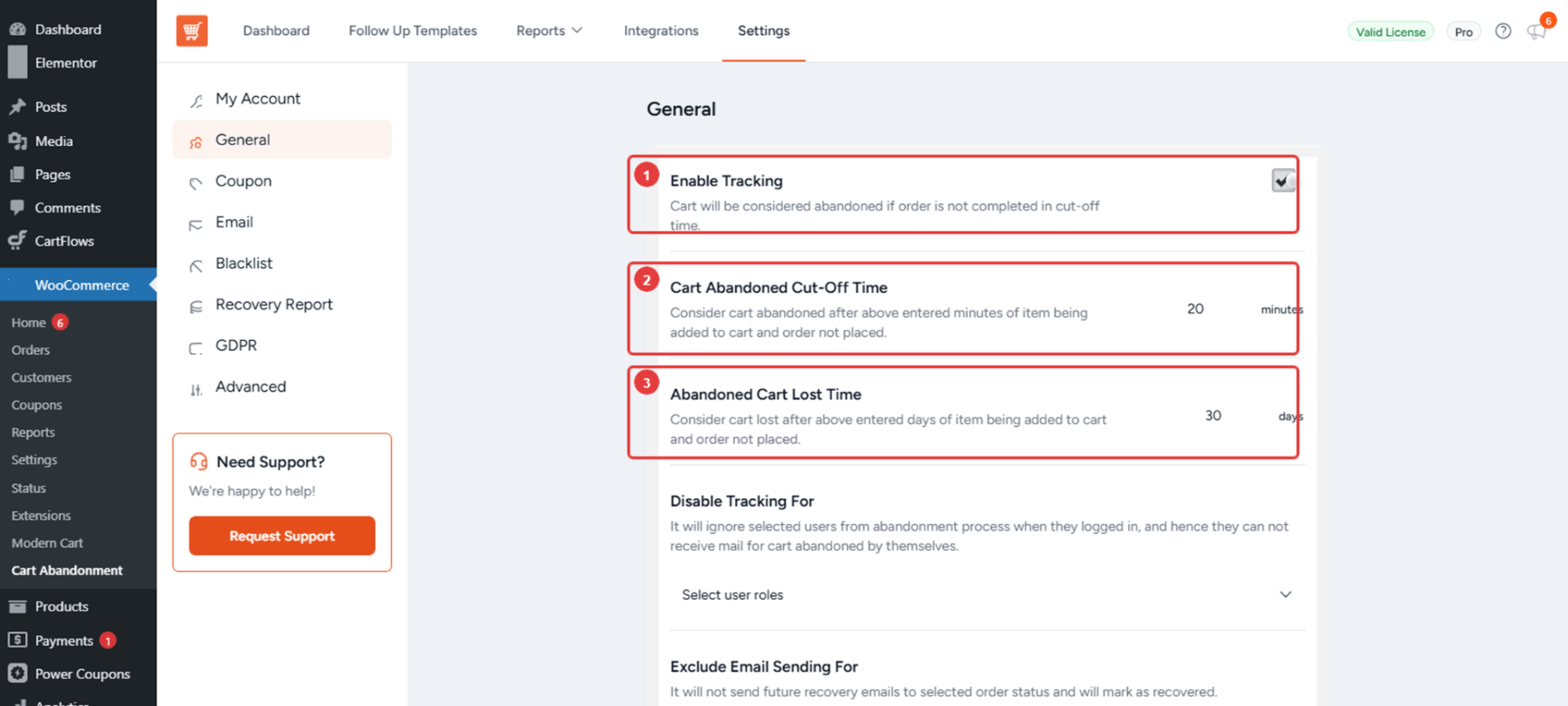
Under the General Settings section, make sure “Enable Tracking” is turned ON.
Once enabled, the plugin will start capturing email addresses and cart details from every visitor — both guests and logged-in users.
Step 2b — Exclude Specific User Roles From Tracking (Optional)
Under General Settings, the “Disable Tracking For” multi-select dropdown lets you exclude specific registered-user roles (e.g., Shop Manager, Administrator, Wholesale Customer) from abandonment tracking entirely. Useful for preventing internal test accounts from cluttering your reports.
Step 3 — Configure the Abandonment Cut-Off Time
Set the Cart abandoned cut-off time (in minutes). This is how long the plugin waits before marking a cart as abandoned.
- Recommended: 15–30 minutes for most stores
- Minimum allowed: 10 minutes
Step 4 — Set Up Your Recovery Emails
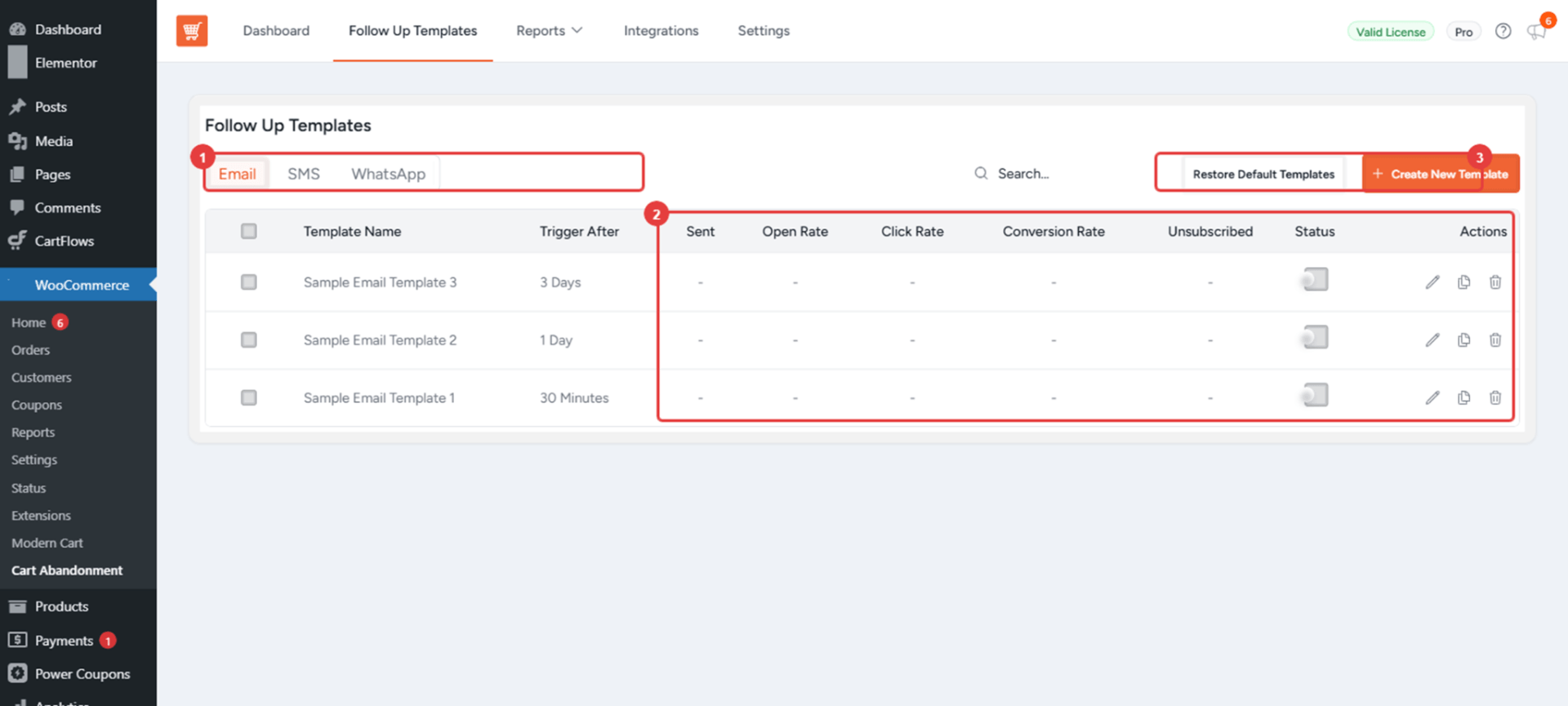
Navigate to the Follow Up Templates tab and customize the recovery emails. Use merge tags like {{customer.firstname}} so the email feels personalized — this works identically for guests and registered users.
Step 5 — Test with Both User Types
Run a test checkout:
- As a guest — Open an incognito window, add a product to cart, fill in email + details on checkout, and leave the page.
- As a registered user — Log in with a test account, start a checkout, and abandon it.
Check the Reports > Follow Up tab after the cut-off time — both sessions should appear in the abandoned carts list.
Tips & Best Practices
- Always include an unsubscribe link using the
{{unsubscribe_link}}merge tag — required for legal compliance. - Personalize your emails using
{{customer.firstname}}— works for both guests and registered users if they entered their name on checkout. - Enable GDPR consent if you serve EU customers (see GDPR / Privacy Compliance for Cart Tracking).
- Guest carts are only captured after the user types their email on the checkout form. If they leave before that, there’s no way to contact them.
FAQs
We don't respond to the article feedback, we use it to improve our support content.