
- Getting Started
- Creating Your First Funnel
- CartFlows Funnel Step Types
- Starting a Funnel from a Product Page
- How to Edit and Customise Funnel Steps
- Using CartFlows with or without Store Checkout
- How to Add /Assign Products to a Checkout Step
- How to Create One-Click Upsell and Downsell Offers
- How to Use Canvas Mode to Visualize Your Sales Funnel
- Hiding Fields on the Checkout Page
- Installing WooCommerce
- Using WooCommerce
- Adding Products in WooCommerce
- Using Your Theme's Header & Footer in a Step
- Embedding a Checkout Form on the Checkout Page
- Hiding WooCommerce Pages and Products
- Using Pricing Tables
- Adding an Affiliate Program
- Setting a Funnel as the Homepage
- Dynamic Offers aka Rule Engine
- Instant Layout for Checkout and Thank You Step
- Adding Products from the URL to the Checkout Page
- Deleting Plugin Data During Uninstallation
- Importing Ready-Made Templates for Funnels and Steps
- Importing and Exporting Funnels and Step
- URL Parameters
- Replacing the Main Checkout Order with an Upsell or Downsell
- Rolling back to a Previous Version
- Using the "Order Custom Field" Rule of Dynamic Offers with Custom Field Editor
- Google Address Autocomplete
- Flatsome UX Builder
- ActiveCampaign
- Paypal Reference Transactions
- How PaypPal/Stripe Works
- Enabling Enfold Avia Layout Builder
- Setting Up Authorize.net for Upsell & Downsell
- Supported Payment Gateways
- Setting Quantity and Discount for Products on the Checkout Page
- Adding Custom Payment Gateway Support for One-Click Upsell and Downsell
- Funnel in Test Mode
- Troubleshooting Plugin and Theme Conflicts
- Resolving the "Please Select a Simple, Virtual, and Free Product" Error
- Fixing Endless Loading on the Checkout Page
- Fixing the "We can't seem to find an order for you." Error on the Thank You Page
- Troubleshooting License Activation Issues
- Fixing the "Checkout ID Not Found" Error
- Fixing the "Session Expired" Error Message
- Resolving "Order Does Not Exist" Error on Upsell/Downsell Page
- Fixing the "Sorry, This Product Cannot Be Purchased" Error
- Disabling Auto-fill of Address Fields Based on Zip Code
- Enabling Theme's Scripts & Styles Without Changing Page Template
- Disabling Auto-fill of Checkout Fields
- Allowing Cache Plugins to Cache CartFlows Pages
- Changing the "Choose a Variation" Text
- VAT Field Not Displaying for WooCommerce EU/UK VAT Compliance Plugin
- Enabling the Product Tab on Store Checkout
- Displaying the Order Summary Open on Mobile Devices
- Refreshing the Checkout Page After CartFlows AJAX Calls
- Overview
- Installing Modern Cart Starter
- Installing Modern Cart Pro
- Activating License Key
- Customizing General Settings
- Customizing Cart Tray Labels
- Customizing Cart Icon Settings
- Customizing Cart Tray Styling
- Understanding the Product Recommendations Feature
- Controlling Product Recommendation Source for Empty Cart
- Installing Free Version
- Installing Pro Version
- Activating License Key
- Configuring the Settings
- Enabling Webhooks
- Product Reports
- SMS Integration
- WhatsApp Integration
- Email/Domain Blacklist
- Shortcode Reference for Email Fields
- Filters to Customize Product Table
- Recovery Email Going to Spam
- Cookies/GDPR Compliance
- Emails not Sending
- Orders Not Capturing
- Dynamic Email Rules
- Excluding Products from Coupon
- Rolling Back to a Previous Version
- Setting Up Abandoned Cart Email Sequences
- How Cart Abandonment Tracking Works
- Creating and Customizing Email Templates
- Using Unique Recovery Links / One-Click Cart Recovery
- Adding Coupon Incentives to Recovery Emails
- Setting Up Abandoned Cart Recovery for Guest vs Registered Users
- Analytics & Reporting Overview
- Recovering Unpaid / Failed Orders
- Configuring Abandonment Timeout / Cart Cut-Off Time
- Admin Copy of Recovery Emails (CC/BCC)
- A/B Testing Recovery Emails and Coupons
- Segmenting Abandonment Recovery by Cart Value
- Recovery Email Deliverability Best Practices
- Viewing and Managing the Abandoned Carts
- Unsubscribe / Opt-Out Handling for Recovery Emails
- GDPR / Privacy Compliance
- Testing Cart Abandonment Recovery Emails
- On-Site Reminder Banner
- Pausing or Disabling Cart Abandonment for Specific Products or Categories
- Cart Abandonment Recovery Activity Log
- Cart Abandonment Recovery Capture Popup
- How to Get Notified When Abandoned Cart Products Go Out of Stock
Cart Abandonment Recovery Activity Log
Cart Abandonment Recovery Pro includes an Activity Log that shows every recovery message your store has sent, along with any that failed or were skipped. A second view, Scheduled Jobs, lists the follow-ups that are waiting to go out.
This guide walks you through how the Activity Log works, where to find it, and how to filter, export and manage its entries.
How the Activity Log Works
Each time Cart Abandonment Recovery handles a follow-up message for an abandoned cart, it adds an entry to the Activity Log. This gives you one place to check that your follow-ups are reaching customers.
- When a follow-up email, SMS or WhatsApp message goes out, it’s recorded as Sent.
- When a message can’t be delivered, for example because the mail server rejects it, it’s recorded as Failed, with the reason shown in the Detail column.
- When a message isn’t sent on purpose, for example because the customer unsubscribed or already completed their purchase, it’s recorded as Skipped, with the reason shown in the Detail column.
Follow-ups that haven’t been sent yet appear in Scheduled Jobs until it’s time to send them.
How to Open the Activity Log
Step 1. From the WordPress admin, go to WooCommerce → Cart Abandonment.
Step 2. In the top menu, click Activity Log, then choose Activity Log or Scheduled Jobs.
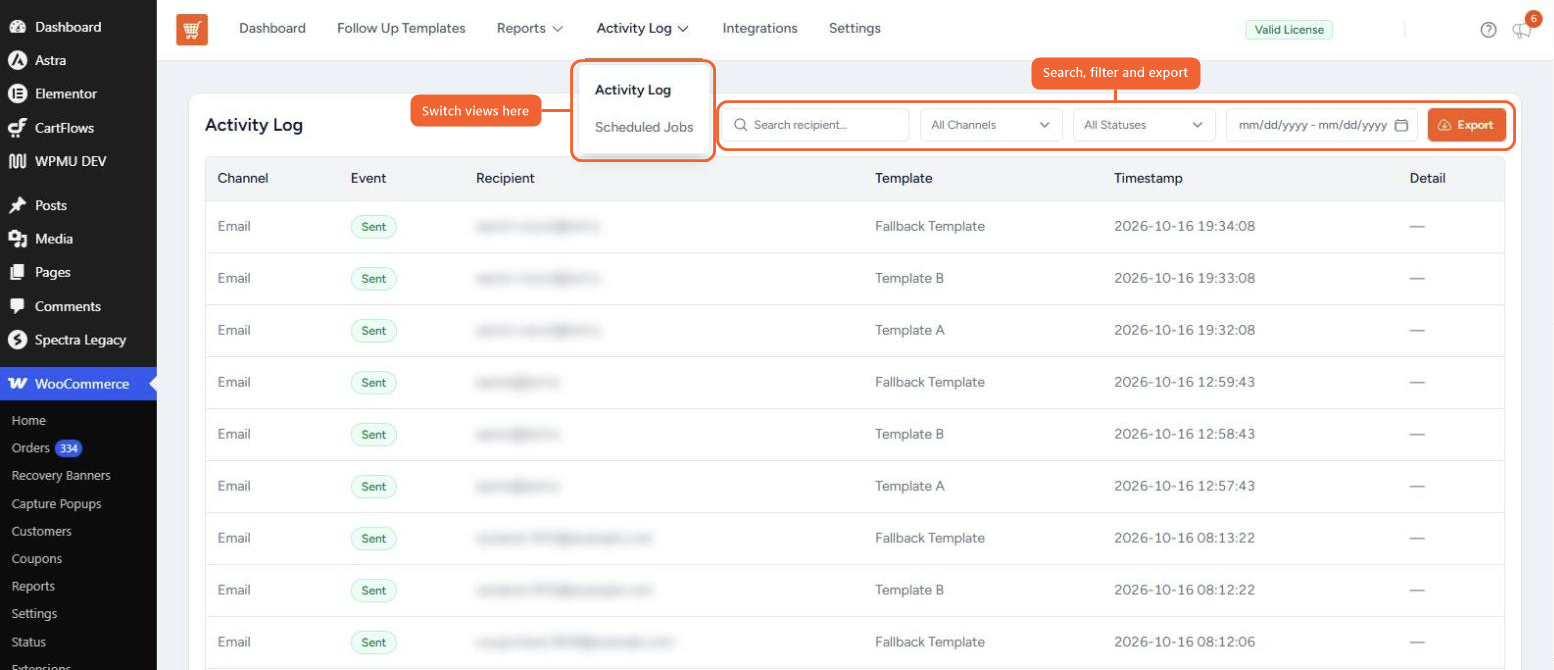
Reading the Activity Log
The newest entries appear at the top. Each row shows:
- Channel — Email, SMS or WhatsApp.
- Event — Sent, Failed or Skipped.
- Recipient — The customer’s email address, or their phone number for SMS and WhatsApp.
- Template — The follow-up template that was used.
- Timestamp — The date and time of the event.
- Detail — The reason a message failed or was skipped. Sent messages show a dash here.
Common reasons in the Detail column for skipped messages include Recipient unsubscribed, Recipient is blacklisted, Already purchased, Out-of-stock product in cart and Rule condition prevented send. For failed messages, the column shows the error returned by your mail server or messaging provider.
Filtering and Exporting Entries
Use the controls above the table to find specific entries:
- Search recipient — Find entries by email address or phone number.
- All Channels — Show only Email, SMS or WhatsApp entries.
- All Statuses — Show only Sent, Failed or Skipped entries.
- Date range — Show entries from a specific period.
Once a filter is active, a Clear Filters button appears so you can return to the full list.
To save a copy of the log, click Export. This downloads a spreadsheet file (CSV) of every entry that matches your current filters, across all pages. You can open it in any spreadsheet app.
Scheduled Jobs
The Scheduled Jobs view lists follow-up messages that are queued to send, with the soonest one at the top. Each row shows the Execution Time, Recipient, Channel, Template and a Pending status.
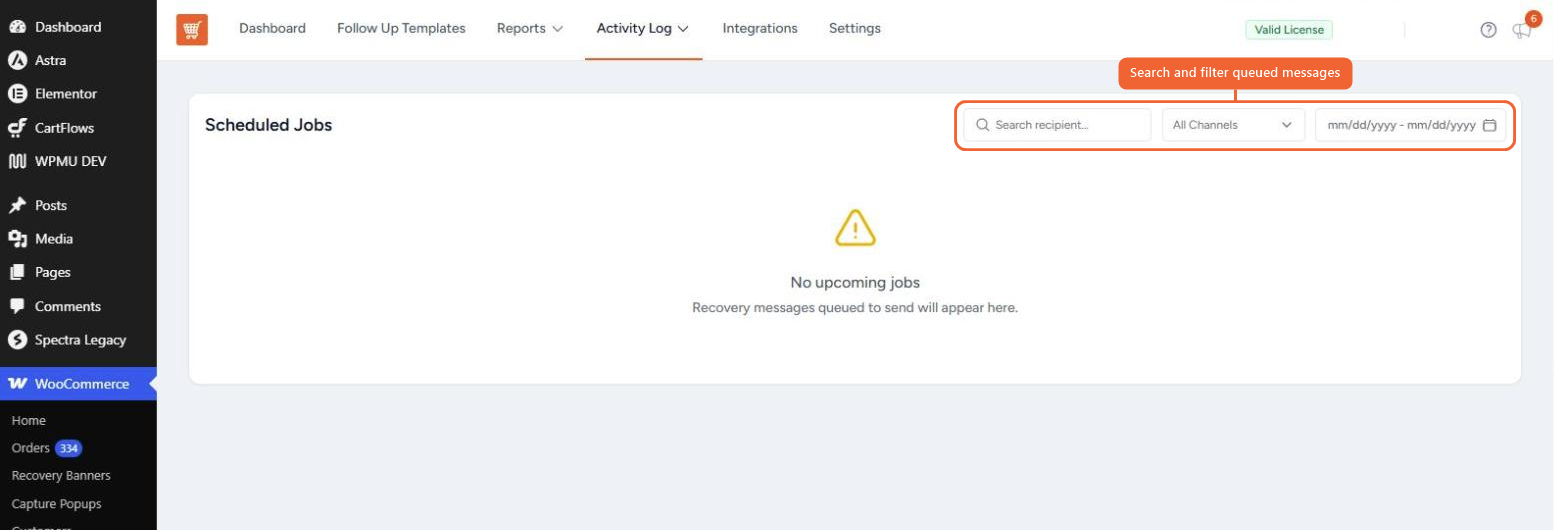
When a customer completes their order, unsubscribes or is blacklisted, their remaining follow-ups are removed from this list automatically. When nothing is waiting to send, the view shows No upcoming jobs.
How Long Entries Are Kept
Cart Abandonment Recovery keeps Activity Log entries for 30 days by default and removes older entries once a day. You can change this period to anything from 1 to 365 days.
Step 1. Go to WooCommerce → Cart Abandonment → Settings.
Step 2. Click the Advanced tab.
Step 3. Enter the number of days in Activity Log Retention (Days). The setting saves automatically.
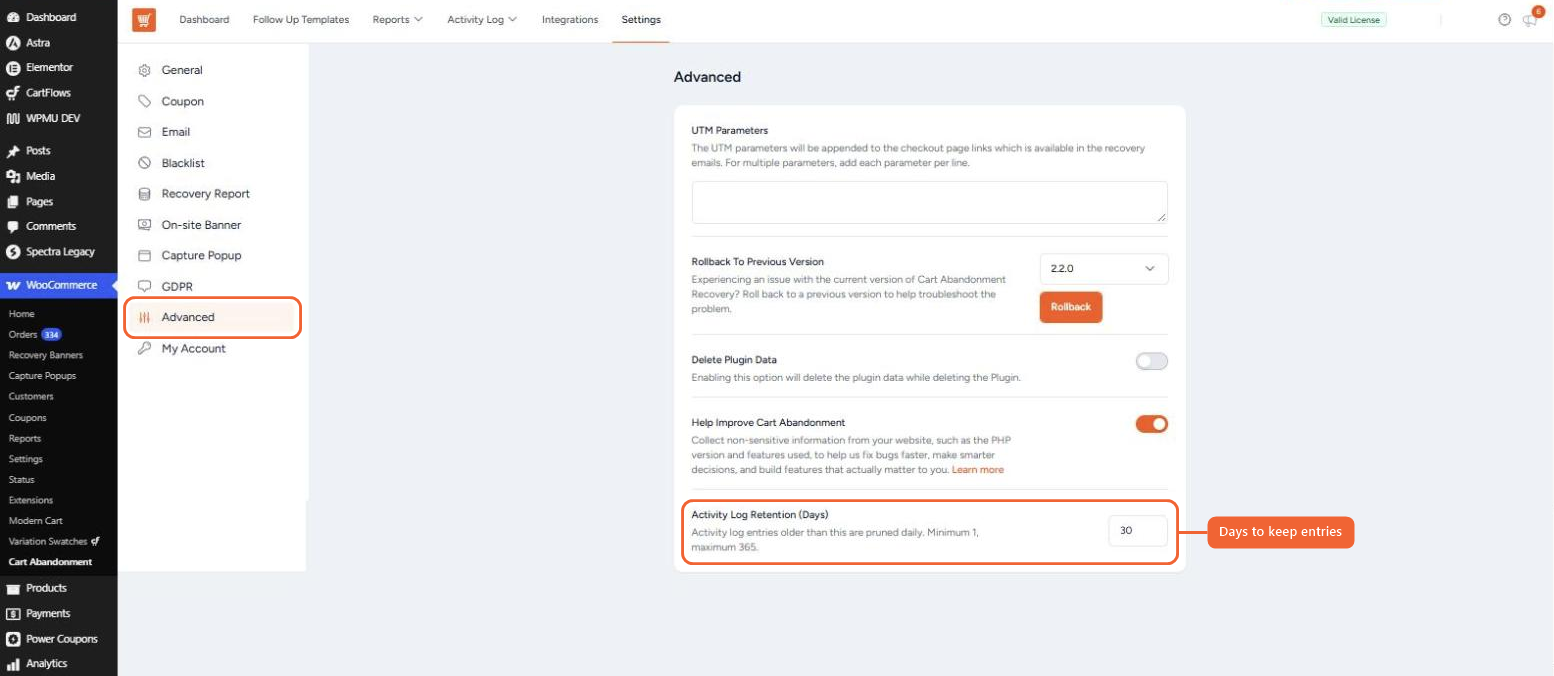
To keep a longer record, export the log regularly before older entries are removed.
Frequently Asked Questions
We don't respond to the article feedback, we use it to improve our support content.