
- Getting Started
- Creating Your First Funnel
- CartFlows Funnel Step Types
- Starting a Funnel from a Product Page
- How to Edit and Customise Funnel Steps
- Using CartFlows with or without Store Checkout
- How to Add /Assign Products to a Checkout Step
- How to Create One-Click Upsell and Downsell Offers
- How to Use Canvas Mode to Visualize Your Sales Funnel
- Hiding Fields on the Checkout Page
- Installing WooCommerce
- Using WooCommerce
- Adding Products in WooCommerce
- Using Your Theme's Header & Footer in a Step
- Embedding a Checkout Form on the Checkout Page
- Hiding WooCommerce Pages and Products
- Using Pricing Tables
- Adding an Affiliate Program
- Setting a Funnel as the Homepage
- Dynamic Offers aka Rule Engine
- Instant Layout for Checkout and Thank You Step
- Adding Products from the URL to the Checkout Page
- Deleting Plugin Data During Uninstallation
- Importing Ready-Made Templates for Funnels and Steps
- Importing and Exporting Funnels and Step
- URL Parameters
- Replacing the Main Checkout Order with an Upsell or Downsell
- Rolling back to a Previous Version
- Using the "Order Custom Field" Rule of Dynamic Offers with Custom Field Editor
- Google Address Autocomplete
- Flatsome UX Builder
- ActiveCampaign
- Paypal Reference Transactions
- How PaypPal/Stripe Works
- Enabling Enfold Avia Layout Builder
- Setting Up Authorize.net for Upsell & Downsell
- Supported Payment Gateways
- Setting Quantity and Discount for Products on the Checkout Page
- Adding Custom Payment Gateway Support for One-Click Upsell and Downsell
- Funnel in Test Mode
- Troubleshooting Plugin and Theme Conflicts
- Resolving the "Please Select a Simple, Virtual, and Free Product" Error
- Fixing Endless Loading on the Checkout Page
- Fixing the "We can't seem to find an order for you." Error on the Thank You Page
- Troubleshooting License Activation Issues
- Fixing the "Checkout ID Not Found" Error
- Fixing the "Session Expired" Error Message
- Resolving "Order Does Not Exist" Error on Upsell/Downsell Page
- Fixing the "Sorry, This Product Cannot Be Purchased" Error
- Disabling Auto-fill of Address Fields Based on Zip Code
- Enabling Theme's Scripts & Styles Without Changing Page Template
- Disabling Auto-fill of Checkout Fields
- Allowing Cache Plugins to Cache CartFlows Pages
- Changing the "Choose a Variation" Text
- VAT Field Not Displaying for WooCommerce EU/UK VAT Compliance Plugin
- Enabling the Product Tab on Store Checkout
- Displaying the Order Summary Open on Mobile Devices
- Refreshing the Checkout Page After CartFlows AJAX Calls
- Overview
- Installing Modern Cart Starter
- Installing Modern Cart Pro
- Activating License Key
- Customizing General Settings
- Customizing Cart Tray Labels
- Customizing Cart Icon Settings
- Customizing Cart Tray Styling
- Understanding the Product Recommendations Feature
- Controlling Product Recommendation Source for Empty Cart
- Controlling When the Cart Opens After Adding Products
- Enabling Free Shipping in WooCommerce
- Configuring Upsell and Cross-Sell Products in WooCommerce
- Using a Custom Image for the Floating Cart Icon
- Setting Custom Product Recommendations in the Cart
- Opening the Cart Using a Custom Button or Link
- Floating Icon Styling
- Cart Opening Direction
- Popup Cart Feature
- Using the In-Cart Coupon Field
- Free Shipping Progress Bar
- Enabling AJAX Add to Cart
- Compatibility with Popular Themes and Page Builders
- How to Enable/Disable Modern Cart on Specific Pages
- RTL Language Support in Modern Cart
- How to Show / Hide Product Images in the Cart Tray
- How to Add a Modern Cart Trigger to a WordPress Menu
- How to Display Shipping Costs Inside the Cart Tray
- How to Show Taxes / Tax-Inclusive Prices in the Cart
- Common Issues and Fixes
Troubleshooting Modern Cart: Common Issues and Fixes
This guide covers the most common issues users encounter with Modern Cart and the steps to resolve them.
Cart Not Appearing on the Site
If the Modern Cart slide-out is not showing at all:
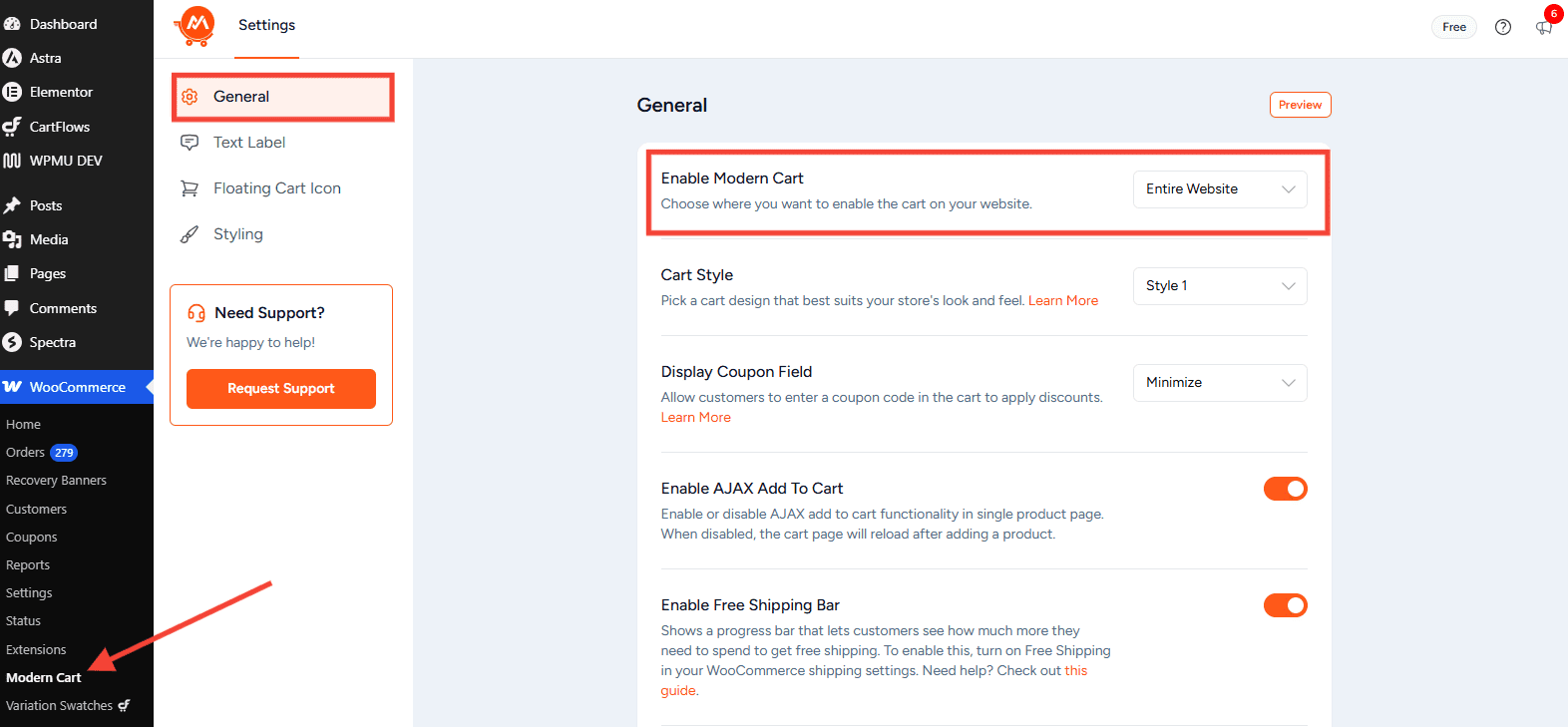
- Go to WooCommerce > Modern Cart > General tab.
- Check the Enable Modern Cart setting. Make sure it is set to All Pages or WooCommerce Pages Only — not Disabled.
- Clear your site cache and browser cache, then reload the page.
Page Reloads When Adding a Product to Cart
If clicking Add to Cart reloads the page instead of opening the slide-out cart:
- Go to WooCommerce > Modern Cart > General tab.
- Make sure the Enable AJAX Add To Cart toggle is turned on.
- Save and clear your cache.
Coupon Field Not Showing in Cart
If customers cannot see the coupon field inside the cart:
- Go to WooCommerce > Modern Cart > General tab.
- Find the Display Coupon Field option and make sure it is set to Minimize or Expand — not Disabled.
- Save your settings.
Free Shipping Bar Not Displaying
If the progress bar is not visible even after enabling it:
- Confirm the Enable Free Shipping Bar toggle is on in General tab.
- Go to WooCommerce > Settings > Shipping and make sure you have a Free Shipping method with a minimum order amount configured.
- The bar only appears when a valid free shipping threshold exists in WooCommerce.
Cart Not Working in Maintenance Mode
Modern Cart automatically disables itself when your site is in maintenance mode. This includes:
- WooCommerce Coming Soon mode
- Elementor Maintenance Mode
- WordPress maintenance mode (.maintenance file present)
To restore Modern Cart, disable maintenance mode from your site settings.
Duplicate Cart or Conflict with Astra Theme
If you are using the Astra theme, it has its own built-in cart flyout. Modern Cart automatically disables Astra’s cart to prevent duplicates. If you see two cart icons or conflicting behavior, try:
- Deactivating Modern Cart temporarily to confirm it is the source of conflict.
- Clearing all caches.
- Checking your Astra theme settings to confirm its native cart is not being forced on.
CSS or Styling Looks Broken
If the cart styling looks off or is inheriting wrong colors:
- If you use a caching plugin (e.g. WP Rocket, LiteSpeed Cache), exclude Modern Cart’s CSS from minification and combination. Add /wp-content/plugins/modern-cart/ to the CSS exclusion list.
- Clear all caches — plugin cache, server/hosting cache, and browser cache.
- Check for JavaScript errors in your browser console (F12 > Console tab) and share any errors with support.
General Debugging Tips
- Always test with caching fully disabled first to rule out stale page issues.
- Try switching to a default WordPress theme (Storefront or Twenty Twenty-Four) to check for theme conflicts.
- Deactivate other plugins one by one to identify conflicts.
- Check your browser console (F12) for JavaScript errors that may point to the root cause.
We don't respond to the article feedback, we use it to improve our support content.