
- Hiding Fields on the Checkout Page
- Installing WooCommerce
- Using WooCommerce
- Adding Products in WooCommerce
- Using Your Theme's Header & Footer in a Step
- Embedding a Checkout Form on the Checkout Page
- Hiding WooCommerce Pages and Products
- Using Pricing Tables
- Adding an Affiliate Program
- Setting a Funnel as the Homepage
- Dynamic Offers aka Rule Engine
- Instant Layout for Checkout and Thank You Step
- Adding Products from the URL to the Checkout Page
- Setting Up Split Testing for Steps
- Deleting Plugin Data During Uninstallation
- Importing Ready-Made Templates for Funnels and Steps
- Importing and Exporting Funnels and Step
- URL Parameters
- Replacing the Main Checkout Order with an Upsell or Downsell
- Rolling back to a Previous Version
- Google Address Autocomplete
- Flatsome UX Builder
- ActiveCampaign
- Paypal Reference Transactions
- How PaypPal/Stripe Works
- Enabling Enfold Avia Layout Builder
- Setting Up Authorize.net for Upsell & Downsell
- Supported Payment Gateways
- Setting Quantity and Discount for Products on the Checkout Page
- Adding Custom Payment Gateway Support for One-Click Upsell and Downsell
- Funnel in Test Mode
- Troubleshooting Plugin and Theme Conflicts
- Resolving the "Please Select a Simple, Virtual, and Free Product" Error
- Fixing Endless Loading on the Checkout Page
- Fixing the "We can't seem to find an order for you." Error on the Thank You Page
- Troubleshooting License Activation Issues
- Fixing the "Checkout ID Not Found" Error
- Fixing the "Session Expired" Error Message
- Resolving "Order Does Not Exist" Error on Upsell/Downsell Page
- Fixing the "Sorry, This Product Cannot Be Purchased" Error
- Disabling Auto-fill of Address Fields Based on Zip Code
- Enabling Theme's Scripts & Styles Without Changing Page Template
- Disabling Auto-fill of Checkout Fields
- Allowing Cache Plugins to Cache CartFlows Pages
- Changing the "Choose a Variation" Text
- VAT Field Not Displaying for WooCommerce EU/UK VAT Compliance Plugin
- Enabling the Product Tab on Store Checkout
- Displaying the Order Summary Open on Mobile Devices
- Refreshing the Checkout Page After CartFlows AJAX Calls
- Overview
- Installing Modern Cart Starter
- Installing Modern Cart Pro
- Activating License Key
- Customizing General Settings
- Customizing Cart Tray Labels
- Customizing Cart Icon Settings
- Customizing Cart Tray Styling
- Understanding the Product Recommendations Feature
- Controlling Product Recommendation Source for Empty Cart
- Installing Free Version
- Installing Pro Version
- Activating License Key
- Configuring the Settings
- Enabling Webhooks
- Product Reports
- SMS Integration
- WhatsApp Integration
- Email/Domain Blacklist
- Shortcode Reference for Email Fields
- Filters to Customize Product Table
- Recovery Email Going to Spam
- Cookies/GDPR Compliance
- Emails not Sending
- Orders Not Capturing
- Dynamic Email Rules
- Excluding Products from Coupon
- Rolling Back to a Previous Version
- Setting Up Abandoned Cart Email Sequences
- How Cart Abandonment Tracking Works
- How to Create and Customize Email Templates for Cart Recovery
- Using Unique Recovery Links / One-Click Cart Recovery
- How to Add Coupon Incentives to Recovery Emails
How to Add Coupon Incentives to Recovery Emails
The Cart Abandonment Recovery plugin can automatically generate a unique coupon code for each abandoned cart email it sends. The coupon is configured entirely inside the email template — there is no need to create coupons manually in WooCommerce. Each customer receives their own one-time code, which can be applied automatically when they click the recovery link.
How It Works
When Create Coupon Code is enabled on an email template, the plugin generates a unique coupon at send time for each customer. The coupon is created in WooCommerce automatically in the background, linked to that specific abandoned cart session.
- Each customer gets a unique coupon code — codes are not shared or reusable across customers.
- If Auto Apply Coupon is enabled, the coupon is applied at checkout the moment the customer clicks {{cart.checkout_url}} — no manual entry required.
- Expired and used coupons can be cleaned up automatically via the plugin’s coupon cleanup settings.
Enabling and Configuring the Coupon on a Template
Open any email template from WooCommerce > Cart Abandonment > Follow Up Templates, edit the, email template then scroll down to the coupon settings section.
Coupon settings inside an email template
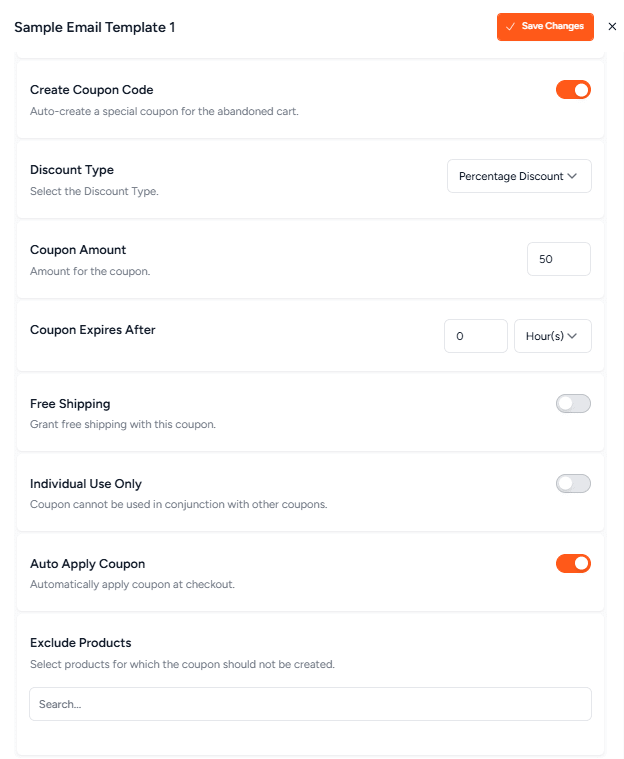
Coupon Settings Reference
The following settings are available once Create Coupon Code is toggled ON:
| Setting | Description |
| Create Coupon Code | Master toggle. When ON, the plugin auto-generates a unique coupon for each customer at the time the email is sent. When OFF, no coupon is created or included. |
| Discount Type | Sets the type of discount. Options include Percentage Discount, Fixed Cart Discount, and Fixed Product Discount. |
| Coupon Amount | The value of the discount. For percentage discounts, enter a number between 1 and 100. For fixed discounts, enter the monetary amount. |
| Coupon Expires After | How long after the email is sent the coupon remains valid. Enter a number and select Minutes, Hours, or Days. Setting an expiry creates urgency. |
| Free Shipping | When enabled, the coupon also grants free shipping on the order, regardless of the store’s shipping rules. |
| Individual Use Only | When enabled, the coupon cannot be combined with other coupon codes at checkout. |
| Auto Apply Coupon | When enabled, the coupon is applied automatically when the customer clicks the recovery link. The customer does not need to enter the code manually. |
Displaying the Coupon in the Email Body
Even with Auto Apply enabled, it is good practice to display the coupon code visibly in the email body. This reinforces the offer and builds trust. Use these shortcodes:
| Shortcode | What It Outputs |
| {{cart.coupon_code}} | Displays the unique coupon code generated for this customer. |
| {{cart.checkout_url}} | The recovery link that restores the cart and auto-applies the coupon at checkout (when Auto Apply is ON). |
Example email body snippet:
| Hi {{customer.firstname}},You left something behind! Here’s an exclusive discount to complete your order: Your code: {{cart.coupon_code}}It’s applied automatically when you click below: {{cart.checkout_url}} |
Using Coupon Expiry to Create Urgency
The Coupon Expires After field sets a countdown from the moment the email is sent. A short expiry window encourages customers to act quickly rather than saving the email for later.
- 24 Hours — strong urgency, works well for a final email in a sequence.
- 48–72 Hours — balanced urgency, gives the customer time without feeling pressured.
- 7 Days — low urgency, suitable for stores that want a relaxed recovery approach.
| Tip: Mention the expiry in the email subject line and body to reinforce urgency — for example: “Your 10% discount expires in 24 hours.” |
When to Include a Coupon in a Sequence
If you are running a multi-step email sequence, avoid including a coupon in every email. Sending a discount too early reduces its impact and can train customers to abandon intentionally.
- Email 1 (e.g. 1 hour): No coupon — simple cart reminder.
- Email 2 (e.g. 24 hours): No coupon — reinforce product value.
- Email 3 (e.g. 3 days): Coupon enabled — final incentive to close the sale.
See How to Set Up Abandoned Cart Email Sequences (Multi-Step) for full sequence setup guidance.
Coupon Cleanup
Since a unique coupon is generated for every email sent, your WooCommerce coupon list can grow quickly. The plugin provides cleanup options under WooCommerce > Cart Abandonment > Settings > Coupon Settings:
- Delete Coupons Automatically — runs a weekly cleanup of all expired and used recovery coupons.
- Delete Coupons Manually — immediately removes all expired and used recovery coupons on demand.
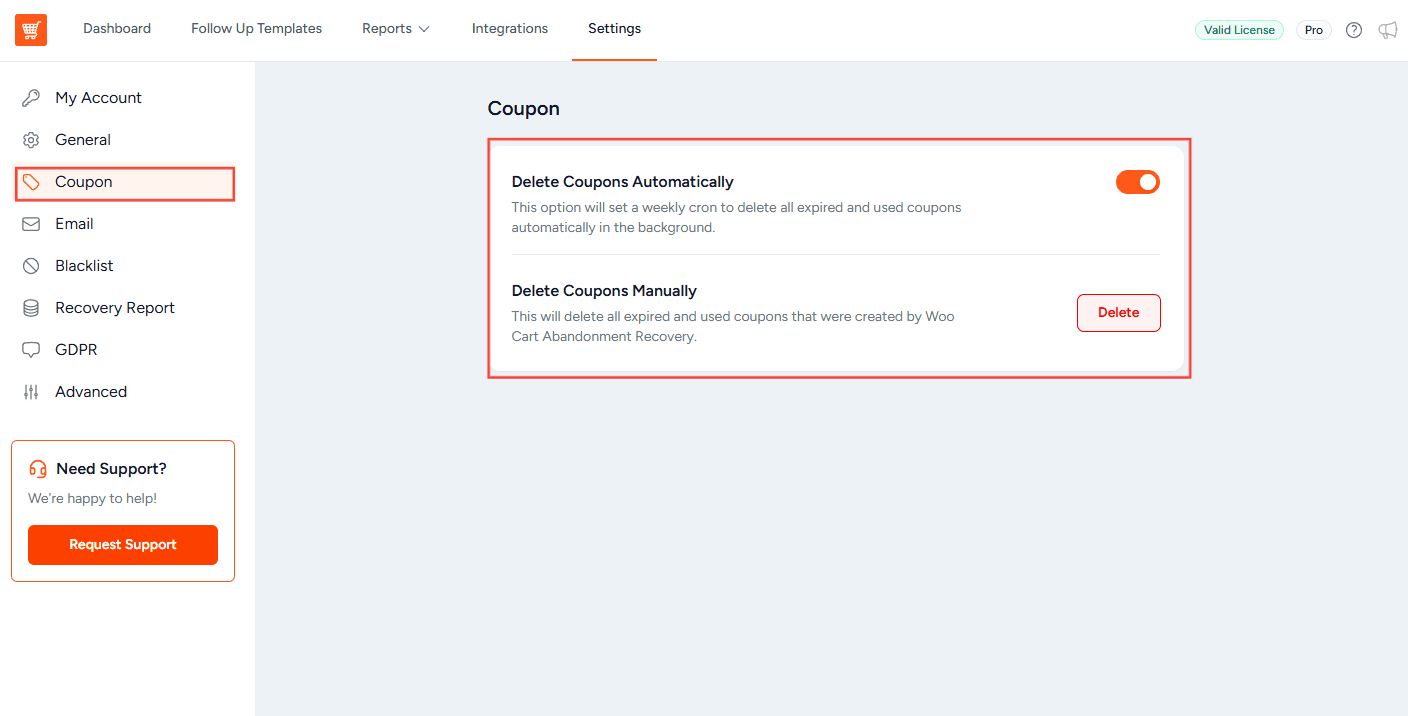
| Important: Manual deletion is immediate and cannot be undone. Only run this if you are sure those coupons are no longer needed. |
We don't respond to the article feedback, we use it to improve our support content.