
- Hiding Fields on the Checkout Page
- Installing WooCommerce
- Using WooCommerce
- Adding Products in WooCommerce
- Using Your Theme's Header & Footer in a Step
- Embedding a Checkout Form on the CartFlows Checkout Page
- Hiding WooCommerce Pages and Products
- Using Pricing Tables
- Adding an Affiliate Program
- Setting a Funnel as the Homepage
- Dynamic Offers aka Rule Engine
- Instant Layout for Checkout and Thank You Step
- Adding Products from the URL to the Checkout Page
- Setting Up Split Testing for Steps
- Deleting Plugin Data During Uninstallation
- Importing Ready-Made Templates for Funnels and Steps
- Importing and Exporting Funnels and Step
- URL Parameters
- Replacing the Main Checkout Order with an Upsell or Downsell
- Rolling back to a Previous Version
- Google Address Autocomplete
- Flatsome UX Builder
- ActiveCampaign
- Paypal Reference Transactions
- How PaypPal/Stripe Works
- Enabling Enfold Avia Layout Builder
- Setting Up Authorize.net for Upsell & Downsell
- Supported Payment Gateways
- Setting Quantity and Discount for Products on the Checkout Page
- Adding Custom Payment Gateway Support for One-Click Upsell and Downsell
- Funnel in Test Mode
- Troubleshooting Plugin and Theme Conflicts
- Resolving the "Please Select a Simple, Virtual, and Free Product" Error
- Fixing Endless Loading on the Checkout Page
- Fixing the "We can't seem to find an order for you." Error on the Thank You Page
- Troubleshooting License Activation Issues
- Fixing the "Checkout ID Not Found" Error
- Fixing the "Session Expired" Error Message
- Resolving "Order Does Not Exist" Error on Upsell/Downsell Page
- Fixing the "Sorry, This Product Cannot Be Purchased" Error
- Disabling Auto-fill of Address Fields Based on Zip Code
- Enabling Theme's Scripts & Styles Without Changing Page Template
- Disabling Auto-fill of Checkout Fields
- Allowing Cache Plugins to Cache CartFlows Pages
- Changing the "Choose a Variation" Text
- VAT Field Not Displaying for WooCommerce EU/UK VAT Compliance Plugin
- Enabling the Product Tab on Store Checkout
- Displaying the Order Summary Open on Mobile Devices
- Refreshing the Checkout Page After CartFlows AJAX Calls
- Overview
- Installing Modern Cart Starter
- Installing Modern Cart Pro
- Activating License Key
- Customizing General Settings
- Customizing Cart Tray Labels
- Customizing Cart Icon Settings
- Customizing Cart Tray Styling
- Understanding the Product Recommendations Feature
- Controlling Product Recommendation Source for Empty Cart
How to Edit and Customise Funnel Steps
This documentation provides an overview of the general step controls and the available settings inside each funnel step type in CartFlows.
Each step includes action controls and dedicated configuration tabs depending on its function within the funnel.
1. General Step Actions (Available on Every Step)
On the right side of every funnel step, you will see four action options:
View Step
Opens the step on the frontend to preview how it appears to users.
Edit Step
Opens the step inside the page builder or editor to modify its design and content.
Settings
Opens the step configuration panel where you can manage products, behavior, scripts, and advanced options.
More Options
Provides additional actions such as:
- Duplicate Step
- A/B Test (Pro)
- Delete Step
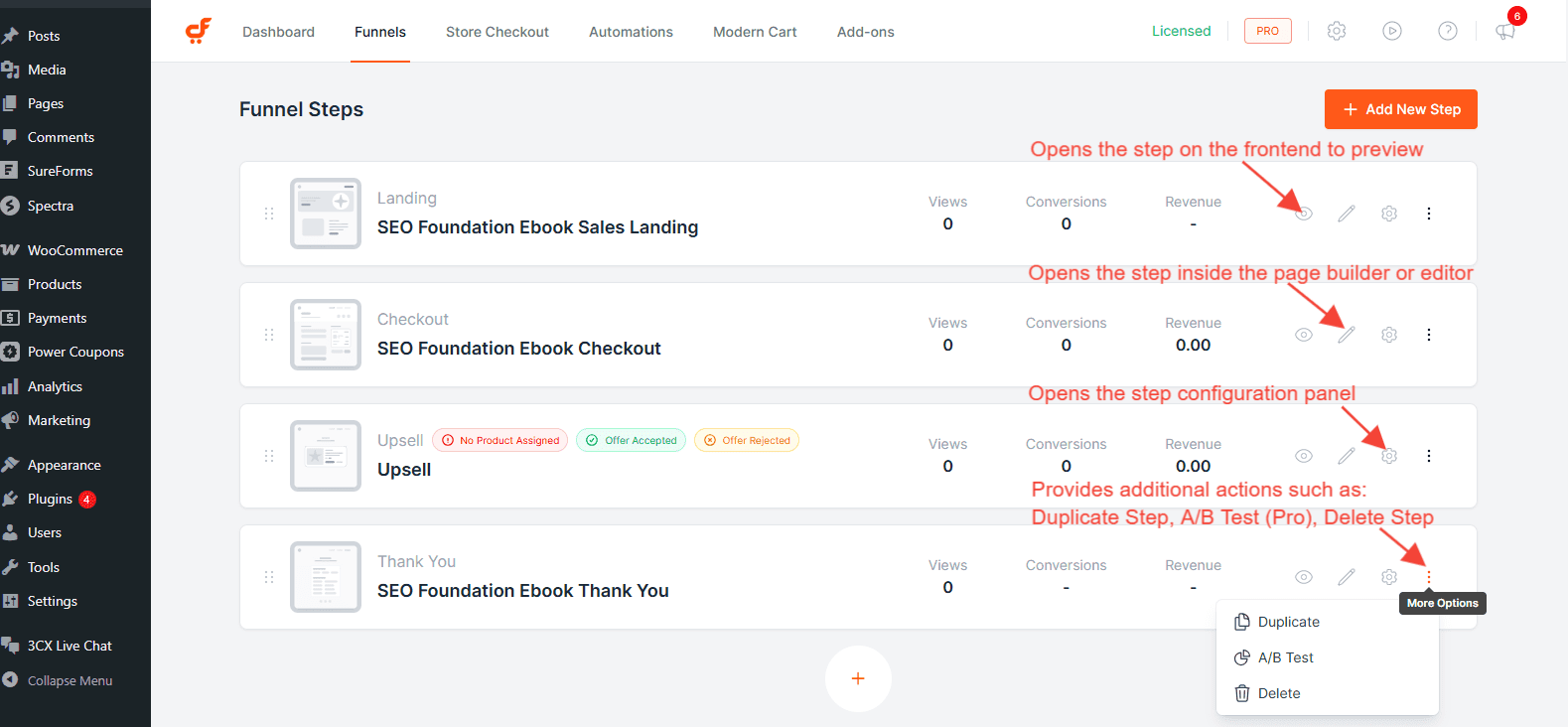
These options help you manage and organize your funnel efficiently.
The Settings option is where most functional customization takes place. The available tabs inside the Settings panel depend on the type of step.
2. Landing Step
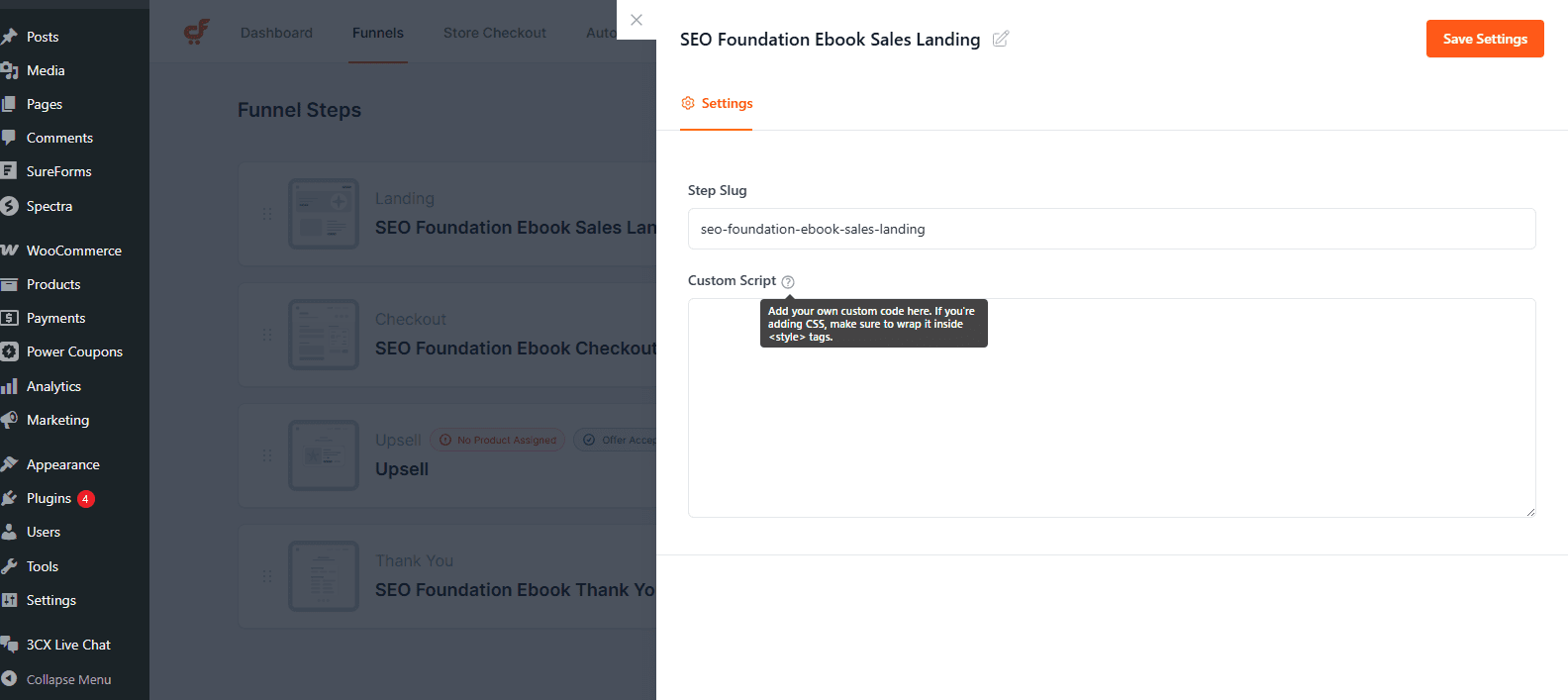
The Landing step is typically used to present your offer before sending users to checkout. It does not process payments. When you click Settings on a Landing step, a settings panel appears with configuration options specific to that step.
Settings Tab
Step Slug
Defines the URL path of the landing page.
Custom CSS/Scripts
Allows adding custom CSS, custom JavaScript or tracking scripts specific to this step.
3. Checkout Step
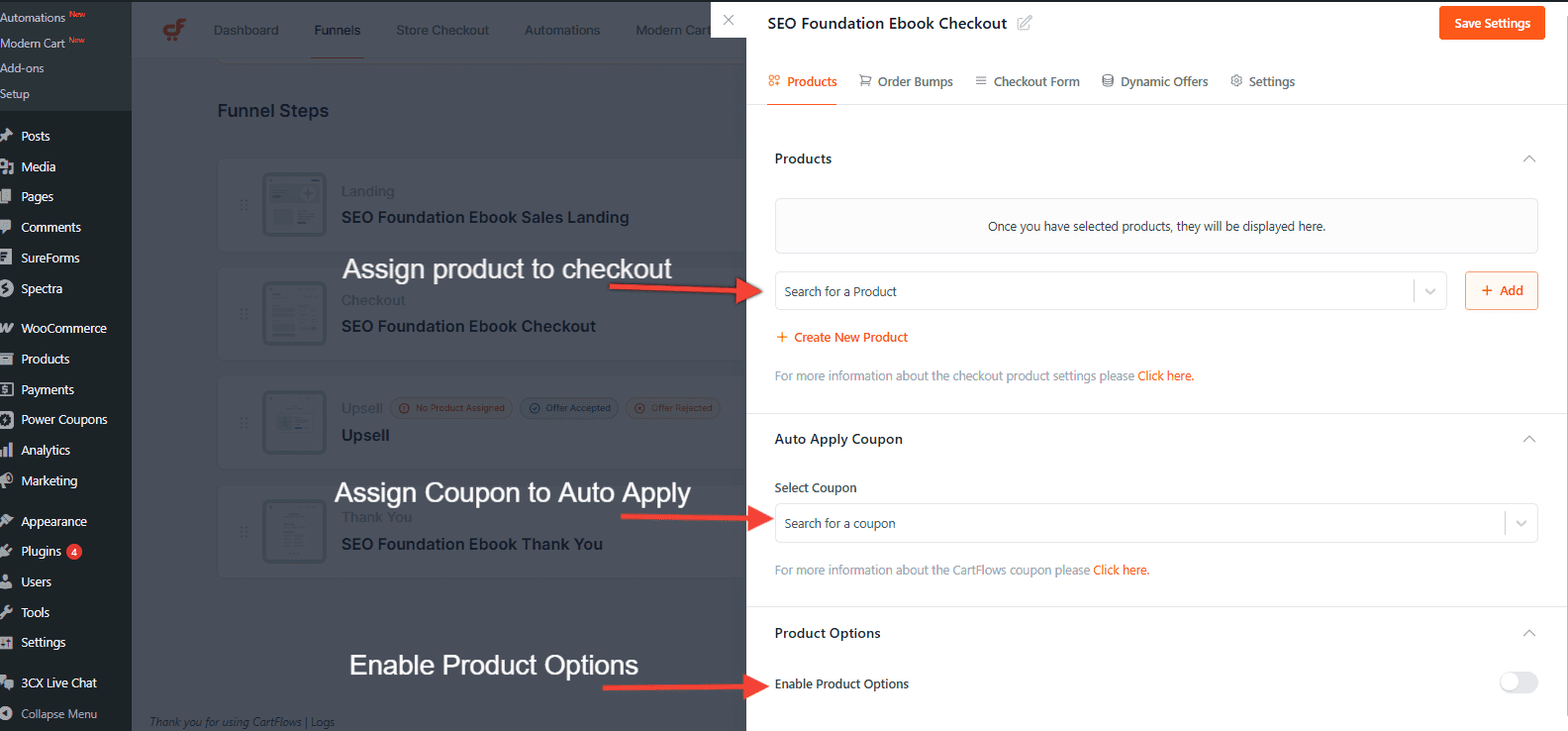
The Checkout step processes payments and finalizes purchases. It includes multiple configuration tabs. Clicking Settings on the Checkout step opens several tabs that control products, checkout layout, conditional logic, and advanced behavior.
Products:
Products
Assign WooCommerce products to this checkout step. Here is Doc for the step by step guide.
Auto Apply Coupon
Automatically applies a selected coupon when customers land on the checkout page.
Product Options
Controls how products are displayed and selected at checkout. You can refer to this related Doc
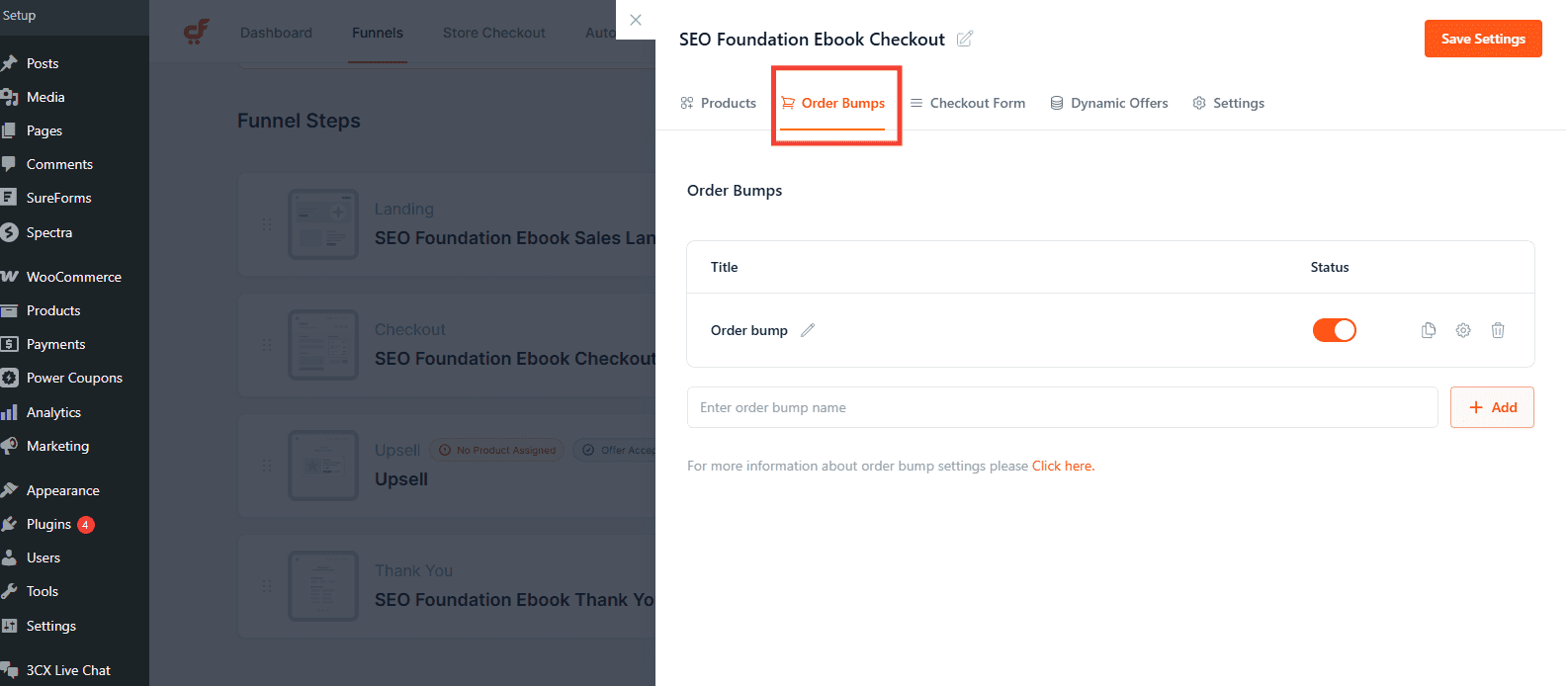
Order Bumps:
Turn your checkout into a powerful upsell moment. Add an order bump offer directly on the checkout page and let customers add it with a single click. No friction, no redirects.
In this section, you can:
- Enable or disable the bump anytime
- Select the product you want to offer
- Customize the headline, description, layout, and overall design
Refer to the Order Bump documentation for detailed setup instructions.
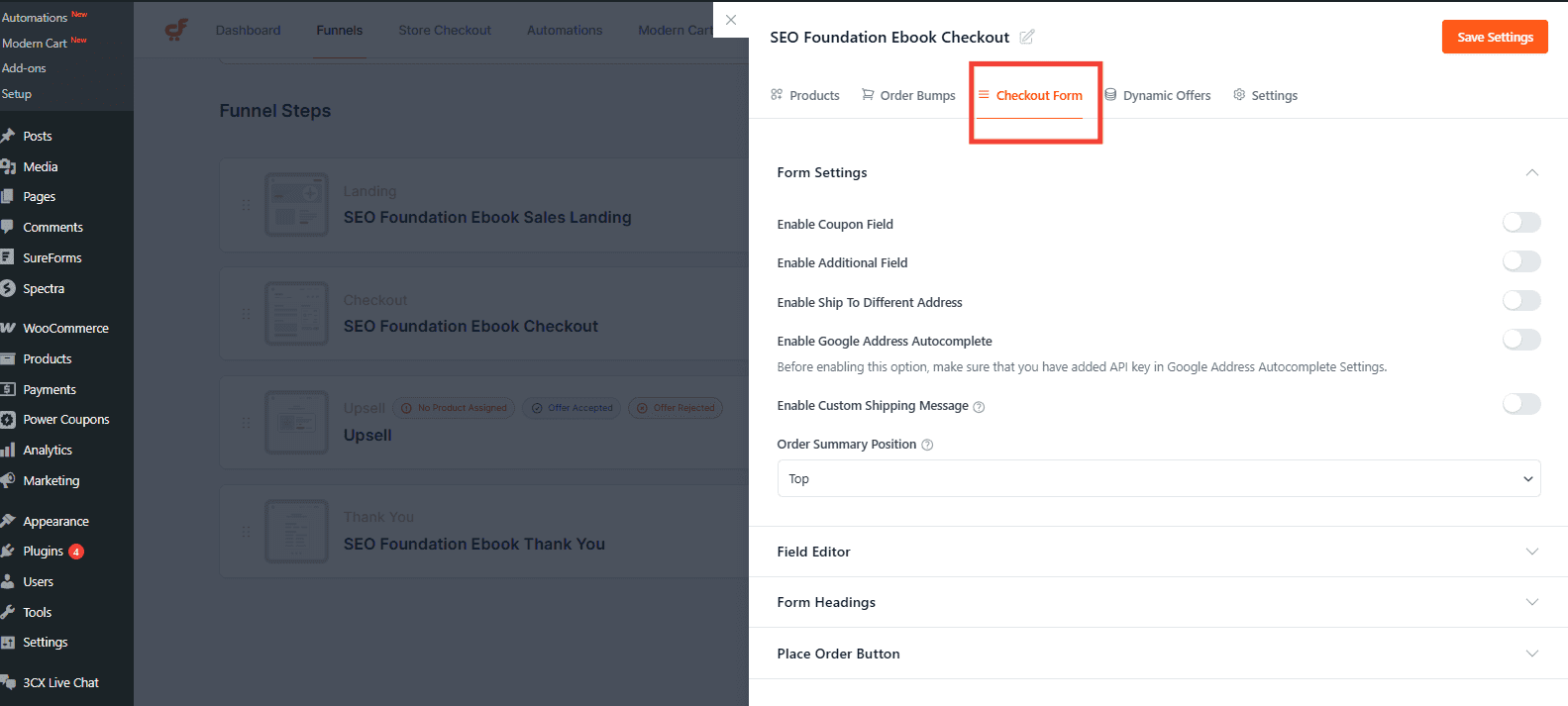
Checkout Form:
Design your checkout form to work best for your store. Improve clarity, reduce friction, and create a smoother buying experience.
With this section, you can:
- Modify checkout fields (add, remove, or edit)
- Customize the field layout and positioning
- Adjust and organize form sections
Need step by step guidance? Check this documentation.
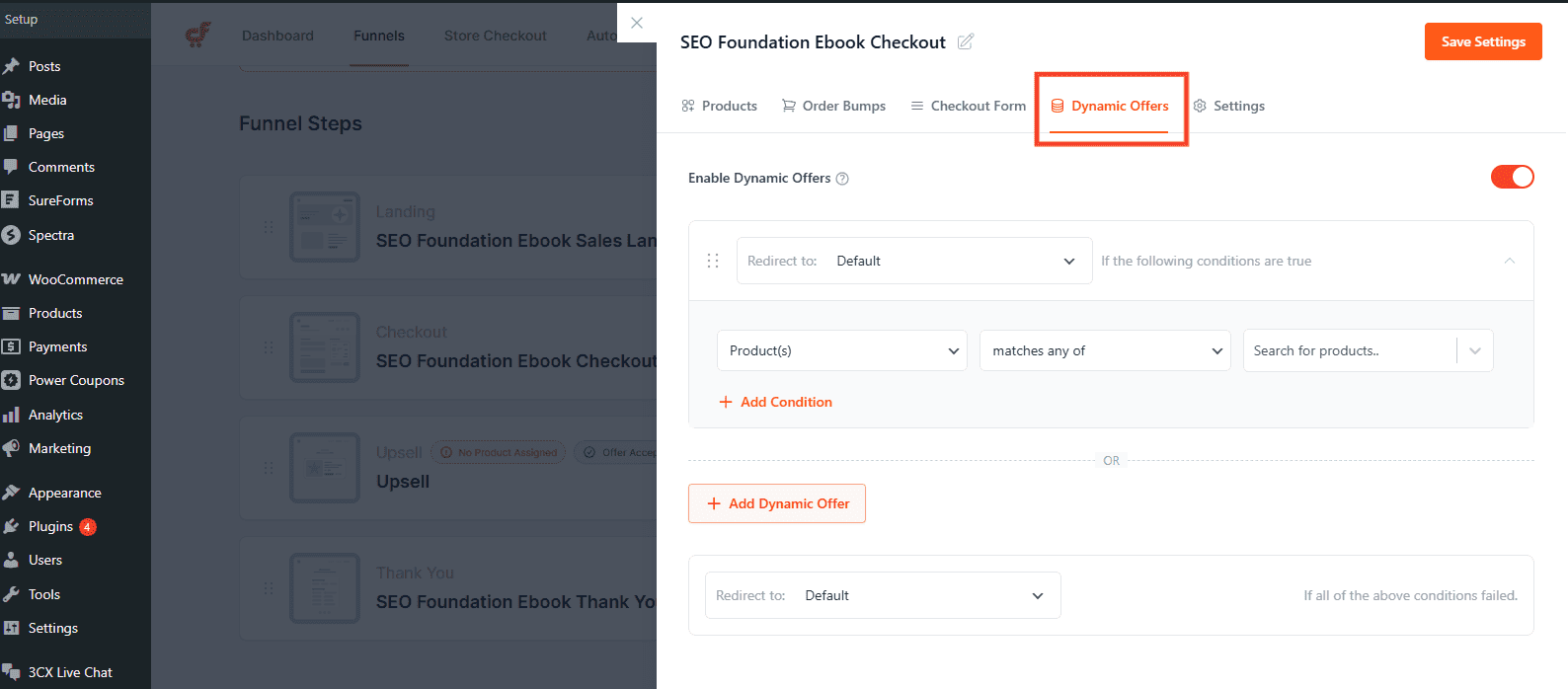
Dynamic Offers:
Send customers to the right offer at the right time with rule-based conditional redirection. Show different upsell or downsell steps based on what they buy and how they behave.
With dynamic offers, you can:
- Create multiple rule groups
- Define specific conditions
- Dynamically redirect customers to relevant upsell/downsell steps
Need help? Check this documentation.
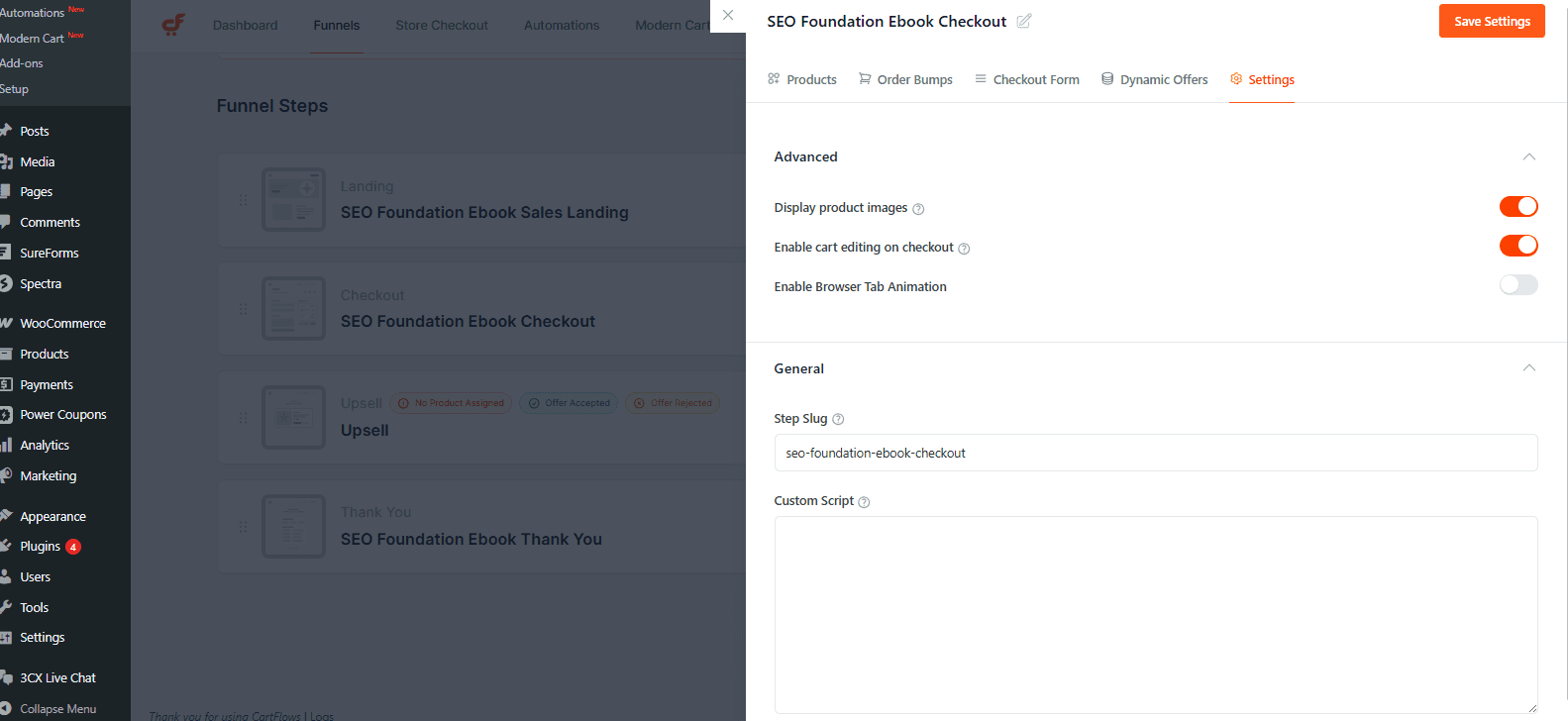
Settings:
Advanced Section:
Display Product Images
Shows or hides product images in the order summary.
Enable Cart Editing on Checkout
Allows customers to remove cart items directly on the checkout page.
Enable Browser Tab Animation
Adds attention-grabbing animation to the browser tab.
General Section:
Step Slug
Defines the URL path of the checkout step.
Custom CSS/Script
Adds custom CSS, tracking or custom JavaScript specific to this step.
4. Thank You Step
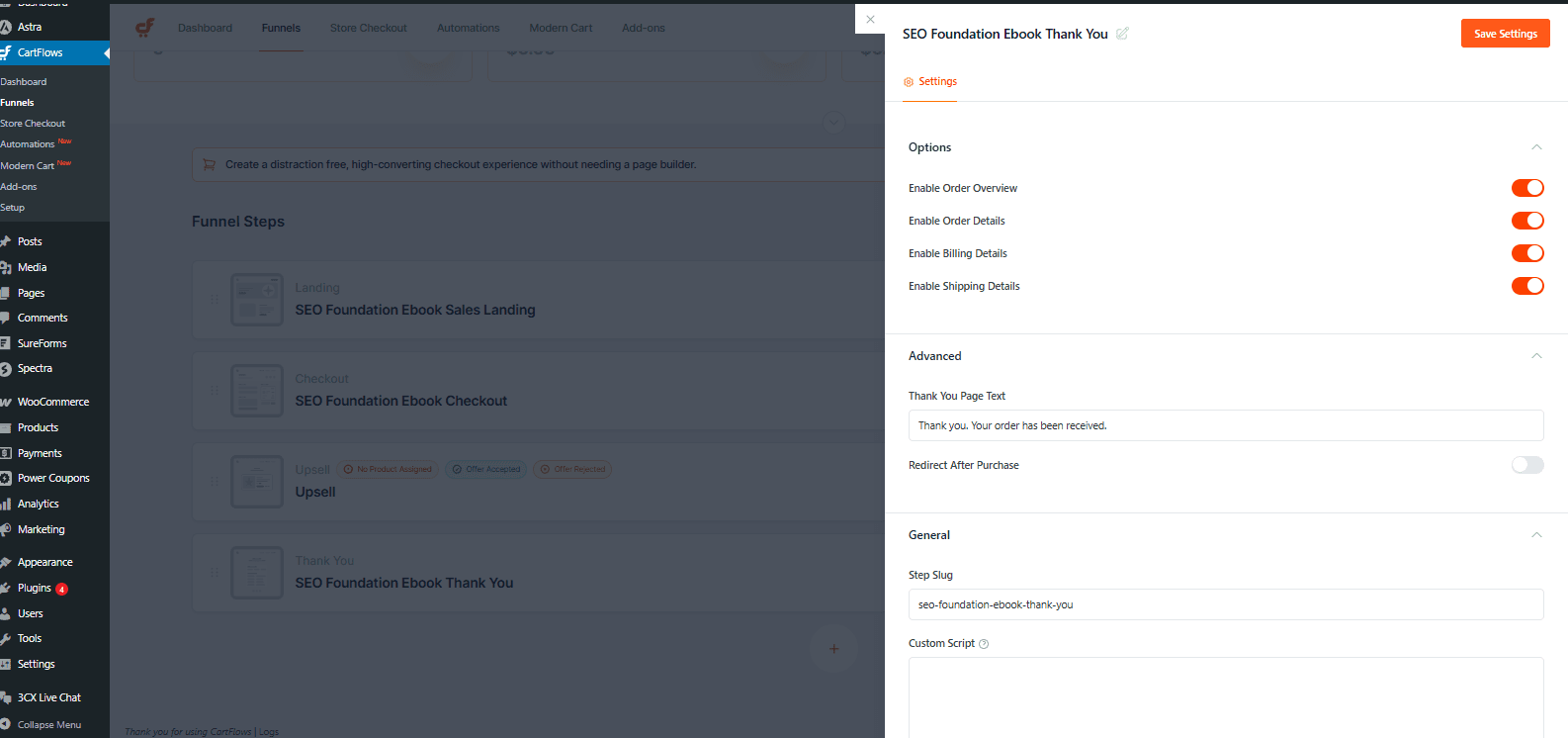
Displayed after successful order completion. Clicking Settings opens configuration options for controlling what information is displayed and what happens after purchase.
Settings:
Options Section:
Enable Order Overview
Displays a summary of purchased items.
Enable Order Details
Shows full order breakdown.
Enable Billing Details
Displays billing information.
Enable Shipping Details
Displays shipping information (if applicable).
Advanced Section:
Thank You Page Text
Customize the confirmation message shown to customers.
Redirect After Purchase
Redirect customers to a different URL after the Thank You page loads.
General Section:
Step Slug
Defines the URL path of the step.
Custom Script
Add step-specific scripts or tracking code.
5. Upsell/Downsell Steps:
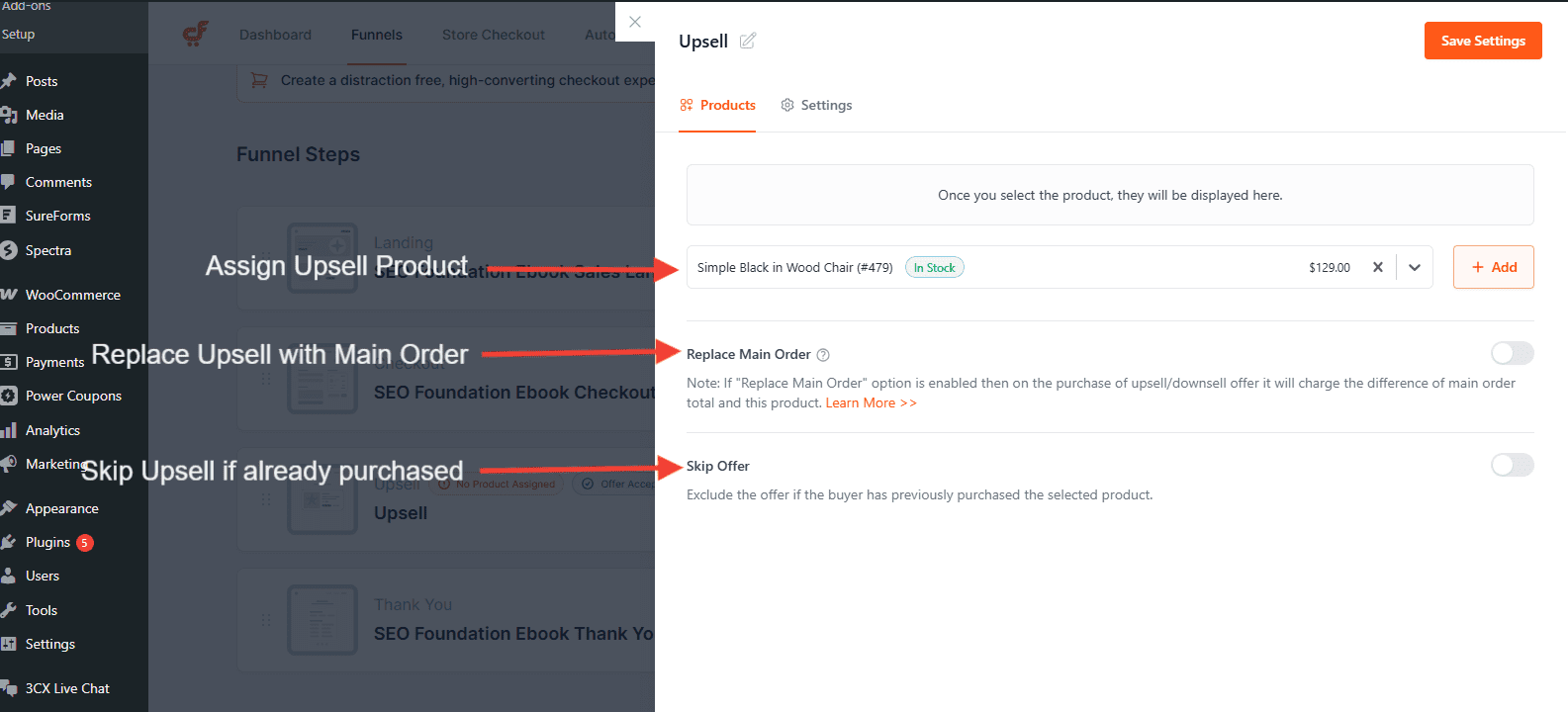
The Upsell/Downsell step allows you to offer an additional product immediately after checkout using one-click purchase functionality. When you click Settings, you can configure the offer product and its behavior.
Products:
Search for a Product / Add
Select the WooCommerce product to offer as the upsell. Once selected, the product details are displayed in this section.
Replace Main Order
If enabled, the upsell replaces the original product in the order. Instead of charging full price, the customer is charged the price difference between the main order and the upsell product. Here is the detailed Doc on how this feature works.
Skip Offer
Excludes the offer if the buyer has already previously purchased the selected product.
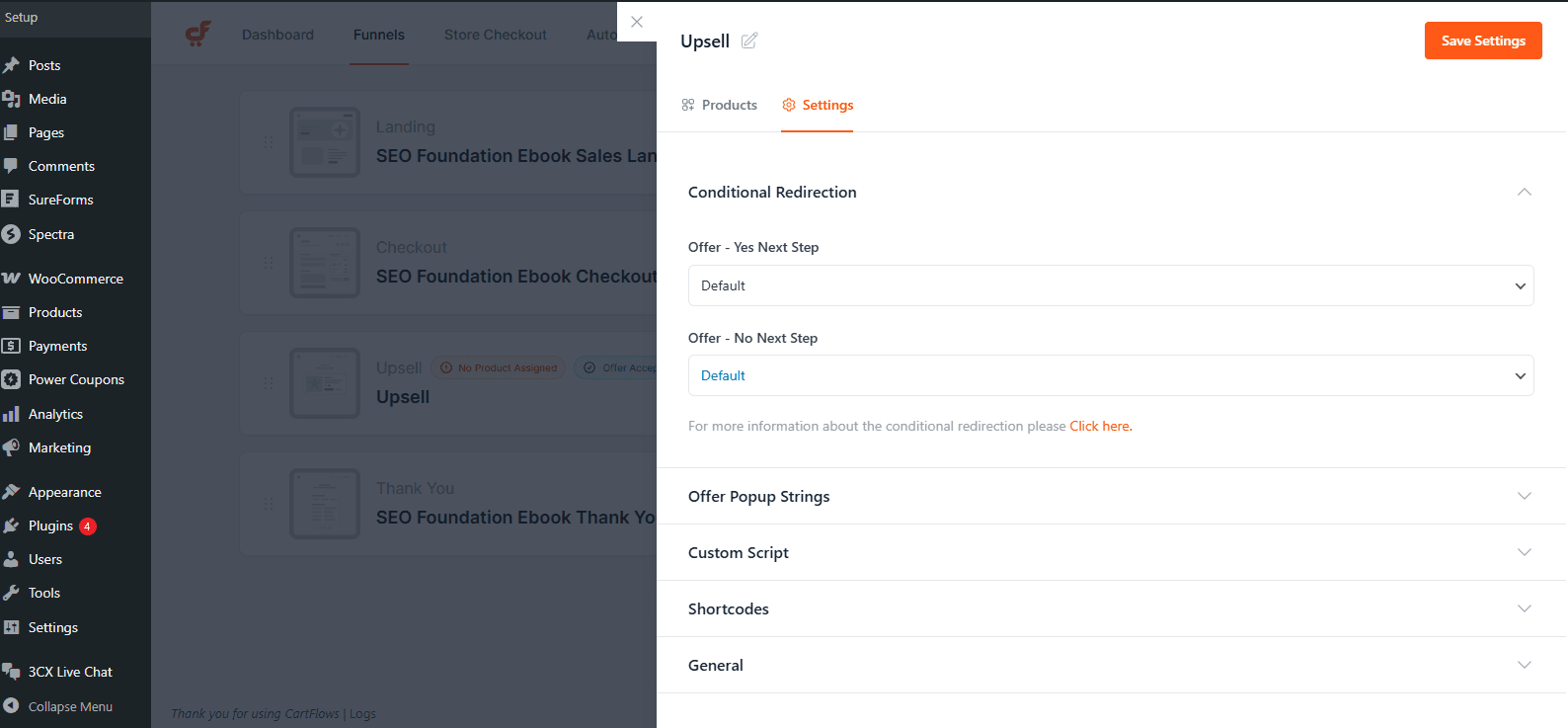
Settings:
Conditional Redirection
Allows redirecting users to different steps based on whether they accept or reject the offer.
Offer Popup Strings
Customize the confirmation popup text displayed when customers accept or decline the offer.
Custom Script
Add step-specific JavaScript or tracking code.
Shortcodes
Provides available shortcodes that can be used within the upsell page.
General Section:
Step Slug
Defines the URL path of the upsell step.
We don't respond to the article feedback, we use it to improve our support content.