
- Hiding Fields on the Checkout Page
- Installing WooCommerce
- Using WooCommerce
- Adding Products in WooCommerce
- Using Your Theme's Header & Footer in a Step
- Embedding a Checkout Form on the CartFlows Checkout Page
- Hiding WooCommerce Pages and Products
- Using Pricing Tables
- Adding an Affiliate Program
- Setting a Funnel as the Homepage
- Dynamic Offers aka Rule Engine
- Instant Layout for Checkout and Thank You Step
- Adding Products from the URL to the Checkout Page
- Setting Up Split Testing for Steps
- Deleting Plugin Data During Uninstallation
- Importing Ready-Made Templates for Funnels and Steps
- Importing and Exporting Funnels and Step
- URL Parameters
- Replacing the Main Checkout Order with an Upsell or Downsell
- Rolling back to a Previous Version
- Google Address Autocomplete
- Flatsome UX Builder
- ActiveCampaign
- Paypal Reference Transactions
- How PaypPal/Stripe Works
- Enabling Enfold Avia Layout Builder
- Setting Up Authorize.net for Upsell & Downsell
- Supported Payment Gateways
- Setting Quantity and Discount for Products on the Checkout Page
- Adding Custom Payment Gateway Support for One-Click Upsell and Downsell
- Funnel in Test Mode
- Troubleshooting Plugin and Theme Conflicts
- Resolving the "Please Select a Simple, Virtual, and Free Product" Error
- Fixing Endless Loading on the Checkout Page
- Fixing the "We can't seem to find an order for you." Error on the Thank You Page
- Troubleshooting License Activation Issues
- Fixing the "Checkout ID Not Found" Error
- Fixing the "Session Expired" Error Message
- Resolving "Order Does Not Exist" Error on Upsell/Downsell Page
- Fixing the "Sorry, This Product Cannot Be Purchased" Error
- Disabling Auto-fill of Address Fields Based on Zip Code
- Enabling Theme's Scripts & Styles Without Changing Page Template
- Disabling Auto-fill of Checkout Fields
- Allowing Cache Plugins to Cache CartFlows Pages
- Changing the "Choose a Variation" Text
- VAT Field Not Displaying for WooCommerce EU/UK VAT Compliance Plugin
- Enabling the Product Tab on Store Checkout
- Displaying the Order Summary Open on Mobile Devices
- Refreshing the Checkout Page After CartFlows AJAX Calls
- Overview
- Installing Modern Cart Starter
- Installing Modern Cart Pro
- Activating License Key
- Customizing General Settings
- Customizing Cart Tray Labels
- Customizing Cart Icon Settings
- Customizing Cart Tray Styling
- Understanding the Product Recommendations Feature
- Controlling Product Recommendation Source for Empty Cart
How to Modify the Checkout Page Using Backend Settings
CartFlows allows you to customize the Checkout step directly from the backend settings without editing the page design. These settings help you manage products, offers, layout, checkout form behavior, and other configurations from a single place.
You can access these options from the Checkout step settings panel within your funnel.
How to Access Checkout Step Settings
Follow the steps below to open the checkout settings.
Step 1: Navigate to CartFlows > Funnels from your WordPress dashboard.
Step 2: Open the funnel where you want to modify the checkout page.
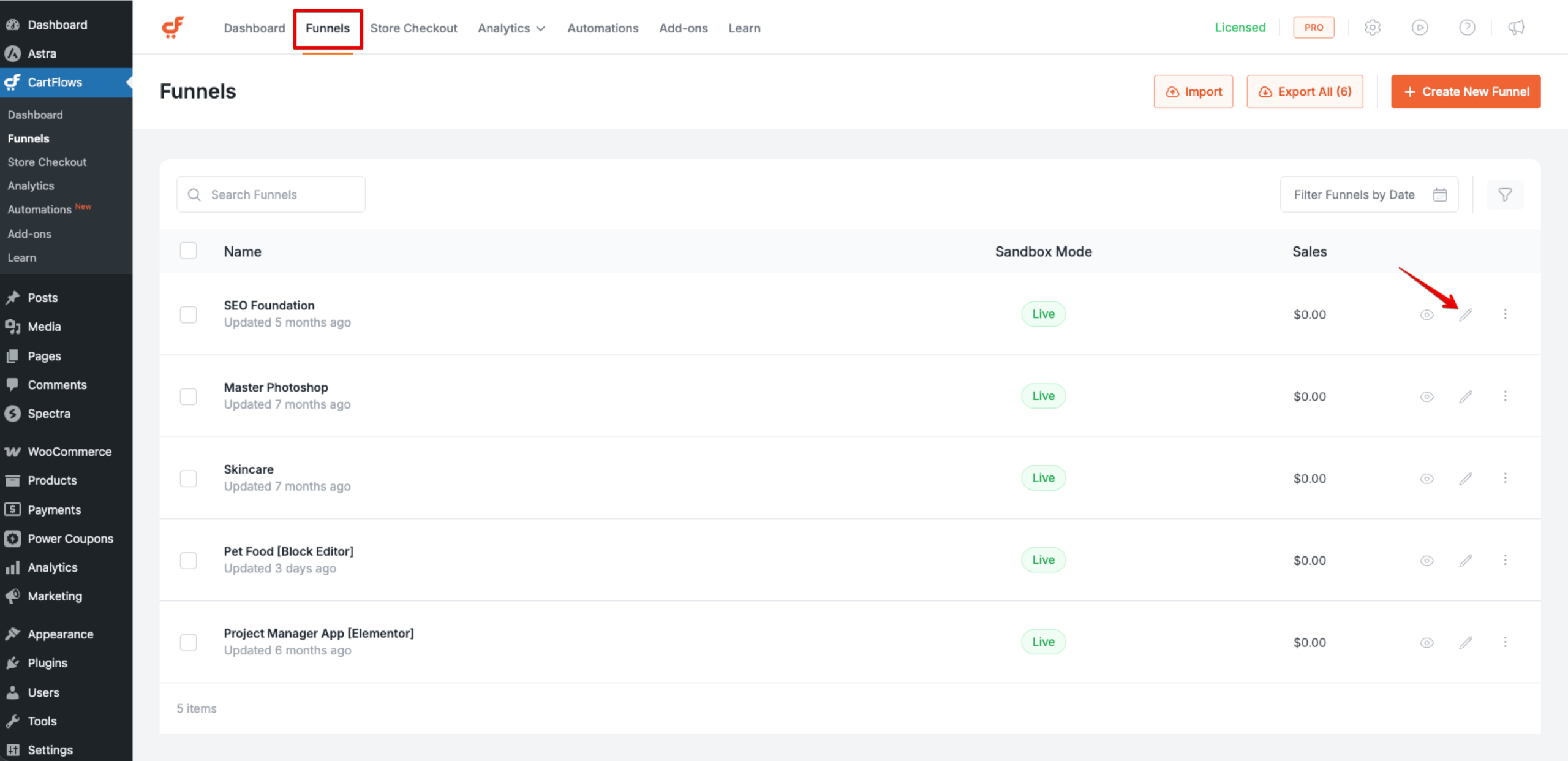
Step 3: Click the settings icon of the Checkout step.
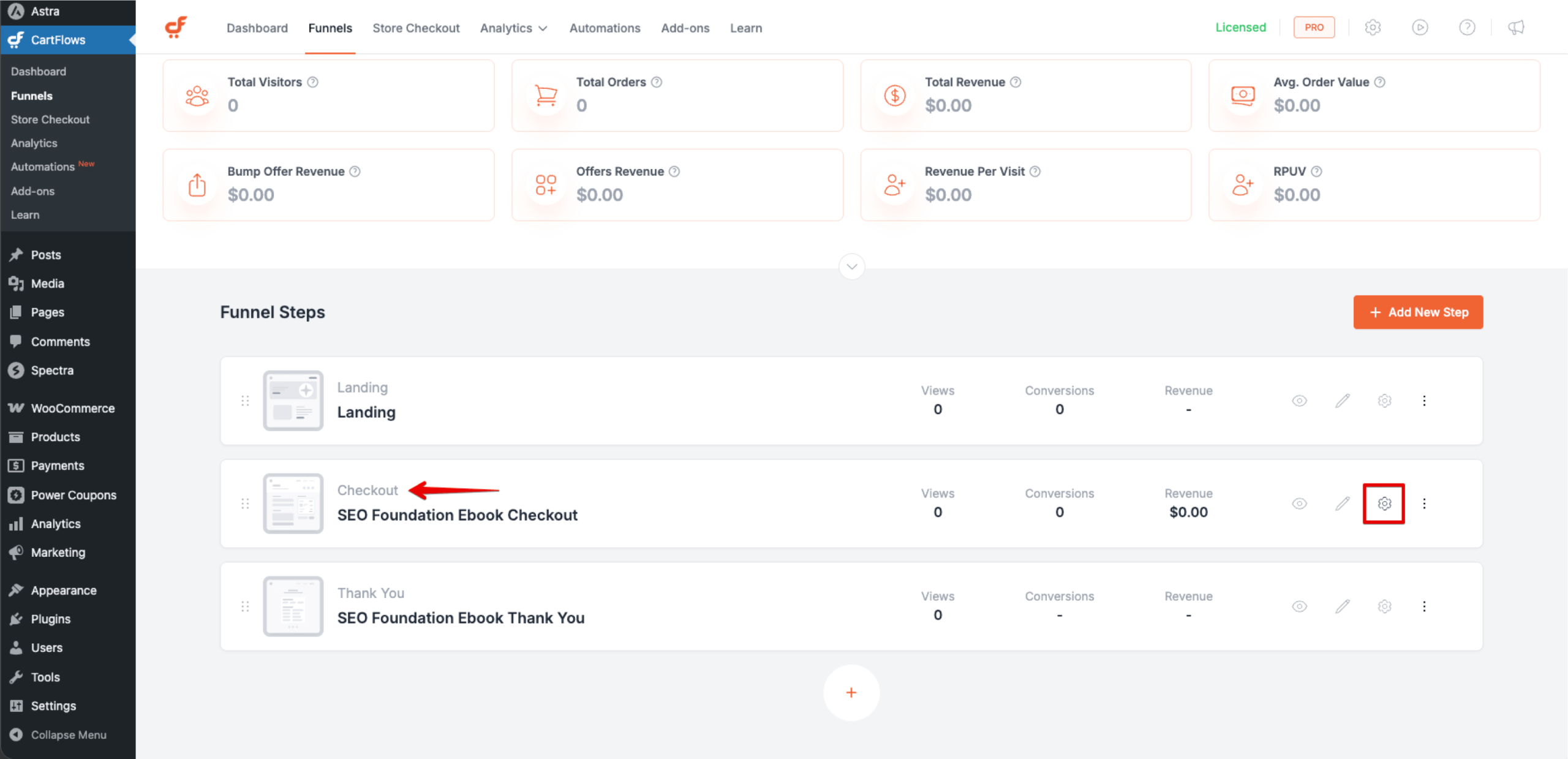
A settings panel will open where you can configure various options for the checkout page.
Select Product
In this section, you can assign the WooCommerce product that will be purchased through the checkout page.
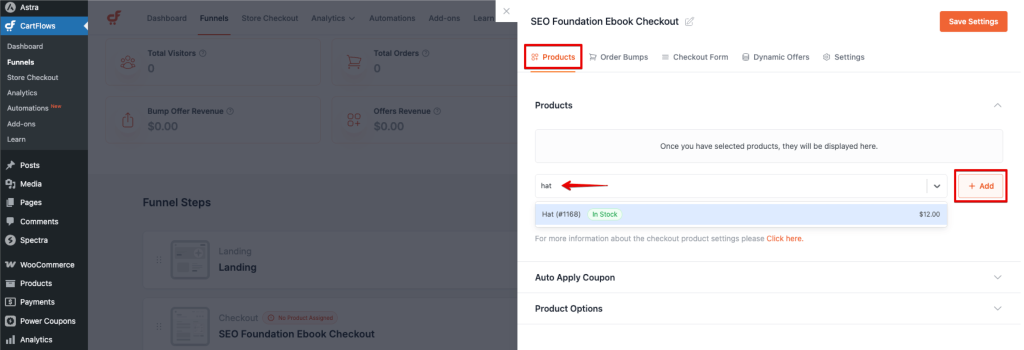
You can also configure additional options such as:
- Applying coupons for promotions (make sure coupons are enabled in WooCommerce settings)
- Managing product variations
- Adding product restrictions
- Enabling quantity selection
Order Bump
The Order Bump option allows you to present an additional offer on the Checkout page to increase the order value.
You can create and configure an order bump directly from this section. Once enabled, customers will see the bump offer on the checkout page and can add it to their order with a single click.
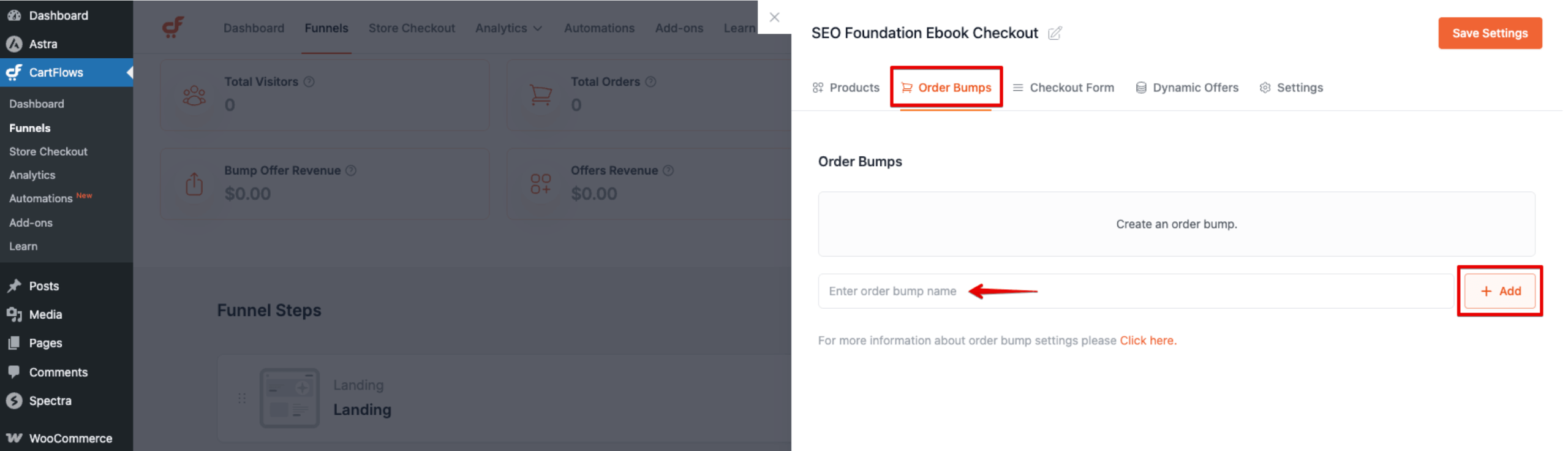
Refer to this documentation for more details about Order Bump: https://cartflows.com/docs/how-to-add-order-bumps-to-woocommerce-sales-funnel/
Checkout Form
The Checkout Form tab allows you to manage and customize the checkout fields displayed on the form.
From this section, you can:
- Enable Coupon Field – Allows customers to apply coupon codes during checkout.
- Enable Ship to Different Address – Adds a separate shipping address section.
- Enable Google Address Autocomplete – Allows address auto-completion for faster checkout.
- Enable the Custom Field Editor
- Show or hide specific checkout fields
- Reorder fields using drag-and-drop
- Modify field labels, placeholders, and requirements
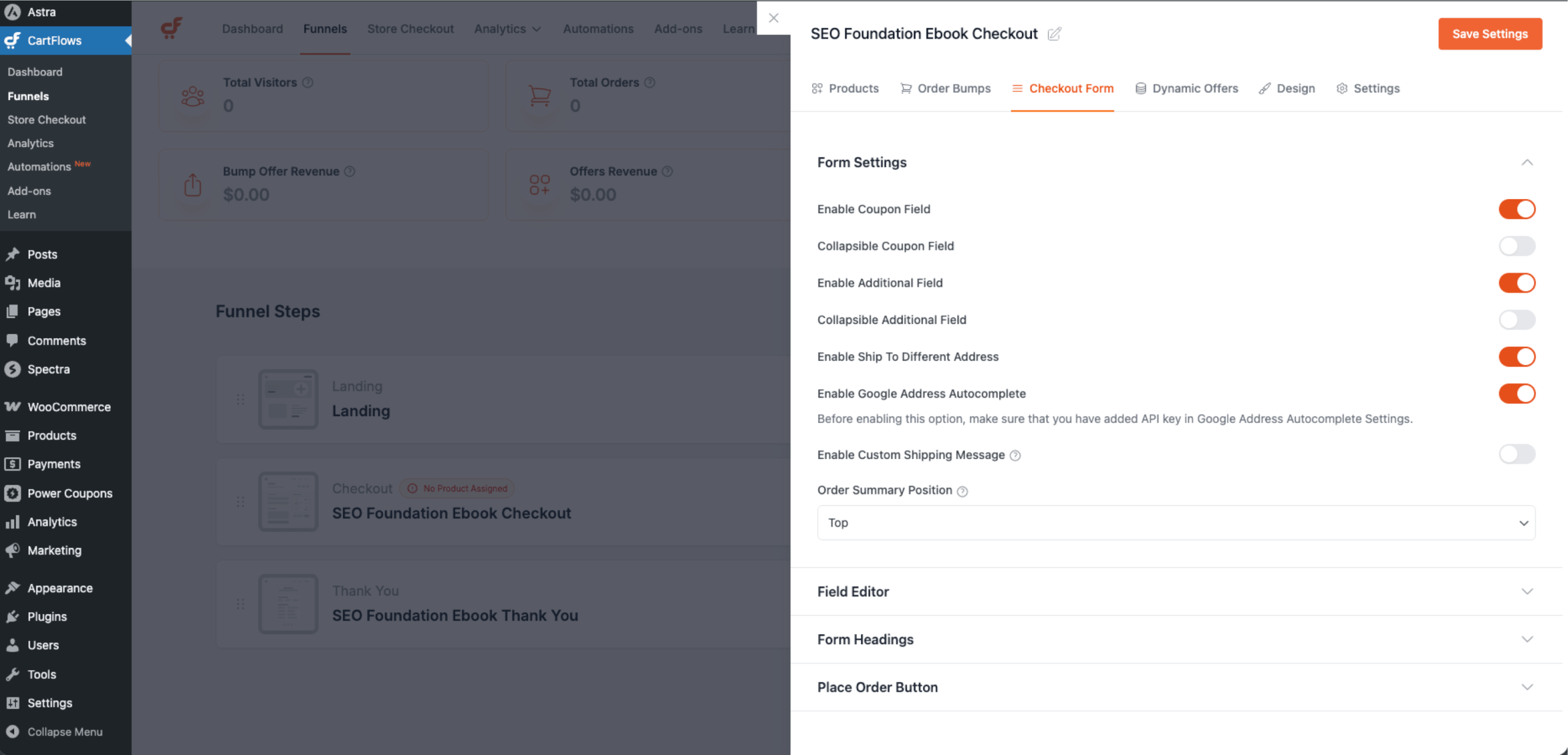
These settings help you collect only the necessary information from customers during checkout.
Refer to this documentation for more details about the Field Editor: https://cartflows.com/docs/custom-checkout-fields-and-its-settings/
Dynamic Offer
The Dynamic Offer allows you to control the redirection to Upsell or Downsell steps based on specific conditions set on the checkout page.
Refer to this documentation for more details about the Dynamic Offer feature: https://cartflows.com/docs/cartflows-dynamic-offers-rule-engine/
Checkout Design (Including Shortcode)
The Design tab allows you to control the layout and appearance of the checkout page and also access the checkout shortcode when needed.
You can configure layout options such as:
- Modern Checkout
- Modern One Column
- Multistep Checkout
- One Column
- Two Column
- Two-Step
You can also customize the checkout appearance by adjusting:
- Typography
- Primary colors
- Form styling options
If Advanced Options are enabled, you can further customize elements such as:
- Headings
- Input fields
- Buttons
- Background styles
Within this tab, you can also find the Checkout Shortcode, which includes:
- Billing fields
- Shipping fields
- Order details
- Place Order button
This shortcode can be used when building a custom checkout layout manually.
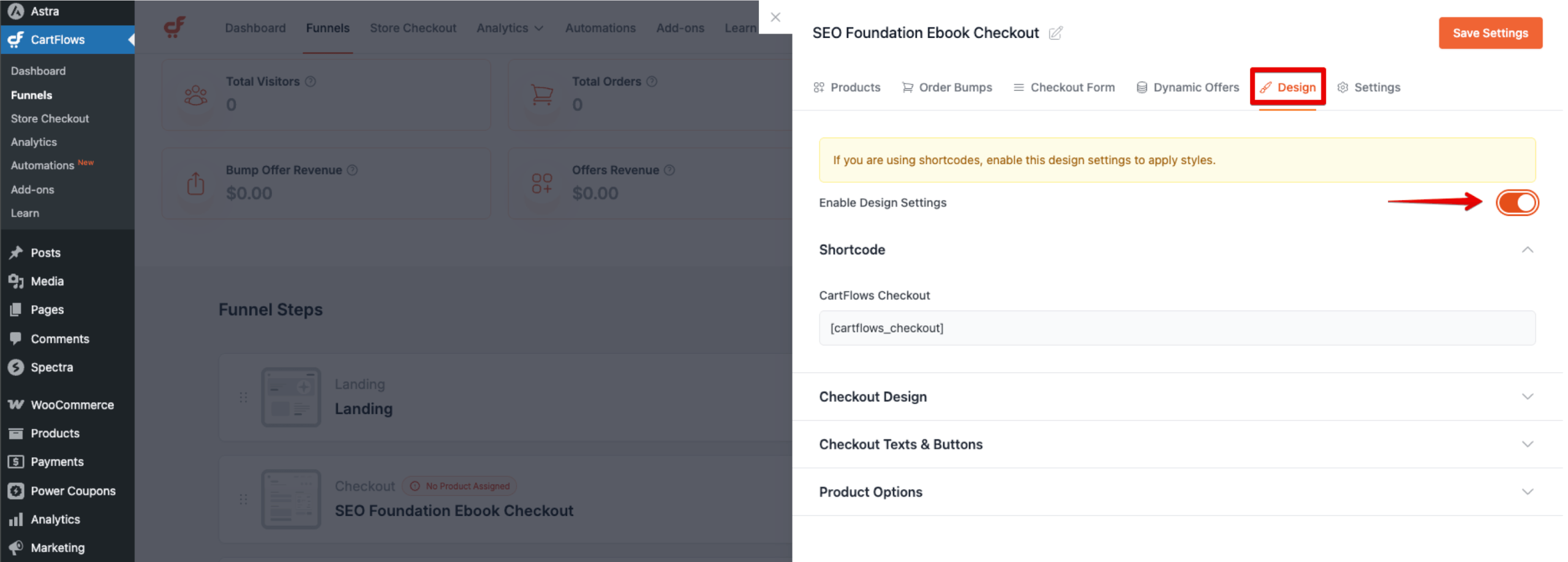
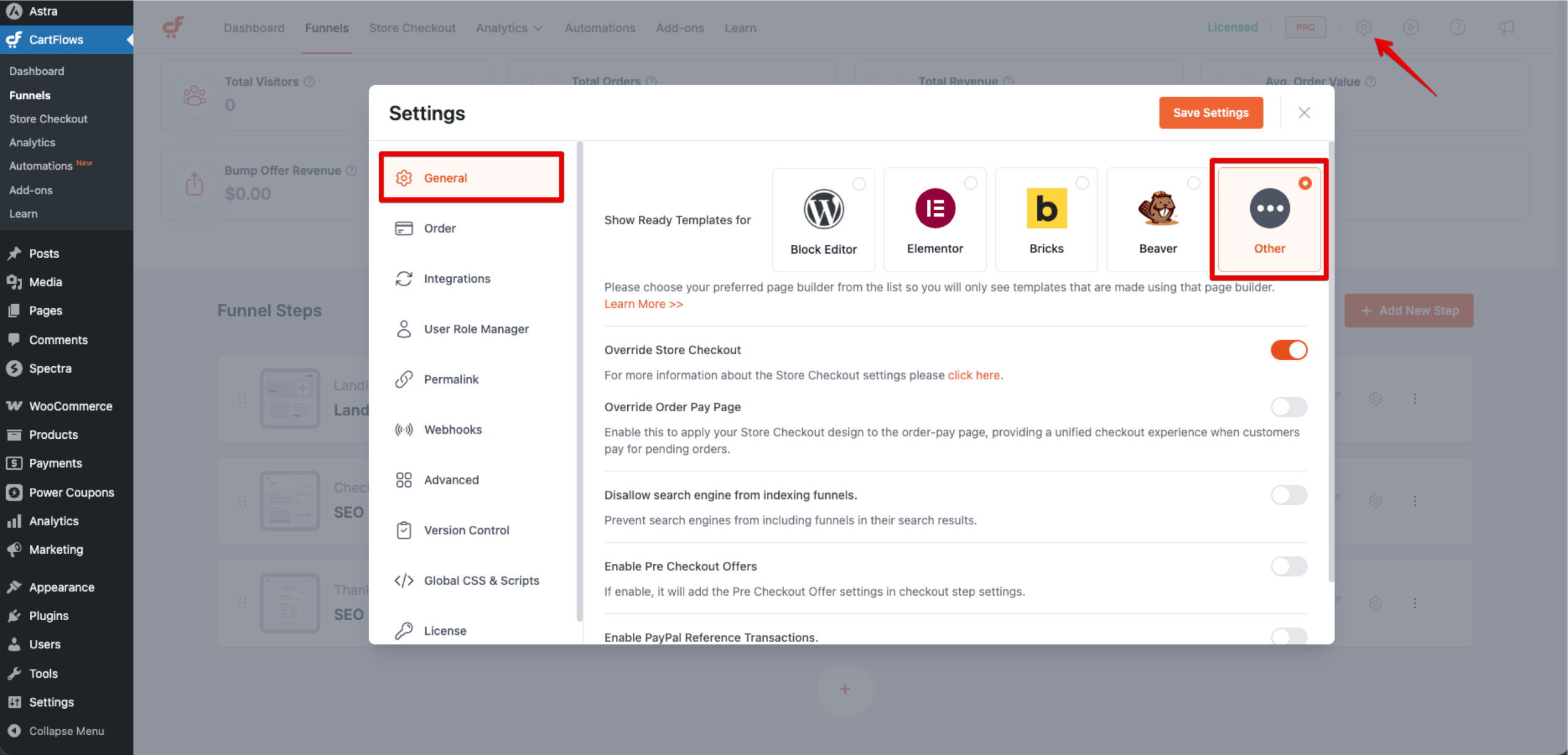
The Design tab may only be visible when the page builder is set to Other in the CartFlows settings.
To enable access to this tab:
Step 1: Navigate to CartFlows > Settings > General.
Step 2: Locate the Page Builder option.
Step 3: Select Other from the dropdown.
Step 4: Click Save Settings.
Once saved, the Checkout Design tab will become available in the checkout step settings, allowing you to configure the checkout layout and access the shortcode if required.
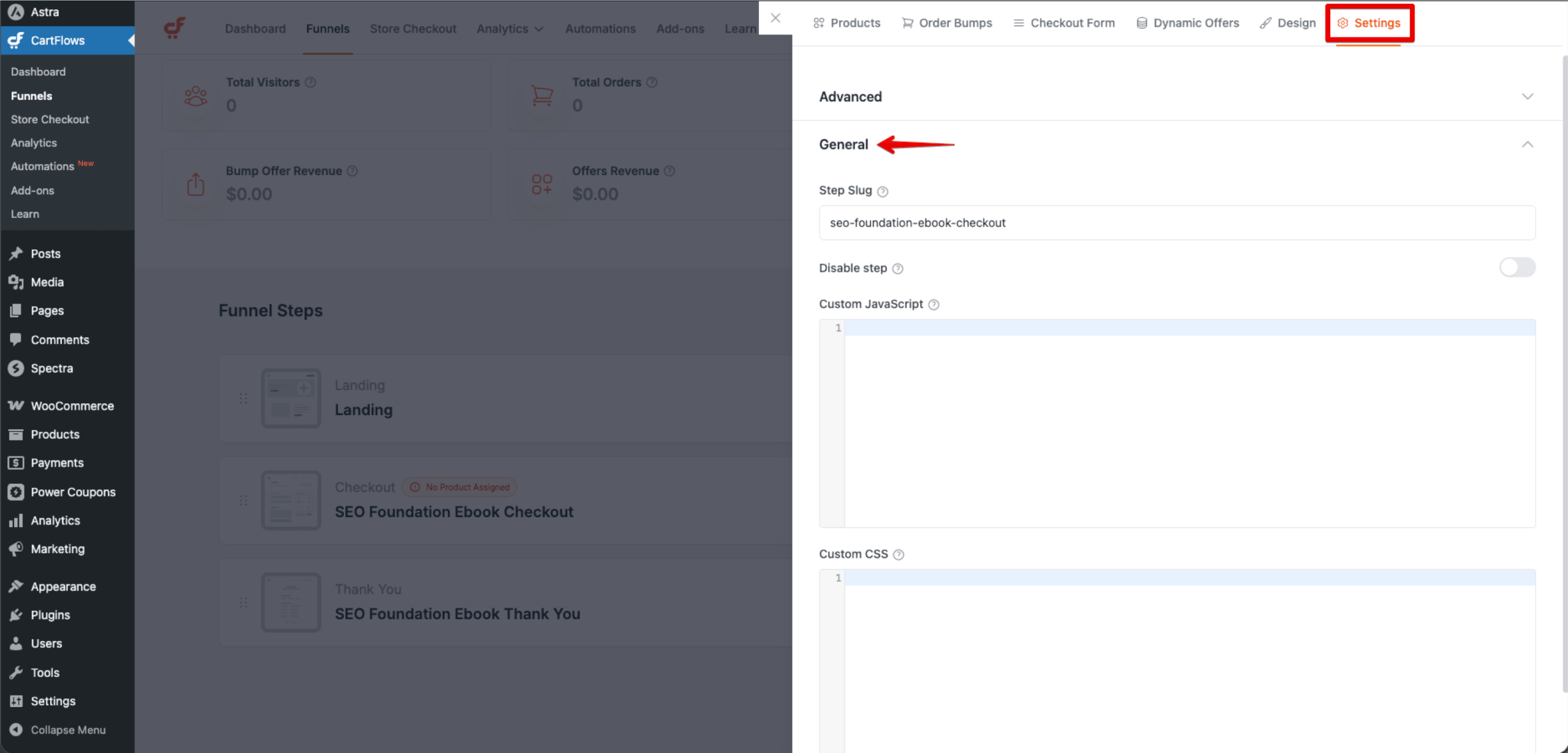
Custom Script
The Custom Script option is available under the tab Settings > General.
This section allows you to add scripts to the checkout page, which can be useful for integrations such as:
- Custom JavaScript functionality
- Custom CSS
- Analytics tracking scripts
We don't respond to the article feedback, we use it to improve our support content.