
- Hiding Fields on the Checkout Page
- Installing WooCommerce
- Using WooCommerce
- Adding Products in WooCommerce
- Using Your Theme's Header & Footer in a Step
- Embedding a Checkout Form on the CartFlows Checkout Page
- Hiding WooCommerce Pages and Products
- Using Pricing Tables
- Adding an Affiliate Program
- Setting a Funnel as the Homepage
- Dynamic Offers aka Rule Engine
- Instant Layout for Checkout and Thank You Step
- Adding Products from the URL to the Checkout Page
- Setting Up Split Testing for Steps
- Deleting Plugin Data During Uninstallation
- Importing Ready-Made Templates for Funnels and Steps
- Importing and Exporting Funnels and Step
- URL Parameters
- Replacing the Main Checkout Order with an Upsell or Downsell
- Rolling back to a Previous Version
- Google Address Autocomplete
- Flatsome UX Builder
- ActiveCampaign
- Paypal Reference Transactions
- How PaypPal/Stripe Works
- Enabling Enfold Avia Layout Builder
- Setting Up Authorize.net for Upsell & Downsell
- Supported Payment Gateways
- Setting Quantity and Discount for Products on the Checkout Page
- Adding Custom Payment Gateway Support for One-Click Upsell and Downsell
- Funnel in Test Mode
- Troubleshooting Plugin and Theme Conflicts
- Resolving the "Please Select a Simple, Virtual, and Free Product" Error
- Fixing Endless Loading on the Checkout Page
- Fixing the "We can't seem to find an order for you." Error on the Thank You Page
- Troubleshooting License Activation Issues
- Fixing the "Checkout ID Not Found" Error
- Fixing the "Session Expired" Error Message
- Resolving "Order Does Not Exist" Error on Upsell/Downsell Page
- Fixing the "Sorry, This Product Cannot Be Purchased" Error
- Disabling Auto-fill of Address Fields Based on Zip Code
- Enabling Theme's Scripts & Styles Without Changing Page Template
- Disabling Auto-fill of Checkout Fields
- Allowing Cache Plugins to Cache CartFlows Pages
- Changing the "Choose a Variation" Text
- VAT Field Not Displaying for WooCommerce EU/UK VAT Compliance Plugin
- Enabling the Product Tab on Store Checkout
- Displaying the Order Summary Open on Mobile Devices
- Refreshing the Checkout Page After CartFlows AJAX Calls
- Overview
- Installing Modern Cart Starter
- Installing Modern Cart Pro
- Activating License Key
- Customizing General Settings
- Customizing Cart Tray Labels
- Customizing Cart Icon Settings
- Customizing Cart Tray Styling
- Understanding the Product Recommendations Feature
- Controlling Product Recommendation Source for Empty Cart
How to Add /Assign Products to a Checkout Step in CartFlows
Adding or assigning products to a checkout step in CartFlows allows you to define exactly what customers will purchase during the funnel flow. You can add single or multiple products, set default selections, enable variations, and even control quantity options — all directly from the checkout step settings.
Step-by-Step: Add Products to a CartFlows Checkout Step
Step 1: Open the Funnel Checkout Step
Navigate to CartFlows > Funnels from your WordPress dashboard.
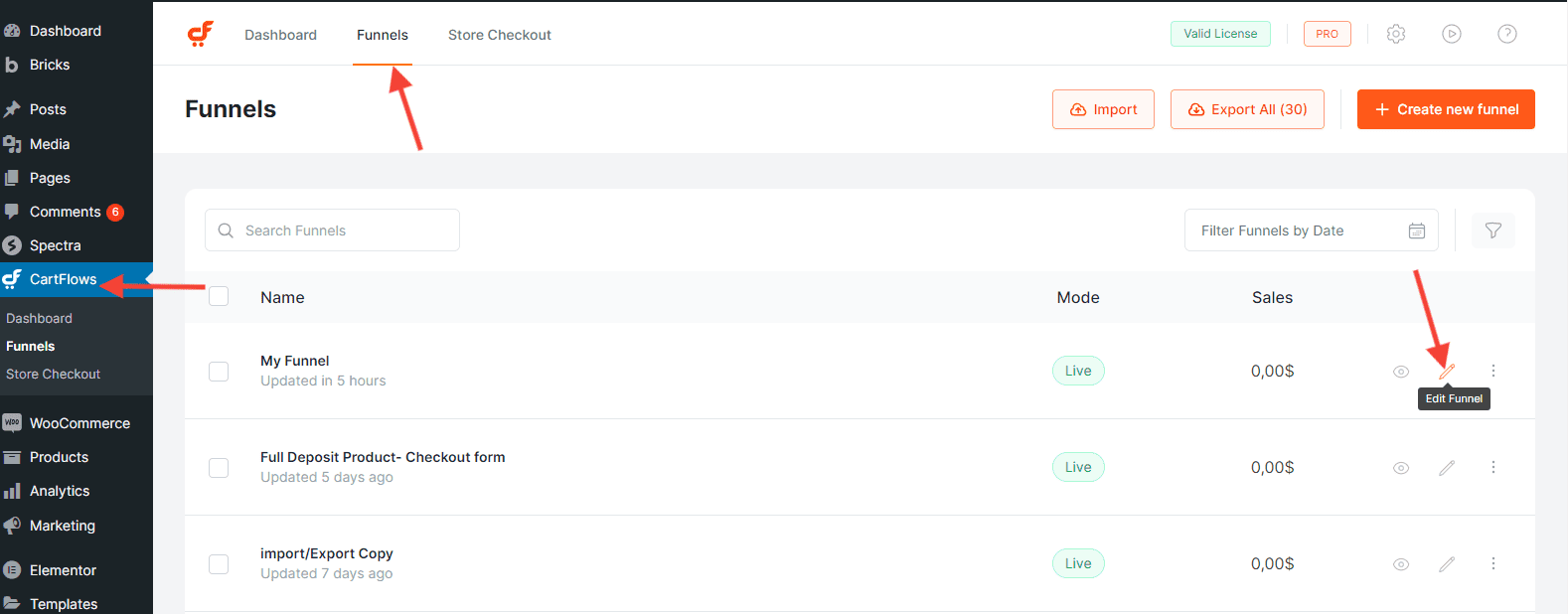
Open the funnel you want to edit and click the Edit (gear icon) on the Checkout step.
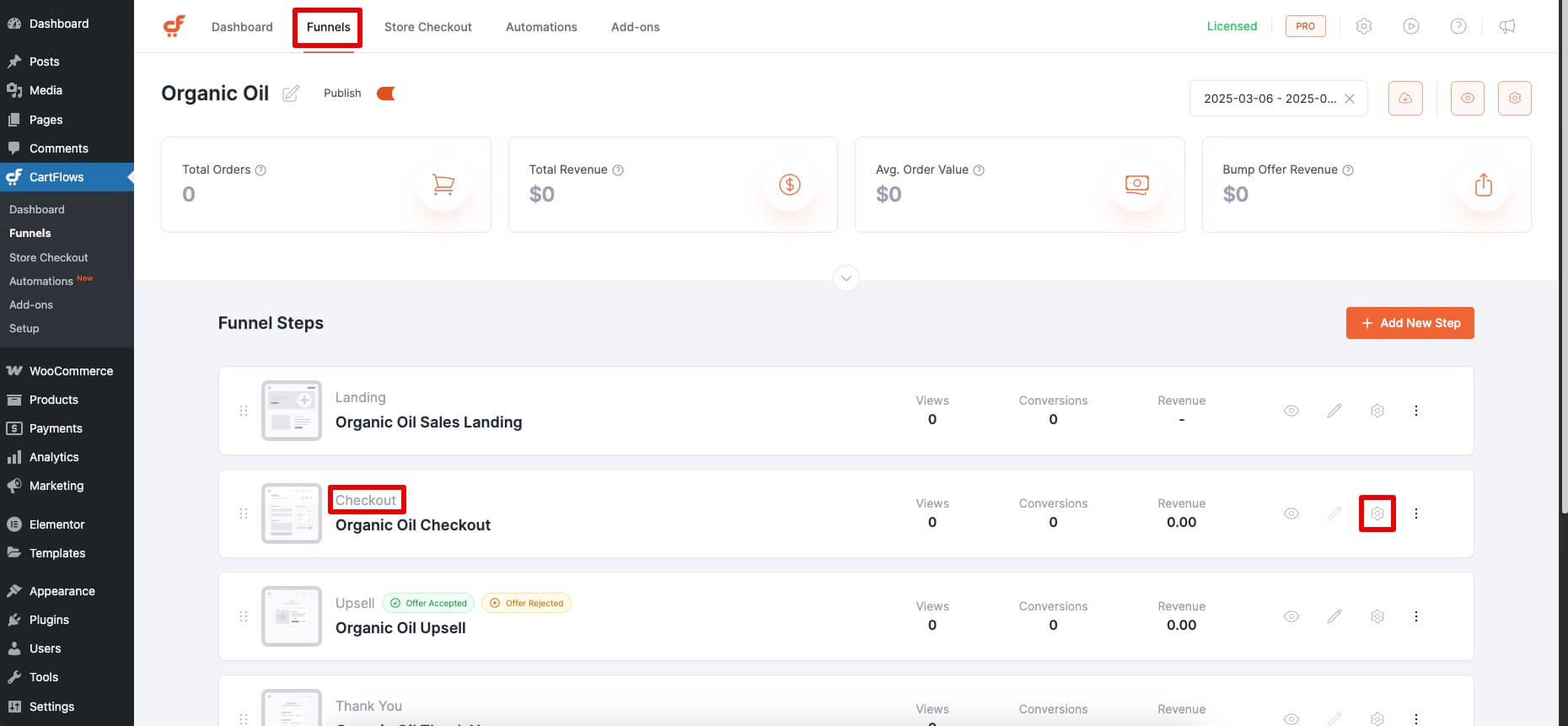
Step 2: Access the Products Tab
In the checkout step editor, go to the Products tab.
Click on + Add New Product to begin.
Step 3: Add Products to the Checkout
Use the search field to find your WooCommerce product.
Select the product and click Add.
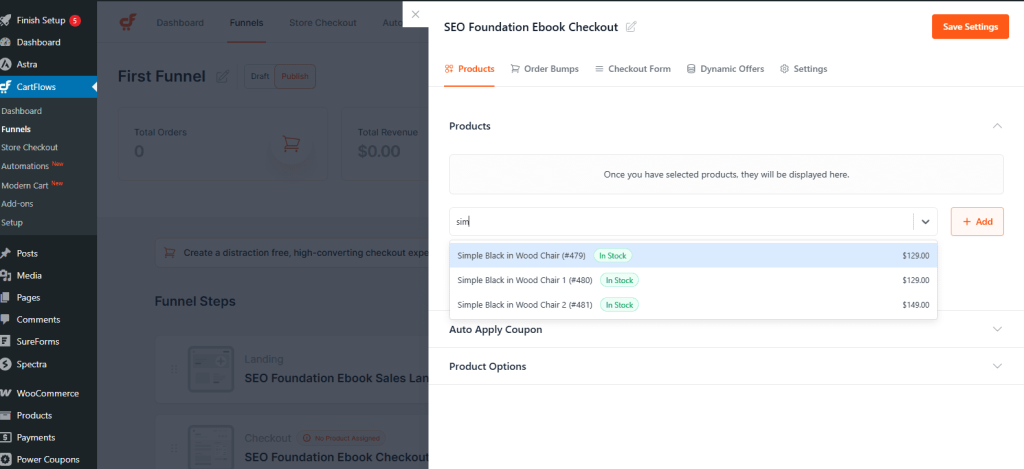
You can repeat this process to add multiple products to the same checkout step.
Not sure how to create products in WooCommerce? Check this guide.
Configure Product Options (Optional)
Once a product is added, you can further customize how it appears and behaves on the checkout page:
- Variable Products: If you’ve added a variable product, enable the Variation option to display variation choices (such as size or color) directly on the checkout page.
- Set Default Product: When multiple products are added, you can choose one as the default selection by enabling the radio button next to it in the Product Options section.
- Quantity Selector: Enable the quantity option to allow customers to adjust product quantity directly on the checkout page.
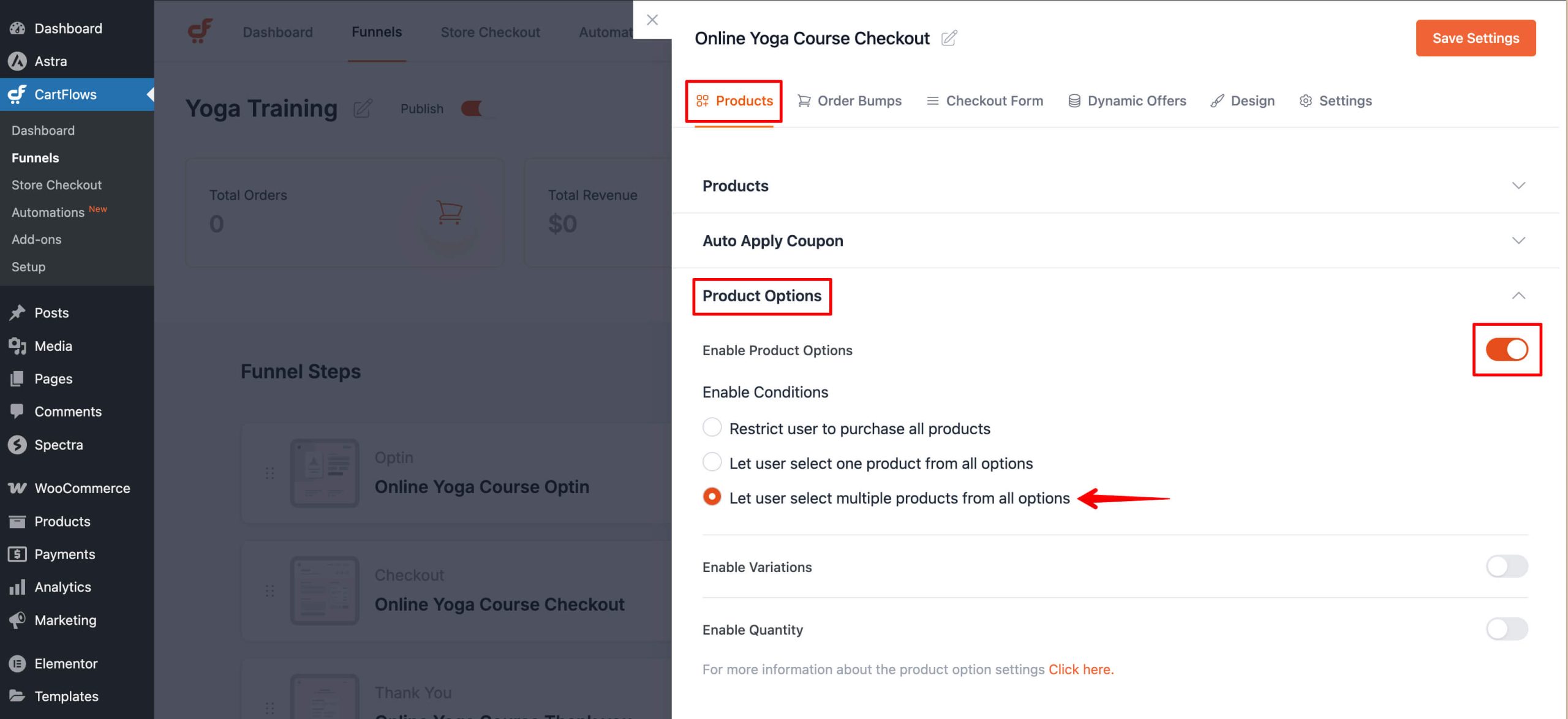
Step 4: Save Your Changes
After configuring your products and options, click Save Settings to apply the changes to the checkout step.
Alternative Ways to Add Products to a Checkout
CartFlows also provides additional methods to assign products to a checkout step:
Add Products via URL Parameter
You can dynamically add products to the checkout using a URL parameter such as:
https://yourdomain.com/checkout-page/?wcf-add-to-cart=3&wcf-qty=4This is useful for targeted campaigns or custom links. Here is the Doc for further details
Assign Product from WooCommerce Product Page
From the WooCommerce product edit screen, use the CartFlows tab to force the product to start a specific funnel. This automatically adds the product to the checkout step when the funnel starts.
Important Notes
- If you see the error “No product is selected”, make sure at least one product is assigned in the Backend Settings of the checkout step.
- For subscription products, ensure the WooCommerce Subscriptions plugin is installed and active before assigning the product to the checkout.
We don't respond to the article feedback, we use it to improve our support content.