
- Hiding Fields on the Checkout Page
- Installing WooCommerce
- Using WooCommerce
- Adding Products in WooCommerce
- Using Your Theme's Header & Footer in a Step
- Embedding a Checkout Form on the CartFlows Checkout Page
- Hiding WooCommerce Pages and Products
- Using Pricing Tables
- Adding an Affiliate Program
- Setting a Funnel as the Homepage
- Dynamic Offers aka Rule Engine
- Instant Layout for Checkout and Thank You Step
- Adding Products from the URL to the Checkout Page
- Setting Up Split Testing for Steps
- Deleting Plugin Data During Uninstallation
- Importing Ready-Made Templates for Funnels and Steps
- Importing and Exporting Funnels and Step
- URL Parameters
- Replacing the Main Checkout Order with an Upsell or Downsell
- Rolling back to a Previous Version
- Google Address Autocomplete
- Flatsome UX Builder
- ActiveCampaign
- Paypal Reference Transactions
- How PaypPal/Stripe Works
- Enabling Enfold Avia Layout Builder
- Setting Up Authorize.net for Upsell & Downsell
- Supported Payment Gateways
- Setting Quantity and Discount for Products on the Checkout Page
- Adding Custom Payment Gateway Support for One-Click Upsell and Downsell
- Funnel in Test Mode
- Troubleshooting Plugin and Theme Conflicts
- Resolving the "Please Select a Simple, Virtual, and Free Product" Error
- Fixing Endless Loading on the Checkout Page
- Fixing the "We can't seem to find an order for you." Error on the Thank You Page
- Troubleshooting License Activation Issues
- Fixing the "Checkout ID Not Found" Error
- Fixing the "Session Expired" Error Message
- Resolving "Order Does Not Exist" Error on Upsell/Downsell Page
- Fixing the "Sorry, This Product Cannot Be Purchased" Error
- Disabling Auto-fill of Address Fields Based on Zip Code
- Enabling Theme's Scripts & Styles Without Changing Page Template
- Disabling Auto-fill of Checkout Fields
- Allowing Cache Plugins to Cache CartFlows Pages
- Changing the "Choose a Variation" Text
- VAT Field Not Displaying for WooCommerce EU/UK VAT Compliance Plugin
- Enabling the Product Tab on Store Checkout
- Displaying the Order Summary Open on Mobile Devices
- Refreshing the Checkout Page After CartFlows AJAX Calls
- Overview
- Installing Modern Cart Starter
- Installing Modern Cart Pro
- Activating License Key
- Customizing General Settings
- Customizing Cart Tray Labels
- Customizing Cart Icon Settings
- Customizing Cart Tray Styling
- Understanding the Product Recommendations Feature
- Controlling Product Recommendation Source for Empty Cart
How to Create Your First CartFlows Funnel
Creating your first funnel with CartFlows is straightforward and helps you guide customers through a smooth buying journey. By using pre-made templates and connecting your WooCommerce products, you can quickly set up an optimized sales funnel.
Step 1: Install and Activate CartFlows
Install the CartFlows plugin from your WordPress dashboard. After activation, choose your preferred page builder in the settings, such as Block Editor, Elementor or Beaver Builder, for designing your funnel steps.
Step 2: Create a New Funnel
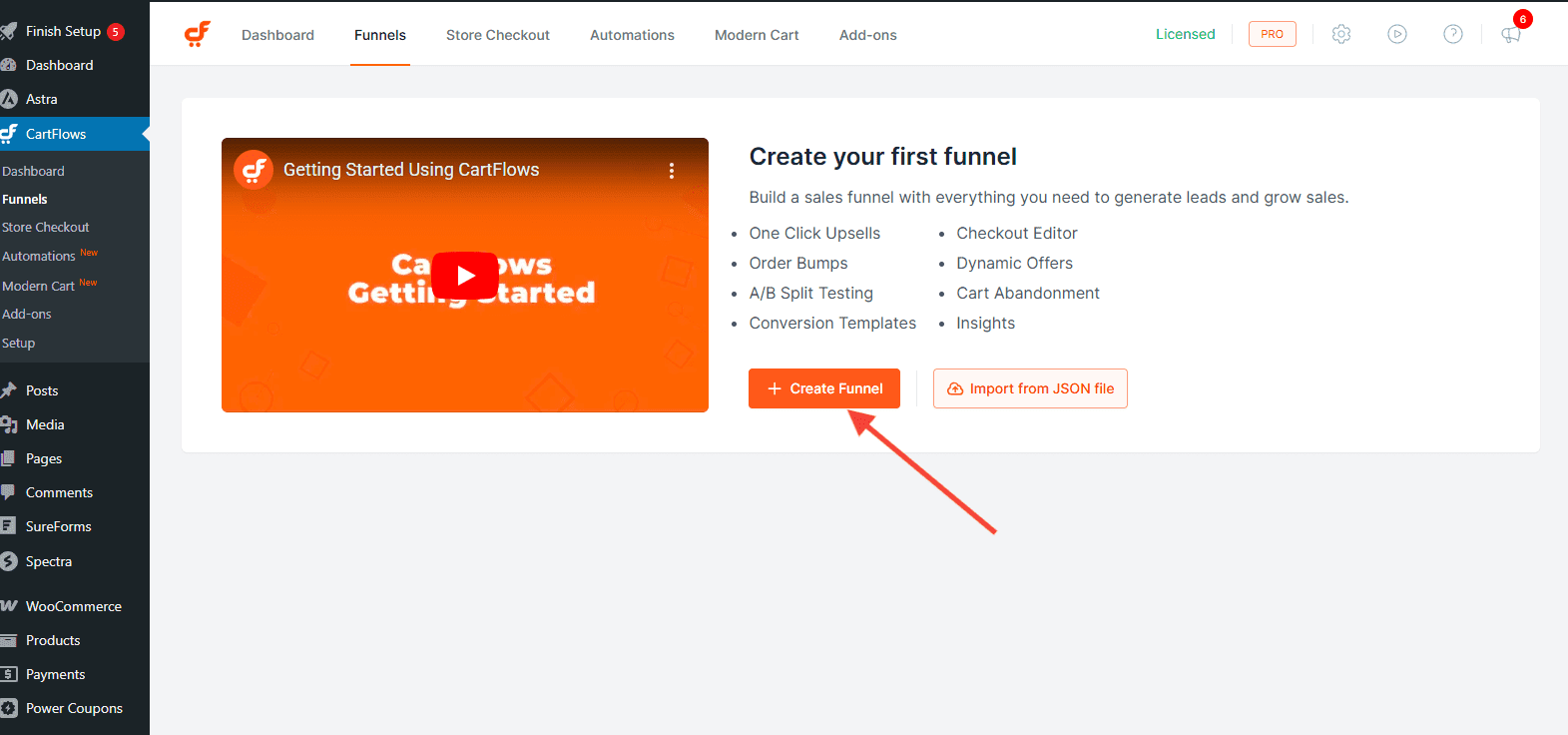
Navigate to CartFlows > Funnels and click Add New to start a new funnel.
Step 3: Select a Template
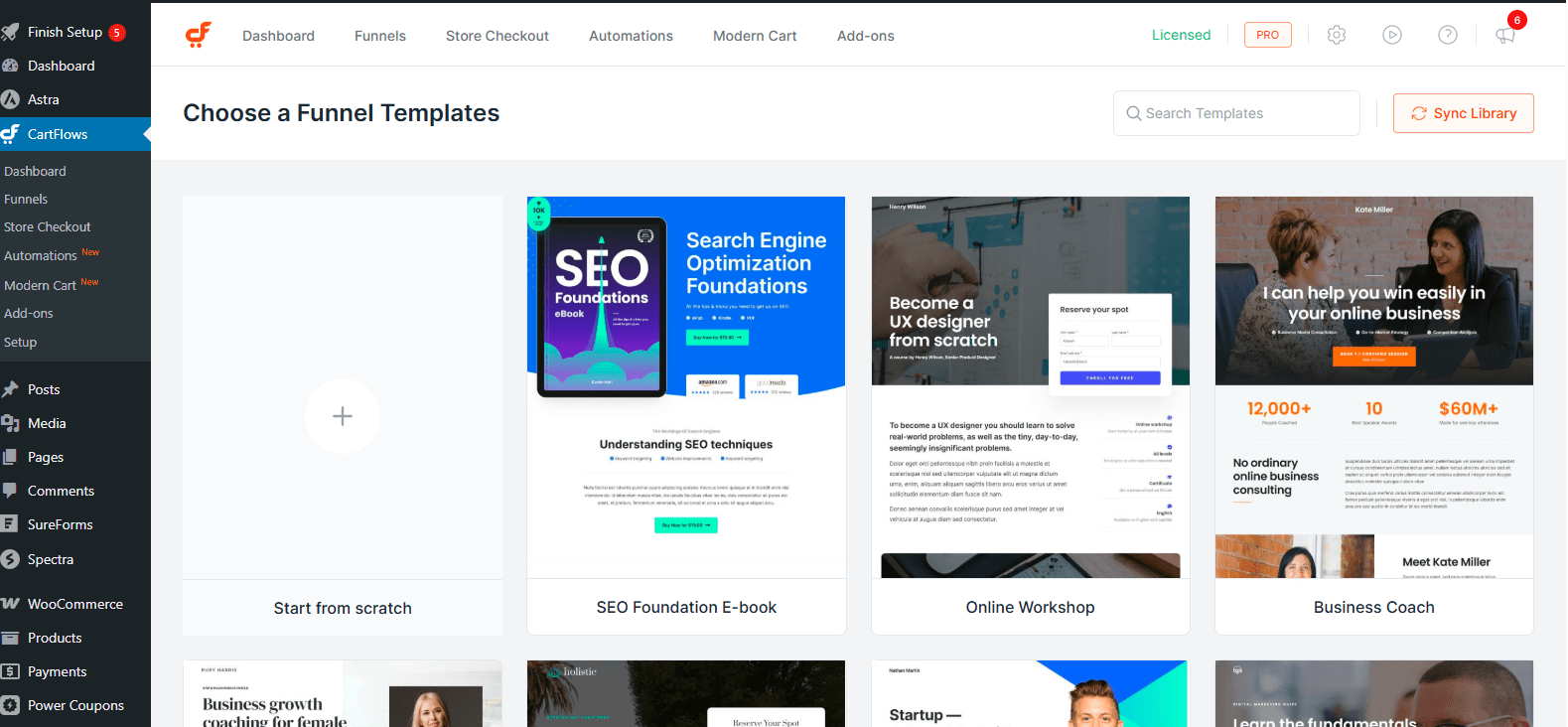
Pick a pre-made template that matches your goal, such as Sales or Lead Generation. These templates typically include:
- Sales Landing Page
- Checkout Page
- Thank You Page
If you prefer full control over the structure and design, you can also create a blank funnel by choosing Start from Scratch and build each step according to your specific requirements.
Step 4: Configure the Funnel Steps
Customize Each Step
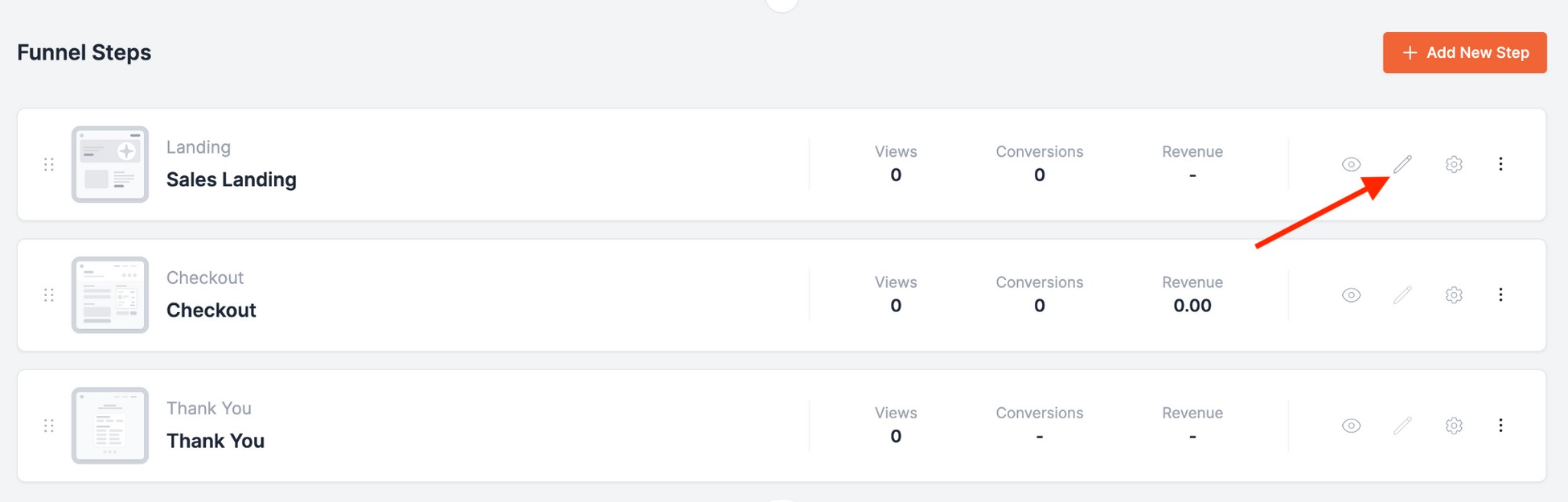
Click the pencil icon to edit each page using your page builder. Adjust the design to match your brand and style.
CartFlows also provides Instant Layouts for a faster setup with pre-designed, conversion-focused designs. To learn how to use Instant Layouts, refer to the documentation below: https://cartflows.com/docs/cartflows-instant-layout/
Add a Product
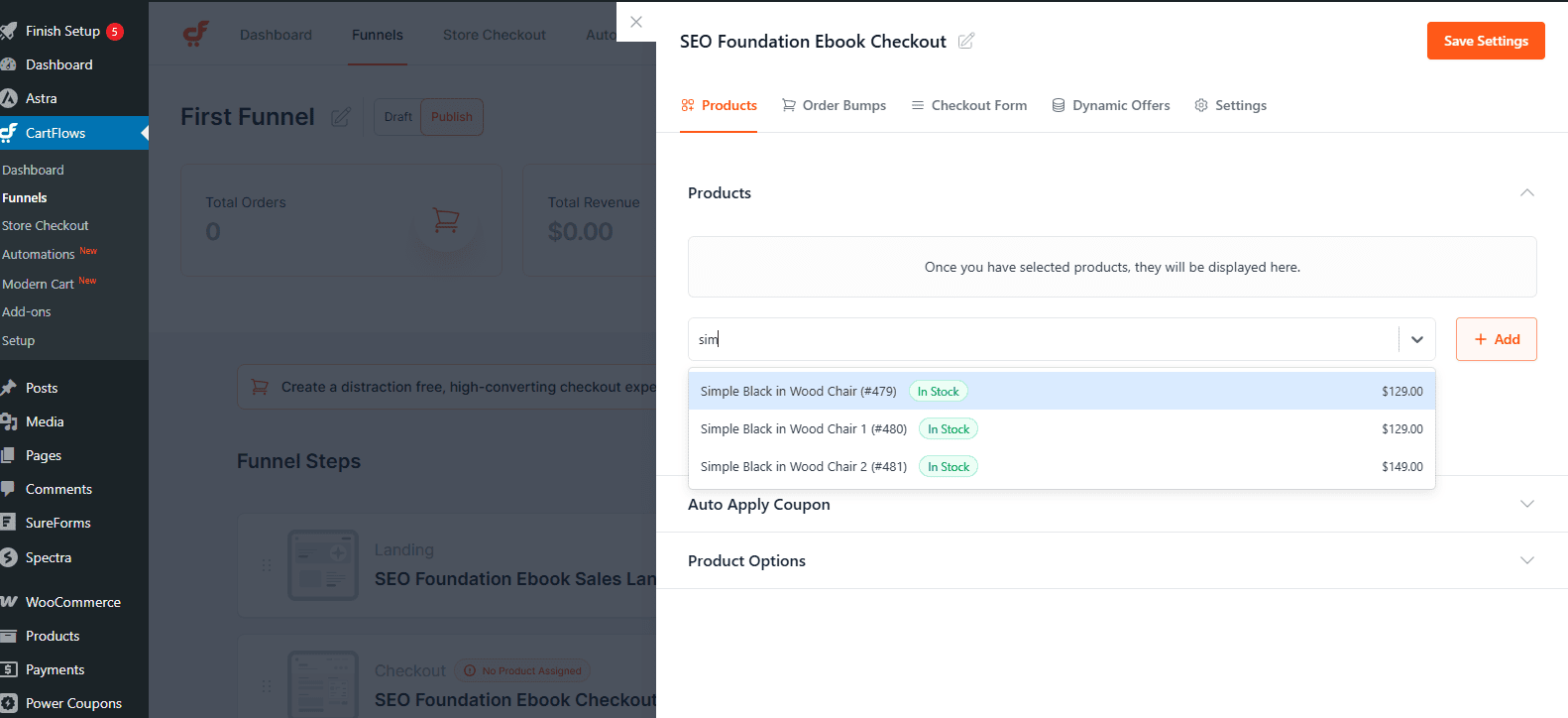
In the Checkout step, select the WooCommerce product you want to sell and save settings
Configure Checkout Fields
Modify the checkout fields to suit your product. For example, remove unnecessary shipping fields for digital products.
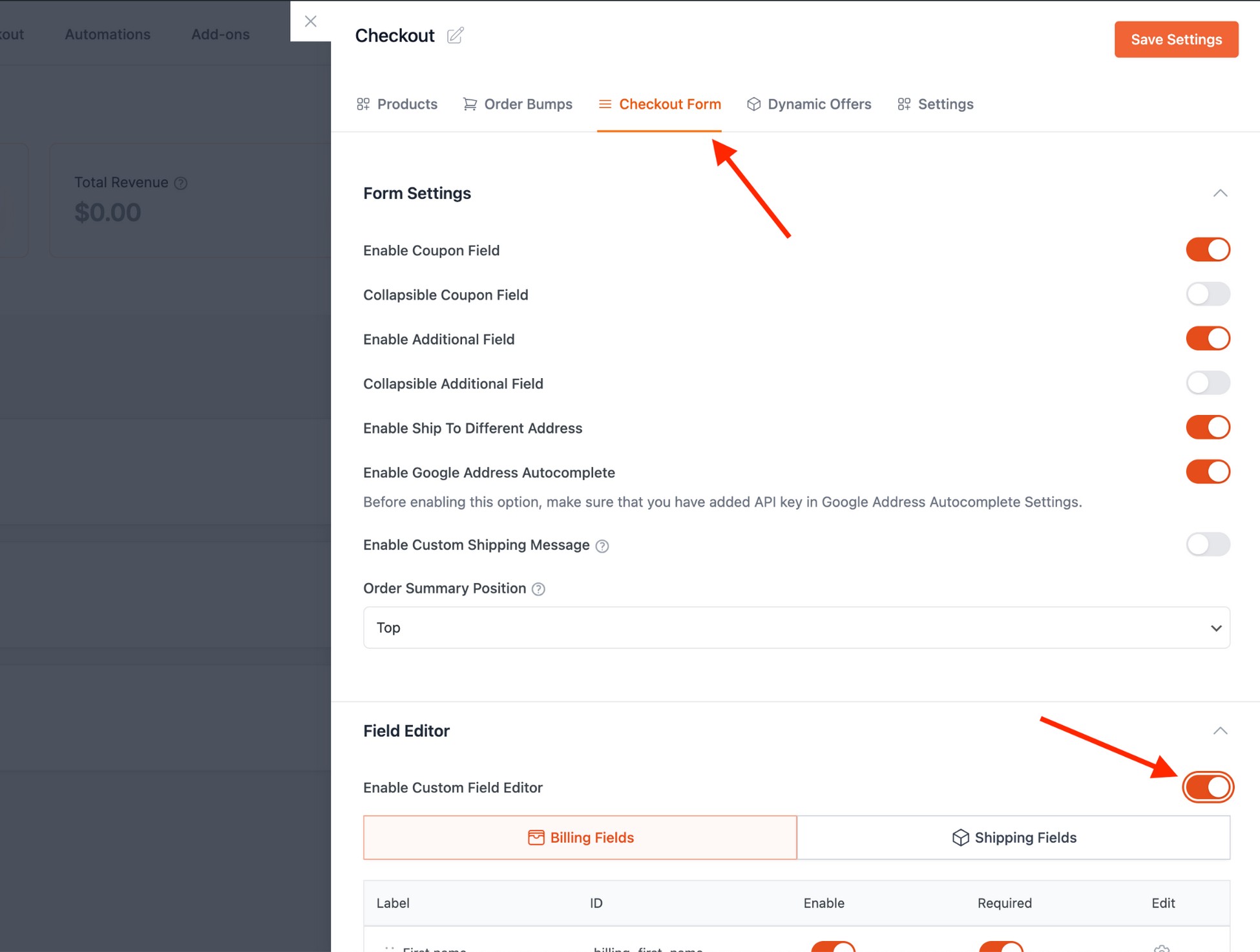
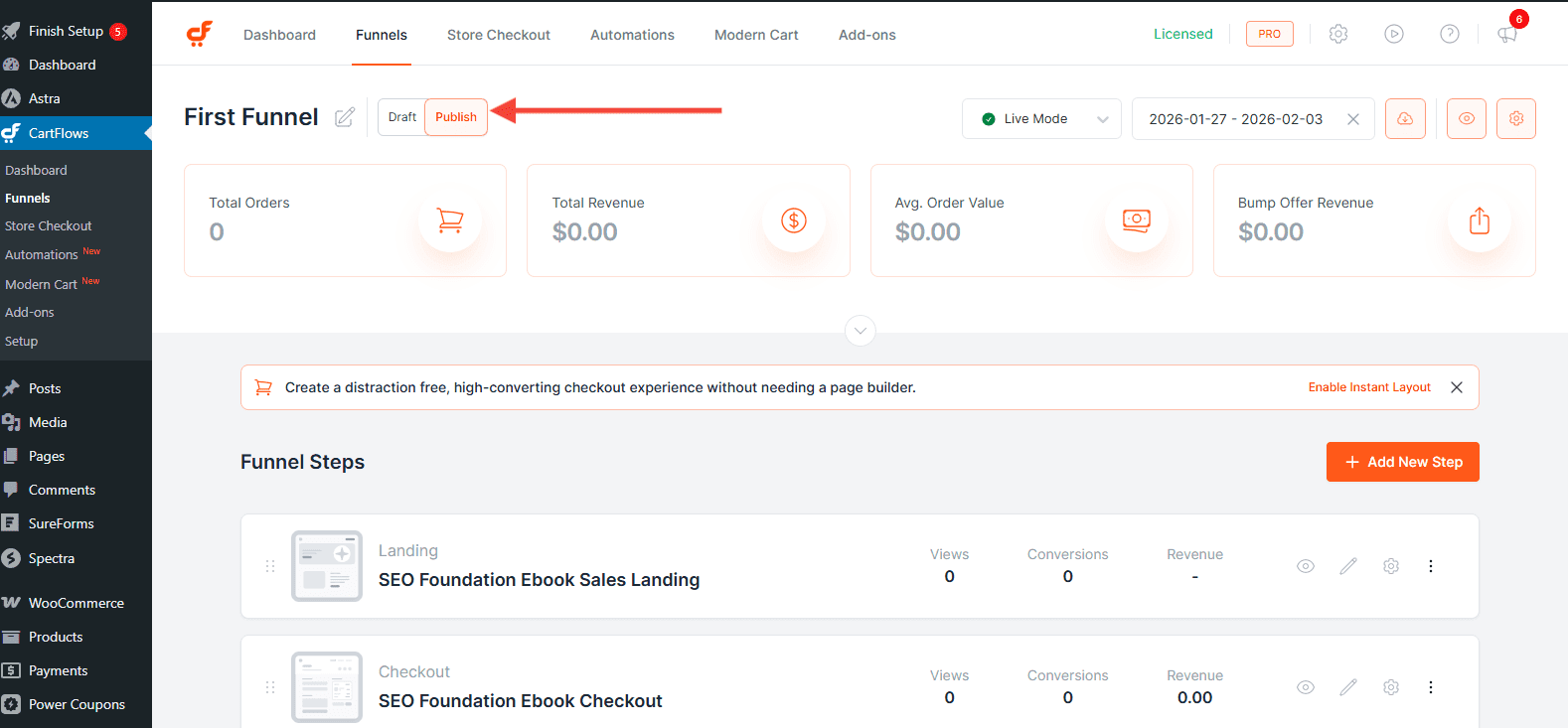
Step 5: Save and Publish
Once all steps are configured, click Publish to make your funnel live.
Key Tips for Success
- Keep it Simple: Maintain a clean, concise checkout page to reduce friction.
- Test Everything: Test the full checkout process to ensure it works smoothly before launch.
Increase Conversions with Additional Offers
You can further optimize your funnel by adding post-purchase and in-checkout offers.
Add an Order Bump
An Order Bump is a small complementary offer displayed on the checkout page. It helps increase your average order value by allowing customers to add an extra product with a single click.
To learn more about creating an Order Bump, refer to this document.
Add Upsell / Downsell Offers
An Upsell is a higher-value offer shown after the initial purchase, while a Downsell is an alternative offer presented if the customer declines the upsell. These help maximize revenue without interrupting the checkout experience.
To learn more about creating one-click Upsell and Downsell offers, refer to this document.
We don't respond to the article feedback, we use it to improve our support content.