
- Hiding Fields on the Checkout Page
- Installing WooCommerce
- Using WooCommerce
- Adding Products in WooCommerce
- Using Your Theme's Header & Footer in a Step
- Embedding a Checkout Form on the CartFlows Checkout Page
- Hiding WooCommerce Pages and Products
- Using Pricing Tables
- Adding an Affiliate Program
- Setting a Funnel as the Homepage
- Dynamic Offers aka Rule Engine
- Instant Layout for Checkout and Thank You Step
- Adding Products from the URL to the Checkout Page
- Setting Up Split Testing for Steps
- Deleting Plugin Data During Uninstallation
- Importing Ready-Made Templates for Funnels and Steps
- Importing and Exporting Funnels and Step
- URL Parameters
- Replacing the Main Checkout Order with an Upsell or Downsell
- Rolling back to a Previous Version
- Google Address Autocomplete
- Flatsome UX Builder
- ActiveCampaign
- Paypal Reference Transactions
- How PaypPal/Stripe Works
- Enabling Enfold Avia Layout Builder
- Setting Up Authorize.net for Upsell & Downsell
- Supported Payment Gateways
- Setting Quantity and Discount for Products on the Checkout Page
- Adding Custom Payment Gateway Support for One-Click Upsell and Downsell
- Funnel in Test Mode
- Troubleshooting Plugin and Theme Conflicts
- Resolving the "Please Select a Simple, Virtual, and Free Product" Error
- Fixing Endless Loading on the Checkout Page
- Fixing the "We can't seem to find an order for you." Error on the Thank You Page
- Troubleshooting License Activation Issues
- Fixing the "Checkout ID Not Found" Error
- Fixing the "Session Expired" Error Message
- Resolving "Order Does Not Exist" Error on Upsell/Downsell Page
- Fixing the "Sorry, This Product Cannot Be Purchased" Error
- Disabling Auto-fill of Address Fields Based on Zip Code
- Enabling Theme's Scripts & Styles Without Changing Page Template
- Disabling Auto-fill of Checkout Fields
- Allowing Cache Plugins to Cache CartFlows Pages
- Changing the "Choose a Variation" Text
- VAT Field Not Displaying for WooCommerce EU/UK VAT Compliance Plugin
- Enabling the Product Tab on Store Checkout
- Displaying the Order Summary Open on Mobile Devices
- Refreshing the Checkout Page After CartFlows AJAX Calls
- Overview
- Installing Modern Cart Starter
- Installing Modern Cart Pro
- Activating License Key
- Customizing General Settings
- Customizing Cart Tray Labels
- Customizing Cart Icon Settings
- Customizing Cart Tray Styling
- Understanding the Product Recommendations Feature
- Controlling Product Recommendation Source for Empty Cart
How to Use BOGO Offers
BOGO (Buy One Get One) Offers is a PRO feature in Power Coupons for WooCommerce that lets you create intelligent promotional offers to drive sales. With BOGO, you can reward customers with free or discounted products based on what they buy or how much they spend.
Key highlights:
- 6 pre-built offer types covering quantity-based and spend-based promotions
- Choose reward type: free product, percentage discount, or fixed amount discount
- Auto-apply offers or require a coupon code
- Target any product or specific products only
- Cart progress bar for spend-based offers to encourage customers to spend more
- Variable product support – customers can select size, color, etc. when claiming gifts
Requirements: Both the free Power Coupons plugin and the Power Coupons PRO plugin must be installed and active for BOGO offers to work.
Accessing BOGO Offers
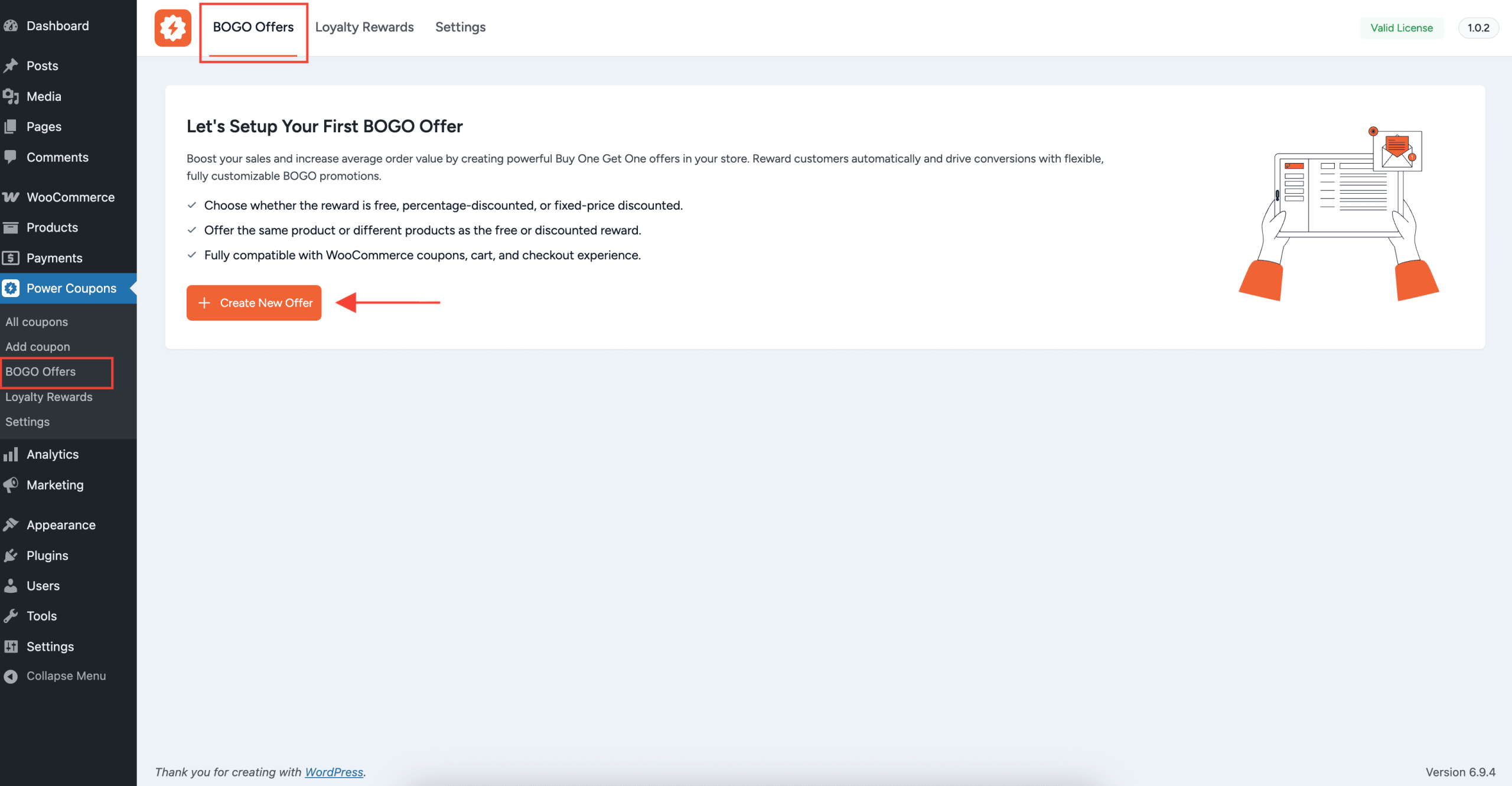
Navigate to your WordPress admin dashboard and go to:
Power Coupons → BOGO Offers
You can also access it from the top navigation tabs on the Power Coupons settings page by clicking the BOGO Offers tab.
BOGO Offer Types
When you click “+ Create New Offer”, you will see 6 pre-built offer type templates to choose from. These are divided into two categories:
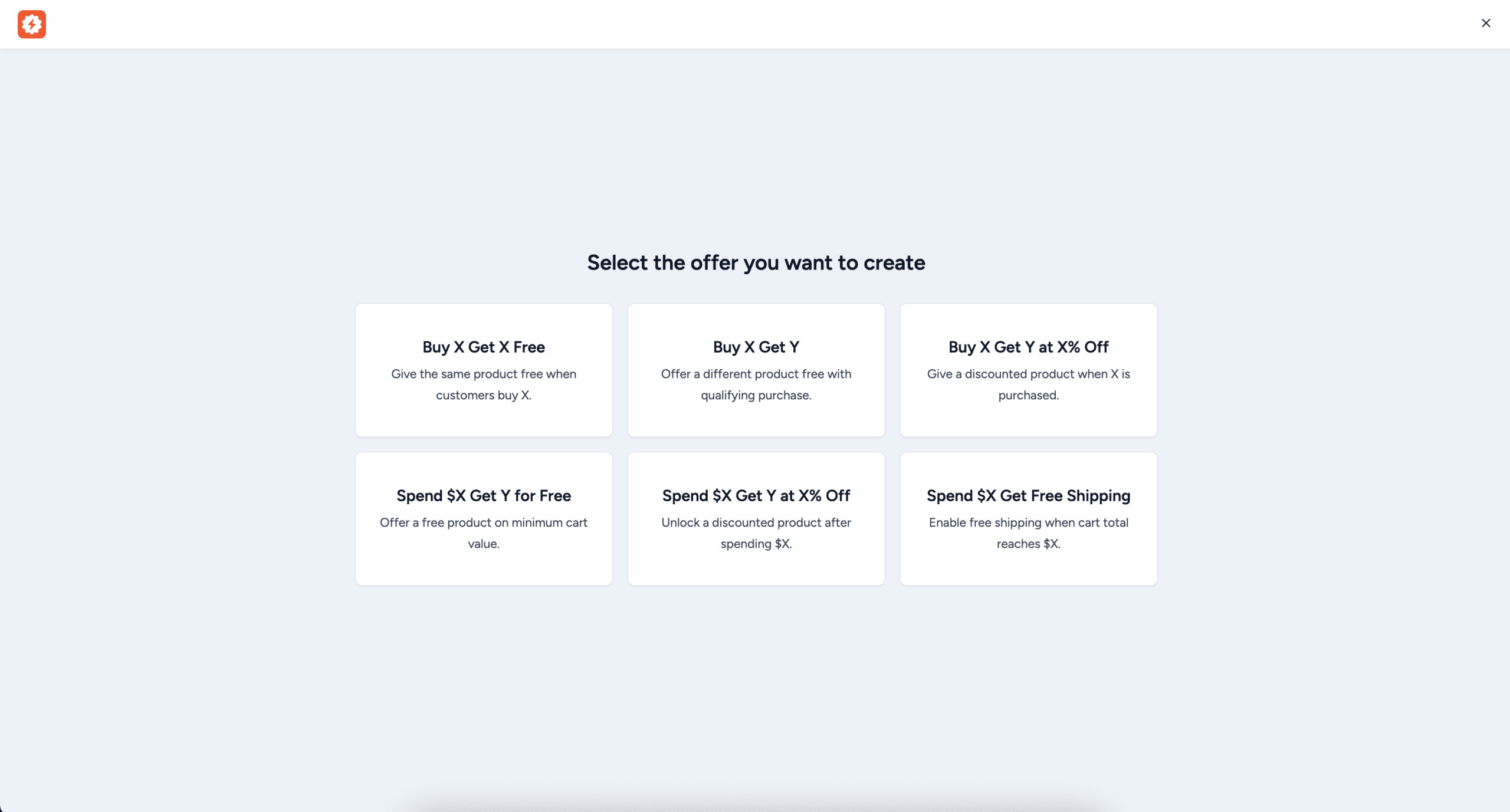
Quantity-Based Offers
These offers are triggered when the customer adds a specific number of qualifying products to their cart.
- Buy X Get X Free – Give the same product free when customers buy X quantity. For example, “Buy 2 T-shirts, get 1 T-shirt free.”
- Buy X Get Y – Offer a different product free with a qualifying purchase. For example, “Buy 3 Eggs, get 1 Honey free.”
- Buy X Get Y at X% Off – Give a discounted product when X is purchased. For example, “Buy 2 Shirts, get 1 Pair of Pants at 50% off.”
Spend-Based Offers
These offers are triggered when the customer’s cart total reaches a minimum spend amount.
- Spend $X Get Y for Free – Offer a free product when the cart reaches a minimum value. For example, “Spend $100, get a free Gift Box.”
- Spend $X Get Y at X% Off – Unlock a discounted product after spending a minimum amount. For example, “Spend $75, get a Premium Case at 30% off.”
- Spend $X Get Free Shipping – Enable free shipping when the cart total reaches a threshold. For example, “Spend $50 and get free shipping on your order.”
Creating a BOGO Offer
The offer creation process uses a multi-step wizard with 3 tabs (or 4 tabs for spend-based offers). Here is a walkthrough of each step:
Step 1: Basic Settings
After selecting an offer type, you will be taken to the Basic Settings tab.
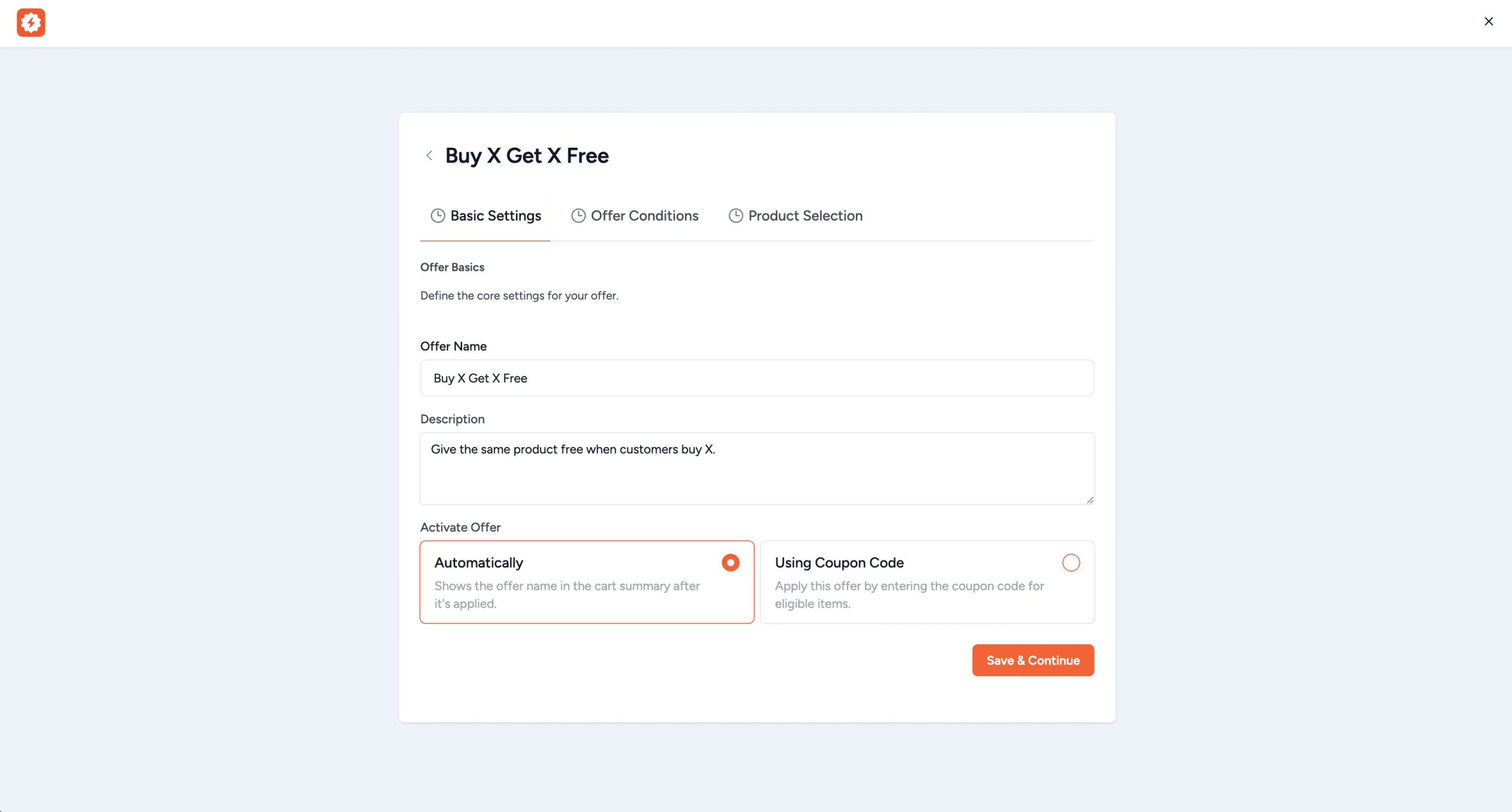
- Offer Name (Required) – A descriptive name for your offer. This name is displayed to customers in the cart summary when the offer is applied.
- Description (Optional) – An internal description to help you identify the offer’s purpose.
- Activate Offer (Required) – Choose how the offer is triggered:
- Automatically – The offer applies automatically when the customer’s cart meets the conditions. This is the default option.
- Using Coupon Code – The customer must enter a specific coupon code to activate the offer.
Click “Save & Continue” to proceed to the next step.
Step 2: Offer Conditions
This tab defines the specific conditions and discount details for your offer.
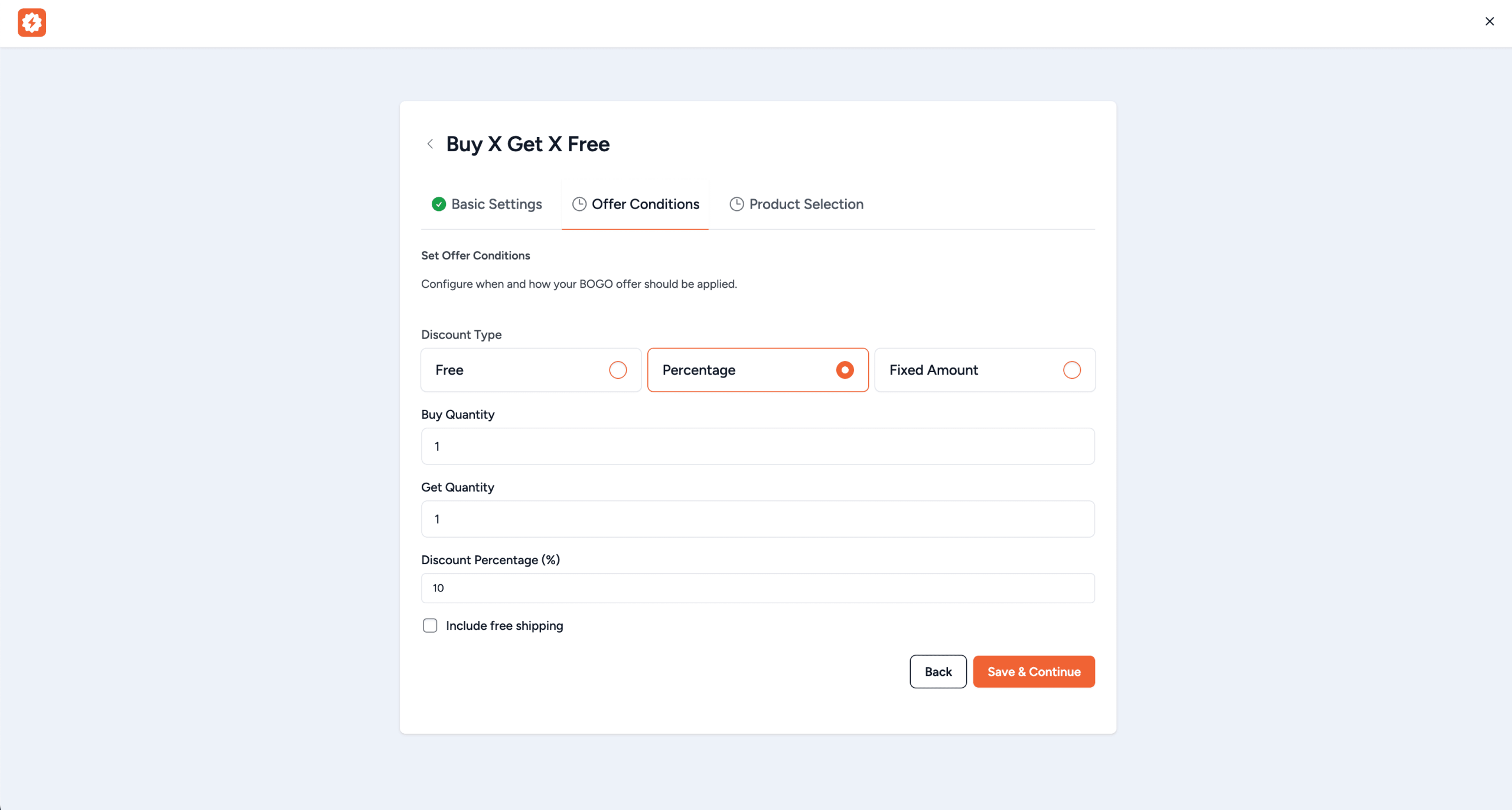
Discount Type – Choose one of three discount types:
- Free – The reward product is completely free (100% discount)
- Percentage – A percentage discount is applied to the reward product (e.g., 50% off)
- Fixed Amount – A fixed dollar amount is deducted from the reward product price (e.g., $5 off)
For Quantity-Based Offers:
- Buy Quantity – The number of qualifying products the customer must add to their cart (minimum: 1)
- Get Quantity – The number of reward products the customer will receive (minimum: 1)
For Spend-Based Offers:
- Minimum Spend Amount – The minimum cart subtotal required to trigger the offer
- Get Quantity – The number of reward products (not shown for “Spend $X Get Free Shipping”)
Additional fields:
- Discount Percentage – Shown when Discount Type is “Percentage”. Enter a value between 1–100%.
- Fixed Discount Amount – Shown when Discount Type is “Fixed Amount”.
- Include Free Shipping – An optional checkbox to add free shipping on top of the product discount.
Step 3: Product Selection
This tab lets you define which products trigger the offer and which products customers receive as rewards.
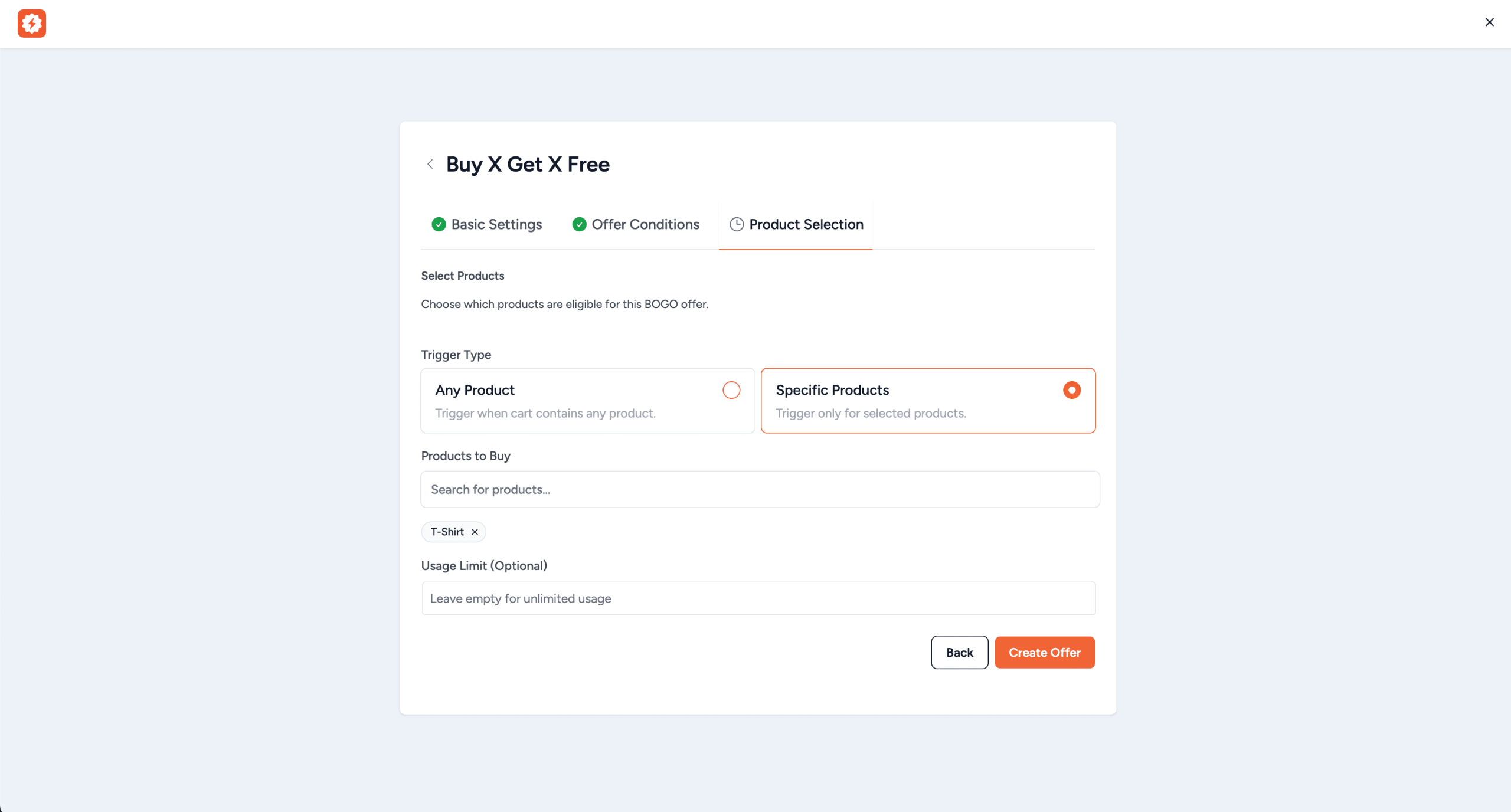
Trigger Type (Quantity-Based Offers Only):
- Any Product – The offer triggers when the cart contains any product meeting the quantity requirement.
- Specific Products – The offer only triggers when the customer buys one of the selected products.
Products to Buy – Use the searchable product selector to choose which products qualify for the offer. Type at least 3 characters to search. You can select multiple products.
Products to Get (Reward Products) – Select which products the customer will receive as their reward. This field is hidden for “Buy X Get X Free” (same product is given) and “Spend $X Get Free Shipping” (no product reward).
Usage Limit – Optionally set a maximum number of times this offer can be redeemed across all customers. Leave empty for unlimited usage.
Step 4: Cart Progress Bar (Spend-Based Offers Only)
This tab is only available for spend-based offer types. It allows you to show a progress bar on the cart/checkout page that motivates customers to spend more to unlock the offer.
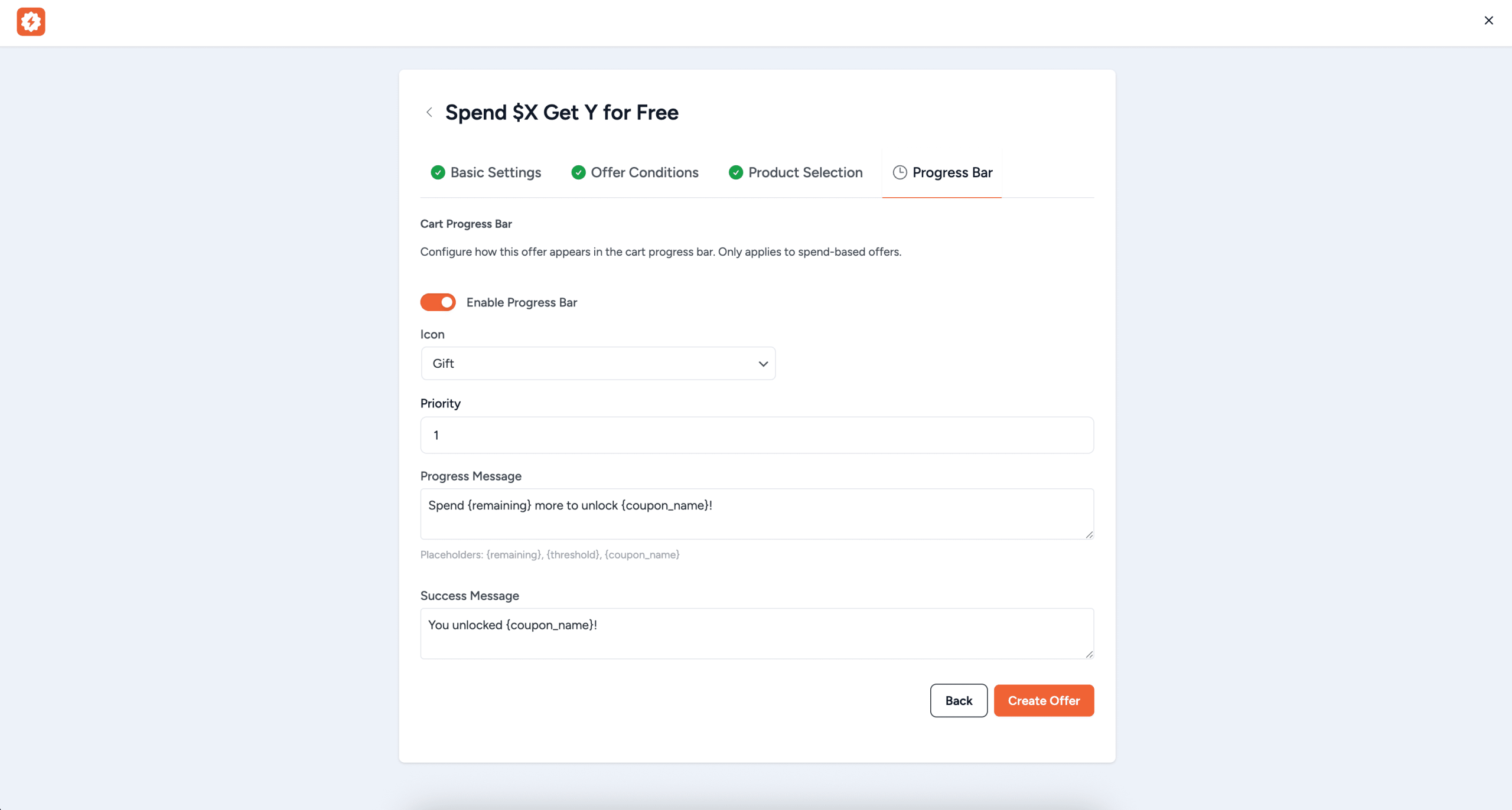
- Enable Progress Bar – Toggle to enable or disable the progress bar.
- Icon – Choose an icon: Tag, Truck, Gift, or Percent. Default: Gift.
- Priority – Display order if multiple offers have progress bars. Lower numbers display first.
- Progress Message – Message shown before reaching the threshold. Default: “Spend {remaining} more to unlock {coupon_name}!” Placeholders:
{remaining},{threshold},{coupon_name}. - Success Message – Message shown after reaching the threshold. Default: “You unlocked {coupon_name}!” Placeholders:
{remaining},{coupon_name}.
Click “Create Offer” (or “Update Offer”) to save.
Managing BOGO Offers
The main BOGO Offers page shows a table listing all your offers.
Offers Table
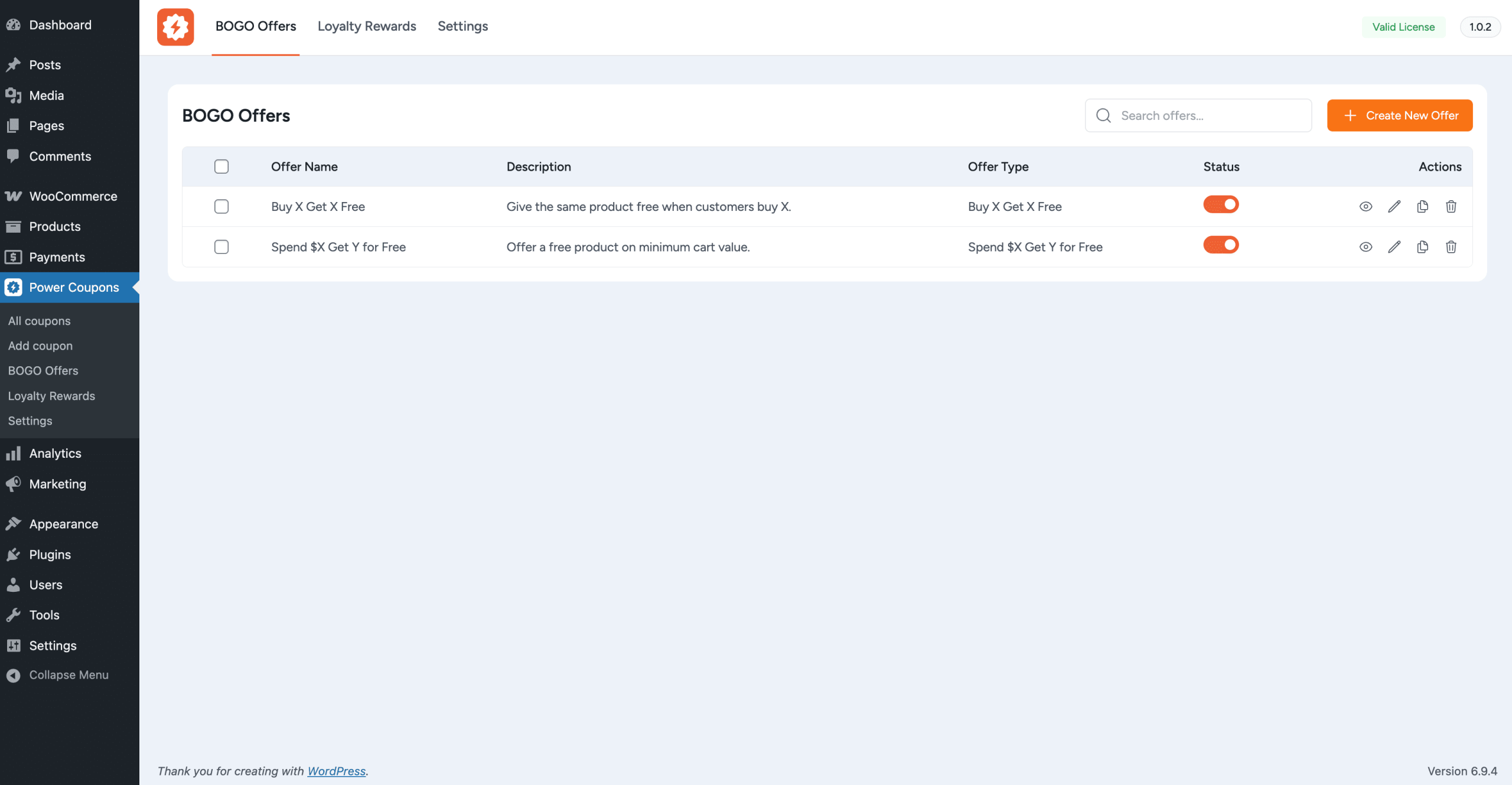
- Offer Name – Clickable to edit the offer
- Description – A truncated preview of the offer description
- Offer Type – Shows the preset type (e.g., “Buy X Get Y”) or “Custom”
- Status – Toggle switch to quickly enable or disable an offer
- Actions:
- Preview (eye icon) – View a read-only summary of the offer
- Edit (pencil icon) – Open the multi-step editor
- Clone (copy icon) – Duplicate the offer with all settings
- Delete (trash icon) – Permanently remove the offer
Search, Bulk Actions, and Status Toggle
- Use the search bar to filter offers by name or description in real time.
- Select multiple offers using checkboxes for bulk delete operations.
- Use the status toggle to quickly enable or disable any offer. Inactive offers remain in your list but won’t apply to customer carts.
Offer Preview
Click the Preview (eye) icon on any offer to see a read-only summary modal displaying:
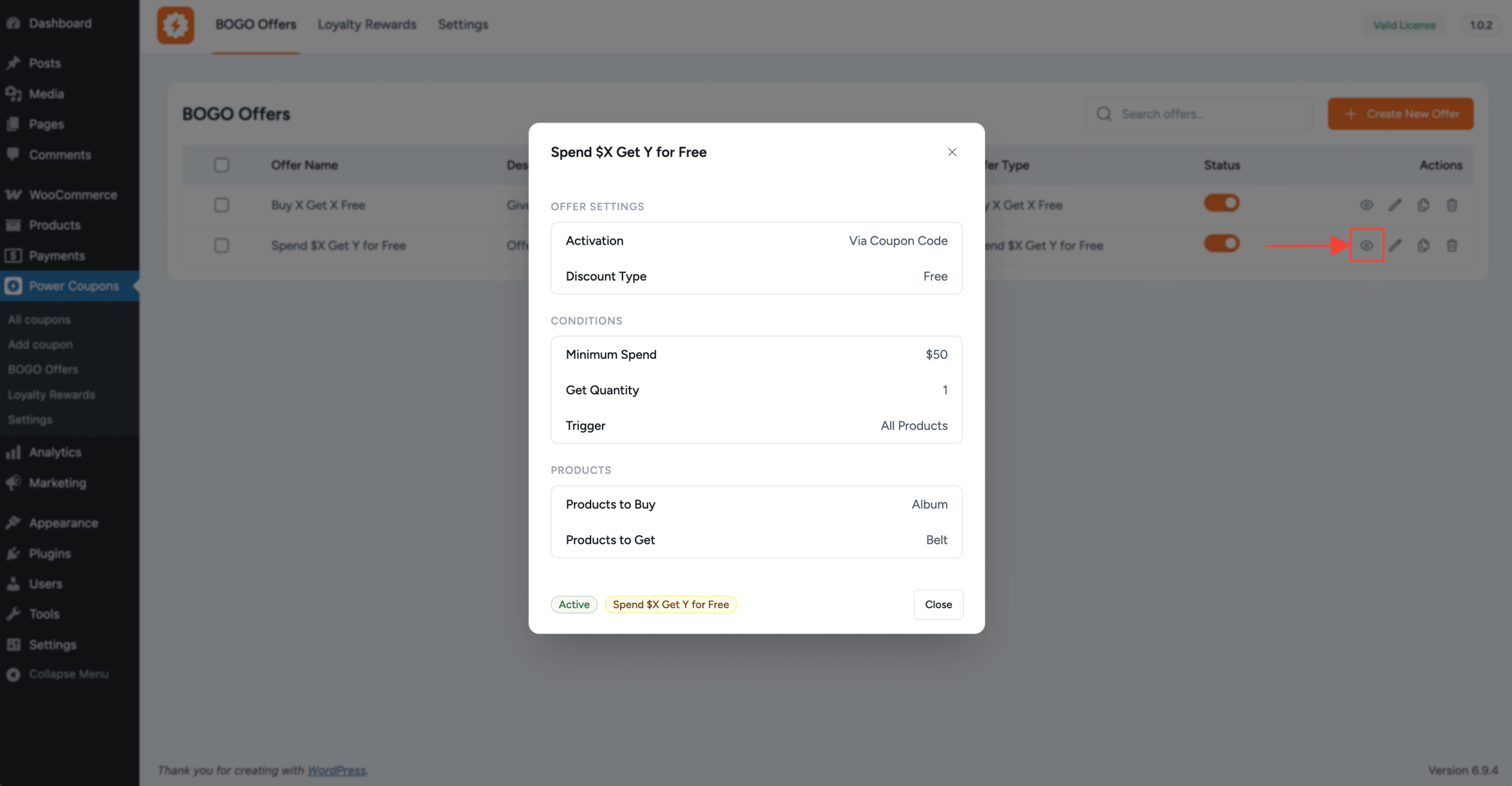
- Offer Settings – Activation method, Discount Type, Discount Value
- Conditions – Buy Quantity or Minimum Spend, Get Quantity, Trigger type
- Products – Products to Buy and Products to Get
- Status Badge – “Active” (green) or “Inactive” (gray)
- Offer Type Badge – Displays the preset type name
How BOGO Offers Work on the Frontend
Once an offer is active, here is what your customers will experience:
Cart and Checkout Notifications
When a customer’s cart meets the BOGO offer conditions, a notification appears on the cart and checkout pages:
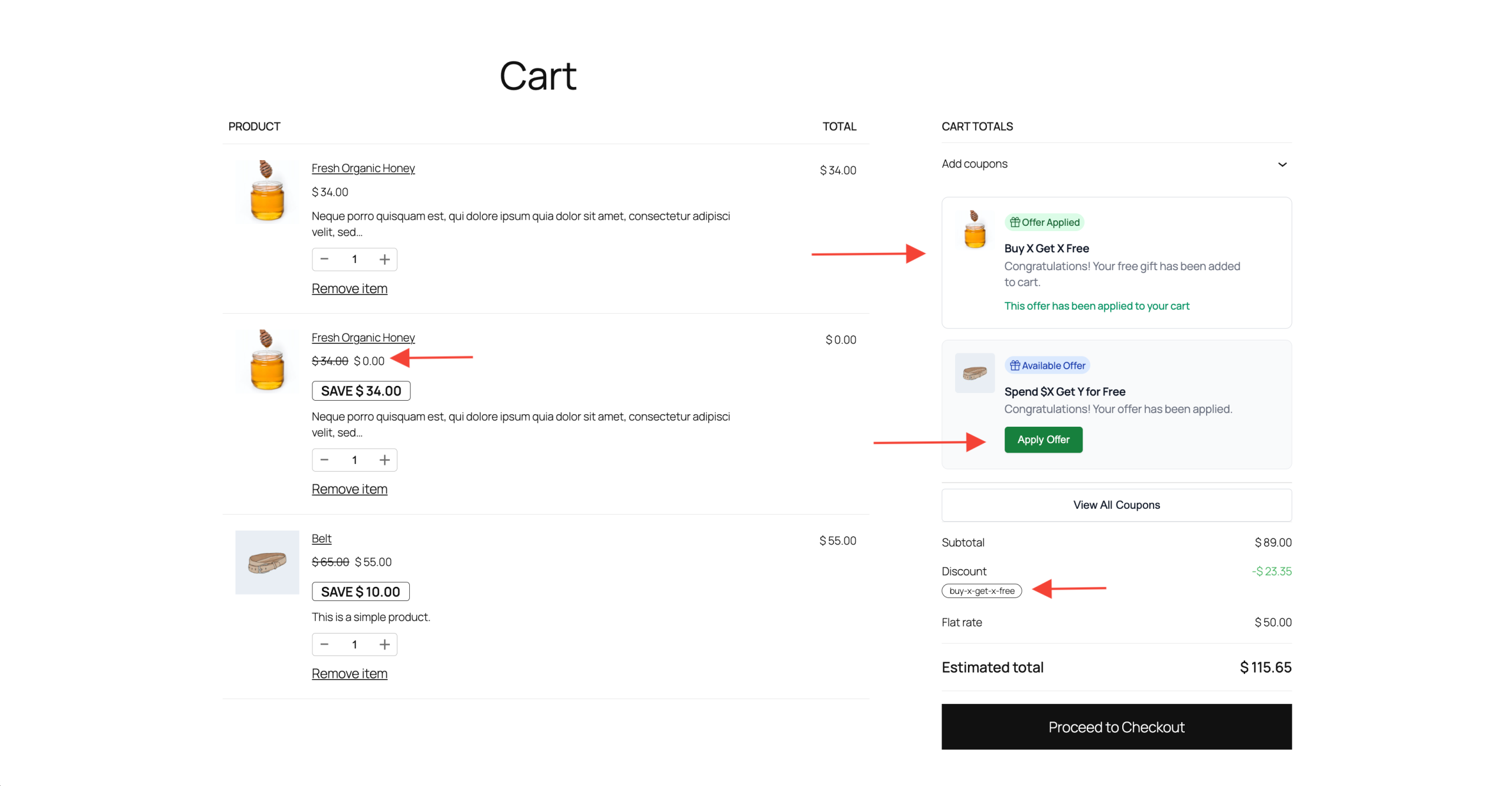
- Product image thumbnail of the reward product
- Offer name and description
- A status badge showing “Available Offer” (blue) or “Offer Applied” (green)
- An “Apply Offer” button for auto-apply offers, or instructions to enter the coupon code
- Once applied, the text changes to “This offer has been applied to your cart”
Cart Progress Bar (Spend-Based Offers)
If the Cart Progress Bar is enabled for a spend-based offer, customers see a visual progress indicator showing:
- How much more they need to spend to unlock the offer
- A progress bar that fills as the cart total increases
- The configured icon (Tag, Truck, Gift, or Percent)
- Once the threshold is reached, the Success Message is displayed
Important Notes
- BOGO offers are separate from regular coupons. They do not appear in the standard WooCommerce coupon list or the Power Coupons coupon drawer.
- Both plugins required. The free Power Coupons plugin and the Power Coupons PRO plugin must both be installed and activated.
- Offer stacking. Multiple BOGO offers can be active simultaneously. Each offer is evaluated independently.
- Coupon code mode. When “Using Coupon Code” is selected, a WooCommerce coupon is automatically created and linked to the BOGO offer.
- Usage limits. If a usage limit is set, the offer stops being available once the total redemption count reaches the limit.
- Cloning offers. Use the Clone action to quickly duplicate an existing offer and modify it for similar promotions.
Example Use Cases
Clearance Sale
Create a “Buy X Get X Free” offer targeting clearance products. Set Buy Quantity to 1 and Get Quantity to 1 so customers get a second item free when they buy one.
Cross-Sell Promotion
Use “Buy X Get Y” to offer a complementary product free. For example, buy a Phone Case and get a Screen Protector free.
Tiered Spend Incentive
Create multiple spend-based offers with different thresholds and enable the Cart Progress Bar on each. For example: Spend $50 for 10% off an accessory, Spend $100 for a free gift, Spend $150 for free shipping.
Limited-Time Free Gift
Use “Spend $X Get Y for Free” with a usage limit to offer the first 100 customers a free gift when they spend over $75.
We don't respond to the article feedback, we use it to improve our support content.