
- Hiding Fields on the Checkout Page
- Installing WooCommerce
- Using WooCommerce
- Adding Products in WooCommerce
- Using Your Theme's Header & Footer in a Step
- Embedding a Checkout Form on the CartFlows Checkout Page
- Hiding WooCommerce Pages and Products
- Using Pricing Tables
- Adding an Affiliate Program
- Setting a Funnel as the Homepage
- Dynamic Offers aka Rule Engine
- Instant Layout for Checkout and Thank You Step
- Adding Products from the URL to the Checkout Page
- Setting Up Split Testing for Steps
- Deleting Plugin Data During Uninstallation
- Importing Ready-Made Templates for Funnels and Steps
- Importing and Exporting Funnels and Step
- URL Parameters
- Replacing the Main Checkout Order with an Upsell or Downsell
- Rolling back to a Previous Version
- Google Address Autocomplete
- Flatsome UX Builder
- ActiveCampaign
- Paypal Reference Transactions
- How PaypPal/Stripe Works
- Enabling Enfold Avia Layout Builder
- Setting Up Authorize.net for Upsell & Downsell
- Supported Payment Gateways
- Setting Quantity and Discount for Products on the Checkout Page
- Adding Custom Payment Gateway Support for One-Click Upsell and Downsell
- Funnel in Test Mode
- Troubleshooting Plugin and Theme Conflicts
- Resolving the "Please Select a Simple, Virtual, and Free Product" Error
- Fixing Endless Loading on the Checkout Page
- Fixing the "We can't seem to find an order for you." Error on the Thank You Page
- Troubleshooting License Activation Issues
- Fixing the "Checkout ID Not Found" Error
- Fixing the "Session Expired" Error Message
- Resolving "Order Does Not Exist" Error on Upsell/Downsell Page
- Fixing the "Sorry, This Product Cannot Be Purchased" Error
- Disabling Auto-fill of Address Fields Based on Zip Code
- Enabling Theme's Scripts & Styles Without Changing Page Template
- Disabling Auto-fill of Checkout Fields
- Allowing Cache Plugins to Cache CartFlows Pages
- Changing the "Choose a Variation" Text
- VAT Field Not Displaying for WooCommerce EU/UK VAT Compliance Plugin
- Enabling the Product Tab on Store Checkout
- Displaying the Order Summary Open on Mobile Devices
- Refreshing the Checkout Page After CartFlows AJAX Calls
- Overview
- Installing Modern Cart Starter
- Installing Modern Cart Pro
- Activating License Key
- Customizing General Settings
- Customizing Cart Tray Labels
- Customizing Cart Icon Settings
- Customizing Cart Tray Styling
- Understanding the Product Recommendations Feature
- Controlling Product Recommendation Source for Empty Cart
How to Use Loyalty Rewards & Store Credits
The Loyalty Rewards feature in Power Coupons Pro lets you reward customers with store credits for purchases, signups, and product reviews. Customers earn credits automatically and can redeem them for discounts on future orders, driving repeat purchases and customer loyalty.
Key highlights:
- Earn credits on orders, signups, and product reviews
- Flexible earning campaigns with conditions and priority-based matching
- Two redemption modes: Full Credits and Max Limit
- Credit expiry with configurable notice period
- Frontend widgets on product, cart, checkout, and My Account pages
- Admin dashboard for campaign management, credit history, and manual adjustments
Requirements: WordPress 6.0+, WooCommerce 3.0+, Power Coupons (free) plugin installed and active, Power Coupons Pro plugin installed, active, and license activated.
Getting Started
Enabling Loyalty Rewards
- Go to Power Coupons → Settings in your WordPress admin.
- Click on the Loyalty Rewards tab (in the settings navigation).
- Under the General sub-tab, toggle Enable Loyalty Rewards to ON.
- The setting saves automatically. Once enabled, the entire credits system becomes active.
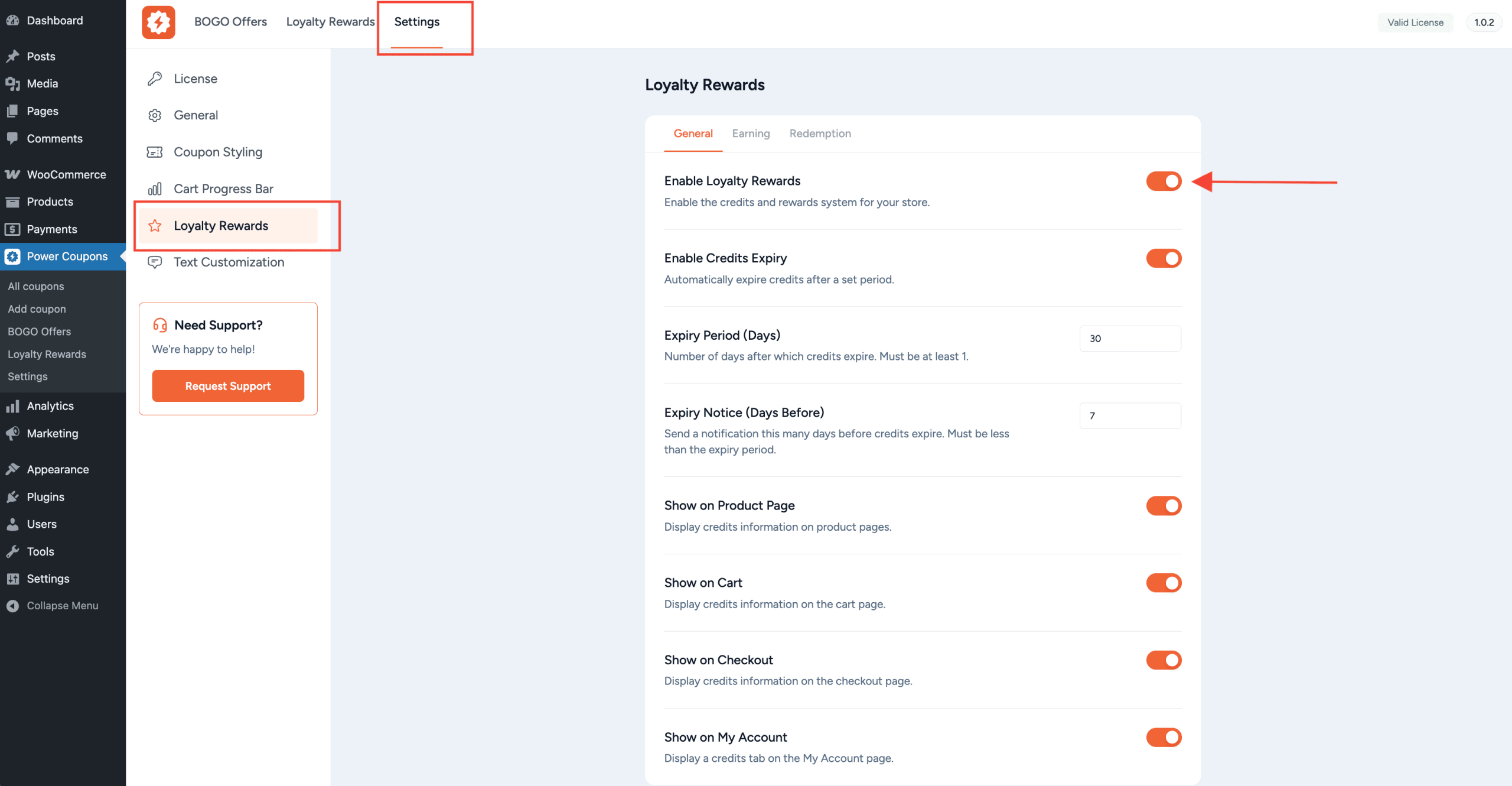
When Loyalty Rewards is disabled, all earning, redemption, and frontend displays are turned off. Customer balances are preserved and will be available when re-enabled.
Settings Overview
Loyalty Rewards settings are organized into three sub-tabs under Power Coupons → Settings → Loyalty Rewards: General, Earning, and Redemption.
General Settings
- Enable Loyalty Rewards – Master toggle for the entire feature. When OFF, no credits are earned or redeemed. Default: OFF.
- Enable Credits Expiry – When ON, earned credits expire after the configured period. Default: OFF.
- Expiry Period (Days) – Number of days after which earned credits expire. Minimum: 1. Default: 365.
- Expiry Notice (Days Before) – How many days before expiry to send a warning email to the customer. Must be less than the expiry period. Default: 30.
- Show on Product Page – Display “Earn X Credits” message on single product pages. Default: ON.
- Show on Cart Page – Display earning message and redemption widget on the cart page. Default: ON.
- Show on Checkout Page – Display earning message and redemption widget on checkout. Default: ON.
Earning Settings
- Default Earn Rate – Fallback credits per currency unit when no campaign matches. For example, 1.0 means the customer earns 1 credit per $1 spent. Default: 1.0.
- Round Credits – How to round fractional credits: Round to Nearest, Round Down (floor), or Round Up (ceil). Default: Round to Nearest.
- Earning Applies To – Calculate credits based on Subtotal (before tax and shipping) or Total (after tax and shipping). Default: Subtotal.
- Exclude Sale Items – When ON, products on sale do not earn credits. Default: OFF.
- Exclude Couponed Orders – When ON, orders that use a coupon do not earn credits (unless the coupon has a custom earning override). Default: OFF.
Redemption Settings
- Redemption Mode – Choose how customers redeem credits:
- Full Credits – Customers must redeem their entire credit balance at once.
- Max Limit – Customers can choose how many credits to redeem, up to a maximum cap.
- Max Credits per Order – Cap per order when using Max Limit mode. Set to 0 for no limit. Default: 0.
- Redemption Ratio – How many credits equal $1 of discount. Example: 100 means 100 credits = $1 discount. Default: 100.
- Maximum Discount Type – Cap the discount from credits: No Limit, Fixed Amount, or Percentage of Cart Total. Default: No Limit.
- Maximum Discount Value – The limit amount (when type is Fixed or Percentage). Set to 0 for no limit. Default: 0.
- Combine with Coupons – Allow credits to be used alongside regular WooCommerce coupons. When OFF, customers must choose one or the other. Default: ON.
Earning Campaigns
Campaigns define how and when customers earn credits. You can create multiple campaigns with different rules, and the system automatically picks the best-matching one based on priority.
Accessing Campaigns
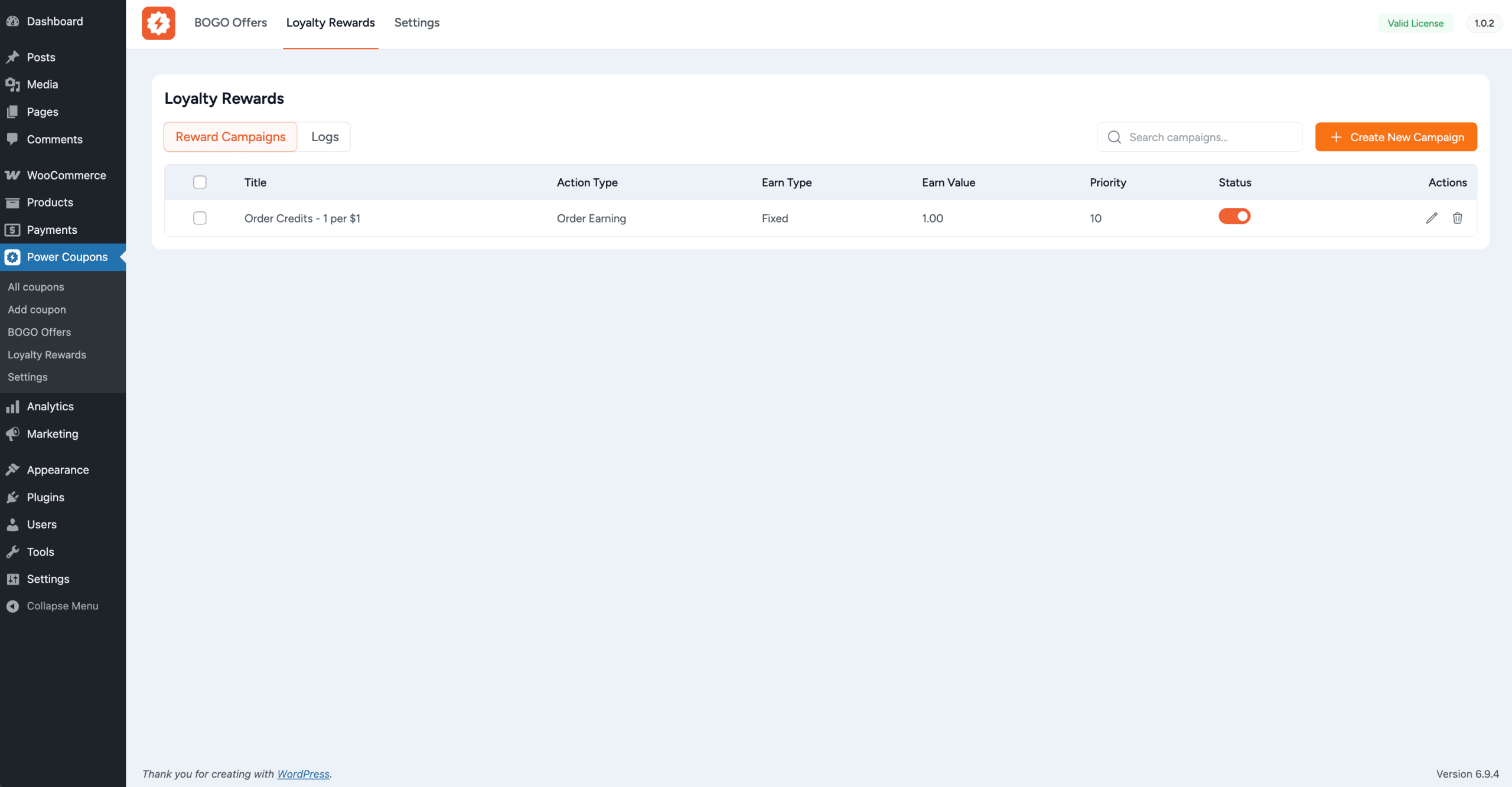
Go to Power Coupons → Loyalty Rewards in the WordPress admin sidebar. This opens the campaigns management page.
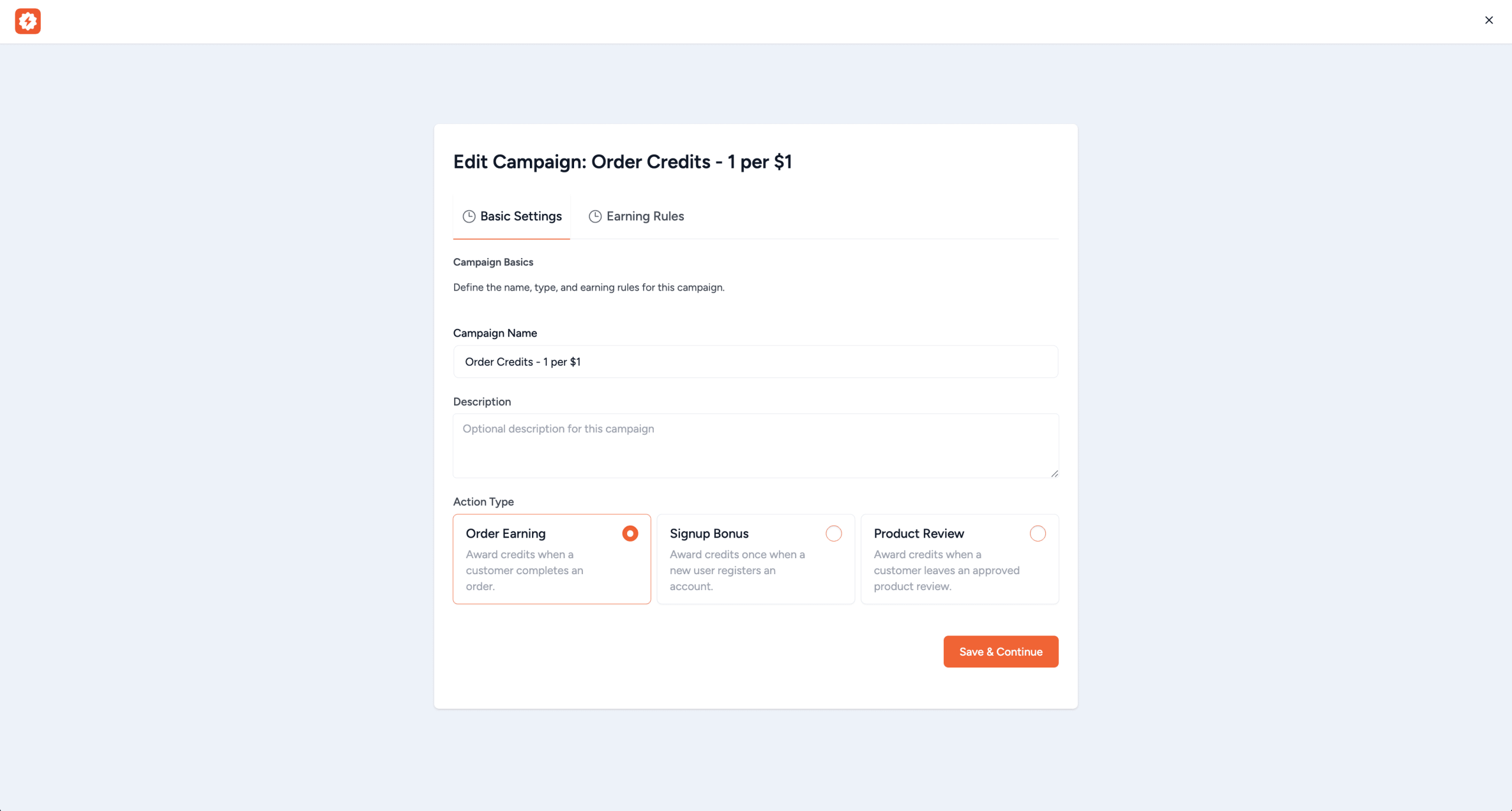
Campaign Types (Action Types)
- Order Earning – Credits based on order amount. Most common type. Supports fixed, per-currency, and percentage earn types.
- Signup Bonus – One-time fixed credit bonus when a new customer creates an account.
- Product Review – Credits awarded when a customer’s product review is approved by admin. Each product can only earn review credits once per customer.
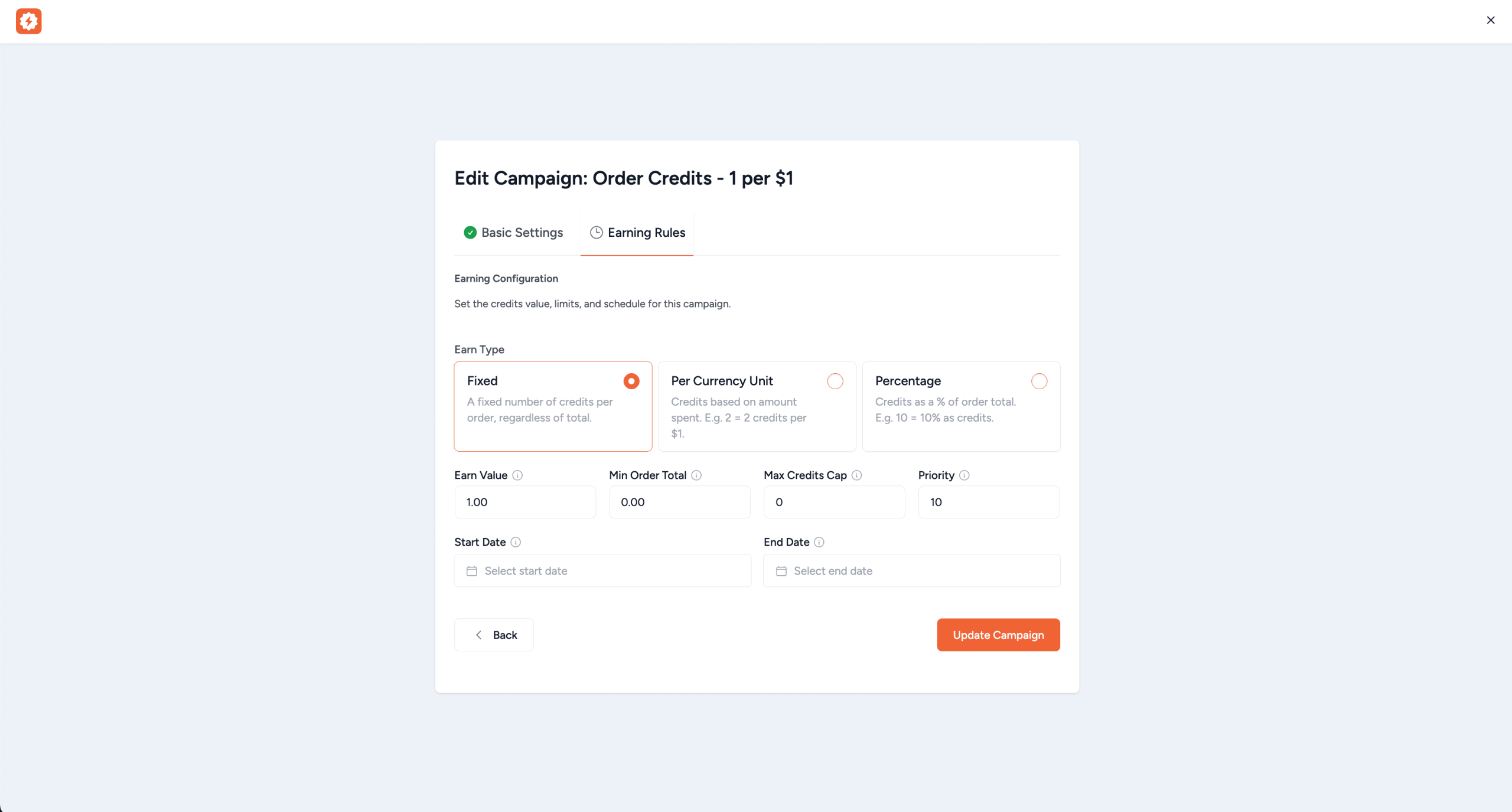
Earn Types (for Order Earning Campaigns)
When the action type is Order Earning, you choose how credits are calculated:
- Fixed – A flat number of credits per order, regardless of order total. Example: Earn Value = 50 → Customer gets 50 credits on every qualifying order.
- Per Currency Unit – Credits multiplied by the order amount. Example: Earn Value = 2 → A $75 order earns 150 credits (75 x 2).
- Percentage – Credits as a percentage of the order amount. Example: Earn Value = 10 → A $75 order earns 7.5 credits (10% of 75).
Campaign Conditions
Campaigns can have optional conditions to control when they apply:
- Minimum Order Amount – The order must meet a minimum subtotal/total.
- Maximum Order Amount – The order must not exceed this amount.
- Specific Products – Only orders containing specific products qualify.
- Specific Categories – Only orders containing products from specific categories qualify.
- User Roles – Only specific user roles (e.g., Wholesale, VIP) qualify.
Campaign Fields Reference
- Campaign Name – A descriptive name for the campaign (e.g., “Double Credits on Electronics”).
- Action Type – Order Earning, Signup Bonus, or Product Review.
- Earn Type – Fixed, Per Currency Unit, or Percentage (for Order Earning only).
- Earn Value – The numeric value used for credit calculation.
- Priority – When multiple campaigns match, the one with the highest priority (lowest number) wins. Default: 10.
- Status – Active or Inactive. Inactive campaigns are ignored during matching.
How Campaign Matching Works
When an order is completed, the system evaluates all active campaigns in priority order (lowest number first). The first campaign whose conditions match the order is used. If no campaign matches, the Default Earn Rate from Earning Settings is used as a fallback.
How Credits Are Earned
Order Earning Flow
- Customer places an order.
- When the order status changes to Completed, the system evaluates active campaigns.
- The best-matching campaign (by priority) determines the credit amount.
- Credits are added to the customer’s balance.
- A log entry is created in the credit history.
What happens if an order is refunded? If an order is fully or partially refunded, the credits earned from that order are automatically deducted from the customer’s balance. A “Pending Refund” entry appears in the credit history until the refund is processed.
Signup Bonus
When a Signup Bonus campaign is active, new customers who create an account receive a one-time fixed credit bonus. The bonus is awarded immediately upon registration.
Product Review Credits
When a Product Review campaign is active, customers earn credits when their product review is approved by an admin. Each product can only earn review credits once per customer to prevent abuse.
Coupon Overrides on Earning
Individual WooCommerce coupons can override the default earning behavior. When editing a coupon, you can set a custom earning rate that applies when that coupon is used, even if “Exclude Couponed Orders” is enabled in settings.
Credit Redemption
Customers can redeem their earned credits for discounts on future orders. The redemption widget appears on the cart and checkout pages (when enabled in General Settings).
Full Credits Mode
In this mode, customers redeem their entire credit balance at once. A single “Apply Credits” button is shown. The discount is calculated as: Credits ÷ Redemption Ratio = Discount Amount.
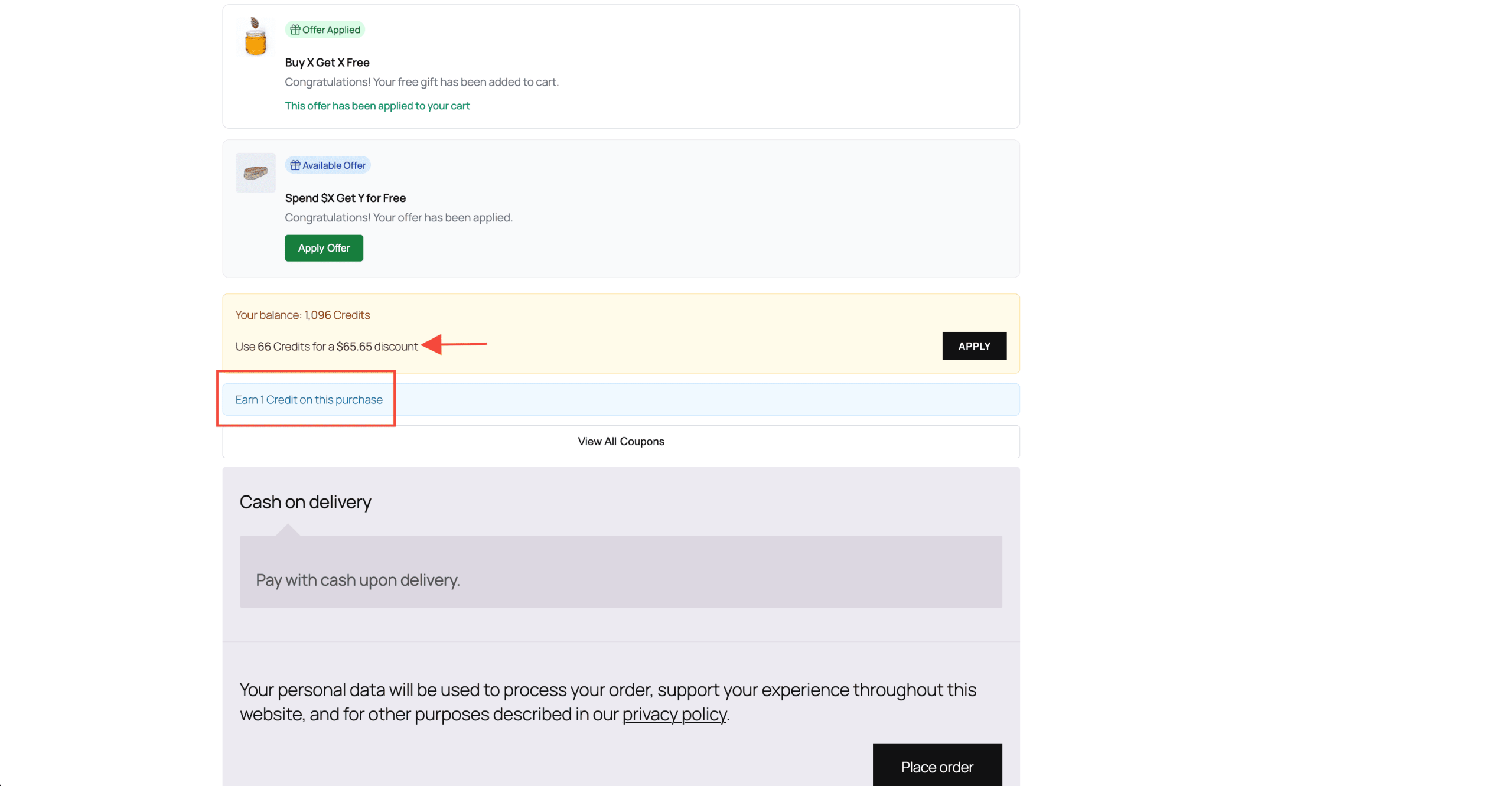
Max Limit Mode
In this mode, customers can choose how many credits to redeem via an input field, up to the configured maximum. This gives customers flexibility to save credits for larger purchases.
Frontend Display
Loyalty Rewards adds several customer-facing elements throughout your store:
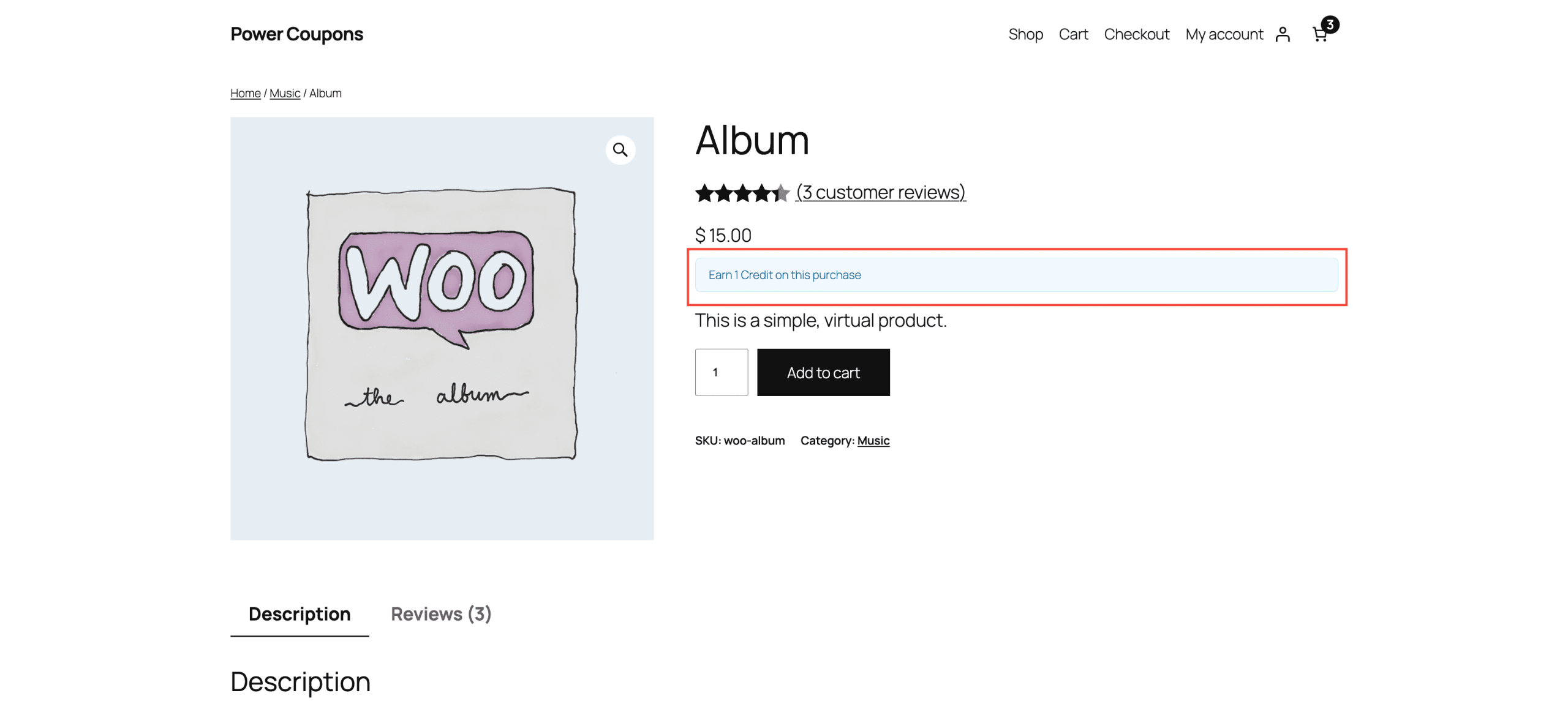
Product Page
Shows an “Earn X Credits” message on single product pages, letting customers know how many credits they’ll earn by purchasing the product.
Cart Page
Displays the earning message (how many credits will be earned for the current cart) and the credit redemption widget where customers can apply their credits.
Checkout Page
Same as the cart page – shows earning information and the redemption widget for applying credits at checkout.
Thank You / Order Confirmation
After a successful purchase, the order confirmation page shows how many credits were earned from the order.
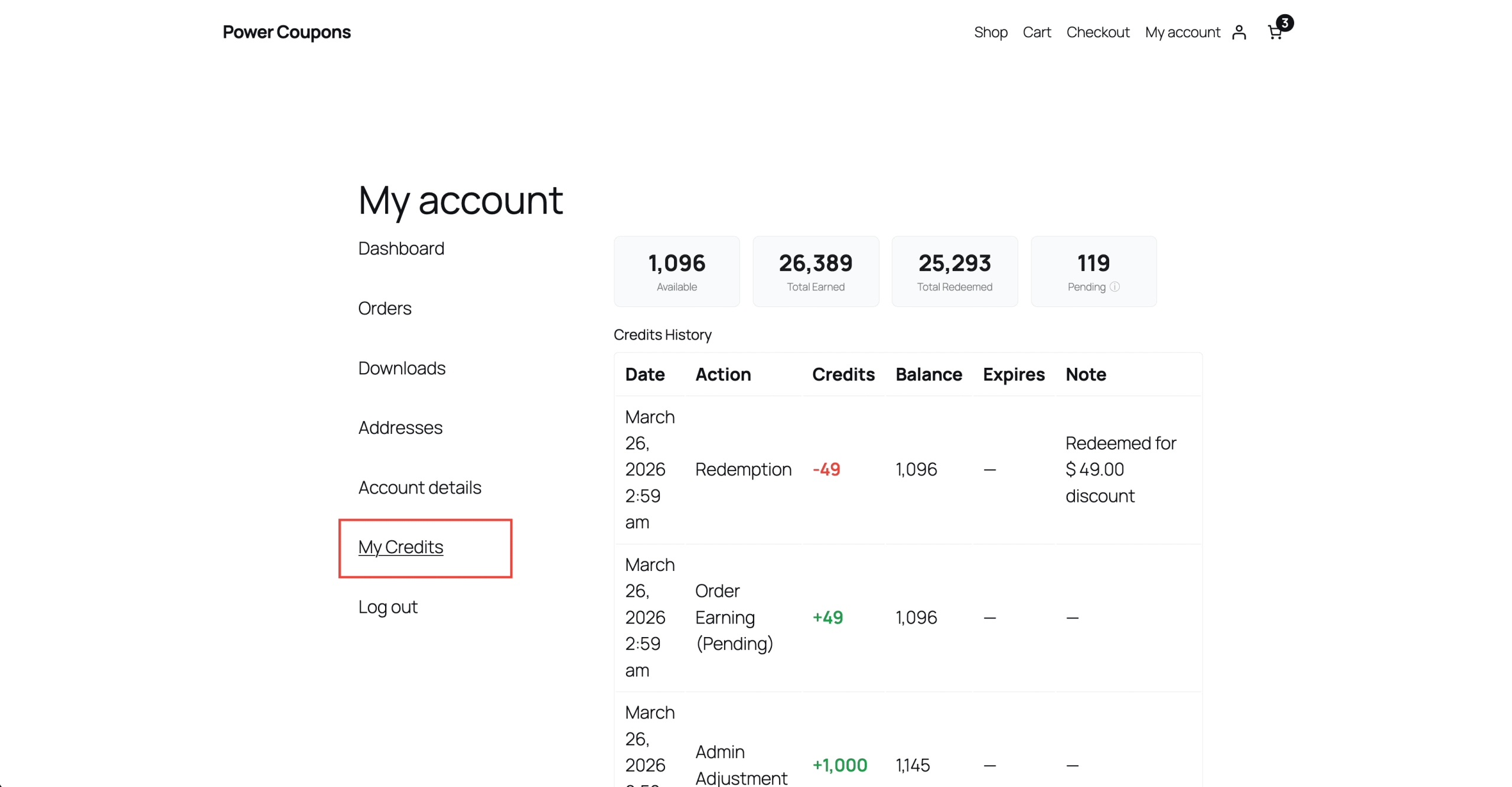
My Account → My Credits
A dedicated “My Credits” tab is added to the WooCommerce My Account page, featuring:
- Summary Cards – Show the customer’s total credit balance, total earned, total redeemed, and credits expiring soon.
- Credit History Table – A detailed log of all credit transactions (earned, redeemed, expired, adjusted) with dates, amounts, and notes.
Email Notifications
The system sends email notifications for credit-related events, including credits earned on order completion and credit expiry warnings (sent the configured number of days before expiry).
Admin Management
Campaigns List
The Power Coupons → Loyalty Rewards page shows all campaigns in a table with columns for Campaign Name, Action Type, Earn Type, Earn Value, Priority, Status, and Actions (Edit, Clone, Delete). You can toggle campaigns active/inactive with the status switch.
Credits History / Logs
The Logs page provides a complete audit trail of all credit transactions across all customers. Each entry shows the customer, transaction type (earned, redeemed, expired, adjusted), amount, date, and related order or campaign.
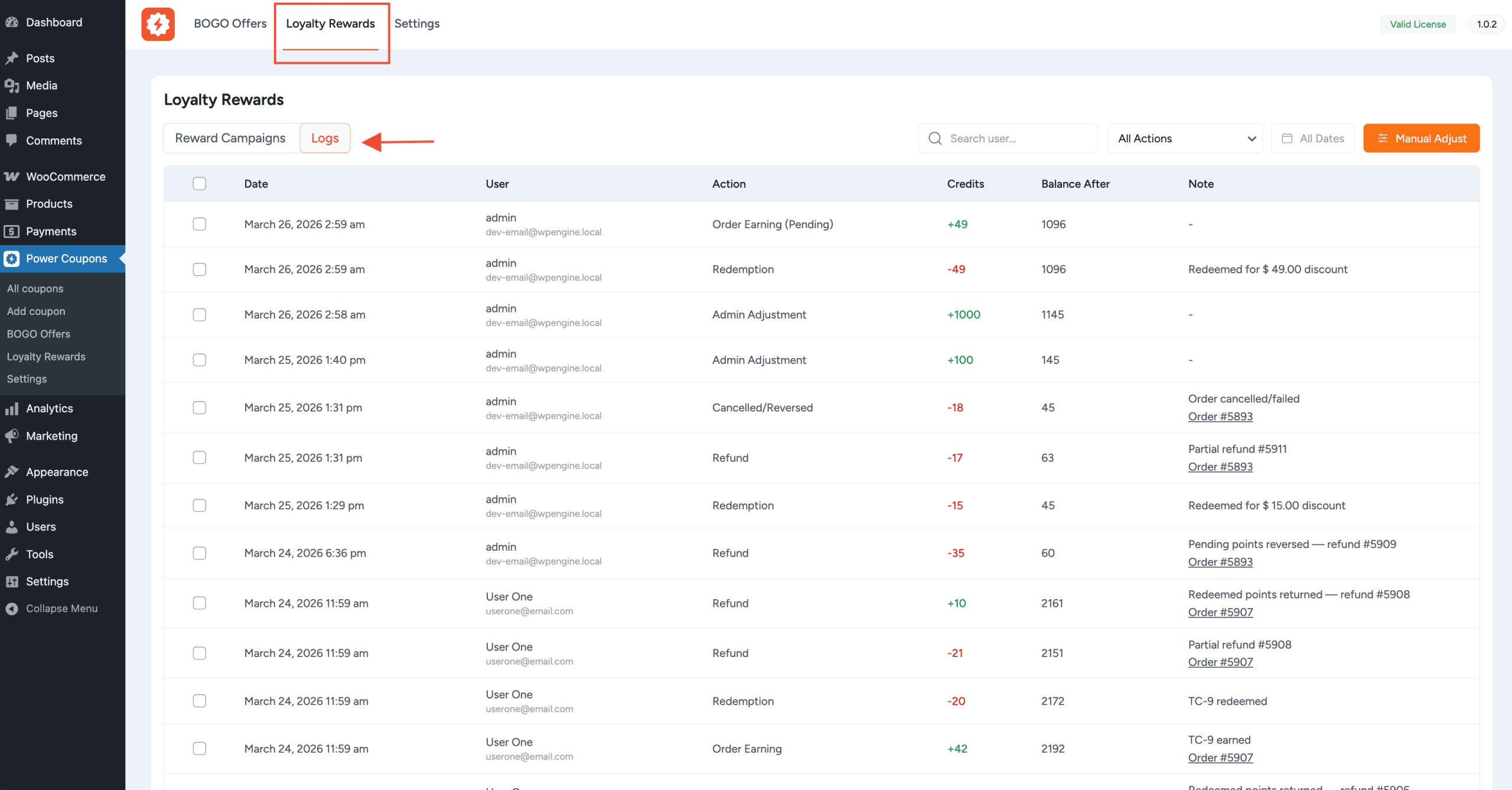
Filtering the Logs: You can filter the log by date range, customer, transaction type, and campaign to quickly find specific entries.
Manual Credit Adjustments
Admins can manually add or deduct credits from any customer’s balance. This is useful for:
- Compensating a customer for a service issue
- Running a special promotion with bonus credits
- Correcting an error in earned credits
Manual adjustments are logged in the credit history with an “Adjustment” type and an optional admin note.
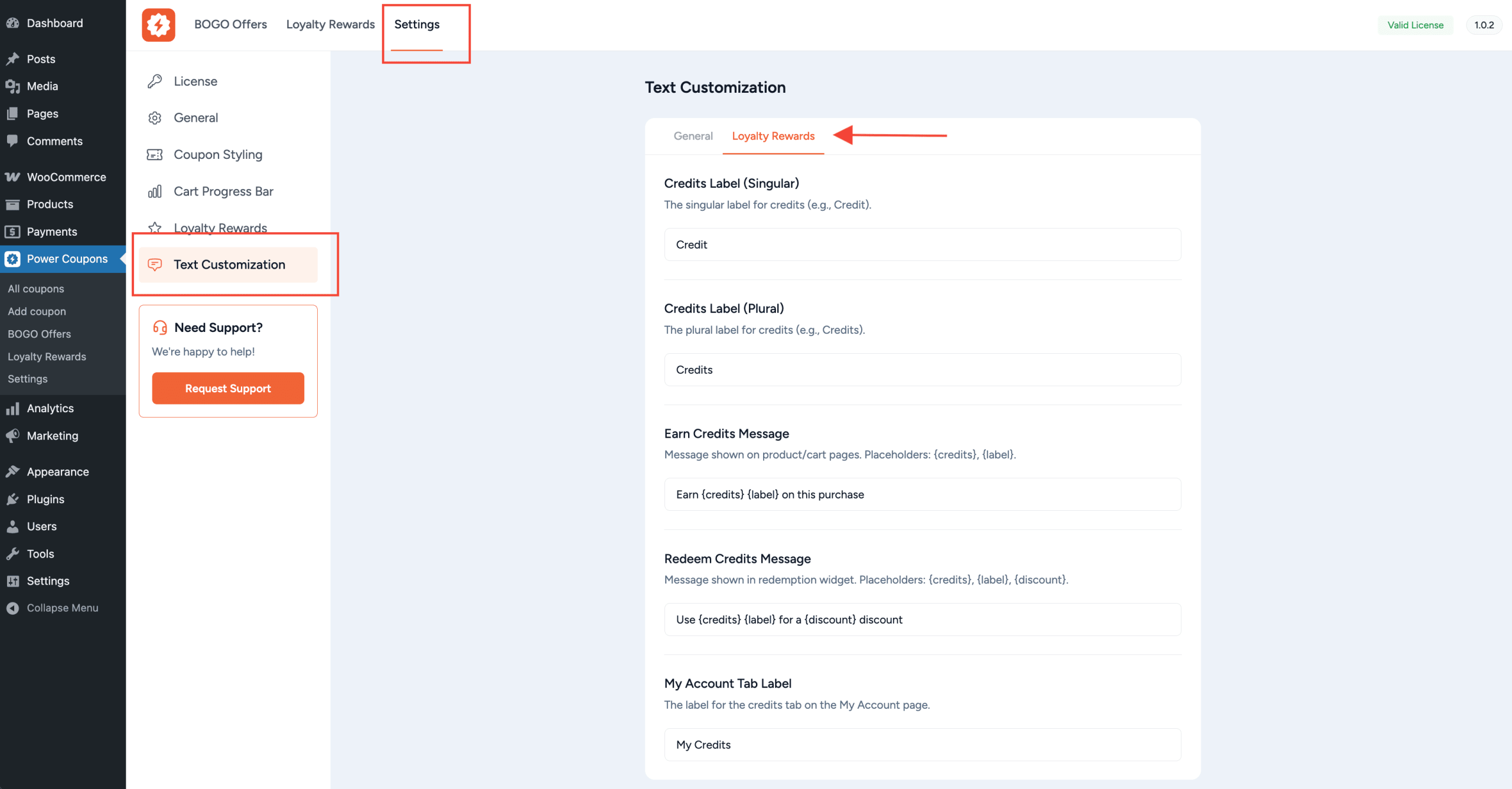
Text Customization
All customer-facing text strings can be customized under Power Coupons → Settings → Text Customization → Loyalty Rewards sub-tab.
Available Customizations
- Product page earning message
- Cart/Checkout earning message
- Redemption widget labels and button text
- My Account credits page headings
- Order confirmation earning message
Placeholder Reference
The following placeholders can be used in text customization fields:
{credits}– The number of credits (earned or available){credits_value}– The monetary value of the credits{balance}– The customer’s current credit balance{expiry_date}– The date when credits will expire
Example Setups
Example 1: Simple Loyalty Program
A straightforward setup where every customer earns credits on every order:
- Enable Loyalty Rewards in General Settings.
- Set the Default Earn Rate to 1.0 (1 credit per $1 spent).
- Set the Redemption Ratio to 100 (100 credits = $1 discount).
- Use Full Credits redemption mode for simplicity.
- Enable display on Product, Cart, and Checkout pages.
Result: A customer who spends $100 earns 100 credits, which they can redeem for a $1 discount on their next order.
Example 2: Tiered Earning with Signup Bonus
A more advanced setup with multiple campaigns:
- Create a Signup Bonus campaign: 500 credits for new registrations.
- Create an Order Earning campaign for orders over $100: Per Currency Unit, Earn Value = 3 (triple credits), Priority = 1.
- Create a default Order Earning campaign with no conditions: Per Currency Unit, Earn Value = 1, Priority = 10.
- Create a Product Review campaign: 50 credits per approved review.
- Set Redemption Mode to Max Limit with Max Credits per Order = 500.
Result: New customers get 500 bonus credits. Orders over $100 earn triple credits. All other orders earn standard credits. Customers can also earn 50 credits per product review. They can redeem up to 500 credits per order.
We don't respond to the article feedback, we use it to improve our support content.