Digital Marketing Guide Funnel Template

What's included — 2 connected steps
- 1
 CheckoutOne-page order form
 - 2
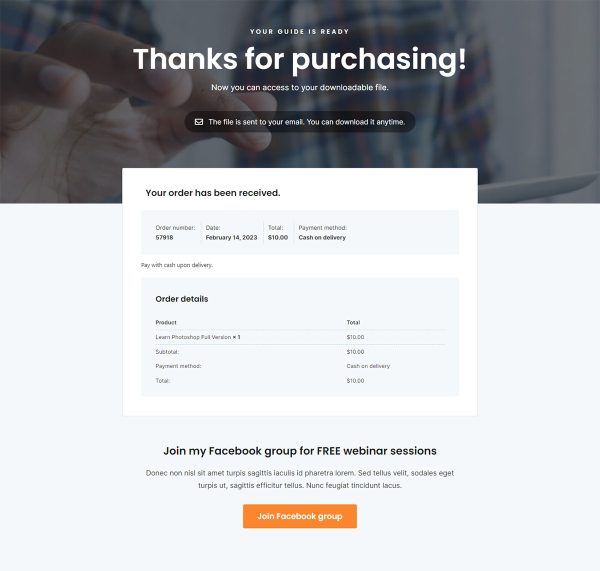
 Thank YouConfirmation & next step

About this funnel
This digital marketing guide checkout template runs two steps: one page that carries the whole sale, with the pitch, the proof and the billing form underneath, then a thank you page. Both are finished and the form is wired through, so you supply the product, the images and the words. It is shaped for an impulse buy that cannot survive an extra click.
Who it’s for
- Solo educators selling a PDF, playbook or swipe file at an impulse price
- Marketers running cold traffic where every extra click costs conversions
- Anyone whose product needs no demo or sales call
Star ratings and a review count sit in the first screenful, beside the “Take me to the guide” button. Proof lands before the copy has asked anyone for trust.
Five “Get the guide now” buttons then repeat between the proof blocks. Whichever block convinces a reader, the payment form is one jump away.
The checkout section is headed “Get your digital marketing guide today”. Its order summary sits beside the billing fields, so the total never surprises.
Nothing on the page links out. Thomas G. Smith and the four key secrets are demo content.
The pitch half does the persuading, which is where a playbook, swipe file or short PDF fits: someone sold by the four secrets scrolls straight into the billing fields. The payment half then closes the sale on the same URL, so cold traffic never gets a second page to abandon, and the thank you page confirms the order once payment clears.
Point the checkout at your WooCommerce product, then edit the hero, cover art, secrets list and author block. Turn shipping fields off if the product is a download.
Any WooCommerce gateway works here. Moving a block, cutting one or adding another runs to about one click in the builder.
How to Use This Funnel
- Install the free CartFlows plugin from the WordPress plugin directory.
- Go to CartFlows → Funnels and click Add New Funnel.
- Search the library for this funnel, then hover it and choose View All Steps.
- Click Import This Funnel and give it a name.
- Wait for the import to finish, then edit each step in your page builder.
- Assign your WooCommerce product on the checkout step and you are ready to sell.