




A shopper adds a $38 item to their cart and heads for checkout. Nothing on the page gives them a reason to slow down, so they check out at $38.
Run the same cart with one change. A bar sits at the top of the cart reading “You’re $12 away from free shipping!” The shopper adds a $15 item and crosses the line.
That’s $15 more in the order, and the free shipping you handed over was already sitting in your WooCommerce settings, available to anyone who happened to spend enough.
Most WooCommerce stores already offer free shipping over some amount. Far fewer show the shopper how close they are to it, which is the only part that changes behavior.
There are two ways to add one: a free plugin with a toggle, or a custom code snippet. We’ll cover both below.
Harder question, and almost nothing written about free shipping bars touches it: what number should the threshold actually be? Set it wrong and the bar either does nothing or quietly costs you money on every order it touches. We give it its own section below.
| Method | Setup effort | Free | Auto-updates with cart | Best for |
|---|---|---|---|---|
| Plugin (Method 1) | Low | Yes | Yes | Most stores |
| Code snippet (Method 2) | High | Yes | Not without extra JavaScript | Developers with a fixed layout |
Quick answer: To add a free shipping bar in WooCommerce, first configure Free Shipping as a shipping method with a minimum order amount under WooCommerce > Settings > Shipping. Then install a cart plugin that supports a progress bar (Modern Cart Starter is free) and enable it under WooCommerce > Modern Cart > General > Enable Free Shipping Bar. WooCommerce core has no built-in progress bar, so this requires either a plugin or custom code. Set the threshold above your average order value, close enough that adding one typical item closes the gap.
What Is a Free Shipping Bar in WooCommerce?
A free shipping bar, also called a free shipping progress bar, is a cart element that shows shoppers how much more they need to spend to qualify for free shipping, and updates the remaining amount as items are added or removed.
Most stores run a line of text in the footer instead, or a homepage banner reading “free shipping over $50.” That works only if the shopper remembers the number, tracks their own running total, and does the subtraction while deciding whether to add something else. Most people do none of that.
A progress bar puts the number in front of them at the moment they are deciding, which is the only moment it can change anything.
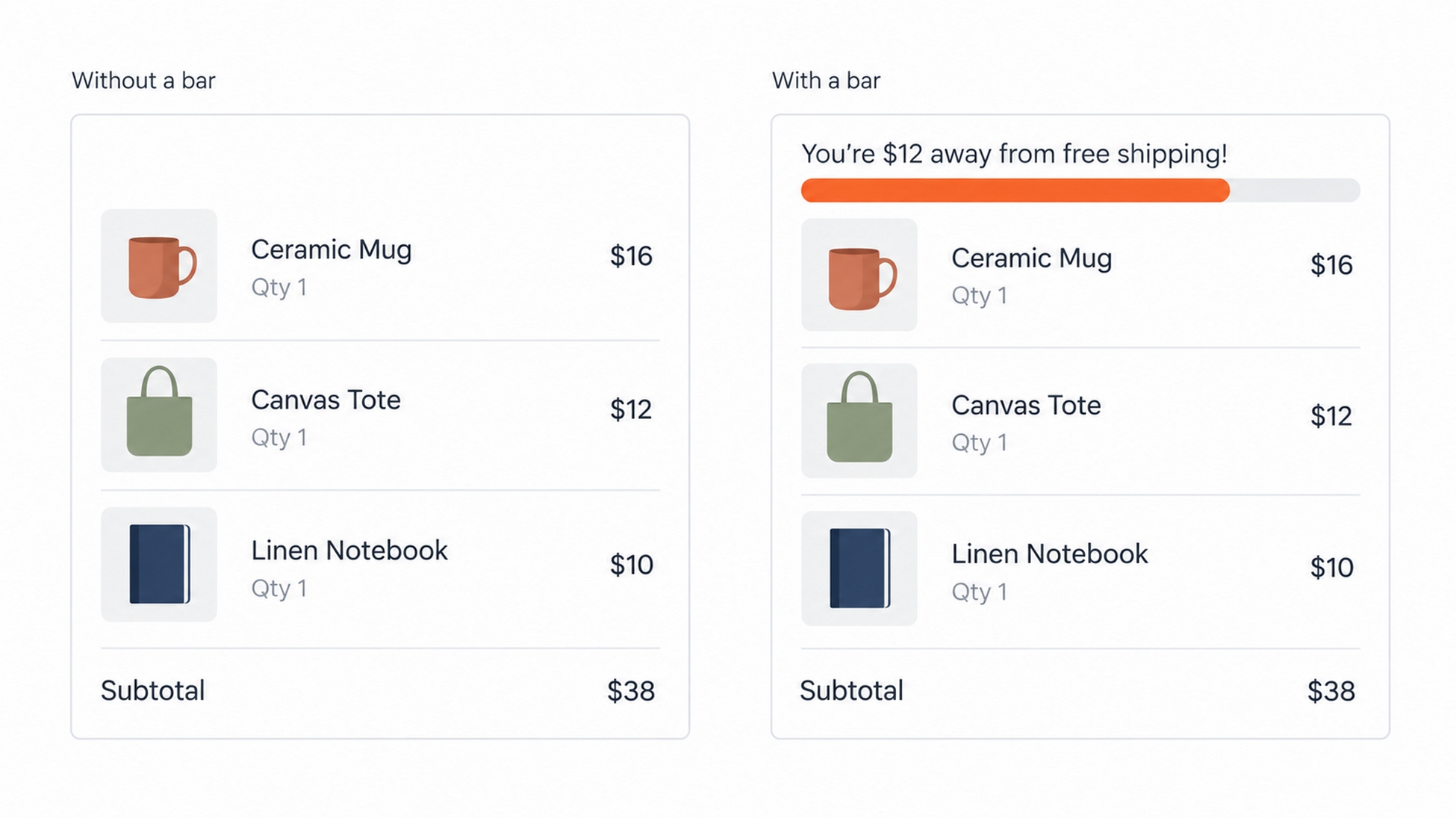
Let’s separate two things that often get discussed as one. The shipping threshold is a WooCommerce setting that decides who qualifies. The bar is a display element that tells the shopper where they stand. You can have the first without the second, and most stores do. That’s the gap this guide closes.
Why Doesn’t WooCommerce Show a Free Shipping Bar by Default?
WooCommerce ships with a complete free shipping method. You can add it to a shipping zone, require a minimum order amount, require a coupon, or both.
What it doesn’t do is tell the customer any of that.
Your threshold lives in the settings and nowhere in the shopper’s experience. A customer at $38 against a $50 threshold sees no indication that $12 separates them from free shipping. They pay shipping, or they abandon over it, and the setting you configured never enters their decision.
Shipping cost is the single largest fixable driver of cart abandonment. Baymard Institute’s checkout research finds that extra charges including shipping, taxes, and fees are the leading reason shoppers abandon, cited by 39% of users in their survey. Our own cart and checkout abandonment statistics roundup collects further figures if you want the wider picture.
For this guide the point is narrower: a threshold the shopper can’t see can’t influence what they do.
Displaying it requires either a plugin that reads the WooCommerce threshold and renders a bar, or code that does the same thing by hand.
Method 1: Add a Free Shipping Bar With a Free Plugin
Modern Cart replaces the default WooCommerce cart with a slide-out cart, and includes a free shipping progress bar in its free version. There’s no code involved and nothing to purchase to use this feature.
Want to see it working before installing anything? There’s a demo store at try.new/modern-cart running Modern Cart Pro, so you can add items and watch the bar update in a real cart. Since it’s the Pro build, some of what you see there, product recommendations in particular, isn’t in the free version. The free shipping bar is.
One thing we’d flag before you install: Modern Cart’s bar appears inside the cart tray, at the top of the slide-out. It’s not a sitewide announcement bar. If what you want is a strip across the top of every page on your store, including the homepage and product pages, that’s a different kind of tool and this isn’t it. If you want the number in front of shoppers at the moment they’re reviewing their cart, this is the right place for it.
Step 1: Configure Free Shipping in WooCommerce First
Modern Cart reads the threshold straight out of WooCommerce. With no free shipping method configured it has nothing to measure, and the bar stays hidden even with the toggle on.
Go to WooCommerce > Settings > Shipping. Add or edit a shipping zone, add Free Shipping as a method, and set it to require a minimum order amount. Enter your threshold, then save.
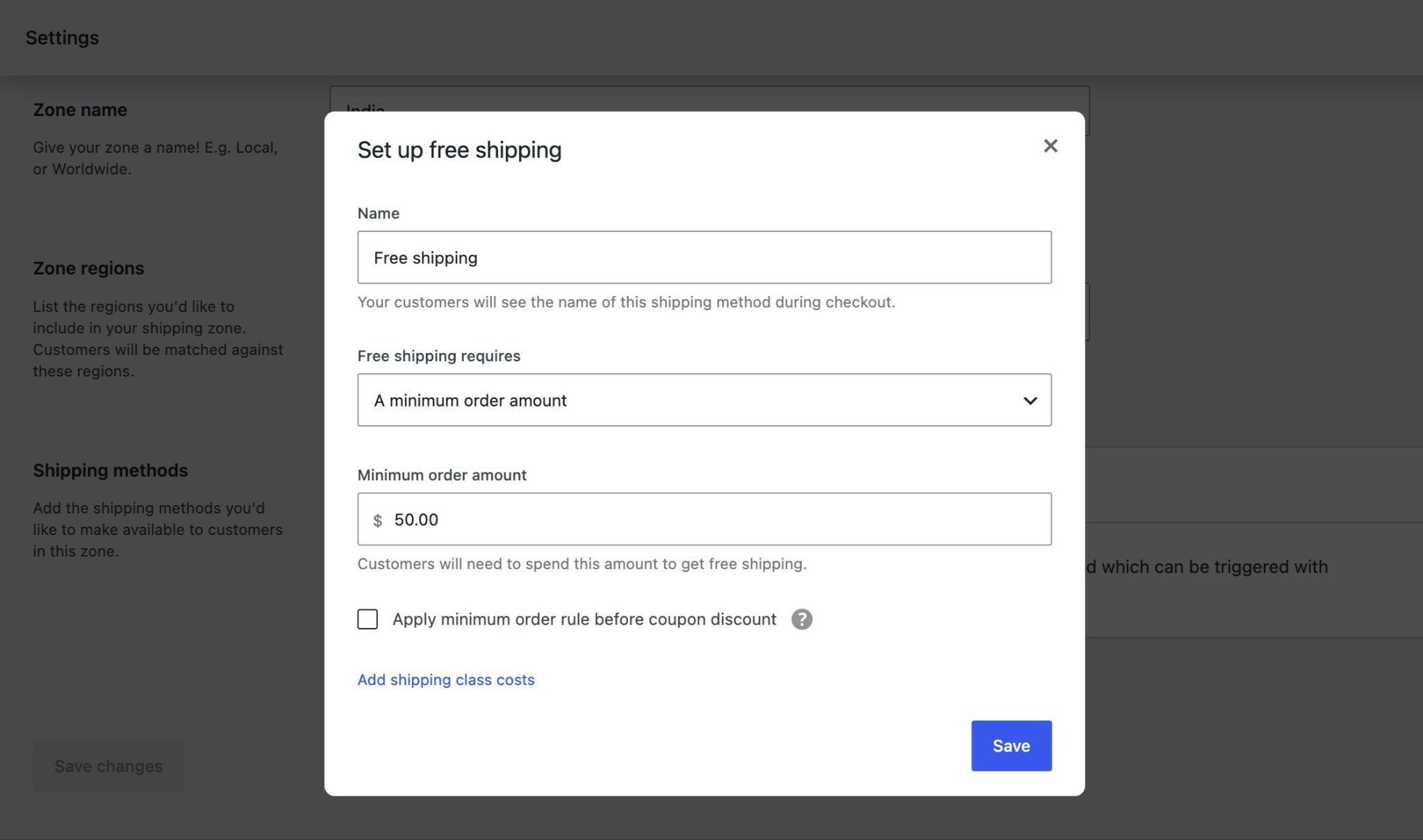
We’d check your zones while you’re in here. If free shipping applies only to one zone, shoppers outside it should not be shown a bar promising something they can’t qualify for.
We have a walkthrough on enabling free shipping in WooCommerce if you want the longer version.
Step 2: Install Modern Cart
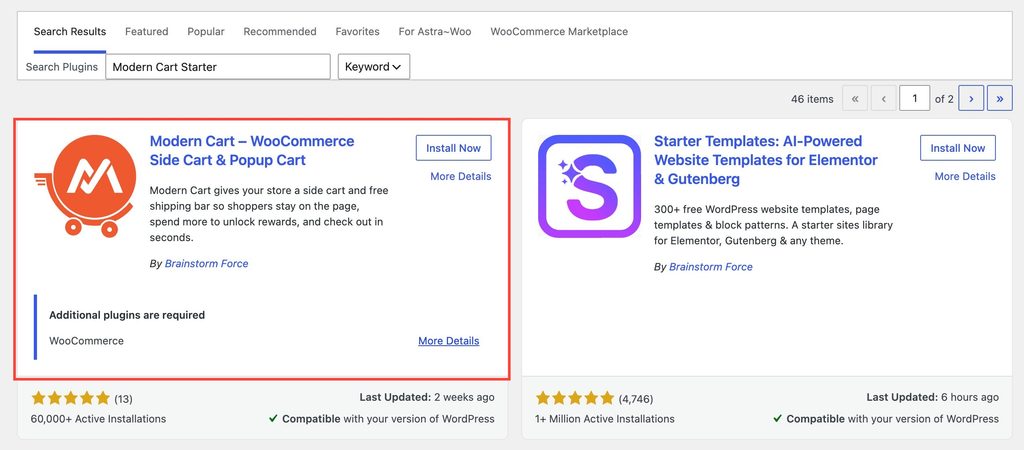
Modern Cart Starter is how the free version is listed. From your WordPress dashboard, go to Plugins > Add New, search for that name, then install and activate it. It’s also available on WordPress.org.
Step 3: Enable the Free Shipping Bar
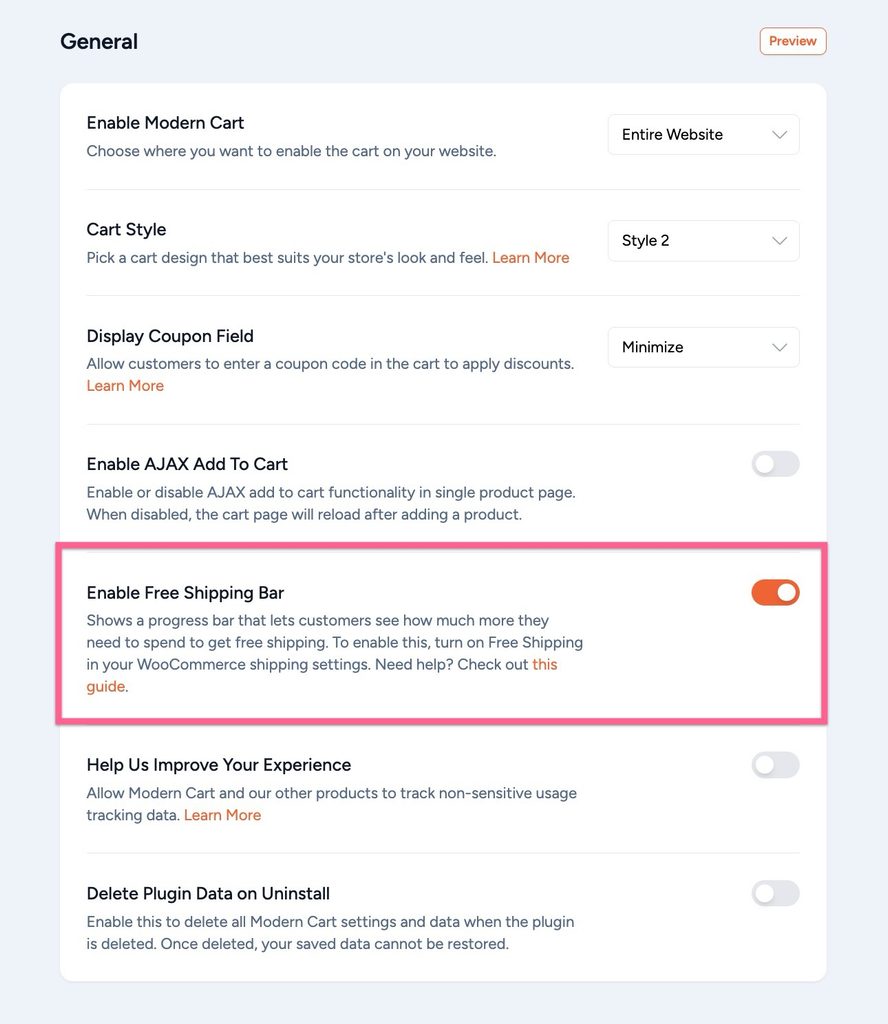
Go to WooCommerce > Modern Cart, click the General tab, and toggle on Enable Free Shipping Bar.
There’s no save button in the Modern Cart settings panel. Changes apply as you make them.
Step 4: Customize the Bar Text
Go to WooCommerce > Modern Cart and open the text settings tab. Two fields control what the bar says.
Free Shipping Bar Text is shown before the shopper qualifies. The default is “You’re {amount} away from free shipping!” The {amount} placeholder is replaced with the remaining amount, so keep it in whatever wording you write.
Free Shipping Success Text is shown once they qualify. The default is “Awesome pick! You’ve unlocked free shipping.”
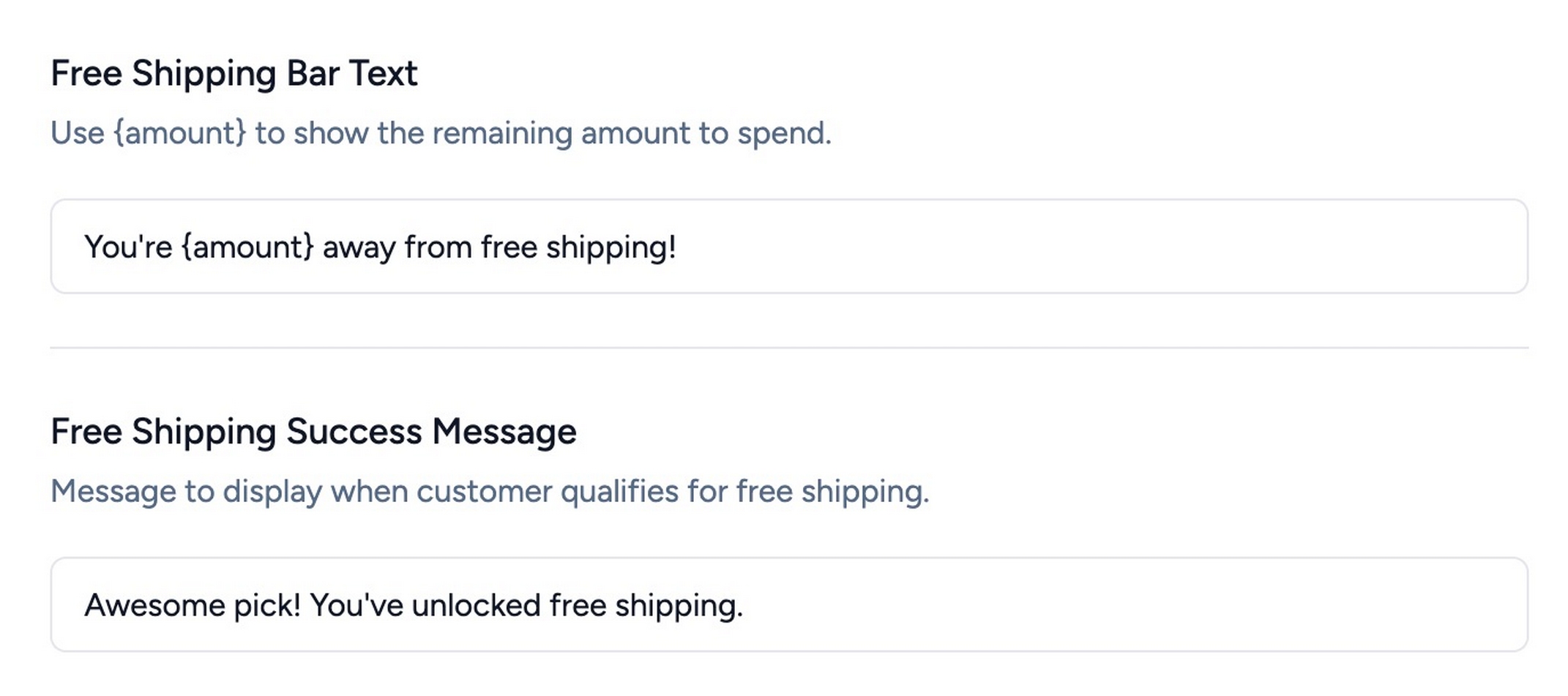
We’d suggest rewriting these in your store’s voice. The defaults are fine, and they also read like defaults.
Step 5: Test It With a Real Cart
Once enabled, the bar sits at the top of the cart, below the cart header, and updates as items go in or come out, with no page reload.
Add an item that puts you under the threshold and confirm the remaining amount is right. Add another that crosses it and confirm the success message replaces the progress state.
Then open your own store on a phone. The bar has to be readable at mobile width, where most of your traffic is.
If the bar doesn’t appear at all, the most common cause is a missing or misconfigured free shipping method rather than a plugin problem. The troubleshooting section below covers the rest.
The bar is free. The hard part is the number. Get Modern Cart free on WordPress.org → The free shipping progress bar is included in the free version, so you can follow everything below without buying anything.
Method 2: Build a Free Shipping Bar With Code
Skipping the plugin means hooking into WooCommerce’s cart output, comparing the cart subtotal against your threshold, and rendering the bar yourself.
Here’s a working starting point. Add it with a code snippets plugin, or to your child theme’s functions.php.
add_action( 'woocommerce_before_cart', 'cf_free_shipping_progress_bar' );
add_action( 'woocommerce_before_checkout_form', 'cf_free_shipping_progress_bar' );

  function cf_free_shipping_progress_bar() {

      $min_amount = 50; // Your free shipping threshold.

      if ( ! WC()->cart ) {
          return;
      }

      // Mirror how WooCommerce evaluates free shipping eligibility.
      $current = (float) WC()->cart->get_displayed_subtotal();
      $current -= (float) WC()->cart->get_discount_total();

      if ( WC()->cart->display_prices_including_tax() ) {
          $current -= (float) WC()->cart->get_discount_tax();
      }

      $current = round( $current, wc_get_price_decimals() );

      if ( $current >= $min_amount ) {
          echo '<p class="cf-shipping-msg">You have unlocked free shipping.</p>';
          return;
      }

      $remaining  = $min_amount - $current;
      $percentage = max( 0, ( $current / $min_amount ) * 100 );

      echo '<div class="cf-shipping-bar">';
      echo '<p>Add ' . wp_kses_post( wc_price( $remaining ) ) . ' more to get free shipping.</p>';
      echo '<div class="cf-bar-track"><div class="cf-bar-fill" style="width:' . esc_attr( $percentage ) . '%"></div></div>';
      echo '</div>';
}
Style .cf-bar-track and .cf-bar-fill in your theme CSS to make it look like a bar rather than an empty div.
Note the use of get_displayed_subtotal() rather than WC()->cart->subtotal. On tax-inclusive stores those return different numbers, and get_displayed_subtotal() is the one WooCommerce starts from. The snippet then subtracts coupon discounts, because that’s what WooCommerce does before checking the threshold.
Know what you’re taking on:
It doesn’t work with the Cart and Checkout Blocks. Those two hooks fire on the classic cart and checkout templates only. WooCommerce now uses block-based cart and checkout by default on new installs, and on a block-based store this snippet renders nothing at all. Check which your store uses before you spend time on this. Getting a bar into the blocks means writing a block or an extension, which is a considerably larger job than the snippet above.
The bar goes stale as the shopper uses the cart. Remove an item or apply a coupon and WooCommerce updates the cart in place, with no page reload. It refreshes its own cart table though, not the bar sitting above it. The shopper keeps seeing the old number until they reload, on the exact page the snippet was written for. A bar showing a stale number at the moment someone is looking at it is worse than no bar. Keeping the two in sync means writing JavaScript that re-renders the bar every time the cart changes.
It only renders on the classic cart and checkout pages. Getting it into a mini cart or a slide-out is a separate job again, and needs the right hook for your theme.
The threshold is hardcoded. Change it in WooCommerce and the bar keeps showing the old number until you edit the snippet too. Reading it dynamically from the shipping zone means querying the zone’s free shipping instance, which adds real complexity once you have more than one zone.
It lives in your theme. A theme switch or a site handoff loses it silently.
One more thing to check against your own settings. The snippet subtracts coupon discounts, which matches WooCommerce’s default behavior. If you have enabled “Apply minimum order rule before coupon discount” on your free shipping method, WooCommerce ignores discounts when deciding eligibility, and you should remove the two discount lines from the snippet so the bar agrees with it.
Code holds up for a fixed layout you plan to leave alone. For most stores, a toggle costs less time across the life of the store.
How to Calculate Your Free Shipping Threshold
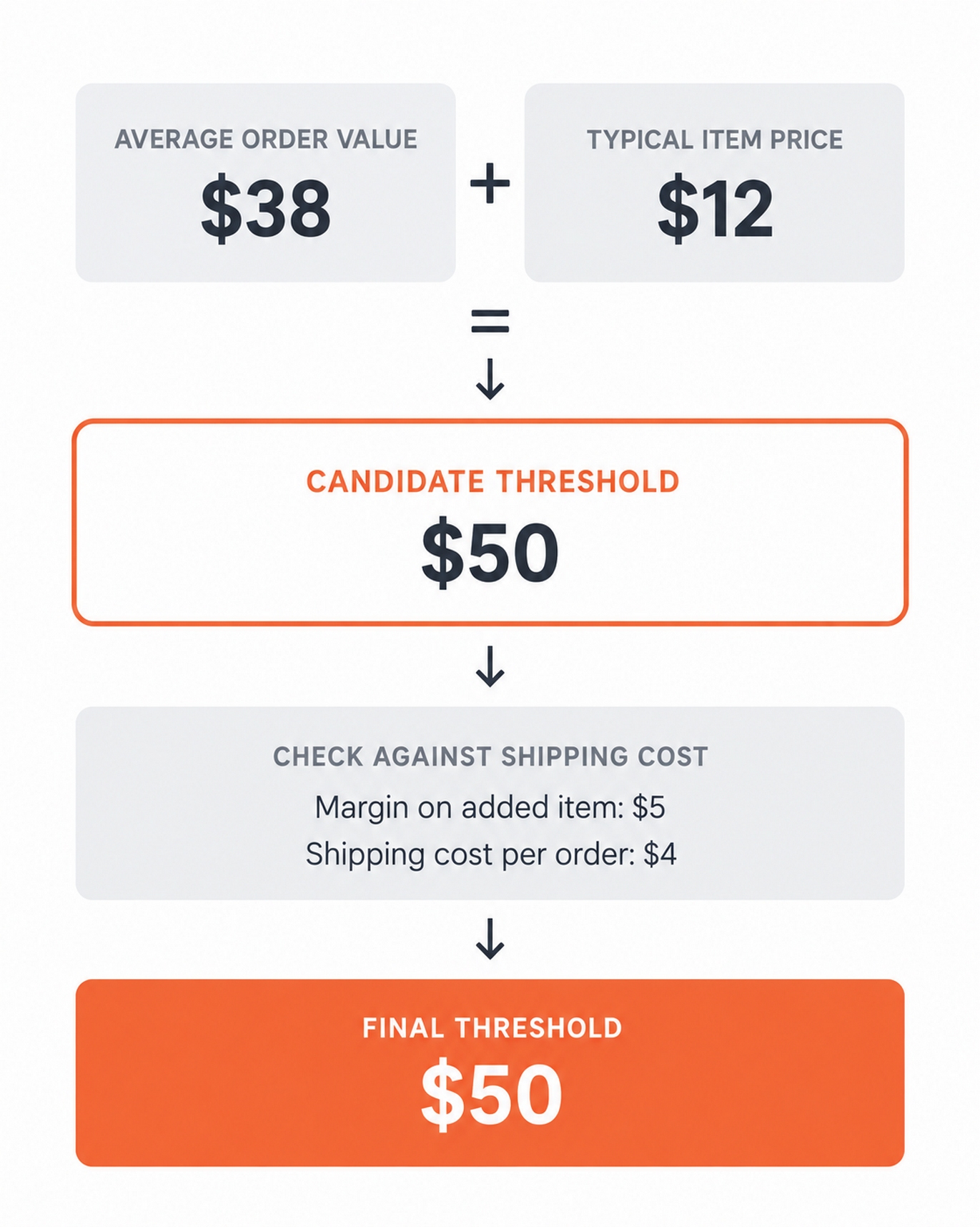
A free shipping threshold should sit above your average order value, close enough that adding one typical item closes the gap. To calculate it, take your current average order value, add the price of a common single product, then confirm the gross margin on that added item is larger than what you pay to ship the order.
Here’s how we’d work it out.
- Find your average order value. In WooCommerce, go to Analytics > Orders and read the average order value column. Pull at least 90 days so one busy month doesn’t skew it.
- Identify a typical single-item price. Not your cheapest product, not your most expensive. The price point people actually buy at.
- Add them together. That’s your candidate threshold.
- Work out your average shipping cost per order.
- Compare. If the gross margin on that one added item is larger than your shipping cost, the threshold works. If it’s smaller, you’re paying for the privilege of a bigger order.
| Average order value | Typical item price | Suggested threshold | Gap to close |
|---|---|---|---|
| $38 | $12 | $50 | $12 |
| $65 | $25 | $90 | $25 |
| $120 | $40 | $160 | $40 |
Here’s how that works for the first row.
Here’s where we see this go wrong:
The threshold sits at or below average order value. You give away shipping on orders that were already going to clear it. You absorb the cost and get no behavior change, because the shopper was spending that much regardless. This one is deceptive because the bar looks like it’s working. Plenty of shoppers hit the goal. They always would have.
The threshold sits far above average order value. A shopper with a $38 cart who needs $62 more reads the gap as someone else’s promotion and checks out without it. A bar nobody can reach is just a reminder that shipping costs money.
The threshold ignores shipping cost. Every successful nudge turns into a smaller profit. You move more units at a thinner margin. This failure hides the longest, because the metric you are watching goes up while the one that matters goes down.
If you want to model the margin side before committing, our discount calculator runs the same arithmetic for percentage-off offers and the logic transfers.
A free shipping threshold is one of several ways to move average order value, and it works best alongside the others rather than instead of them. An order bump adds a relevant item at checkout without asking the shopper to go find it. Knowing the difference between an upsell and a cross-sell helps you decide what to offer a shopper who is $12 short rather than guessing.
When to Revisit Your Threshold
Thresholds go stale quietly. You set one that matched your catalog, then you raise prices, add a product line, or move through a season where order sizes shift. The number that made sense in March is subsidizing shipping by October.
We’d check it quarterly, and after any of these, since each one moves either your average order value or the cost you’re absorbing:
- A carrier rate increase, which raises what free shipping costs you without changing what shoppers see
- Adding a premium product line, which pulls average order value up and can leave the threshold sitting below it
- Switching carriers or shipping services
- Any change to your own pricing
- A seasonal period where order composition shifts noticeably
In our experience a rate increase is the one most stores miss. Nothing in the store changes, no setting moves, and the threshold that was profitable last quarter is now underwater.
Five minutes, start to finish. Pull your current average order value, run it through the steps above, and confirm your threshold still sits roughly one item above it. If it doesn’t, change it in WooCommerce > Settings > Shipping, and the bar will pick up the new number on its own.
Free vs. Pro: What You Actually Need
Modern Cart Starter, the free version, includes the free shipping bar. Everything covered in this guide works without an upgrade.
For a current view of where the line falls, see the official Modern Cart free vs Pro comparison, which lists every setting side by side and stays current as the plugin changes.
Short version: Modern Cart Pro unlocks product recommendations, including recommendations on an empty cart, express checkout, advanced color controls, custom cart icon uploads, and desktop and mobile cart width controls. The slide-in cart, the free shipping bar, and the editable bar text are all in the free version.
For current pricing, see the Modern Cart pricing page. Modern Cart Pro is $99 for the first year, renewing at $149 per year, or $299 as a one-time lifetime purchase. Both cover up to 3 websites and carry a 14-day money-back guarantee.
One connection we’d make, since it follows directly from how the bar works. The bar tells a shopper they need $12 more. Choosing the item is still on them. That decision is the point where a lot of shoppers give up and check out at the lower amount instead. In-cart product recommendations answer the question the bar raises, which is why the two features tend to get used together once a store has been running the bar for a while. Recommendations are Pro. The bar isn’t, so there’s no reason to buy anything before you have seen whether the bar moves your numbers. If you want to see the Pro features working first, the demo store runs the full version.
A note for agencies: the 3-site limit applies to both the annual and the lifetime plan, so check it against your client count before buying.
Why Isn’t the Free Shipping Bar Showing?
No free shipping method is configured. This is the most common cause. The bar reads the threshold from WooCommerce, so if no free shipping method exists on the relevant zone with a minimum order amount, the bar won’t render even with the toggle on.
The customer is in a different shipping zone. Free shipping set up for one zone applies only there. Check which zone the test address falls into.
Page caching. Exclude cart and checkout pages from caching at both the plugin and host level, then retest in an incognito window.
The free shipping method requires a coupon. WooCommerce lets you gate free shipping behind a coupon instead of, or in addition to, a minimum spend. A coupon-gated method has no spend threshold for the bar to track.
A theme or plugin conflict. Cart-modifying plugins and heavily customized themes can suppress the cart tray output. Deactivate other plugins one at a time to isolate it, and see the Modern Cart common issues doc.
The bar shows but the number looks wrong. WooCommerce compares your threshold against the cart’s displayed subtotal, so whether tax counts depends on whether your store displays prices including tax. Coupons are a separate question, controlled by the “Apply minimum order rule before coupon discount” checkbox on the free shipping method. See the tax FAQ below for the full behavior.
Start by Checking Your Current Number
If you already have free shipping configured, pull your average order value and compare it to your threshold before doing anything else.
If the threshold sits below your average order value, you’re absorbing shipping on orders that were already clearing it. That’s worth fixing before you add a bar to advertise it.
If it sits above by roughly one typical item, turn the bar on and let shoppers see where they stand.
Then measure. We’d watch average order value for a few weeks before adjusting the threshold again. One change at a time is the only way to know which one worked.
Get Modern Cart free on WordPress.org → The free shipping progress bar is in the free version permanently.