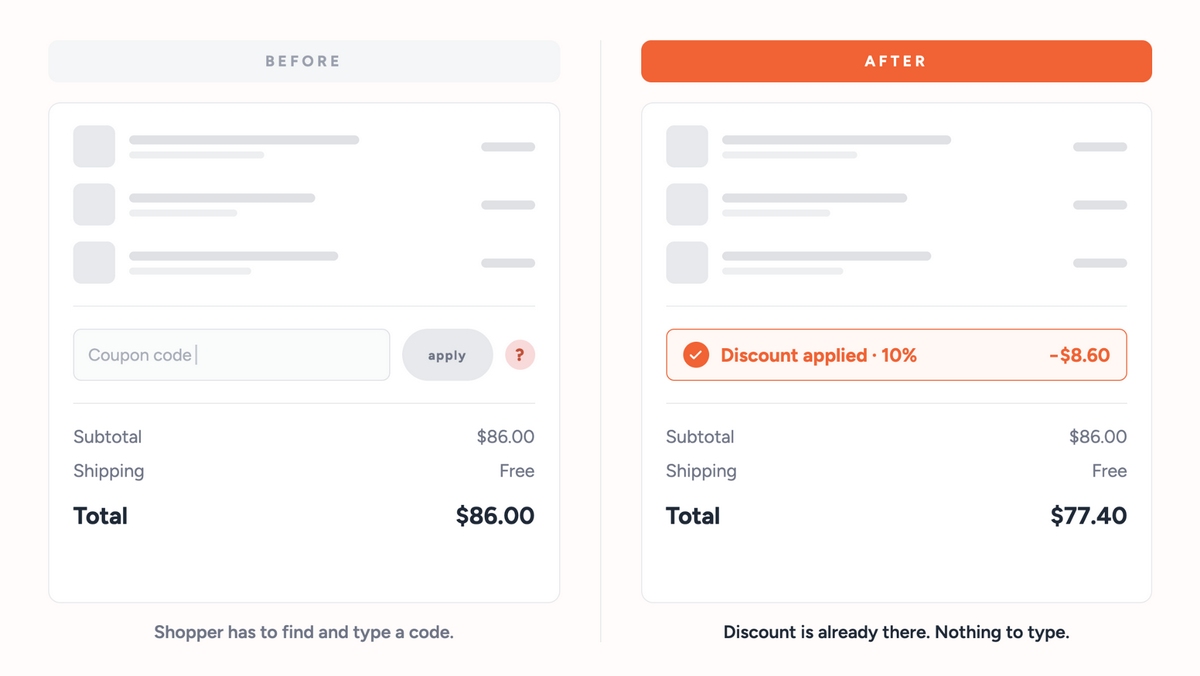
WooCommerce does not auto apply coupons on its own. Every time a shopper has to manually enter a coupon code, there’s a chance they leave without finishing checkout.
That’s where a lot of ready-to-buy shoppers quietly disappear.
Auto apply removes the entry step entirely. Once a cart matches the conditions you set, the discount lands on its own, with nothing for the shopper to remember or mistype.
That’s only half the job, though. The other half is discount stacking: combining more than one of four possible cart conditions, cart total, products, categories, and quantity, so the discount only applies when all of them are true at once.
Stacking is what keeps a promotion from paying out to every shopper who happens to qualify on one loose rule, including the ones who were buying anyway. That’s the part this guide spends the most time on, alongside the three setup methods below.
Three approaches get you there: a free plugin with a visual rules builder, a coupon URL for email and social links, and a code snippet for a single rule that will not change.
There’s a second problem worth solving alongside whichever you pick: making the discount specific enough that it doesn’t hand margin to shoppers who were buying anyway.
Most tutorials skip that part entirely, so it gets its own section below.
| Method | Setup effort | Free | Supports stacked conditions | Best for |
|---|---|---|---|---|
| Plugin (Method 1) | Low | Yes | Yes | Most stores, ongoing promotions |
| Coupon URL (Method 2) | Low | Yes | No | Email and social campaign links |
| Code snippet (Method 3) | High | Yes | Depends on the code | A single rule that won’t change |
Quick answer: To auto apply a coupon in WooCommerce (also called applying a coupon automatically, or setting up an automatic discount), install a coupon plugin that supports automatic application (Power Coupons is free), create a coupon, turn on its auto-apply setting, and define the conditions it should apply to, such as a minimum spend or a specific category. WooCommerce core has no built-in auto-apply setting, so this requires either a plugin or a custom code snippet tied to the cart.
What is an auto apply coupon in WooCommerce?
An auto apply coupon is a WooCommerce discount that activates on its own once a shopper’s cart meets a set of conditions, rather than waiting for the shopper to type a code in. Those conditions can be a single minimum cart total, or a combination like cart total, category, and quantity together.
“Auto apply” and “discount rules for WooCommerce” tend to get used as if they mean the same thing, but they answer two different questions. Auto apply handles how the discount reaches the cart. Discount rules decide who qualifies for it.
Most guides online only cover the first one.
Why can’t WooCommerce core auto apply coupons on its own?
WooCommerce ships with a working coupon management system: discount type, minimum spend, expiry date, and product or category restrictions, all configurable from Marketing > Coupons.
WooCommerce doesn’t apply any of that automatically. The customer still has to find a valid code and enter it themselves.
An empty coupon field is a common exit point in checkout. Some shoppers open a new tab to search for a code and never make it back.
You paid for that visit. The interface talked them out of finishing it.
Independent checkout research backs this up. The Baymard Institute’s checkout usability benchmark finds that a complicated or confusing checkout step is one of the most common, and most fixable, causes of cart abandonment. Our own cart and checkout abandonment statistics roundup tracks the same pattern across 65+ primary-sourced figures.
Rule logic runs into a similar ceiling. Core can manage a minimum spend or a product restriction, but it can’t express “only when the cart has three items, the subtotal is over $60, and one item is from Accessories.” That takes conditions stacked together, covered later in this guide.
If you are comparing tools before settling on one, see how Power Coupons stacks up in our WooCommerce coupon plugins comparison.
Method 1: Auto apply coupons with a free plugin (recommended)
Power Coupons is a free WooCommerce coupon plugin with over 30,000 active installations on WordPress.org. Auto apply and the full cart conditions engine both ship in the free version, with no code involved.
Step 1: Install the plugin
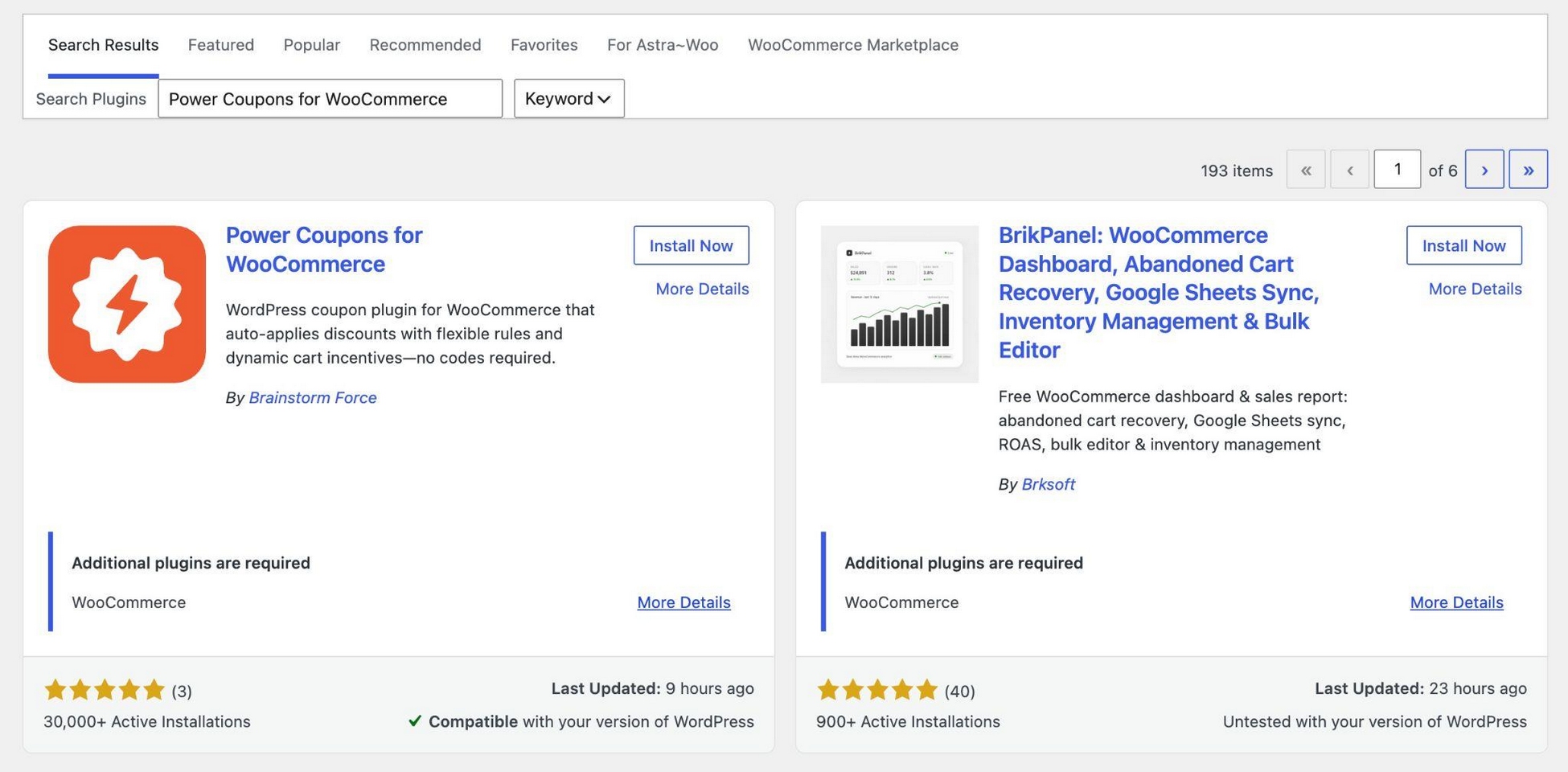
From your WordPress dashboard, go to Plugins > Add New, search for “Power Coupons for WooCommerce,” then install and activate it.
Step 2: Create a discount rule
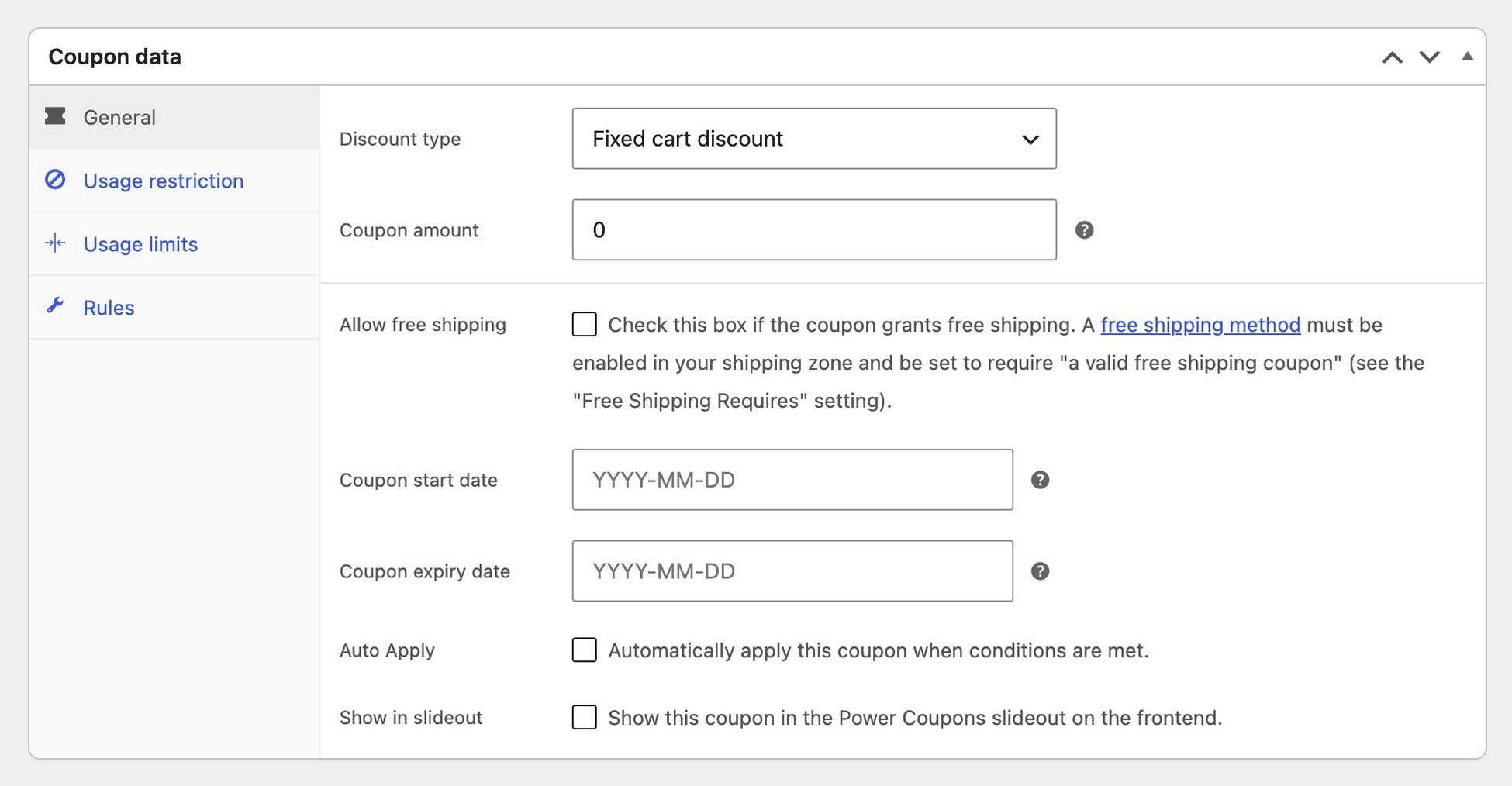
Go to WooCommerce > Coupons and create a new coupon. Name it something you’ll recognize later, like “10-off-accessories-3plus” rather than “coupon-4,” then set the discount type and value.
Step 3: Turn on auto apply
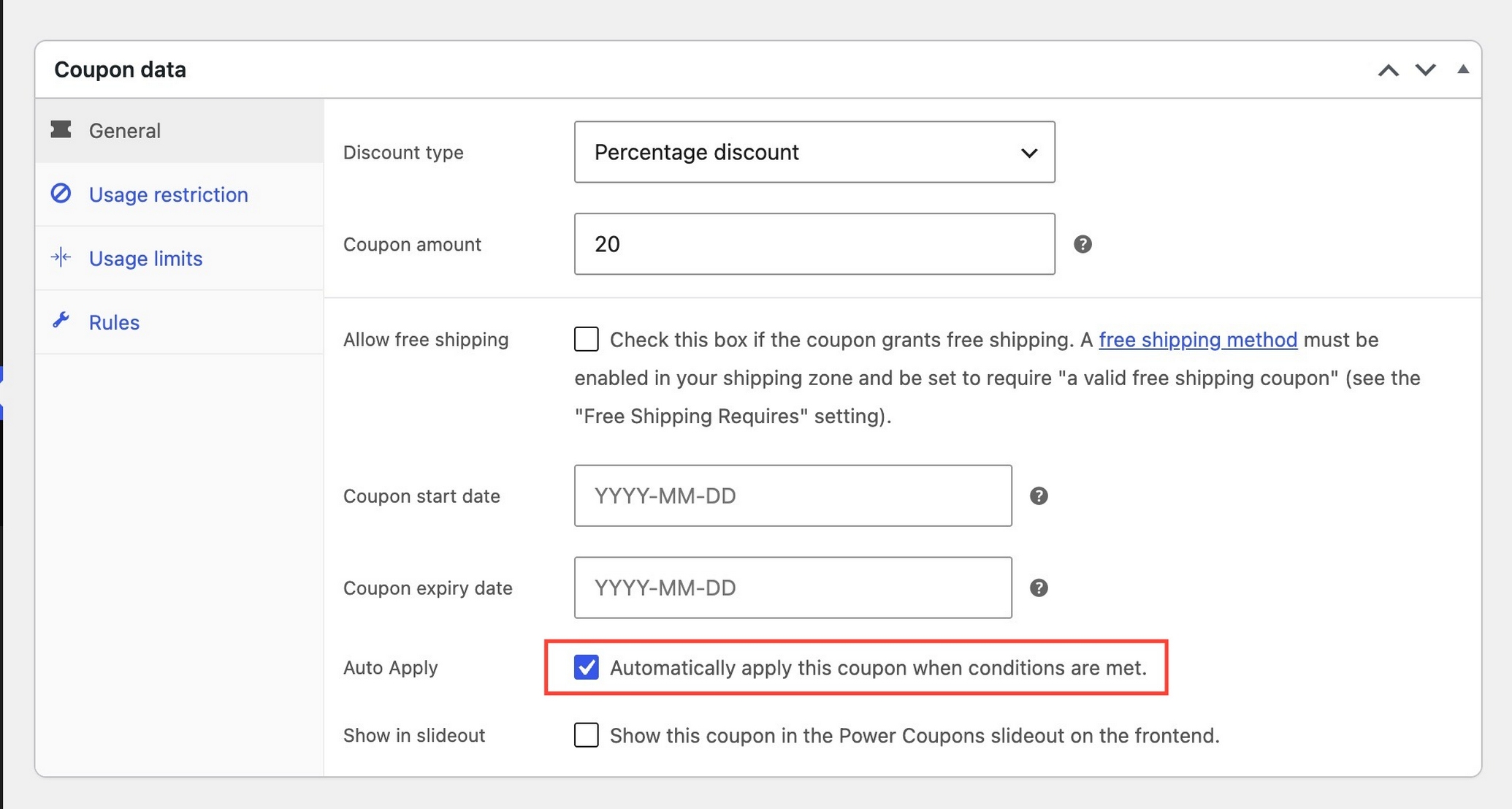
Inside that same coupon’s settings, enable the auto-apply option. Once it’s on, there’s nothing left for a qualifying shopper to type.
Step 4: Apply cart conditions
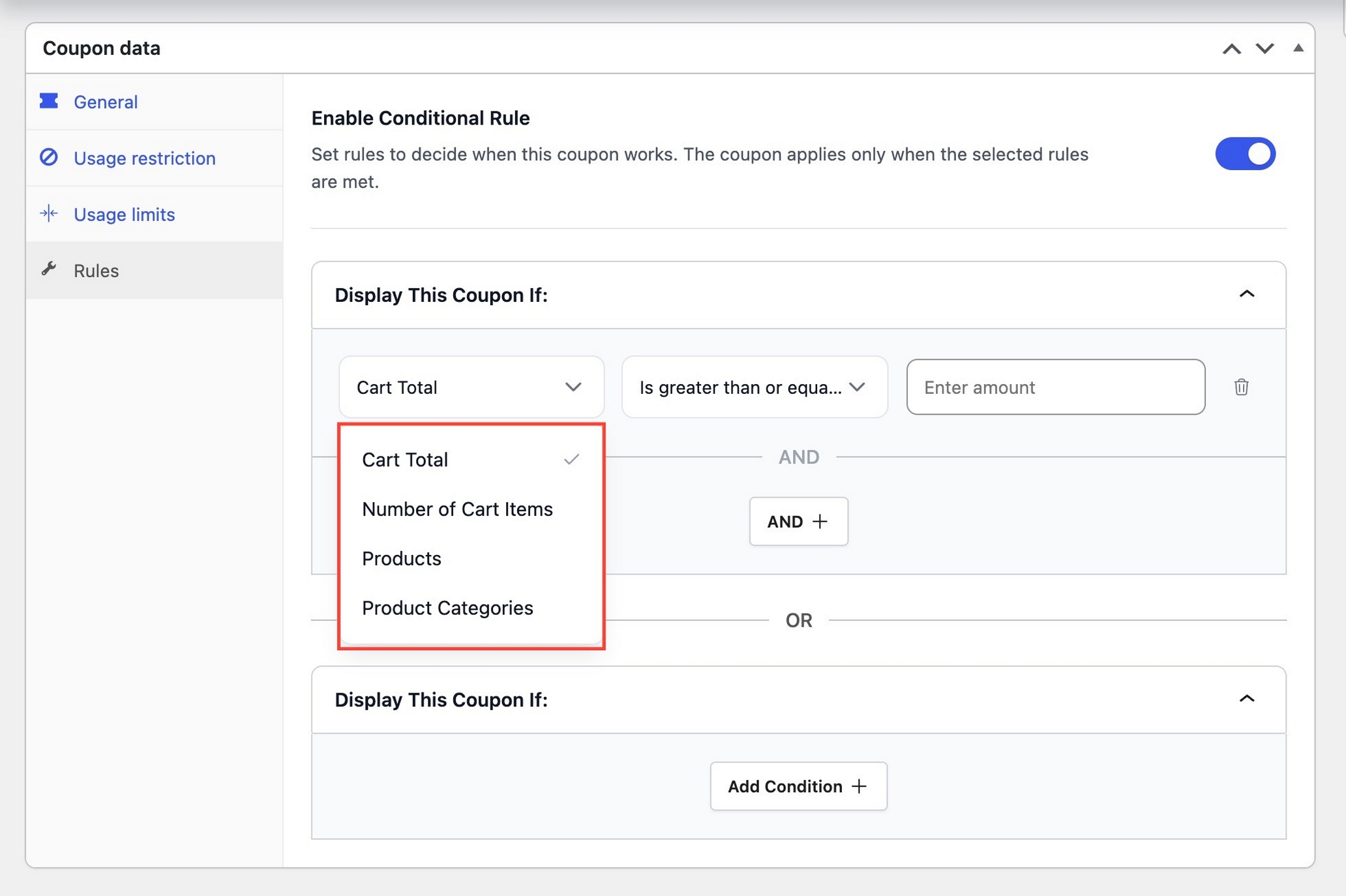
Still within the same rule, apply the condition or conditions it should check: cart subtotal, specific products, categories, or item quantity.
Stacking more than one is what turns a blanket discount into something that only reaches the carts worth rewarding. The next section walks through that with real examples.
Step 5: Test with a real cart
Create a cart that meets the conditions and confirm the discount applies. Then create one that doesn’t meet the conditions and confirm it doesn’t.
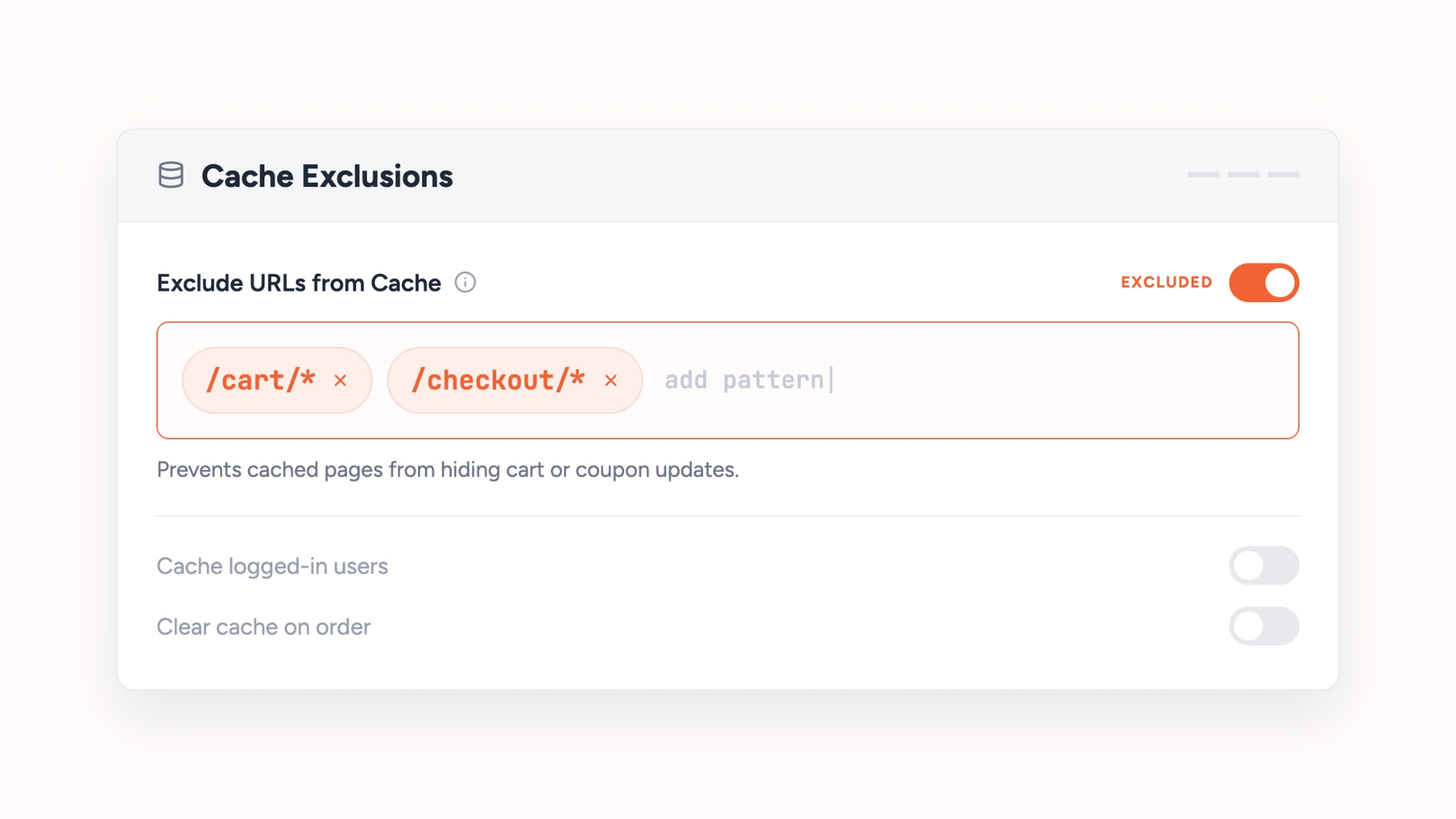
If a rule looks broken, it’s often just caching. The discount may be working correctly, but caching is preventing you from seeing the updated cart. Exclude cart and checkout pages from caching, then retest in an incognito window.
Test on a staging copy of the site if one is available, especially for a rule that will run during a high-traffic promotion. Catching a misconfigured condition before launch is cheaper than catching it mid-sale.
Ready to stop handing out full-price discounts to full-price shoppers?
Install Power Coupons free from WordPress.org → Auto apply and every condition below ship in the free version, so there’s nothing to unlock to follow the rest of this guide.
The four cart conditions Power Coupons can check
Power Coupons checks four things inside a cart before a coupon applies, and any of them can be combined with the others.
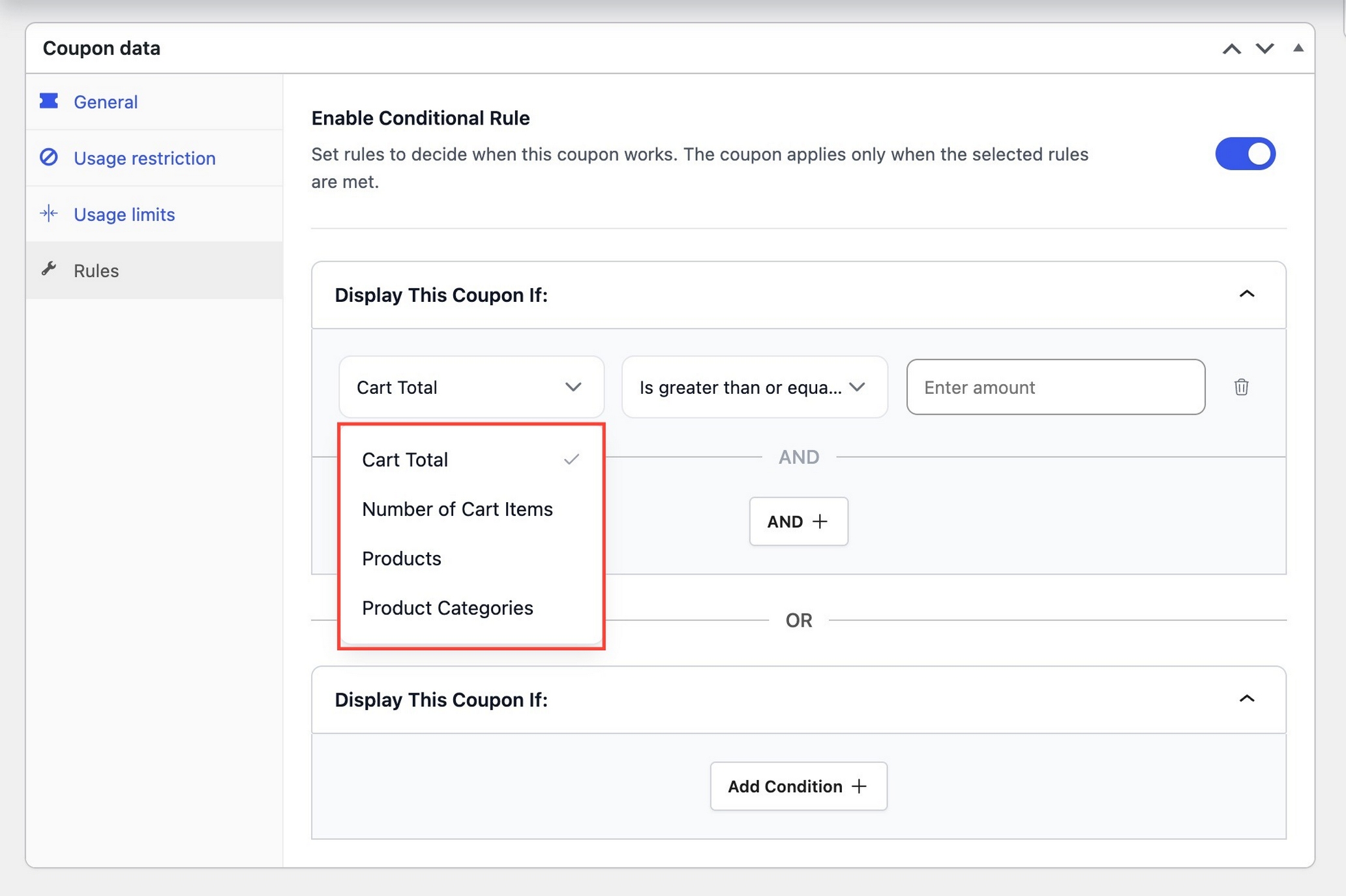
Cart total. Applies once the subtotal crosses a threshold you set. A shopper at $44 against a $50 threshold has a concrete reason to add one more item, which is why most stores reach for this condition first to lift average order value.
Number of cart items. Applies based on how many items are in the cart. The natural fit for buy-more-save-more offers and tiered discounts at 2, 5, or 10+ units.
Products. Applies only when a chosen product is in the cart. Good for moving particular inventory, or anchoring an offer to one hero product without discounting the rest of the catalog.
Product categories. Applies when the cart contains anything from a category you pick. Seasonal clearance is the obvious use. The flip side matters too: leave a category out of the rule and it stays protected.
Any rule can also exclude specific products or categories, so an item already on sale doesn’t get a second discount stacked on top of the first.
Stacking conditions: the part that actually protects margin
Most stores configure one condition and stop there. Cart total over $50, ten percent off, done.
It works, but it also discounts every shopper who crosses $50, including the ones who were already going to buy.
Stacking asks for more: every condition has to be true at once before the discount applies.
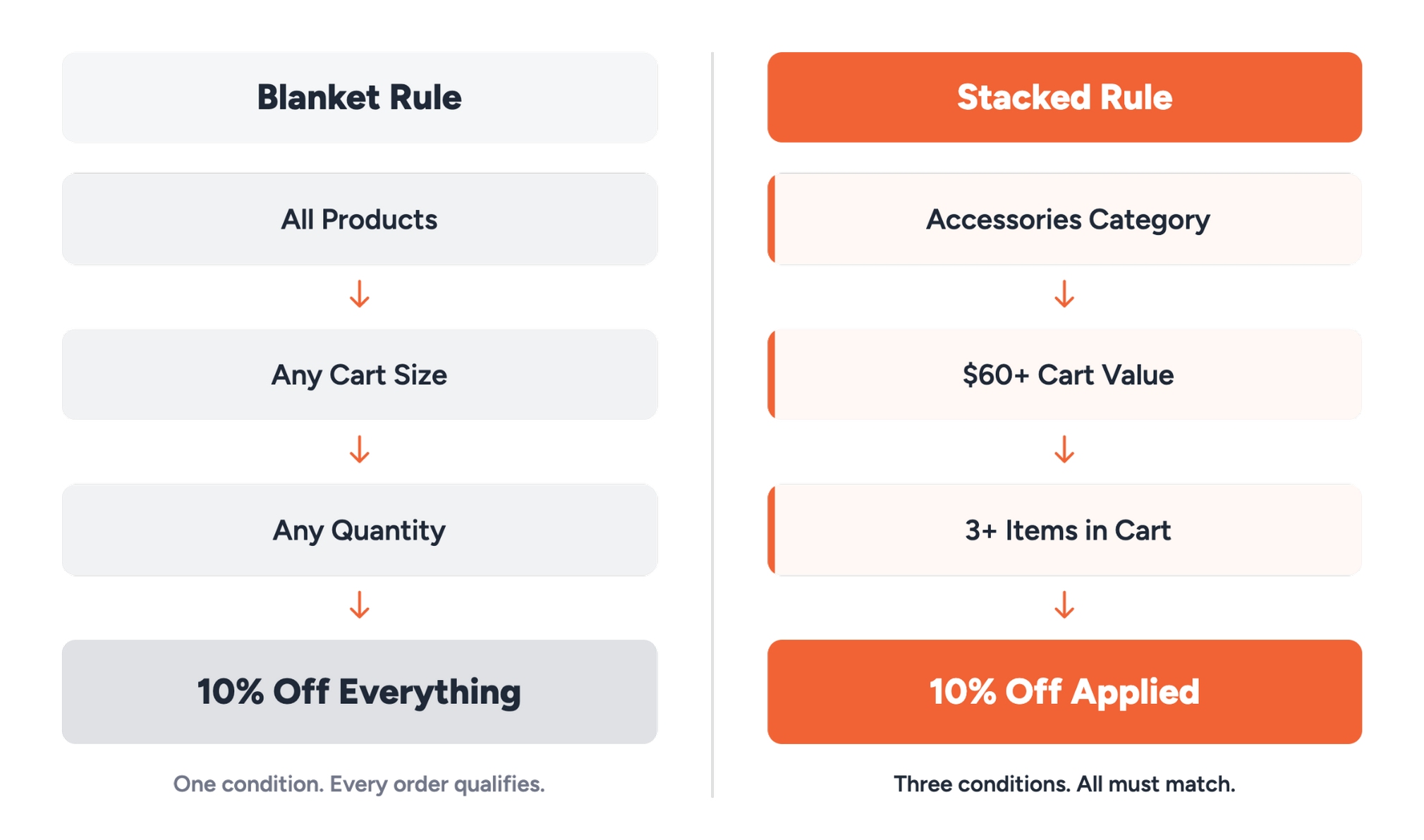
Blanket rule: 10% off everything.
Stacked rule: 10% off Accessories, on carts of $60 or more, with 3 or more items.
Both offer the same 10%, and that’s where the similarity ends. The blanket version pays out to any cart that crosses the line, whether that shopper needed the nudge or not.
The stacked version only reaches carts that are already large, multi-item, and in one specific category. That narrows the payout to shoppers actually on the fence.
Shoppers notice the difference too, even if they can’t name it. A flat 10% reads like a sitewide sale, easy to shrug off. A rule this specific reads like it was built for their cart.
Here’s the shape of it with illustrative numbers, not a real store’s data: on 1,000 orders, a blanket 10% discount pays out on every qualifying cart, full stop. The stacked version above only pays out on carts that already meet three conditions at once, so the same 10% rate reaches a smaller, more deliberate slice of orders. The rate never changes. The number of carts it applies to does. Run your own numbers with a discount calculator before picking a rate.
| Goal | Conditions to stack | What it does |
|---|---|---|
| Raise average order value | Cart total ≥ $75 + quantity ≥ 3 | Reaches only carts already trending large |
| Clear a category | Category = Summer + quantity ≥ 2 | Moves seasonal stock without touching core lines |
| Protect a bestseller’s margin | Cart total ≥ $60 + exclude bestseller category | Keeps your highest-margin items full price |
| Reward bundle behavior | Product A in cart + category = Accessories | Encourages the attach sale over the standalone one |
Two stacked conditions is a reasonable place to start. A third can work, but push past that and rules tend to get too narrow to qualify almost anything.
Method 2: Auto apply a coupon via URL
A coupon URL applies a discount the moment a shopper clicks a specific link, with no rules engine and no code entry at checkout. Email campaigns, social posts, and influencer links are the natural fit, since the discount ties to the click rather than the cart.
Setting one up starts the same way: create the coupon in Marketing > Coupons, then append it to your site URL in the format yourstore.com/?add-to-cart=123&coupon-code=YOURCODE. This is a native WooCommerce technique, so it works without Power Coupons or any other plugin.
One distinction worth flagging: if you’re using Power Coupons and want URL coupons built and managed inside that interface rather than by hand, that lives in Pro (added in Power Coupons Pro 1.0.4). The built-in version adds expiry dates, one-time-use links, UTM passthrough for tracking, and deep-linking straight to a specific product or page, plus a choice of where the shopper lands after the coupon applies.
WooCommerce’s own documentation covers the full URL coupon parameters if you want to build the link by hand.
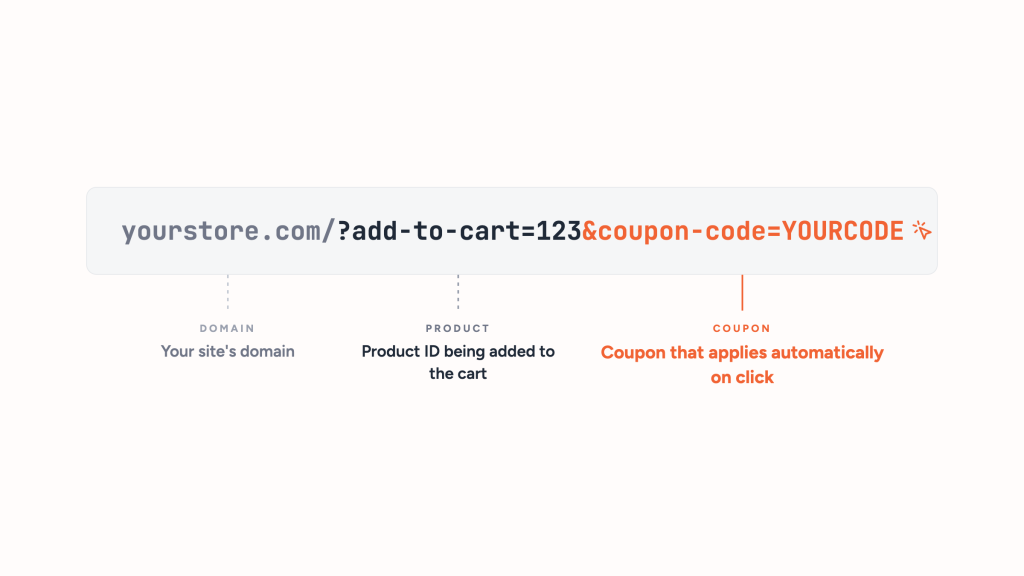
One limitation is worth knowing going in: a URL coupon reacts to the click, not the cart, so it can’t enforce something like “only if the cart has 3+ items.” Pair it with Method 1 for a link that’s both trackable and conditional.
Method 3: Auto apply a coupon with code
Skipping the plugin route entirely means hooking into WooCommerce’s cart calculation and calling its apply-coupon function whenever your condition is met.
The shape of it: create the coupon as usual in Marketing > Coupons, then add a snippet that checks the cart on every update and applies the code once conditions pass.
Removal logic matters just as much as the trigger. Without it, a cart that drops below the threshold keeps a discount it no longer earns.
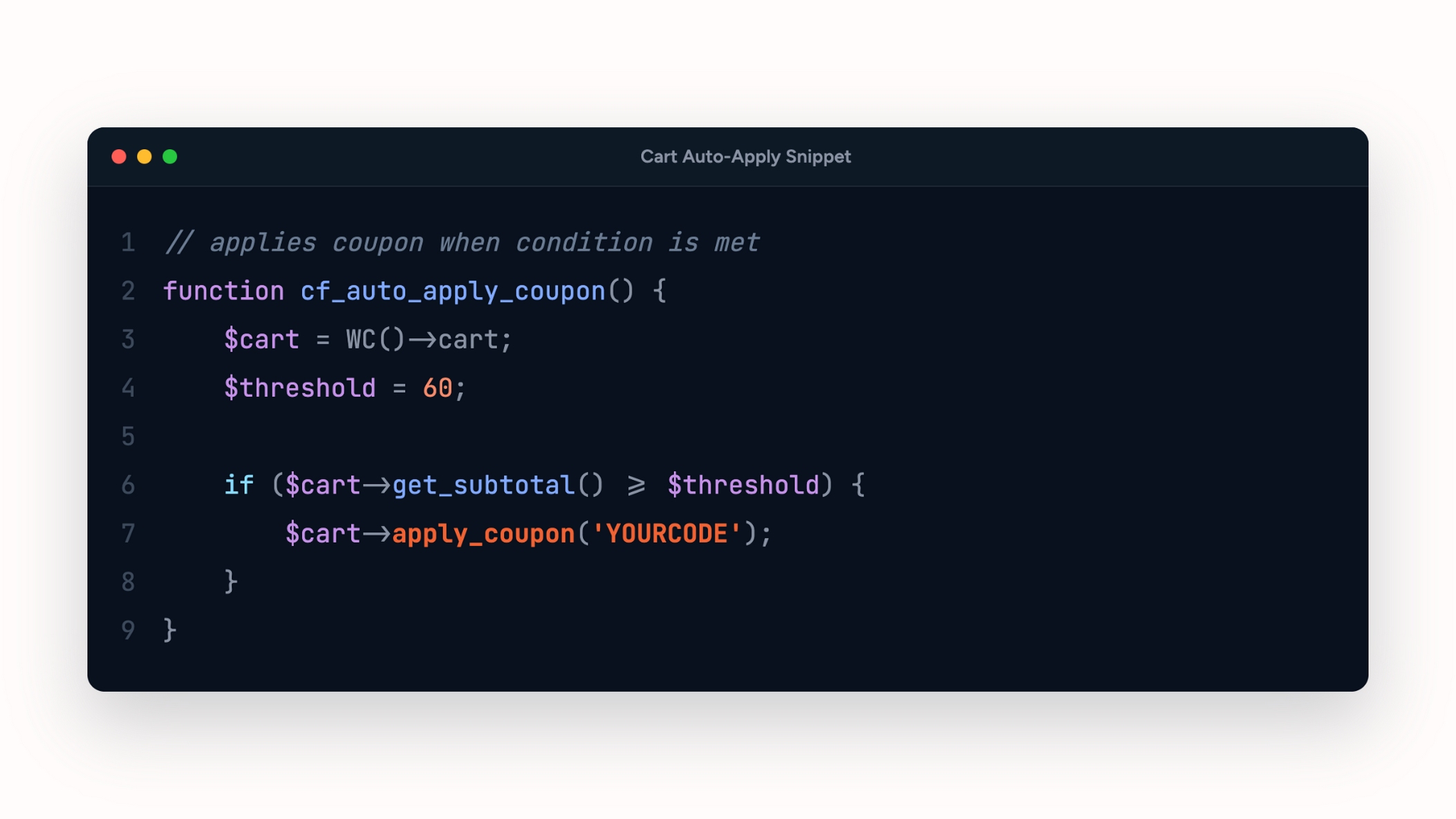
Two costs come with this route. Every applied condition means another block of code, so five active promotions can mean five snippets to keep straight.
A snippet in a child theme is also easy to lose track of during a theme switch or a handoff to whoever inherits the site.
Code holds up fine for a single rule that isn’t going anywhere. For anything seasonal or likely to change, a rules interface ends up costing less time across the life of the promotion.
| If you are… | Best method |
|---|---|
| Running a small store, no developer on hand | Method 1: free plugin |
| A marketing team launching multiple seasonal promotions | Method 1: free plugin |
| Sending discounted links via email or social | Method 2: coupon URL |
| A developer with one permanent rule to enforce | Method 3: code snippet |
Free vs. Pro: what you actually need
Everything covered above, auto apply and all four cart conditions, is in the free version of Power Coupons. Stacked conditional discounts don’t require an upgrade.
| Feature | Free | Pro |
|---|---|---|
| Auto-apply coupons | Yes | Yes |
| Cart total, product, category, quantity conditions | Yes | Yes |
| Stacking multiple conditions | Yes | Yes |
| Excluding products/categories | Yes | Yes |
| URL coupons (built-in) | No | Yes |
| BOGO offers | No | Yes |
| Loyalty rewards and store credit | No | Yes |
| Gift cards | No | Yes |
| Cart progress bar | No | Yes |
| Scheduled campaigns | No | Yes |
| Price | Free | $99/year $299 for lifetime |
If conditional auto-apply discounts are the whole goal, free is a complete answer. BOGO, loyalty, built-in URL coupons, and scheduling are why to look at the Power Coupons pricing page later, not now.
Worth noting if you’re comparing categories of plugins, not just specific products: some tools focus on dynamic or tiered pricing (different prices for different customer segments, shown before checkout). Power Coupons is built specifically around auto-apply and cart conditions, applied at checkout rather than on the product page. If cart-level, condition-based auto-apply is the whole goal, that’s a narrower and simpler tool to configure than a full pricing engine.
Why isn’t the discount applying?
Page caching. Exclude cart and checkout pages from caching at both the plugin and host level, then retest in an incognito window.
The cart genuinely doesn’t qualify. Every stacked condition has to be true at once, and it’s easy to build a rule stricter than intended. Check each condition on its own before assuming the plugin is at fault.
An excluded product or category is in play. A cart made entirely of excluded items won’t trigger a rule that’s supposed to leave them out.
Another discount already applied. WooCommerce doesn’t always layer a second discount onto a cart that already has one active. Test with a single active rule to see which one is winning.
A usage limit has been hit. Per-user or total usage caps will block an otherwise valid rule silently once the limit is reached.
A theme or another plugin is interfering. Checkout customizer themes and other cart-modifying plugins can override how discounts render. Temporarily disable other active plugins one at a time to isolate the conflict.
Start with one rule
Take a promotion you’re already running and apply one additional condition to it beyond the obvious cart total. Watch which carts start qualifying, and which ones drop out.
That’s the whole shift. Most stores never get past one blanket rule for the life of the store.
The ones that apply a second condition stop discounting shoppers who needed no convincing. They start reserving margin for the carts where it actually moves the sale.
Measure the effect on conversions and average order value before applying a third condition. The goal isn’t more discounted orders. It’s discounts that land on the carts they can actually influence.
Get Power Coupons free on WordPress.org → No credit card, no trial clock. Auto apply and every condition in this guide are in the free plan permanently.
Frequently asked questions
Related reading: