Running a BOGO campaign in WooCommerce without a third-party plugin is harder than it should be. Setting up loyalty rewards is harder still.
Power Coupons Pro changes both.
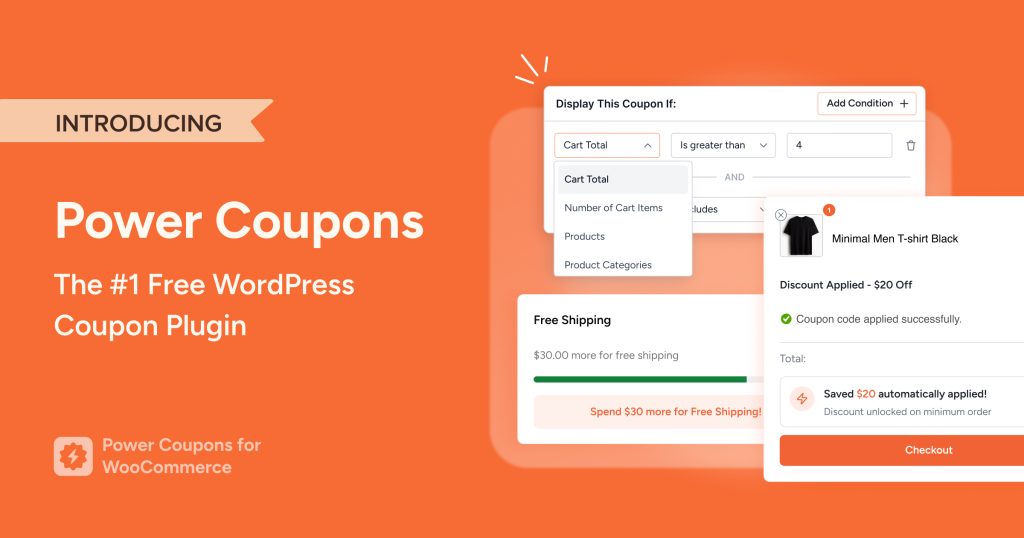
We launched Power Coupons earlier this year as a free WooCommerce coupon plugin to eliminate checkout friction, auto-apply discounts, rule-based cart conditions and in-cart offer visibility without extra plugins or manual coupon codes.
Thousands of stores are already using it.
Today, Pro is live.
Pro brings the features store owners have been asking for most: BOGO offers, loyalty rewards, cart progress bars and offer scheduling, all in the same clean interface you already know.
Here’s what’s new and how to get started.
What’s New in Power Coupons Pro
Power Coupons Pro v1.0.0 ships with seven new capabilities built specifically for stores that need more than basic discount rules.
1. BOGO Offers
Most WooCommerce stores skip BOGO campaigns entirely because setting them up requires a separate coupon plugin.
Pro builds six BOGO formats directly into the same interface you already use for your standard coupons:
- Buy X Get X Free: Classic BOGO, buy one item and get the same item free
- Buy X Get Y Free: Buy one product, get a different product free
- Buy X Get Y at X% Off: Reward with a discounted item instead of a free one
- Spend $X Get Y for Free: Unlock a free product once the cart hits a spend threshold
- Spend $X Get Y at X% Off: Same spend trigger, discounted reward instead of free
- Spend $X Get Free Shipping: Convert a spend milestone into a shipping reward
You can set BOGO offers to auto-apply when conditions are met, or require a coupon code.
Variable product support lets customers choose their size or color directly on the cart page when claiming a free gift.
2. Cart Progress Bar
When a shopper is $7 away from a free gift and has no idea, they check out at $43. When they can see the gap, they add another item.
The cart progress bar displays a visual indicator on the cart page for spend-based offers, with fully customizable messages and icons, turning a missed upsell opportunity into a completed one.
3. Loyalty Rewards
Every store runs promotions to acquire customers. Fewer have a plan to bring them back.
Pro’s loyalty rewards system lets customers earn store credits for purchases and engagement, redeemable against future orders.
A customer redeeming store credits has a reason to return that has nothing to do with your next email campaign.
Earning and redemption rules are fully configurable from a dedicated settings panel.
4. Offer Templates and Scheduling
Building every BOGO campaign from scratch takes time most store owners don’t have.
Pro ships with ready-made templates so you can launch campaigns in minutes rather than hours.
Pair that with start and end date scheduling and your flash sales, holiday deals and clearance events run and close automatically, no manual intervention needed.
5. Smart Product Targeting
A sitewide BOGO sounds generous until you realize it’s applying to your highest-margin products.
Pro’s smart targeting lets you control exactly which products customers need to buy and which they receive as rewards, so you can run clearance campaigns on specific SKUs without touching the rest of your catalog.
6. Offer Management Dashboard
All Pro offers live in a dedicated BOGO dashboard where you can create, edit, clone, preview and delete offers.
Toggle offers active or inactive, search across campaigns and set usage limits, without having to dig through WooCommerce settings.
Power Coupons Free vs. Pro
We wanted the free version to be a complete tool for most stores, not a limited trial. So, we made almost every essential feature available in the free plan.
| Feature | Power Coupons Free | Power Coupons Pro |
|---|---|---|
| Auto-apply discounts | ✅ | ✅ |
| Cart subtotal rules | ✅ | ✅ |
| Product and category rules | ✅ | ✅ |
| Quantity-based rules | ✅ | ✅ |
| Sale item exclusions | ✅ | ✅ |
| In-cart offer visibility (slideout) | ✅ | ✅ |
| Hide individual coupons from slideout | ✅ | ✅ |
| BOGO offers (6 types) | ❌ | ✅ |
| Cart progress bar | ❌ | ✅ |
| Loyalty rewards (store credits) | ❌ | ✅ |
| Offer templates | ❌ | ✅ |
| Offer scheduling | ❌ | ✅ |
| Smart product targeting | ❌ | ✅ |
| Variable product support for rewards | ❌ | ✅ |
| Advanced coupon analytics | ❌ | Coming Soon |
| Sites supported | 1 site | 10 (Annual) / 30 (Lifetime) |
| Support | Community | Priority |
Who Should Stay on Free?
If you run standard percentage or fixed discounts, need minimum spend rules to increase order value, or want to automate coupons for all users without complex targeting, the free version covers everything you need.
There are no limits on the number of coupons you can create.
Who Should Upgrade to Pro?
Pro is the right move if you want to run BOGO campaigns, reward returning customers with store credits, motivate shoppers with a cart progress bar, or manage multiple time-sensitive offers with templates and scheduling.
It’s also the better fit for agencies managing more than one store.
Where Power Coupons Pro Works Best
Not every store needs every feature. Here’s how to match Pro’s capabilities to your specific goal:
- Increase average order value: Set up a cart progress bar with a spend-based reward. Shoppers who can see they’re $8 away from a free product spend more to get there.
- Clear slow-moving inventory: Run a targeted BOGO offer on specific SKUs. You control exactly which products trigger the deal and which are given as rewards, so your best-margin items stay untouched.
- Retain customers after the first purchase: Enable loyalty rewards so every order earns store credits. Customers with credits have a concrete reason to come back that doesn’t depend on your next promotion.
- Run seasonal and time-sensitive campaigns: Use offer scheduling to set start and end dates. Your Black Friday campaign goes live and closes automatically, with no manual toggling needed.
How To Get Power Coupons
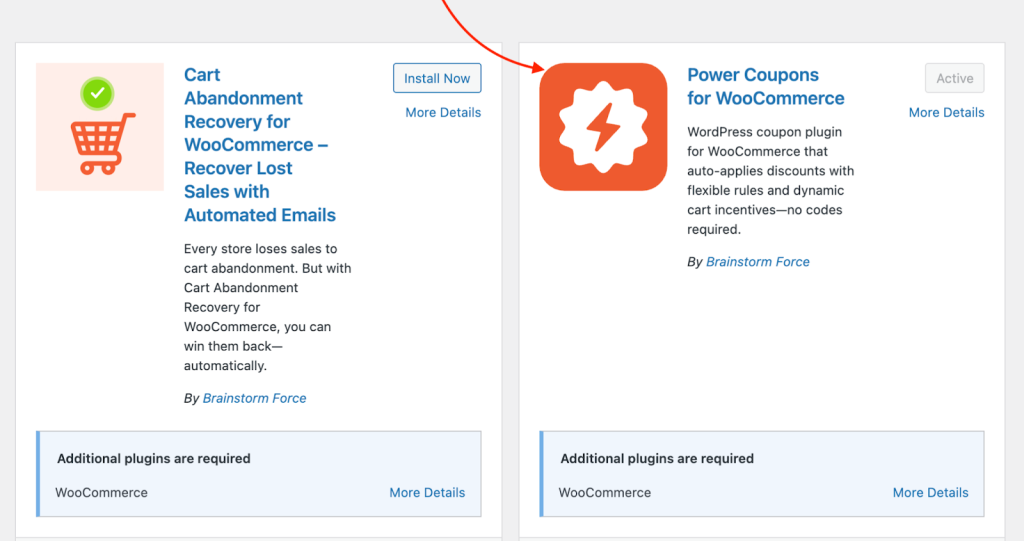
Free version: Go to Plugins > Add New in your WordPress dashboard, search for “Power Coupons for WooCommerce” and install the plugin by Brainstorm Force.
You can also download it directly from the WordPress Plugin Repository.
Pro version: Visit the Power Coupons pricing page. Annual and lifetime plans are both available. Power Coupons Pro starts at $59/year (special launch price).
How To Set Up Your First Promotion
The free version is the foundation everything else builds on.
Here’s how to set up your first promotion in under two minutes.
Step 1: Create Your Coupon
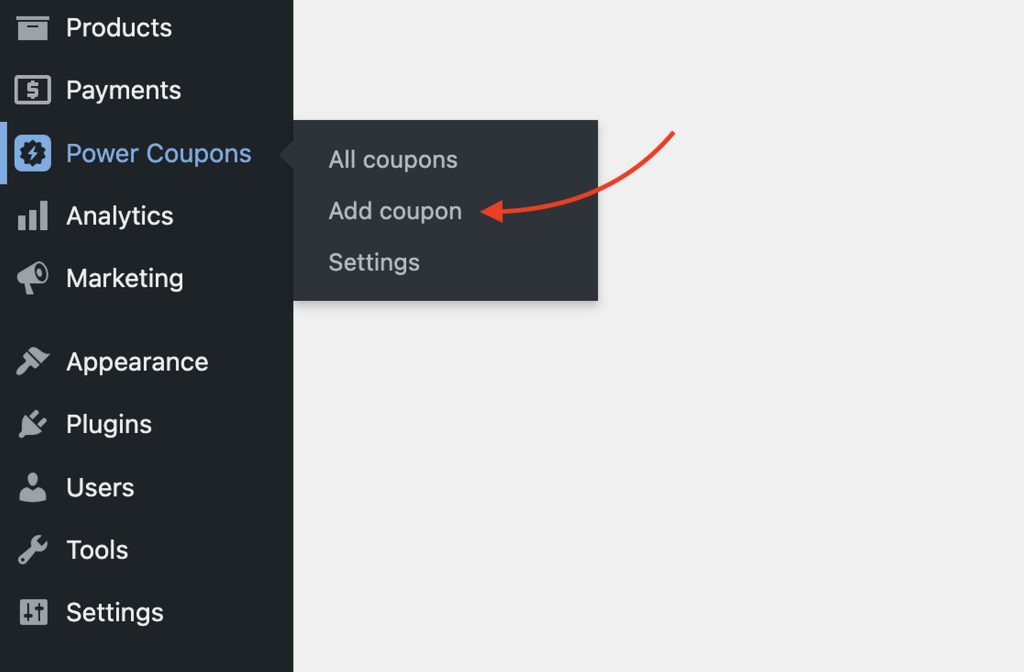
Go to Power Coupons > Add coupon in your WordPress dashboard.
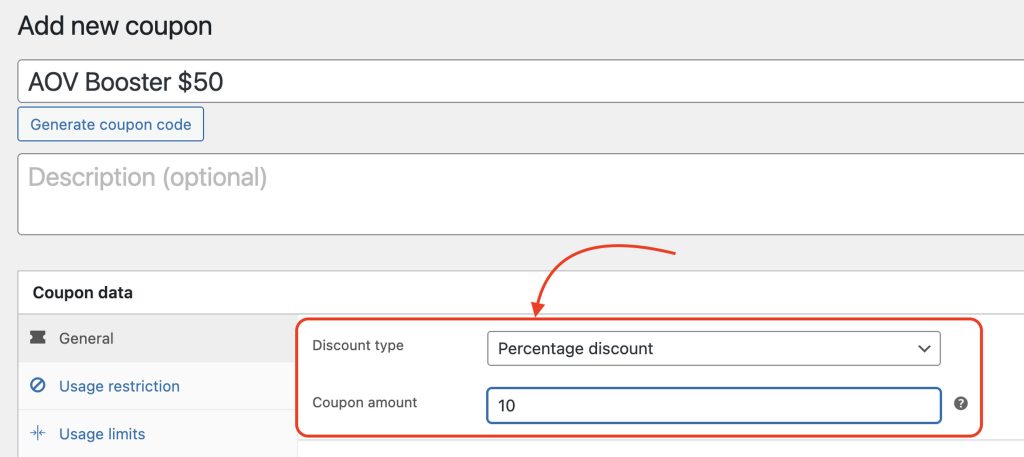
Set the basic details:
- Coupon Name: Internal reference (e.g., “AOV Booster $50”)
- Discount Type: Percentage discount
- Amount: 10
Step 2: Enable Auto-Apply
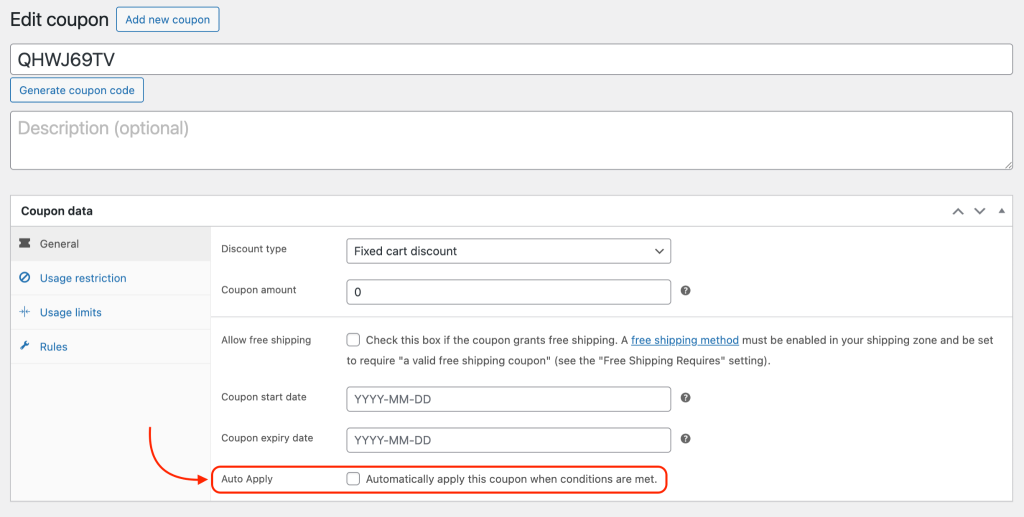
Scroll down to the Settings section and toggle Auto-Apply This Coupon to the ON position. This ensures the customer doesn’t have to remember a code.
Step 3: Add Cart Condition
Switch to the Rules tab and enable conditional rules.
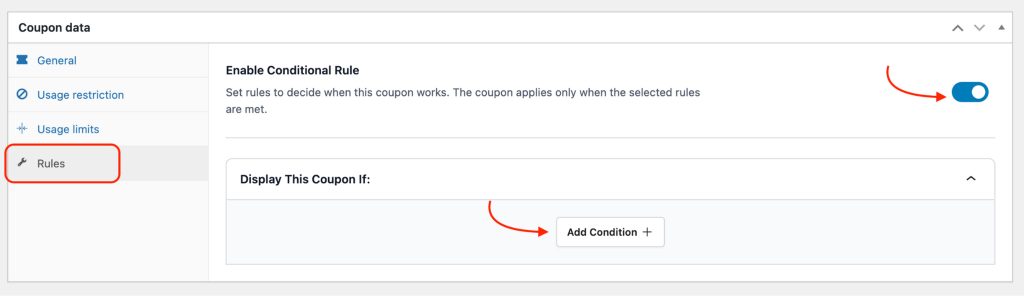
Click Add Condition and select Cart Total, set the operator to Greater than or equal to, and enter 50.
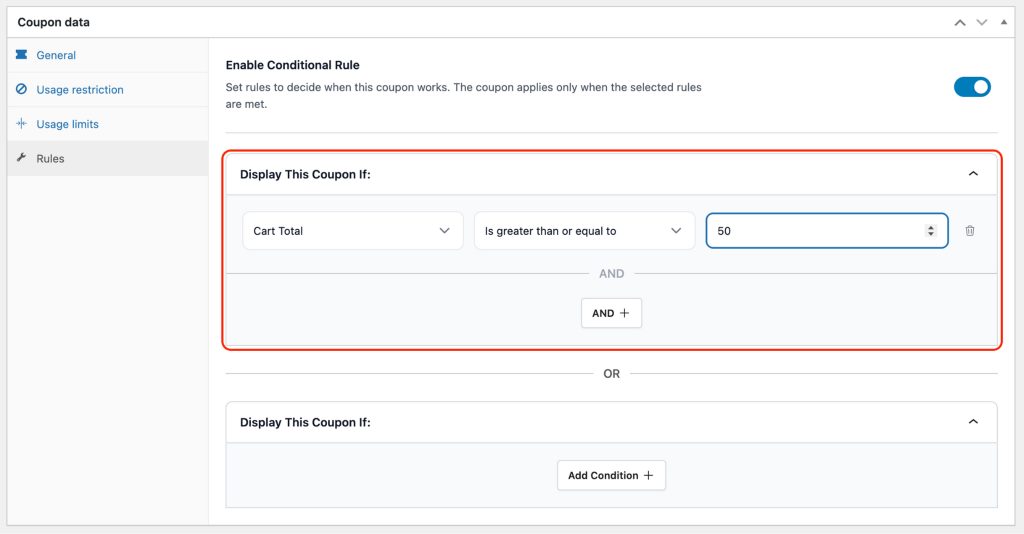
This tells Power Coupons “Only apply a 10% discount when the cart reaches $50 or more.”
Step 4: Configure Where The Coupon is Displayed
Go to Power Coupons > Settings from the WordPress sidebar. This takes you to the main settings panel where you can configure exactly where and when coupons appear and how they work.
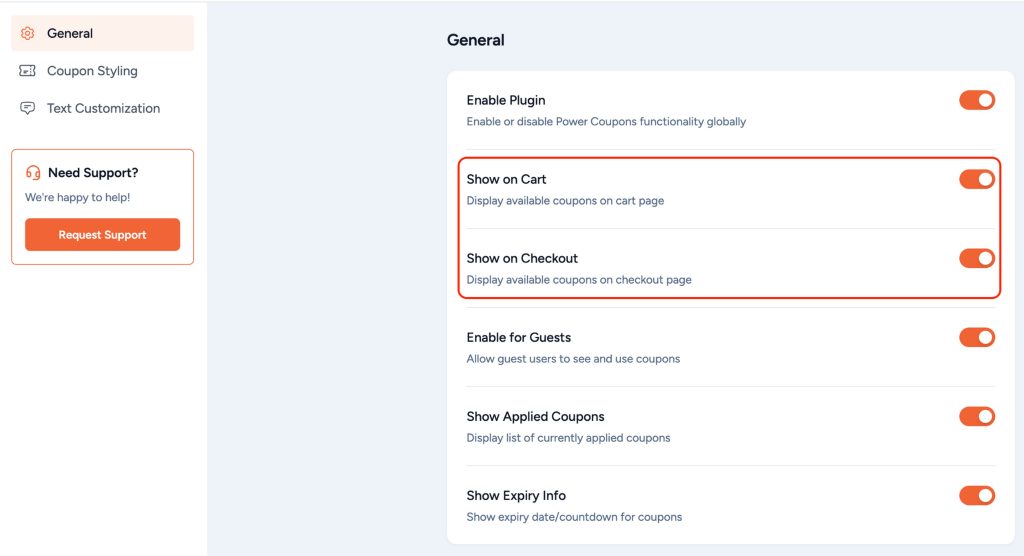
That’s it. Your first automated promotion is live!
What the Free Version Includes
The free version gives you auto-apply discounts, cart conditions (subtotal, product, category and quantity rules), sale item exclusions and in-cart offer visibility via a slideout panel.
It covers everything most stores need to run promotions without coupon code friction.
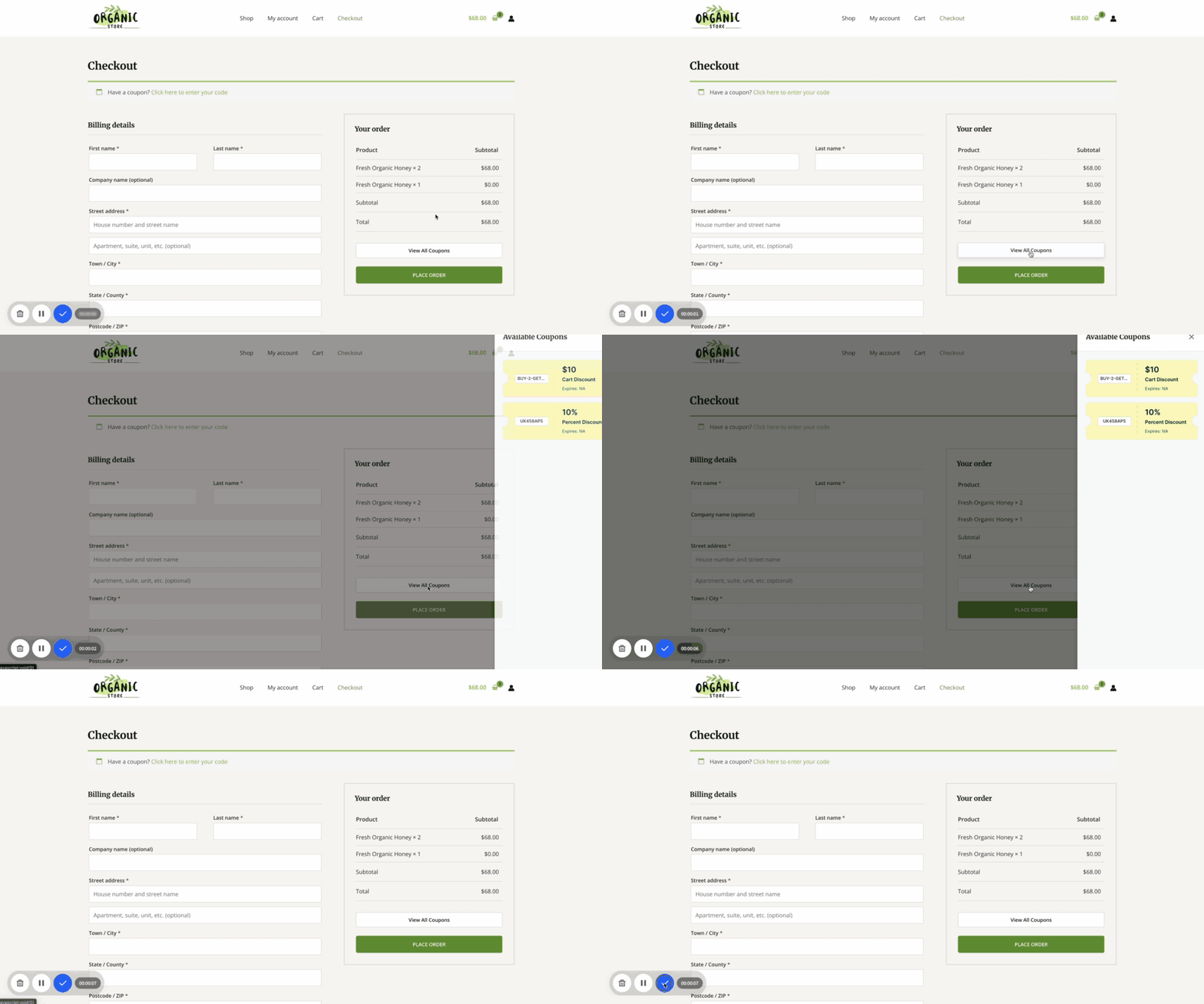
Start with the free version, see it work in your store and upgrade when you’re ready for BOGO and loyalty rewards.
Most stores move to Pro within the first month.
Ready to Take It Further With Power Coupons Pro?
High-converting stores don’t leave discounts to chance.
They:
- Remove friction before it costs them the sale.
- Reward customers before a competitor does.
- Run promotions that update automatically, with no manual codes, no guessing, and no abandoned carts from a checkout experience that felt harder than it should.
Power Coupons started as a free WooCommerce coupon plugin to provide all those features.
Pro gives you the tools to go further, with BOGO campaigns, loyalty rewards, cart progress bars and scheduling that runs without you.
The free version isn’t going anywhere, but if you’re ready to run promotions that actually move average order value and bring customers back, Pro is built for that.
Power Coupons Pro is available now at a special launch price.
$59/year or $199 for lifetime access. 14-day money-back guarantee. No questions asked.
Already on the free version? Keep using it as-is. When you’re ready to unlock BOGO offers and loyalty rewards, upgrading takes under a minute.
Download the free version from WordPress.org